The best Mac screen recorder + editor depends on the job: Screen Studio for recording polish, Descript for transcript editing, OpusClip for auto-clipping, CleanShot X for screenshots, and Loom or Tella for hosted sharing — while Zella covers recording plus full AI editing in one local, one-time-price app.
If you search "best screen recorder for Mac," you'll find a dozen tools that all sound identical. They're not. They're built for genuinely different jobs, and picking the wrong one means either overpaying for features you'll never touch or stitching three apps together to do what should be one task. The short answer: if you want to record your own screen and turn it into a finished, captioned, platform-ready video in a single native Mac app — without uploads or a subscription — Zella is the best all-rounder, with a free plan that already covers most needs. This guide maps the full 2026 landscape by what you actually need, and is honest about where other tools win.
We'll cover how to record in the first place, recording quality, editing depth, captions, AI features, short-form output, system audio, privacy, and price — and we'll point you to a clear pick for each scenario, including where Zella is not the answer.
How to record your screen on a Mac (the fast answer)
Before you compare apps, know the three baseline ways to capture your screen:
- The built-in shortcut. Press Shift-Command-5 to open macOS Screenshot. Choose a region or full screen, click Record, and stop from the menu bar. It captures your microphone but not internal system audio.
- QuickTime Player. Open QuickTime, choose File then New Screen Recording. Same engine as the shortcut — simple, no watermark, mic only by default.
- A dedicated recorder. OBS Studio (free, powerful, steep learning curve) or a purpose-built app like Zella, Screen Studio, or CleanShot X for cleaner capture, editing, and one-click sharing.
The native tools are fine for a raw clip. The moment you need system audio, auto-zoom, captions, trimming, or a vertical export, you'll want a real recorder plus an editor — ideally the same app, so you skip the export-and-reupload round-trip.
How to record system audio (internal sound) on a Mac
This is the single most common Mac recording frustration: by default, macOS will not let you capture the sound coming out of your Mac. Your options:
| Method | Captures system audio? | Setup effort | Notes |
|---|---|---|---|
| Shift-Command-5 / QuickTime | No (mic only) | None | Needs a virtual audio device to add system sound |
| QuickTime + BlackHole | Yes | Medium | Free virtual driver; requires an aggregate device |
| OBS Studio (macOS 13+) | Yes | Medium | Native macOS audio capture, no BlackHole needed |
| Purpose-built recorder | Yes | None | System audio + mic as separate, mixable tracks |
If you record meetings, demos with UI sounds, or anything with music, a recorder that captures system audio and mic at the same time out of the box saves real headaches. See how to record system audio and mic together on Mac.
The seven things that actually decide your pick
Before you compare brand names, decide where you land on these. The right tool falls out almost automatically once you do.
- Local vs cloud. Does your footage need to stay on your machine? Demos of unreleased features, client work, and internal recordings almost always do. Cloud tools upload your media to process it; local tools never do.
- One-time vs subscription. A $12–$30/month tool is $150–$360 every year, forever. A one-time license usually pays for itself inside the first year.
- Record-only vs record + edit. A recorder that cannot edit means a second app (and often a second subscription) for cutting, captions, color, and reframing. Every hand-off is also a quality and time cost.
- AI cleanup. Removing silences and filler words automatically saves more time than any other single feature — often turning a 10-minute raw take into a tight 5-minute video in seconds.
- Captions. The majority of social video is watched muted, so built-in captions directly affect watch-time. On-device captioning also avoids upload fees and privacy risk.
- Short-form output. Built-in 9:16 reframe turns one recording into clips for TikTok, Reels, and Shorts without re-cropping by hand.
- Resolution and export. 4K, GIF, and platform presets matter if you publish across YouTube, X, Instagram, and your own site.
How the tools compare
| Tool | Records | Full editor | AI cleanup | Captions | Local | Pricing |
|---|---|---|---|---|---|---|
| Zella | Yes | Yes | Yes (on-device) | Yes (on-device) | Yes | Free + one-time |
| Screen Studio | Yes | Light | Partial | Yes | Yes | One-time |
| Descript | Yes | Yes | Yes | Yes | No (cloud) | Subscription |
| OpusClip | No | Auto-clips | Yes | Yes | No (cloud) | Subscription |
| CleanShot X | Yes (clips) | No | No | No | Yes | One-time |
| Tella | Yes | Yes | Partial | Yes | No (browser) | Subscription |
| Loom | Yes | Light | Partial | Yes | No (cloud) | Freemium/Sub |
| ScreenFlow | Yes | Yes | Limited | Yes | Yes | One-time |
| OBS Studio | Yes | No | No | No | Yes | Free |
| QuickTime | Yes (basic) | No | No | No | Yes | Free |
Capabilities and pricing models change; check each vendor for current details.
What's the best free screen recorder for Mac?
If "free" is the only requirement, OBS Studio is the most capable: unlimited length, no watermark, multi-source compositing, and native system-audio capture on macOS 13 and later. The trade-off is a steep learning curve and no editing — you'll cut, caption, and reframe in another app. QuickTime is the simplest no-frills capture, also free and watermark-free, but mic-only and with no editor at all.
The catch with most "free" tiers from commercial tools is the fine print: watermarks, export caps, length limits, or your footage sitting on someone else's servers. Zella's free plan is the exception that matters here — unlimited recording, no watermark, 1080p export, plus on-device AI cleanup, captions, and auto-zoom built in. That's a free recorder and a free AI editor in one native app, which OBS and QuickTime can't offer.
Best screen recorder with no watermark
Any of the local one-time or free tools above record without a watermark: Zella (free and Pro), Screen Studio, CleanShot X, ScreenFlow, OBS, and QuickTime. The watermark problem almost always comes from free tiers of cloud tools. If watermark-free output matters and you also want editing, Zella's free plan covers both with nothing stamped on your export.
Pick by use case
Software demos and tutorials. You want auto-zoom, callouts, and captions. Screen Studio nails the recording; Zella matches it and lets you edit, caption, and reframe in the same app. If your demo always needs trimming and captions afterward, the all-in-one app saves a round-trip. See how to make a software tutorial and how to record a product demo on Mac.
Short-form creators. You need fast captioning and reframing to 9:16. Zella does it locally for a one-time price and records the source too; OpusClip auto-generates clips from existing long videos if you'd rather hand selection to AI in the cloud.
YouTube tutorials. Long-form needs clean 4K export, chapters, and tidy audio — see the best screen recorder for YouTube tutorials on Mac.
Async work updates. Loom and Tella give you instant hosted links and viewer analytics. Zella gives you unlimited, private, more-polished videos you own — see how to record a Loom-style video without Loom.
Meetings and webinars. For capturing calls and slides with audio, see how to record a Zoom meeting on Mac and how to record a webinar on Mac.
Podcasters. For solo video podcasts, Zella records and cleans the audio locally and clips highlights; for remote multi-guest shows, a dedicated remote-recording tool fits better. See how to record a video podcast on Mac.
Screenshots and annotation. CleanShot X, full stop — and pair it with Zella for video. They do not conflict; see the CleanShot X alternative that also edits video.
Pricing: the real math
Subscriptions feel cheap monthly and expensive annually. At roughly $20/month, a cloud editor costs about $240 in year one and about $480 by the end of year two. A one-time tool is paid once and keeps working — including offline and after you stop paying anyone. If you record regularly, one-time pricing is almost always cheaper within 12 months, and you never lose access to your own projects because they are local files, not cloud documents you rent.
Zella sits at the friendly end of this math: the free plan covers unlimited recording, 1080p export, AI cleanup, captions, and auto-zoom with no watermark, and an optional one-time $89 Pro unlock adds 4K export and the full creative suite — color grading, every transition, speed ramps, auto-reframe, and all caption presets. No recurring bill, ever. For more, see one-time-purchase video editors for Mac.
A real workflow example
Say you record a 12-minute product walkthrough. With a record-only tool plus a separate cloud editor, you record, export, upload, wait, edit, caption (often a paid add-on), download, and reframe in yet another app. With an all-in-one local app like Zella, you record, run one AI cleanup pass (auto-zoom plus silence and filler removal), caption on-device, reframe to 9:16, and export — without a single upload. On a weekly cadence that's hours saved and zero footage leaving your machine.
Where Zella is the best all-rounder — and where it is not
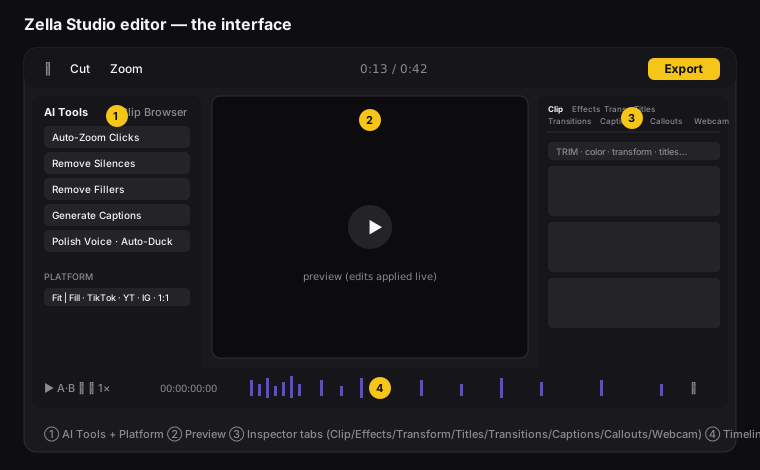
Zella is the only tool here that records and gives you a complete on-device editor: cut, trim, and ripple, AI cleanup, color grading, captions, and reframe and export — all local. For the majority of creators, founders, and teams who record their own screen and want a finished video without a stack of subscriptions, that's the shortest path.
Where Zella is not the pick: you need screenshots and annotation (CleanShot X), remote multi-guest recording (a dedicated tool like Riverside), graded e-learning courses with quizzes (Camtasia), transcript-first team collaboration (Descript), or fully automatic AI clipping of a long-video backlog (OpusClip). Knowing those edges is how you avoid buying the wrong tool — and we link honest head-to-heads below so you can check the edge that matters to you.
Dig deeper
Head-to-head: Zella vs Screen Studio · Zella vs Descript · Zella vs Tella · Zella vs Loom · Zella vs OpusClip · Zella vs CleanShot X · Screen Studio vs Descript vs Zella. Alternatives: Screen Studio · Descript · OpusClip · Loom · Camtasia · Veed · Riverside · ScreenFlow · Tella.
FAQ
What is the best free screen recorder for Mac? OBS Studio for raw recording (powerful but a steep curve and no editing) or QuickTime for the simplest capture. Zella's free plan is the best free record-plus-edit option: unlimited, no watermark, 1080p, with AI cleanup and captions built in.
What is the best screen recorder for privacy? Local-only apps — Zella, Screen Studio, CleanShot X, ScreenFlow, OBS, QuickTime — because your footage never leaves your Mac.
Which is cheapest over time? Free tools cost nothing; among paid options a one-time purchase beats a subscription within the first year for most users, and you keep access forever.
Can I use more than one of these together? Yes — a common setup is CleanShot X for screenshots plus Zella for video, and they don't conflict.
The bottom line
Match the tool to the job: QuickTime or OBS for a free raw capture, CleanShot X for images, Riverside for remote guests, Camtasia for graded courses, OpusClip for hands-off cloud clipping, Loom or Tella for instant hosted sharing — and Zella for the most common need of all, which is recording your own screen and turning it into a finished, captioned, platform-ready video without a second app or a subscription. The free plan is enough to ship real videos today; the $89 one-time Pro unlock is there when you want 4K and the full creative suite.
Download Zella and try the all-in-one approach.
Make your next video with Zella.
Record, edit and ship on your Mac — local, private, free to start.
RELATED