To automatically caption a video on a Mac, use an editor with on-device speech recognition: it transcribes locally, you correct proper nouns, then you either style the captions for social or export SRT/VTT. Apps like Zella generate captions on-device with restyleable presets, so there is no upload and no per-minute fee.
Auto-captions raise watch-time and accessibility, and on a Mac they cost nothing: no cloud service, no per-minute fee. The fastest path is an editor that transcribes on-device - open your clip, click auto-captions, fix a few proper nouns, then style or export.
Below: the exact steps, then styling, exporting for each platform, accuracy, and how on-device captioning compares to the cloud.
The editor used here, Zella, is a native Apple app: the Mac app ships today, and Zella for iPhone is on the App Store, captioning on-device there too.
Generate captions automatically (the fast path)
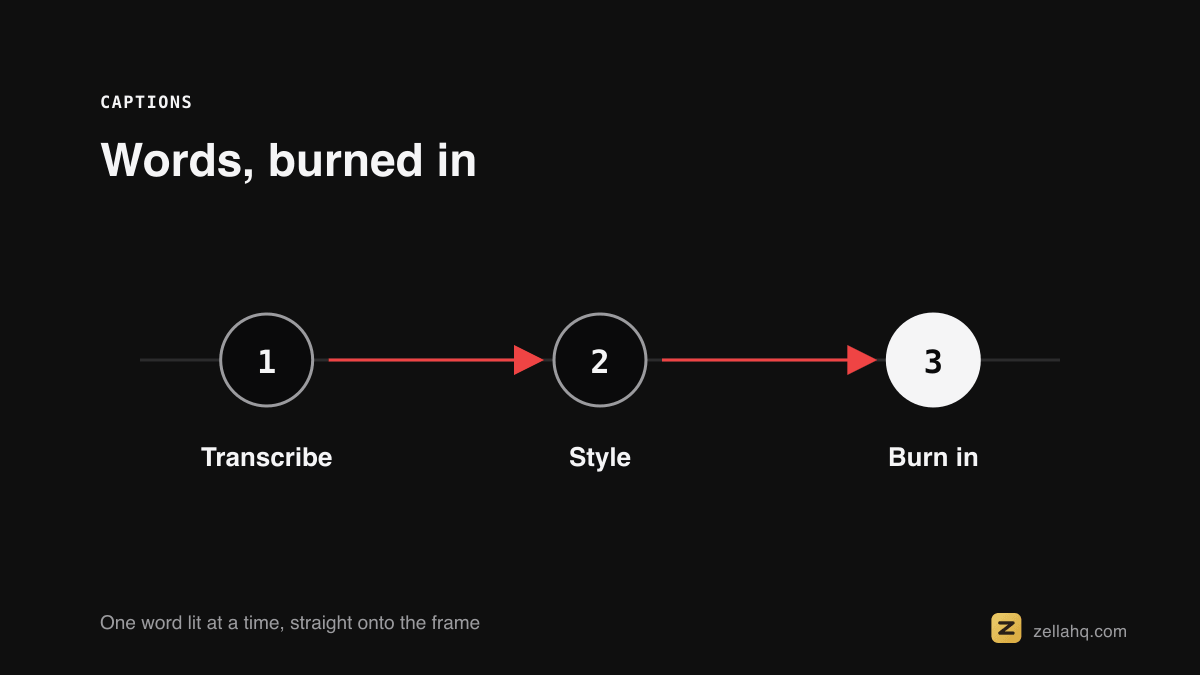
- Open the video in Zella. Any MP4 or MOV works, whether or not you recorded it in the app.
- Click Auto-captions. Zella transcribes the speech on-device using local speech recognition - nothing uploads, no account needed.
- Fix proper nouns. Scan for names, brands, and jargon the model may have misheard, and correct them once inline.
- Style them. Pick a preset and adjust font, size, stroke, shadow, and box so they match your brand.
- Choose your output. Burn captions into the video for TikTok, Reels, and Shorts, or export SRT/VTT for YouTube and your CMS.
See captions and callouts. For the privacy angle, see captioning without uploading.
Transcription runs through Apple's Speech framework, which supports on-device recognition, so the audio is never uploaded.
Captions are an accessibility requirement before they are a retention trick. The W3C's guidance on captions for prerecorded media is the standard most teams are measured against.
Does macOS caption videos automatically on its own?
Not for your own video files. macOS displays closed captions on media that already ships with a caption track, and it has live-caption features for audio playing through the system. Nothing built in takes an MP4 you recorded and writes a transcript onto it.
iMovie doesn't either, despite being free - you would type each line by hand as title cards. Generating captions automatically needs a video editor or a dedicated captioning tool that does speech-to-text, and that is the gap an on-device editor like Zella fills.
Ways to auto-caption on a Mac, compared
| Method | Auto speech-to-text | Runs offline | Per-minute fee | Watermark | Style control |
|---|---|---|---|---|---|
| iMovie (built-in) | No (manual typing) | Yes | No | No | Basic titles only |
| Web captioners (Veed, Kapwing, etc.) | Yes | No (upload required) | Often, or subscription | Often on free tier | Good |
| Cloud editors (Descript, CapCut) | Yes | No | Subscription / credits | On some free tiers | Good |
| On-device editor (Zella) | Yes | Yes | No | No | Full, with presets |
The trade-off is simple: web and cloud tools transcribe well but send your footage to a server and usually meter or watermark it; an on-device editor keeps everything local, free, and instant.
Style captions for your platform
The right caption style depends on the surface and the vibe:
- Word-by-word styles - Word Pop, Hormozi, Beast - put an active-word highlight on one or two words at a time and retain best on fast short-form.
- Karaoke suits music and lyric-style content.
- Clean Minimal fits professional or brand content and longer explainers, where captions shouldn't shout.
For YouTube long-form, many creators export an SRT and let viewers toggle captions rather than burning them in. Match the style to the platform and you lift completion without distracting from the content - more in best caption styles for short-form.
Burn-in vs caption file (SRT/VTT): which to pick
There are two ways to ship captions, and they behave differently:
| Burned-in | SRT / VTT file | |
|---|---|---|
| Visibility | Always on, can't be toggled | Viewer can toggle on/off |
| Look | Identical on every platform | Adopts each platform's default styling |
| Best for | TikTok, Reels, Shorts, GIFs | YouTube, your site, an LMS |
| Searchable by platform | No | Yes (platforms index the text) |
A good on-device pass gives you both from one transcription, so you caption once and ship everywhere:
- TikTok / Reels / Shorts - burn captions into the MP4 so they always show, big and above the platform UI.
- YouTube - upload the video plus an exported SRT/VTT so viewers can toggle and search the text.
- Your site or LMS - a VTT sidecar gives accessible, toggleable captions.
- A quick GIF - burn captions in, since GIFs have no caption track.
Get more accurate captions
Modern on-device speech recognition is strong on clean audio, but the transcript is only as good as what it hears. For the cleanest results:
- Record close to a decent mic so speech is clear.
- Remove background noise before captioning.
- Remove filler words first so "um" never makes it into the text.
- Speak at a steady pace - rushed or overlapping speech is harder to transcribe.
A two-minute cleanup pass before captioning usually means far less manual correction afterward.
Edit captions efficiently
Generate once, then fix in passes rather than reading the transcript line by line:
- Scan for proper nouns - names, product names, jargon - and correct each one.
- Check the timing on any fast-talking section.
- Leave the rest alone. Rewriting lines that are already accurate is wasted work.
Order matters more than speed here. Captions ripple with your edits, so do your cuts first and caption after. Cleaning the audio and removing fillers beforehand also means fewer corrections, since the transcript never contains the words you cut.
Why on-device beats cloud captioning
Most caption tools upload your video to a server. That buys you a queue, a per-minute fee, and a copy of your footage on someone else's machine.
On-device captioning avoids all three. There's no upload wait, no per-minute charge, it works with the Wi-Fi off, and sensitive footage - client work, unreleased product, internal demos - stays local. For anything you can't put in someone else's cloud, it's the only option that fits.
Common mistakes to avoid
- Trusting the transcript blindly. Always fix names and technical terms.
- Tiny or low-contrast captions. Make them big, high-contrast, and above the platform UI.
- Full sentences on screen at once. Keep it to a few words at a time for short-form.
- Uploading private footage to a web captioner when an on-device option exists.
Where Zella fits, and what captions cost
Zella is a native recorder and AI editor for Mac and iPhone that captions entirely on-device - no cloud, no account, no per-minute charge.
Captioning a clip you shot on your phone works the same way. Zella for iPhone captions on-device too, and on iOS 18 or later it translates those captions into 19 languages with no network path at all - see captions on iOS.
The free plan is genuinely free: unlimited recording, no watermark, 1080p export (up to 2 minutes free; Pro for longer), AI cleanup (silence and filler removal), auto-captions, and auto-zoom. Captioning itself is never metered by length or by minute.
The optional one-time $89 Pro unlock adds unlimited export length, 4K export, and the pro-depth toolset - 4K/8K export, motion keyframes, Color Match and scopes, effect masks, speed ramps and per-drum Beat Sync. One purchase covers Mac and iPhone, and it isn't a subscription. See pricing for the breakdown.
Frequently asked questions
How accurate is on-device captioning? Strong for clear speech. Review proper nouns and edit any word inline after generation.
Can I export a caption file? Yes - SRT, VTT, or CSV, or burn the captions into the video.
Do captions support multiple languages? It transcribes the spoken language, and you can edit the text as needed before exporting.
Do captions stay in sync if I edit after? Yes - they ripple with the timeline when you cut, so cut first and caption after.
The bottom line
Captions are one of the highest-leverage edits you can make: they lift completion, widen your audience, and make your content searchable - and doing them on-device means no upload, no per-minute fee, and full privacy. Generate once, fix names, style to the platform, and ship burned-in or as a file. It's a few minutes that meaningfully changes how far a video travels.
Download Zella and caption your next video.
Make your next video with Zella.
Record, edit and ship on Mac and iPhone - local, private, free to start.
PART OF A SERIES
Automatic captions
On-device transcription, on both apps, with nothing uploaded.
- How to Automatically Caption a Video on Macyou are here
- How to Add Captions to a Video on iPhone (Automatic)
- How to Add Captions to a Screen Recording, No Upload
- How to Add Subtitles to a Video on iPhone Without Internet
All of it lives under Captions & Callouts.
RELATED