To export 4K video on a Mac, set the export resolution to 2160p and choose MP4 for sharing or MOV for a master. Use 4K for demos and anything with heavy zoom, and 1080p for short-form social where nobody sees the difference. Record at 4K too, since exporting 4K from a 1080p source adds no real detail.
4K keeps UI text and fine detail crisp, especially after you zoom in. But it is not always the right choice, and the wrong settings hand you a giant file for no visible benefit.
The short version: finish your edit, set resolution to 4K (2160p), export H.264 MP4 for sharing or a MOV master for archival, and only reach for 4K when the footage was actually captured in 4K.
The exporter used below, Zella, is a native Apple app: 4K is part of Pro on every platform, the Mac app ships today, and Zella for iPhone is available on the App Store on the same one-time purchase.
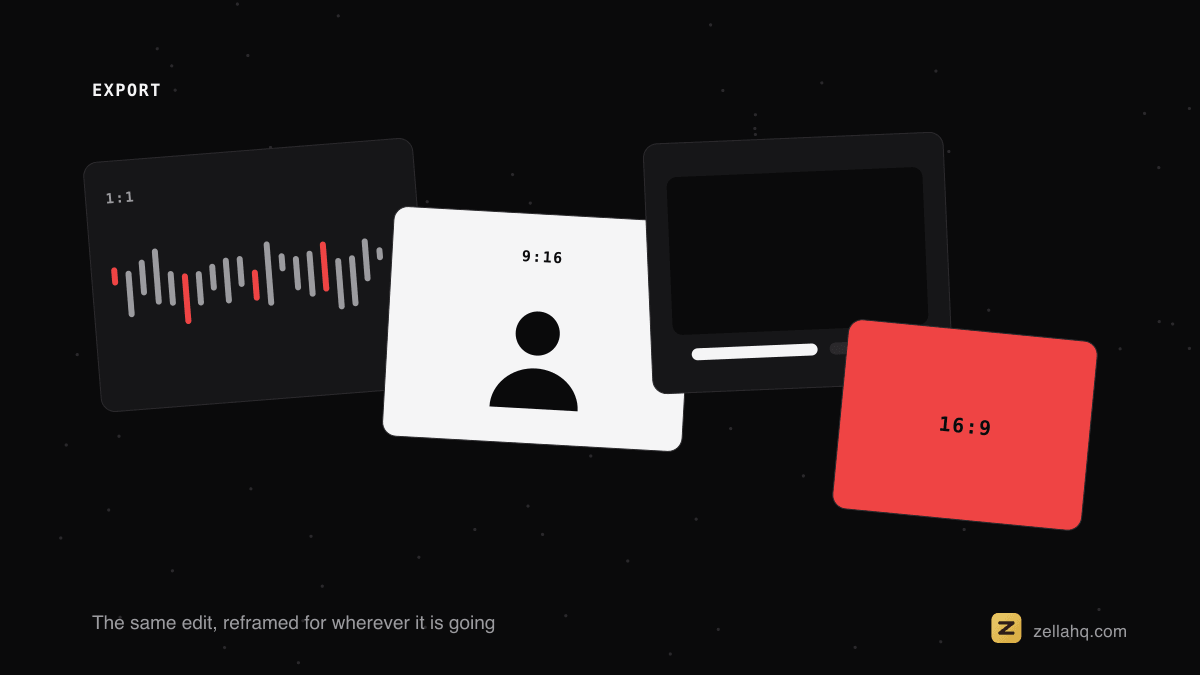
Export 4K in Zella
- Finish your edit in Zella.
- Choose Export and set resolution to 4K (2160p).
- Pick a format: MP4 (H.264) for sharing, MOV for the highest-quality master.
- Export. Zella runs 100% locally, so nothing uploads to the cloud and there is no account or watermark.
4K export is part of the optional one-time Pro unlock. The free plan records unlimited length and exports 1080p up to 2 minutes with no watermark, plus AI cleanup, captions and auto-zoom; Pro ($89, paid once) adds unlimited export length, 4K and the depth toolset. See ship to every platform.
Under the hood this is AVFoundation, Apple's media framework, which is what Mac editors use to compose the timeline and write the result back out.
MDN's reference on web video codecs is the clearest summary of what each format actually buys you in quality per megabyte.
Which export setting should I use?
Resolution is only one of five settings that decide how your file looks and how big it gets. Here is the quick map.
| Setting | What it controls | Sensible default |
|---|---|---|
| Resolution | Pixel count (sharpness ceiling) | 4K for demos and zoomed footage, 1080p for social |
| Codec | How the video compresses | H.264 to share, H.265/HEVC for smaller 4K, ProRes/MOV for masters |
| Container | The file wrapper | MP4 to share, MOV for archival |
| Bitrate | Data spent per second (real quality) | Let the preset pair it to the resolution |
| Frame rate | Frames per second | 30 fps for tutorials, 60 fps only for fast motion |
Match these to where the video will be watched and you avoid both soft 4K and bloated files.
When 4K is worth it
- Software demos and tutorials where UI text and fine controls must stay readable at full screen.
- Anything with heavy auto-zoom - zooming into 1080p softens detail, while 4K holds up because the magnified region still has real pixels.
- YouTube - 4K uploads get a better encode even when most viewers watch at 1080p, so the 1080p stream looks sharper too.
When 1080p is fine
Short-form vertical content (TikTok, Reels, Shorts) is watched on phones, so it gains almost nothing visible from 4K while paying for it in upload time and storage. 1080p at the right aspect ratio is plenty, and the files are far smaller and faster to upload. Match the resolution to the destination, not to a reflex that more is always better.
Resolution starts at the recording, not the export
The most common 4K disappointment comes from expecting the export dialog to invent detail it cannot. Exporting to 2160p from a 1080p capture produces a larger file that looks exactly as soft as the original, because the pixels were never there. Basic upscaling just spreads existing pixels across a bigger frame; even AI upscalers cannot fully recreate detail that was never captured.
Real 4K starts at record time. If you know a video will be delivered in 4K, or will lean on heavy zoom that magnifies whatever you captured, record at 4K from the start so the detail exists to be preserved. Recording high and exporting at or below that resolution always beats recording low and scaling up. Think of the export resolution as a ceiling you can lower freely, never a floor you can raise.
Bitrate: the setting that really controls quality
People obsess over resolution and ignore bitrate, but bitrate is what actually determines how good a given resolution looks. Bitrate is the amount of data spent per second of video, and a 4K file starved of bitrate can look worse than a generous 1080p one - blocky in motion, smeared in fine detail - because there simply are not enough bits to describe all those extra pixels.
Screen content has lots of sharp edges and text, so a healthy bitrate matters even more than for soft photographic footage. The practical takeaway: let a sensible export preset pair resolution and bitrate for you rather than maximizing one in isolation. When a 4K export looks soft despite the high resolution, suspect the bitrate before you suspect anything else.
H.264 vs H.265: codecs and compatibility
The codec you choose shapes both quality and where your file will actually play.
| Codec | File size at 4K | Compatibility | Best for |
|---|---|---|---|
| H.264 | Larger | Plays everywhere | Sharing, uploading, general use |
| H.265 / HEVC | Up to about half | Patchier on older devices | 4K where small size matters |
| ProRes (MOV) | Very large | Apple ecosystem | Editing and archival masters |
H.264 inside an MP4 is the safe default for sharing: every platform, browser, and device understands it, it compresses screen content well, and it keeps file sizes reasonable. H.265/HEVC squeezes the same quality into roughly half the size, which is genuinely useful for 4K, but its broader compatibility is patchier, so it suits specific delivery targets more than general sharing.
MOV earns its place as an archival master - larger, higher fidelity, ideal to keep if you expect to re-edit later - but it is overkill to send to a colleague or upload to a platform that re-encodes it anyway. Deliver H.264 MP4 to people and platforms; reserve MOV for the master you store.
What frame rate should I pair with 4K?
Thirty frames per second suits most tutorials and demos and keeps the file lean. Reserve 60 fps for fast motion, since it roughly doubles the file size for footage that rarely needs it. Most screen recordings are slow-moving by nature, so 30 fps at 4K is the sweet spot for clarity without bloat.
Keep 4K files manageable
4K files are large by nature, but a few habits keep them reasonable:
- Export H.264 MP4 for anything you share or upload; reserve heavier MOV for archival masters.
- Trim before exporting - runtime drives file size more than resolution does. A tight three-minute 4K clip is far smaller than a bloated ten-minute one.
- Do not over-deliver. The platform re-encodes your upload anyway, so a well-compressed MP4 looks identical to the viewer; keep the giant master only where you genuinely need it.
- Consider H.265/HEVC when you need 4K at a smaller size and your destination supports it.
If you still need to shrink a finished file, see how to compress a video on Mac.
Hardware and export speed
Exporting 4K is more demanding than 1080p, and the experience varies with your machine. Apple Silicon Macs encode 4K notably faster thanks to dedicated media engines, while Intel machines still do the job but take longer and work the fans harder.
This affects iteration speed: if you are exporting repeatedly to check a result, a long 4K render becomes a real drag, so dropping to 1080p for test exports before a final 4K render is a reasonable habit. Where your editor offers hardware acceleration, leaving it on uses the GPU and shortens renders significantly.
Frequently asked questions
Does 4K work on Intel Macs? Yes. Apple Silicon exports faster thanks to dedicated media engines, but Intel Macs handle 4K too - they just take longer.
MP4 or MOV for 4K? MP4 (H.264) for sharing and upload because it plays everywhere; MOV for the highest-quality master you plan to re-edit.
Why is my 4K file so large? Trim tighter, use H.264 MP4, or switch to H.265/HEVC. MOV masters are intentionally big - do not upload those.
Should I record or just export at 4K? Record at 4K too. Exporting to 4K from a 1080p source produces a larger file that looks just as soft, because the detail was never captured.
The bottom line
For most creators a sensible default emerges: record at 4K when zoom or UI clarity demands it, export H.264 MP4 at a resolution matched to where the video will be watched, keep a MOV master only when future editing is likely, and trim tightly so runtime rather than resolution drives the file size. Follow that and you get crisp results without drowning in oversized exports or marathon render times.
Download Zella and export crisp 4K today.
Make your next video with Zella.
Record, edit and ship on Mac and iPhone - local, private, free to start.
PART OF A SERIES
Export settings, 4K and file size
Which format, which resolution, and how to make the file smaller without wrecking it.
- How to Export 4K Video on Mac (Crisp UI, Smaller Files)you are here
- MP4 or MOV: Which Should You Export?
- How to Compress a Video on Mac (Smaller, Same Quality)
- How to Convert a Screen Recording to a GIF on Mac
All of it lives under Ship Everywhere.
RELATED