To make a software tutorial video, script the outcome first, record a clean window with optional webcam, then auto-zoom on clicks, cut silences and fillers, add captions and callouts, and export per platform. Keep it to one outcome and 2-6 minutes. All-in-one apps like Zella handle the recording and the editing without a round trip.
Great software tutorials are clear, tight, and easy to follow. Bad ones ramble, zoom past the important click, and lose the viewer in the first minute. The whole job comes down to four moves you can repeat for every video: plan the outcome, record in calm sections, let AI tighten the take, then export a cut for each place it needs to live. Here's the full workflow, start to finish, plus the details that separate a tutorial people finish from one they bounce on.
Make a software tutorial video in 6 steps
This is the short version. Each step expands further down the page.
- Script the outcome first. Decide what the viewer will be able to do by the end, then list the exact clicks to get there.
- Set up a clean recording. Hide personal tabs, silence notifications, bump your app's font size so text reads on a phone.
- Record in confident takes. Capture in sections and pause between them - you'll cut the gaps automatically next.
- Let AI tighten it. One cleanup pass: auto-zoom on clicks, remove silences, strip filler words, add captions.
- Guide attention. Arrows, spotlights, and keystroke callouts point the viewer at the exact button before you click it.
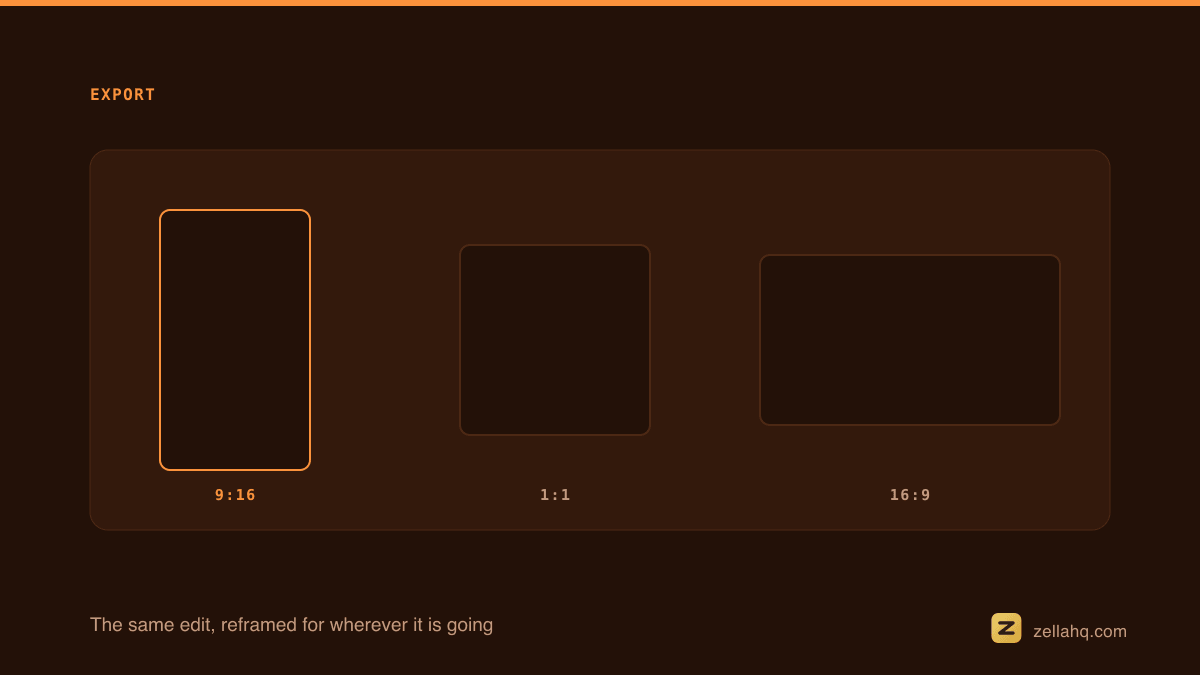
- Export for the platform. 1080p for YouTube, 9:16 for Shorts and Reels, a captioned GIF for docs.
In Zella, all six happen in one native app for Mac and iPhone - recording and AI editing in the same place, 100% on your device with no cloud upload and no account.
Under the hood this is AVFoundation, Apple's media framework, which is what Mac editors use to compose the timeline and write the result back out.
1. Script the outcome first
Start with what the viewer will be able to do by the end, not with who you are or what your channel covers. Write the steps as short, action-first lines - "Click Export," "Choose 9:16" - and cut anything that doesn't serve that outcome. A tutorial is a promise; the script exists to deliver it fast.
You don't need a word-for-word screenplay. Script the outline and the exact clicks, but improvise the narration so it stays natural. A fully memorized script tends to sound stiff. If you do read from a draft, note that people speak around 130 words per minute, so a six-minute video is roughly 750-800 spoken words - handy for sanity-checking length before you record.
2. Set up a clean recording
The quality of a tutorial is mostly decided before you press record. Do a dry run of the workflow once so you know where the friction is and can pre-stage anything fiddly - a file that needs to exist, a setting that needs to be on. Then set up the frame:
- Hide bookmarks and personal tabs.
- Silence notifications so nothing pops in.
- Bump the application's font size so text survives being watched on a phone.
- Close anything with private data - a stray message flashing on screen is the most expensive mistake to fix later.
In Zella, record the specific window or region - not the whole desktop - plus a webcam bubble if you want a personal touch. Capturing a tight region keeps the important UI large and the irrelevant chrome out of frame.
3. Record in confident takes
Beginners sabotage themselves chasing one flawless continuous recording, restarting from the top every time they stumble. That maximizes stress and rarely produces a better result. Do the opposite: record in confident sections, pause between them, and leave gaps where you fumble.
Those gaps disappear in the next step, so a take that felt rough becomes tight on export. You also get to redo a single step instead of the whole video. Lower pressure at record time has a bonus - your delivery is more natural when one slip won't ruin a ten-minute take.
4. Let AI tighten the take
This is the step that turns a rambly screen capture into something that feels produced. Run one AI cleanup pass:
- Auto-zoom on clicks so the viewer's eye lands on the right control. See auto-zoom.
- Remove silences to delete the dead air between sections.
- Remove filler words - every "um" and "uh," gone.
- Add captions on-device, since many viewers watch muted.
In Zella this runs locally on your device - no upload, no waiting on a server. The free plan covers AI cleanup, captions, and auto-zoom at 1080p with no watermark.
5. Guide attention with callouts
Telling the viewer where to look beats hoping they notice. Add arrows and callouts, spotlights, and keystroke callouts so people can follow shortcuts you press. Point at the exact button before you click it. And blur anything sensitive - an API key, an email address, a customer name - so one frame doesn't leak data to the whole internet.
6. Export for the platform
The most efficient creators record once and ship everywhere. A single clean tutorial becomes a full-length YouTube video, a vertical cut for Shorts and Reels, a silent captioned GIF for the docs, and a short clip for the in-app help center.
The hard work lives in the recording and the edit; the formats are nearly free once that exists. Record a little headroom around the action and keep your project non-destructive, so reframing to 9:16 or trimming a highlight doesn't mean starting over.
| Destination | Aspect ratio | Resolution | Add |
|---|---|---|---|
| YouTube tutorial | 16:9 | 1080p (free) or 4K (Pro) | Captions, chapters |
| Shorts / Reels / TikTok | 9:16 | 1080p+ | Big captions, auto-reframe |
| Docs / knowledge base | 16:9 | GIF or short MP4 | Captions, no audio |
| Support reply / Slack | 16:9 | 720-1080p | Trim to the relevant 30s |
1080p export, captions, and the GIF path are on Zella's free plan. The optional one-time $89 Pro unlock adds unlimited export length, 4K, transparent-background export, 60 fps, a custom bitrate, the multi-aspect queue, saved templates and the depth toolset. Auto-reframe, every transition, every caption preset and colour grading are free.
How long should a software tutorial be?
As short as the outcome allows. Simple how-tos land best at 2-6 minutes; a complex, multi-step workflow can justify 7-10, and a deep technical walkthrough for an expert audience can run longer. When in doubt, go shorter - it's better to leave viewers wanting more than to overshoot their attention, and you can always split a big topic into a short series.
| Tutorial type | Audience | Target length |
|---|---|---|
| Quick how-to / single feature | General | 2-6 minutes |
| Multi-step workflow | Mixed | 7-10 minutes |
| Deep technical walkthrough | Expert / power user | 10-20 minutes |
| Short-form clip (Shorts/Reels) | Discovery | 15-60 seconds |
One topic per video, always. Split anything larger into a series so each piece is findable, finishable, and easy to update when the software changes.
What gear you actually need
Less than the gear blogs suggest. For a screen tutorial the recorder matters more than the camera. A decent USB or headset microphone does more for perceived quality than any visual upgrade - bad audio is the fastest way to make a viewer leave.
A webcam is optional; a small bubble builds trust but plenty of great tutorials are screen-and-voice only. On a Mac, a native screen recorder with built-in AI editing means you don't stitch together a recorder, a separate editor, and a caption tool - one app, no subscription.
The structure that keeps people watching
A tutorial that gets finished tends to follow a shape:
- State the outcome in the first few seconds so the viewer knows the video is for them. Skip the long preamble.
- Show the result early - a quick glimpse of the finished thing - so there's a reason to stay for the steps.
- Do the action, then explain why. Watching the click land first and hearing the reasoning second is how people actually learn software.
- Pause on the genuinely tricky part instead of rushing past it.
- End by restating what the viewer can now do.
It's less a rigid template than a discipline: respect the viewer's time at every step and the completion rate takes care of itself.
The mistakes that lose viewers in the first minute
Most tutorials fail the same four ways:
- A long preamble before the video gets anywhere near the task.
- Full-resolution screen, no zoom, so the one button that matters is a tiny smudge.
- Every "um," every pause to find the right tab, every misclick left in, until patience runs out before the payoff.
- Three loosely related features crammed into one video, so nobody finds the part they came for.
Every one is self-inflicted. Open on the outcome, zoom where it counts, cut the dead air, and keep each video to a single promise.
Where to publish your tutorial
Match the cut to the channel:
- YouTube - home base for searchable long-form how-tos. Add chapters and captions.
- Your docs or help center - the silent captioned GIF, or a short embedded MP4 sitting right beside the relevant text.
- Shorts, Reels, TikTok - a 15-60 second vertical clip of the single most useful moment, with large captions, pointing at the full video.
- A support reply - usually just a 30-second trim of the exact fix.
Because all of these come from the same edit, publishing widely is mostly exporting, not re-making.
Frequently asked questions
Should I show my face in a software tutorial? A webcam bubble builds trust but isn't required - screen-and-voice tutorials work fine. If you add a bubble, keep it small and out of the way of the UI you're demoing.
Do captions really matter for tutorials? Yes. Many viewers watch muted, and captions raise both completion and accessibility. On-device captions also keep your recording private since nothing is uploaded.
What's the fastest way to tighten a rambly take? One AI cleanup pass that removes silences and filler words and auto-zooms on clicks. It compresses a loose ten-minute recording into a tight watchable one without manual scrubbing.
Do I need paid software to make a good tutorial? No. Zella's free plan covers unlimited recording (free exports run up to 2 minutes), AI cleanup, captions, auto-zoom, and 1080p export with no watermark and no account. Pro is a one-time unlock for 4K and the pro-depth toolset if you want it.
The bottom line
A repeatable tutorial isn't about gear or a perfect take - it's a loop. Script the outcome, record calmly in sections, run one AI cleanup pass, point the viewer at each click, and export a cut for every place it lives. Do that and one careful session can feed a week of content across every channel your audience uses. Keeping the whole loop local and in a single app is what makes it a habit instead of a chore.
Download Zella and make your next tutorial in one app.
Make your next video with Zella.
Record, edit and ship on Mac and iPhone - local, private, free to start.
RELATED