To record a product demo on a Mac, plan the key clicks first, record the screen with a webcam bubble and clear audio, then tighten it with auto-zoom and silence removal, blur anything sensitive, and export for web and social. Apps like Zella record and edit the whole demo locally, so an unreleased product never touches a server.
A great product demo can carry a launch. It's the asset you drop in the Show HN thread, the Product Hunt gallery, the sales email, the onboarding flow.
The fastest path on a Mac:
- Plan the 4-6 clicks that tell the story.
- Record the screen plus a webcam bubble, with system audio and mic together.
- Let AI do the first edit - auto-zoom, silence and filler removal, captions.
- Blur anything sensitive.
- Export a 16:9, a 9:16, and a GIF from the same project.
That reaches launch quality without a video team, and without uploading unreleased footage anywhere. The app used throughout, Zella, is a native Apple app: the Mac app ships today, and Zella for iPhone is out now on the App Store, with one Pro purchase covering both.
Plan the path before you hit record
A demo is a narrative, not a feature tour: problem → action → payoff. Before recording, write the single outcome you want the viewer to believe by the end, then cut anything that doesn't serve it. That narrative discipline is what actually moves people from "neat" to "I need this."
Then stage the screen:
- Plan the 4-6 clicks that tell the story, and rehearse them once.
- Close the noise - quit chatty apps, silence notifications, hide personal tabs and bookmarks.
- Stage clean demo data - never expose real customer info.
- Bump the font - what's readable on your 27-inch display is tiny on a phone.
- Decide on a face - a webcam bubble builds trust for founder-led demos.
If the terms are new, Apple's audio fundamentals covers levels and headroom, and why hitting the right peak does not by itself make a mix sound right.
Record screen, webcam, and audio together
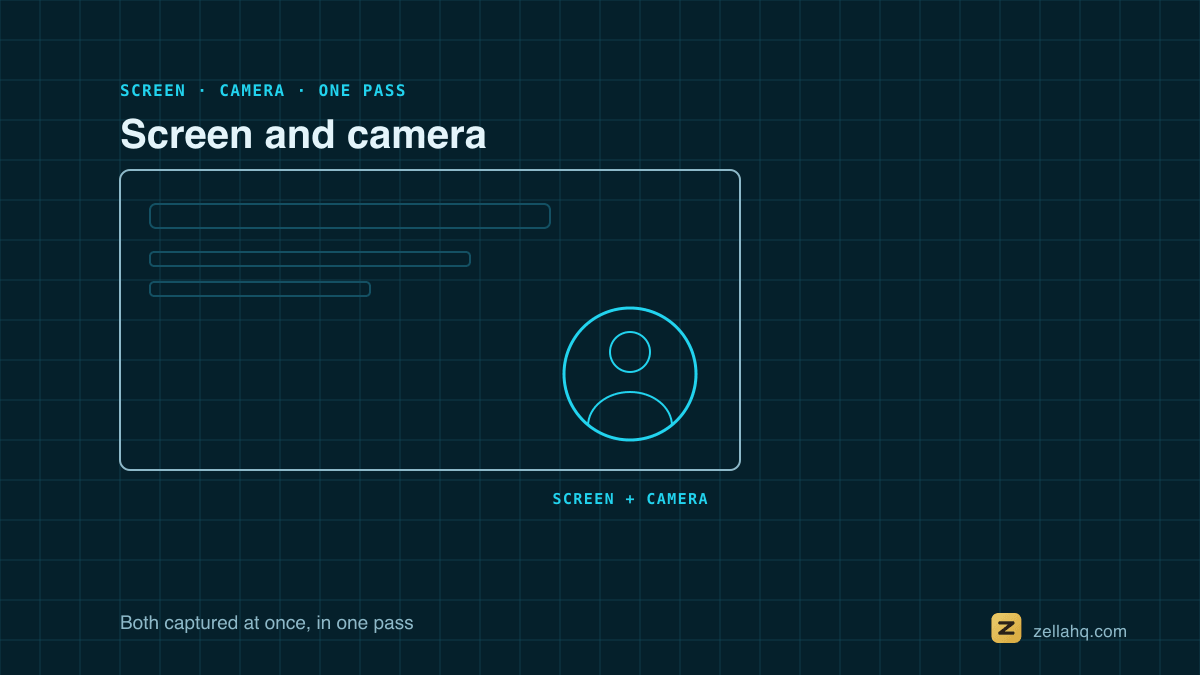
In Zella, choose your capture mode (full screen, a window, or a region), add a webcam bubble so viewers see a human, and capture system audio and mic together so narration and app sounds both land. Pause and resume between sections so you can record in confident takes rather than one nervous run. More in capture.
You can also record screen and webcam at the same time without juggling two tools, and record system audio and mic at once so a click sound and your voice both make the cut.
QuickTime vs a dedicated demo tool
macOS ships with QuickTime Player, which records the screen for free. It's fine for a raw capture, but it can't record system audio on its own, won't follow your cursor, and gives you a flat clip with no zoom, no captions, and no cleanup. A demo-focused tool does the work that makes a recording look produced.
| Capability | QuickTime Player | Zella |
|---|---|---|
| Screen recording | Yes | Yes |
| System audio + mic together | No (mic only) | Yes |
| Webcam bubble | No | Yes |
| Auto-zoom on clicks | No | Yes |
| Remove silences and fillers | No | Yes (AI cleanup) |
| On-device captions | No | Yes |
| Blur sensitive info | No | Yes |
| Reframe to 9:16 / export GIF | No | Yes |
| Price | Free | Free plan; $89 one-time Pro |
Everything runs 100% locally in Zella - no cloud, no account - which matters when the footage shows an unreleased feature.
Let AI do the first edit
Run one AI cleanup pass and it does an hour of manual work for you: auto-zoom on your clicks so the viewer's eye lands on the right control, remove silences and fillers so the pace stays tight, and on-device captions for muted autoplay. From there you can cut and trim the rough edges and speed up any slow stretch.
Add focus with callouts
Point attention with arrows, spotlights, and keystroke callouts. Crucially, blur anything sensitive - API keys, customer names, internal dashboards - with a blur callout. See how to blur sensitive info. Staging clean demo data is the first line of defense; the blur is for whatever slips through.
Pick the right length for the channel
There's no single right length - there's a right length per placement. Lead with the payoff in the first few seconds regardless; attention drops sharply past the ranges below, so split deep features into their own short clips.
| Placement | Target length | Goal |
|---|---|---|
| Social / launch thread teaser | 30-90 sec | Show the single most impressive outcome fast |
| Site or docs walkthrough | 2-4 min | Explain how it actually works |
| Sales-email feature clip | 30-60 sec | Answer one specific objection |
| README / changelog GIF | 5-15 sec | Autoplay preview, no audio |
Reframe and export for every channel
A demo is rarely one asset. From the same edit, export a 16:9 version for your site and docs, a 9:16 cut for social, and a short captioned GIF for your README or launch email.
Because recording and editing live in one local app, you produce that whole family of assets in an afternoon - record the full flow once, then cut and reframe it into each version. Need more output sizes? See how to resize for TikTok, Instagram, and YouTube.
For crisp UI on a retina display, export 4K where the platform supports it. Zella's free plan exports 1080p with no watermark; the optional one-time $89 Pro unlock adds 4K plus the pro-depth toolset - 4K/8K export, motion keyframes, Color Match and scopes, effect masks, speed ramps and per-drum Beat Sync.
Common demo mistakes that kill conversion
- Burying the payoff. Don't make viewers wait through setup; lead with the result.
- Cramming the whole product in. One demo, one outcome - make a series instead.
- Tiny, unreadable UI. Bump the font and auto-zoom on the key controls.
- No captions. Most autoplay views are muted - caption it.
- Leaking real data. Stage demo data and blur anything sensitive.
- A stiff, memorized script. Script the outline and the exact clicks, but keep the narration loose so it sounds human.
Build a demo family from one recording
One product doesn't need one demo - it needs a few, each tuned to where the viewer is in the funnel. A 30-second hook for social, a 2-4 minute walkthrough for your site, a focused feature clip for a sales reply. They usually come from the same recording session, so save the project: when the product changes, re-record the updated flow and re-apply the same edits quickly instead of starting over.
Frequently asked questions
Do I need a camera for a product demo? No, but a webcam bubble noticeably lifts trust and watch-time for founder-led demos. For pure product walkthroughs it's optional.
How do I keep unreleased features private? Record and edit locally. Zella never uploads your footage - no cloud, no account - which is ideal for pre-launch features.
What format should I share? MP4 for most places; a captioned GIF for READMEs and changelogs; a 9:16 cut for social.
Can a non-designer make a good demo? Yes - script the single outcome, record the flow, and let AI cleanup handle the auto-zoom, cuts, and captions.
The bottom line
To record a product demo on a Mac: script the single outcome, stage clean data, record screen plus webcam plus audio, then run AI cleanup for auto-zoom, silence and filler removal, and captions. Blur anything sensitive, pick the length that fits the channel, and export 16:9, 9:16, and a GIF from one project - all locally, no video team, no footage leaving your machine.
Download Zella and record your next demo today.
Make your next video with Zella.
Record, edit and ship on Mac and iPhone - local, private, free to start.
PART OF A SERIES
Screen and camera in one take
The webcam bubble, and the recordings people make with it.
- How to Record Screen and Webcam at Once on Mac
- How to Add a Webcam Bubble to a Screen Recording
- How to Record a Loom-Style Video on Mac Without Loom
- How to Record a Product Demo on Mac (Founder's Guide)you are here
All of it lives under Capture.
RELATED