To record a webinar on a Mac, record the webinar window or your full screen with system audio enabled, and add your mic if you are presenting, so slides and speaker audio stay in sync. A local recorder like Zella keeps an editable copy you can trim and clip afterwards, with no length limit on the recording itself.
Webinars are dense with reusable value - a framework explained well, a question answered, a slide worth quoting - and they vanish the moment they end unless you capture them.
To record one cleanly on a Mac: capture the webinar window (or full screen) with system audio on, add your mic only if you're presenting or narrating, and use pause/resume to pre-trim the housekeeping. Below is the fast how-to, the settings that make replays better, and how to turn one session into a week of content - without uploading the recording anywhere.
The recorder here, Zella, is a native Apple app: the Mac app ships today, and Zella for iPhone is out now on the App Store on the same one-time purchase.
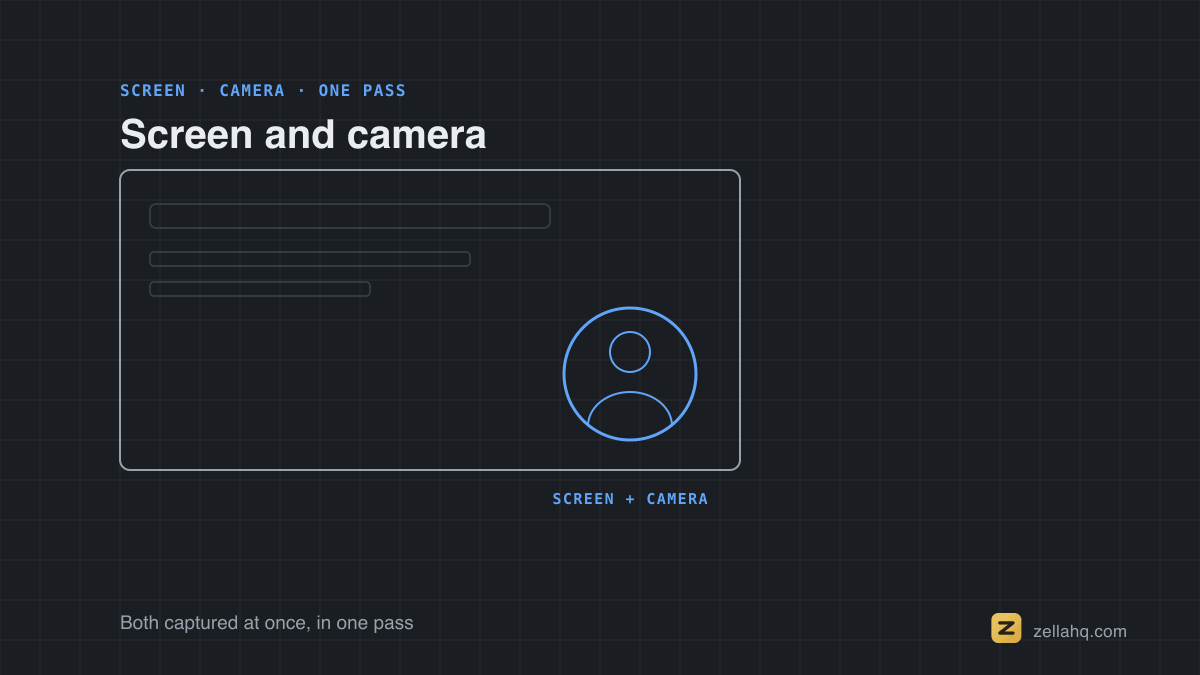
Record slides and speaker audio (the fast way)
- Open Zella and start a recording.
- Select the webinar window (cleanest frame) or the full screen if you'll switch between the webinar and your notes. See capture.
- Enable System audio to capture the presenter's voice and any media they play. Add your microphone only if you're co-presenting or adding commentary - here's recording system audio and mic together.
- Record. Use pause/resume between segments to skip the intro and the Q&A you don't need, so your file is already trimmed.
- Stop and review - you get one synced, editable file.
Because Zella records 100% locally with no account and no cloud, the session never leaves your machine.
Apple's audio fundamentals is the shortest useful explanation of levels and headroom - including why a technically correct peak can still sound bad.
Set up before the webinar starts
A few seconds of prep saves a recording you can't redo:
- Silence notifications. Turn on Do Not Disturb so a Slack ping doesn't leak into the frame.
- Quit background apps. Free up CPU so frames don't drop on a long session.
- Pick your frame. A single window keeps the dock and menu bar out; full screen is fine if you'll reference notes.
- Test audio first. Do a 10-second test so you don't discover a muted source after a 60-minute session.
- Check screen-recording permission. On macOS, the app needs access under System Settings → Privacy & Security → Screen & System Audio Recording. Zella prompts you the first time.
Best recording settings for a webinar
Webinars are mostly static slides with occasional cursor movement, so the right settings keep files small and text crisp.
| Setting | Recommended | Why |
|---|---|---|
| Frame rate | 30 fps | Slides barely move; 60 fps just doubles file size for no benefit |
| Resolution | Your display's native size | Keeps slide text sharp, especially if you'll zoom or pull clips |
| Capture area | Presentation window | No dock, notifications, or browser chrome in frame |
| Audio | System audio (+ mic only if presenting) | Captures the speaker; mic adds your narration |
| Export | 1080p free, 4K with Pro | 1080p is plenty for most replays; 4K for crisp demo text |
As a rough storage guide, a 90-minute 1080p/30 recording lands around 2-4 GB depending on how much is moving on screen.
Using the built-in Mac tools (QuickTime and Shift-Cmd-5)
Every Mac can record the screen for free without extra software, and it's worth knowing when that's enough versus when a dedicated tool earns its place.
- Screenshot toolbar (Shift + Command + 5): the fastest built-in option. Pick full screen, a window, or a region, then record. It captures your screen and microphone.
- QuickTime Player: File → New Screen Recording does the same with a slightly larger window.
The catch: neither tool captures system audio on its own. They record the mic, not the presenter's voice coming out of your speakers, so a webinar recorded this way is a silent slideshow with your own breathing on it.
Getting the speaker's audio out of the built-in tools means installing a separate audio-routing extension and wiring it up. A purpose-built recorder does it in one checkbox, keeps it synced to the video, and drops you straight into editing.
| Built-in (QuickTime / Shift-Cmd-5) | Zella | |
|---|---|---|
| Capture system audio | Needs an extra audio extension | One checkbox |
| Mic + system audio together | Manual routing | Built in |
| Trim / caption / clip after | Not really | Same app |
| Cost | Free | Free (4K + creative suite via one-time Pro) |
Extra touches when you're the presenter
When it's your own webinar, three additions make the replay better than the live version:
- A webcam bubble so attendees watch a face, not only slides.
- Auto-zoom so the viewer's eye follows your slides and clicks.
- Polish Voice so the audio sits even and clean from the first slide to the last.
The recorded version then becomes an evergreen asset you can gate, embed, or send as a follow-up.
Turn one webinar into a week of content
A 60-minute webinar is a content goldmine if you mine it. Because Zella records and edits in one local app, you do all of this without uploading the session anywhere:
- The on-demand replay - remove silences and the dead intro so it's tight, add captions, and publish.
- Short clips - pull 3-5 standout moments and reframe each to 9:16 with captions for social.
- A GIF or two - turn a quick demo into a captioned GIF for your docs or recap email.
- A blog post - the transcript from the captions becomes the basis for an article that can rank for the webinar's topic.
A captioned, well-titled replay also works harder for you: platforms index caption text, so it's more discoverable, and accurate captions make the session usable by deaf and hard-of-hearing viewers - turning a one-time event into an evergreen page.
Common mistakes to avoid
- Recording the whole thing and never trimming it. Nobody rewatches 60 unedited minutes - cut to value.
- Capturing presenter audio but not yours when co-hosting - enable both sources before you start.
- Skipping captions. Most replays are watched muted or skimmed; captions massively increase usefulness.
- Letting a notification leak into the recording - Do Not Disturb fixes this.
- Recording at 60 fps. It doubles file size with no visible gain on slides.
Will a long webinar crash or desync?
No. Zella is built for long, crash-safe takes with wall-clock-aligned audio, so a 90-minute session stays in sync from the first slide to the last. If you've had recordings desync or balloon in other tools, this is the part that quietly matters most on a long webinar.
Is it legal to record a webinar?
Recording for your own reference is generally fine. The rules tighten as soon as other people's voices are involved, and in many places you need consent from participants first.
Never redistribute someone else's paid or gated content. The safe path: check the host's terms, ask when in doubt, and keep attendee-only recordings for personal use.
Frequently asked questions
Can I record a webinar I'm only attending? Yes - you record your own screen and the system audio. Check the host's terms and local consent rules first, and don't redistribute someone else's paid content.
Can I add my own commentary? Yes - enable your mic alongside system audio to narrate over the presenter.
Will my captions be accurate? Clean presenter audio transcribes well. Review names and jargon, which you can edit inline before exporting.
Can I cut it into social clips and gate the replay? Yes - trim and reframe to 9:16 in the same app, and since you own the exported file, host it behind a form or paywall if you like.
The bottom line
To record a webinar on a Mac: capture the window or full screen with system audio (plus your mic if presenting), record at 30 fps in your display's native resolution, and use pause/resume to pre-trim. Then tighten, caption, and clip the result locally, so one session becomes a replay plus a week of short-form content with nothing ever uploaded.
Zella's free plan covers unlimited recording, no watermark, 1080p export (up to 2 minutes free; Pro for longer), AI cleanup, captions, and auto-zoom. A one-time $89 Pro unlock adds unlimited export length, 4K, and the pro-depth toolset when you're ready.
Download Zella and capture your next webinar.
Make your next video with Zella.
Record, edit and ship on Mac and iPhone - local, private, free to start.
PART OF A SERIES
Recording system audio and your mic
Capturing what the computer plays and what you say, in one synced take.
- How to Record System Audio and Mic at Once on Mac
- How to Screen Record on iPhone With Sound (and Edit It)
- How to Record a Zoom Meeting on Mac (With Your Mic)
- How to Record a Webinar on Mac (Audio + Slides)you are here
All of it lives under Capture.
RELATED