To record your screen and webcam at the same time on a Mac, use a recorder with a camera overlay (a webcam bubble) that captures screen, camera and audio together in sync, with on-device background removal so no green screen is needed. Apps like Zella do all of it in one recording pass.
Showing your face builds trust in tutorials, demos, and async updates - people pay more attention when there's a human on screen. The fastest way to record your screen and webcam together on a Mac is a dedicated recorder that captures both into one synced file with a webcam bubble overlay.
You can also rig it up with the built-in QuickTime Player, but you'll juggle two windows and crop the camera in afterward. Both routes are below, along with how to make the camera look studio-grade without a studio.
The recorder used below, Zella, is a native Apple app and not a Mac-only one - the Mac app ships today, and Zella for iPhone is available on the App Store on the same one-time purchase.
The quickest way: record both into one synced file
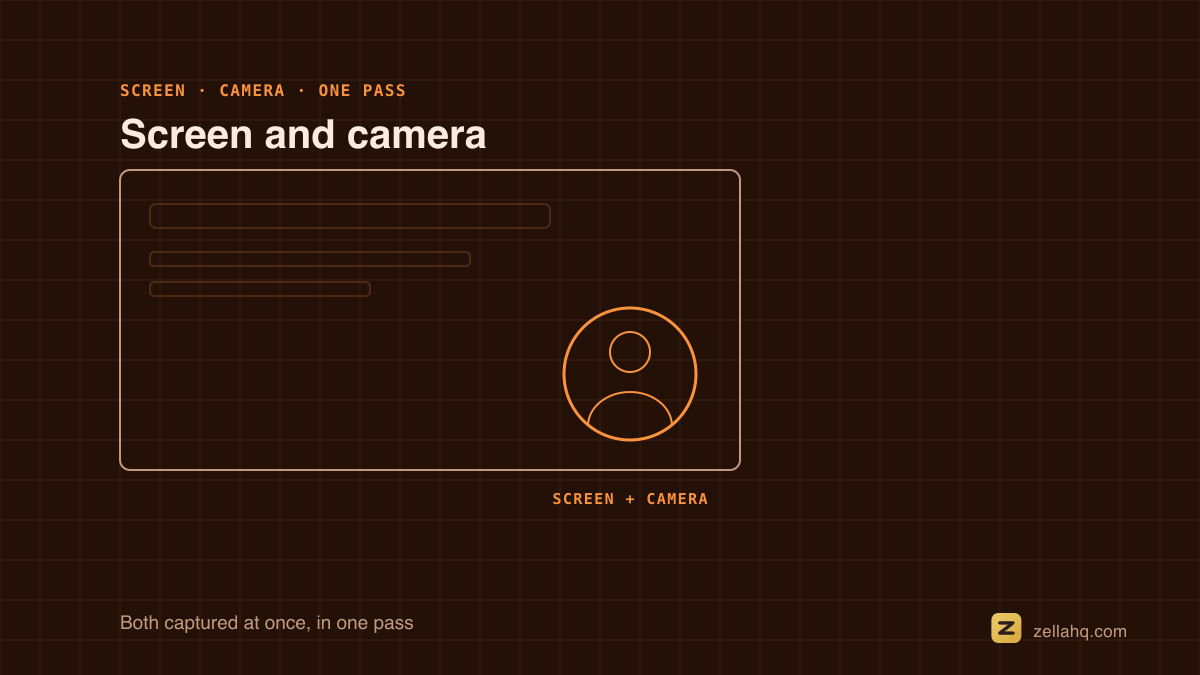
With Zella, screen and camera capture together in a single take - no second app, no re-syncing footage later.
- Open Zella and choose your screen capture mode (full display, window, or a region).
- In the Setup panel click Studio, then the Camera tab, and pick your camera.
- Choose a bubble shape - Circle, Wide or Portrait (Portrait is the one for 9:16) - a size (S/M/L) and a default corner. It starts bottom-right, and you can drag it anywhere in the editor afterwards.
- Hit record. Screen, camera, and audio capture as one aligned recording.
On the same tab you set what sits behind you: Camera (your real room), Blur, Remove for AI background removal, a solid colour, or a preset image - Bokeh, Office, Nature or Sunset. One thing worth changing before you record rather than after: turn Mirror off if you are going to hold anything with text on it up to the camera, or the writing comes out backwards.
Because everything records as one synced clip, your audio never drifts out of alignment, and you can reposition or restyle the bubble while editing. See capture. It's 100% local - no cloud upload, no account - and the free plan records unlimited length with no watermark, and free exports run up to 2 minutes.
The Mac side of this runs on ScreenCaptureKit, which captures cursor and click events with the frames rather than reconstructing them afterwards.
How to record screen and webcam with QuickTime (built-in, free)
No download required, but it takes two windows and some manual cleanup:
- Open QuickTime Player and choose File → New Movie Recording to open your camera window.
- Choose View → Float on Top so the camera stays visible above other apps.
- Drag the window corners to shrink it to a small, webcam-style size and park it in a corner.
- Choose File → New Screen Recording, set your mic, and click Record.
- Record your screen as normal; the floating camera shows in the recording.
- Press Command-Control-Esc (or click the stop button) when done.
The catch: QuickTime composites the camera into the screen capture only because the window happens to sit on top. You can't reposition the bubble after the fact, the camera has no shape or background options, and trimming a fumble can nudge audio out of sync. It works for a one-off; it's painful for repeatable, polished content.
Built-in method vs a dedicated recorder
| Capability | QuickTime (built-in) | Dedicated recorder (Zella) |
|---|---|---|
| Apps to manage | Two windows | One |
| Webcam bubble shape / edge | None | Circle, rounded rect, custom |
| Background removal (no green screen) | No | Yes, on-device |
| Move / resize bubble after recording | No | Yes, with keyframes |
| Audio + screen + camera stay synced | Manual | Automatic |
| System audio + mic together | Limited | Yes |
| Watermark | No | No (free plan) |
| Cost | Free | Free; optional one-time Pro |
For a single quick clip, QuickTime is fine. For tutorials, demos, and anything you'll make repeatedly, an all-in-one recorder removes the friction.
Clean up the background without a green screen
Most people assume a clean webcam background needs a green screen and a lighting rig. On-device AI background removal makes that unnecessary: the software separates you from whatever is behind you so you can blur it, drop in a solid color, or keep a live background - all without specialized hardware.
Blur is usually the safest choice because it preserves a natural sense of depth while erasing clutter, and it forgives imperfect lighting better than a hard cut-out. Whichever you pick, decide before you record so your lighting suits it: front light for a clean cut-out, softer ambient light for a blur.
Move or resize the bubble mid-video
The most overlooked skill in webcam-plus-screen recording is editing your own presence. Not every moment deserves a face. During a long stretch of dense on-screen work, the bubble should shrink into a corner or fade out so the viewer can concentrate. During an intro, a transition, or a reaction that carries the message, it should grow and take the spotlight.
Reposition the bubble on the timeline with keyframes - tuck it away during dense UI moments, then bring it back larger for talking-head sections. Thinking of the camera as something you direct, rather than something you simply leave on, is what separates a produced recording from a webcam someone forgot to turn off.
Where to place the webcam bubble
- Bottom-left or bottom-right usually clears app UI and toolbars.
- Small enough to never block content, large enough to read your expression - usually a corner circle taking up a tenth to a sixth of the frame.
- Look at the camera, not the screen, for your key lines - it reads as eye contact.
- Vary the size to match the rhythm of the content so the bubble keeps carrying meaning.
Get the camera looking good before you hit record
Software cleanup can only do so much with a dim, noisy source, so spend two minutes on the input:
- Light from the front. Face a window or a soft light rather than letting it sit behind you, which throws your face into shadow.
- Raise the camera to eye level so you're not filming up your own chin.
- Tidy the visible background even if you plan to blur or replace it - a cleaner source removes more cleanly.
- Frame slightly off-center with a little headroom.
A laptop camera near a window and a clear desk already reads as deliberate rather than accidental.
Audio is half the picture
People forgive rough video far more readily than rough audio. A close, consistent microphone - even a modest USB or headset mic - beats the built-in array because it rejects room echo and keeps your level steady. Record in the quietest room you have, kill fans and notifications, and do a five-second test take to confirm your voice and any system sound land cleanly. If you need both your mic and the computer's sound, see how to record system audio and mic at the same time.
Fix it in the edit when the take isn't perfect
Even a careful recording rarely comes out flawless. The reassuring part is how much you can fix afterward when screen, camera, and audio are captured together and stay in sync:
- A bubble parked over an important button can be repositioned.
- A camera left at one size too long can be keyframed to grow and shrink.
- A stumble can be trimmed without the audio drifting, because the tracks move together.
This safety net changes how you record: instead of chasing one flawless continuous take, you record in confident sections, knowing placement and pacing are adjustable later. Lower the pressure at record time and the performance itself tends to improve. You can also auto-zoom into the action and add captions without uploading the file - both run locally too.
Zella's free plan covers unlimited recording (free exports run up to 2 minutes), 1080p export, AI cleanup, captions, and auto-zoom with no watermark. A one-time $89 Pro unlock adds 4K export and the pro-depth toolset - 4K/8K export, motion keyframes, Color Match and scopes, effect masks, speed ramps and per-drum Beat Sync - no subscription. Compare on pricing.
Frequently asked questions
Do I need a green screen? No - on-device background removal separates you from your background, so you can blur or replace it without one.
Can I add the webcam bubble after recording? It's captured during recording, but you can reposition, resize, and restyle it while editing. See how to add a webcam bubble.
Will my screen and webcam stay in sync? Yes - when both record into one file, screen, camera, and audio stay aligned automatically, even after trims. QuickTime's floating-window method has no such guarantee.
Can I record screen and webcam without a second camera app? Yes - an all-in-one recorder captures both at once, so you avoid juggling two windows and re-syncing footage.
The bottom line
QuickTime can fake a picture-in-picture in a pinch, but for repeatable, polished screen-plus-webcam recordings you want both captured into one synced file with a real webcam bubble, on-device background removal, and keyframeable placement. Set up your light and mic, park the bubble in a corner, and direct your own presence - small, intentional motion is the whole craft.
Download Zella and record screen + camera in one take.
Make your next video with Zella.
Record, edit and ship on Mac and iPhone - local, private, free to start.
PART OF A SERIES
Screen and camera in one take
The webcam bubble, and the recordings people make with it.
- How to Record Screen and Webcam at Once on Macyou are here
- How to Add a Webcam Bubble to a Screen Recording
- How to Record a Loom-Style Video on Mac Without Loom
- How to Record a Product Demo on Mac (Founder's Guide)
All of it lives under Capture.
RELATED