To remove silence from a video on a Mac, use silence detection: the editor scans the audio, finds gaps below a volume threshold, and ripple-deletes them so the timeline stays in sync and the video feels tighter. Tools like Zella do it automatically and on-device, padding each cut so words are not clipped.
Long pauses kill watch-time. The gap while a page loads, the half-second where you lose your train of thought, the breath before the next sentence - played back-to-back, that dead air makes a video drag and viewers start scrubbing. The fastest fix on a Mac is automatic silence detection: scan the audio, find every gap below a volume threshold, and ripple-delete them so the timeline collapses and audio stays in sync. Here's how to do it in one pass, plus how to tune it so the cut still sounds human.
Remove silences in one click
In Zella, silence removal lives in the AI cleanup pass and runs entirely on your device - no upload, no account.
- Import or record your video in Zella.
- Open AI Cleanup.
- Turn on Remove silences. Optionally set how long a gap must be before it's cut, and how much buffer to leave around each cut.
Zella scans the audio, finds gaps below your threshold, and ripple-deletes them - collapsing the timeline so audio and video stay perfectly aligned. On a typical loose take, that turns ten minutes into six or seven of continuous, watchable content in seconds, with no change to what you actually said.
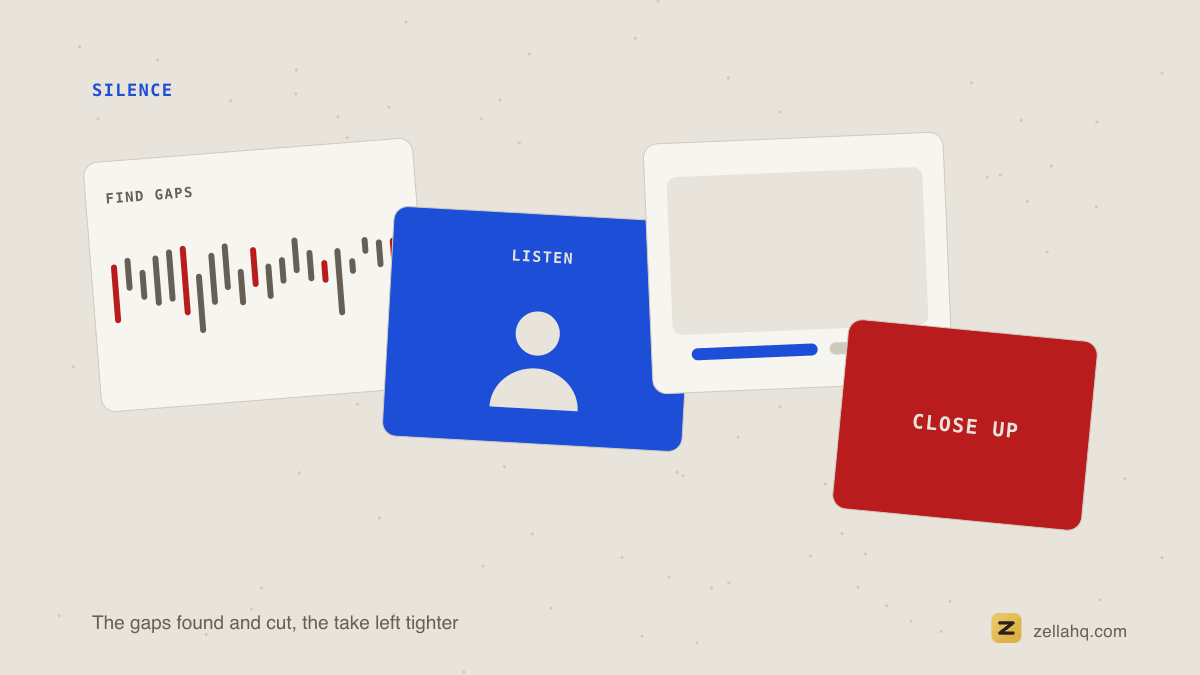
Detection runs locally against the decoded audio using AVFoundation, Apple's media framework, so a long take is analysed on your device rather than uploaded and queued.
How silence detection actually works
Under the hood, silence removal scans your audio waveform and marks any stretch that stays below a volume threshold for longer than a minimum duration. Those stretches get ripple-deleted, so the clips on either side slide together and nothing falls out of sync. Two dials give you all the control:
- Threshold - how quiet counts as silent. Higher removes more.
- Minimum duration - how long a quiet stretch must be before it's cut, so natural micro-pauses survive.
- Buffer (padding) - a small cushion left around each cut so words don't collide.
Understanding that model is what lets you tune it instead of fighting it. Start with the defaults and nudge from there.
Tune silence detection for your content
Dead air costs differently depending on format, so the right settings shift with what you're making. Match the aggressiveness to the content rather than applying one preset everywhere.
| Content type | Threshold | Minimum duration | Why |
|---|---|---|---|
| Fast tutorial | Higher | Shorter | Momentum matters; cut even short hesitations |
| Calm explainer | Lower | Longer | Let natural pauses breathe; relaxed delivery |
| Podcast / interview | Lower | Longer | A little space is natural and welcome |
| Short-form hook | Higher | Shorter | A single half-second gap can lose the viewer |
| Noisy room | Clean first | - | Remove background hum, then detect against a cleaner floor |
For a noisy recording, remove background noise before detecting silences - a high noise floor makes everything read as "loud" and the detector finds nothing to cut.
Silence removal vs. filler-word removal
These solve different problems and are best run together in the same pass:
- Remove silences deletes dead air between sentences.
- Remove filler words deletes "um/uh/like" inside sentences.
One pass with both gives you the tightest possible cut without manual scrubbing - all part of AI cleanup. After that, speed up any remaining slow stretches for an even tighter result.
Keep it sounding natural
Aggressive silence removal can make speech feel rushed or clipped. The most common mistake is over-tightening until the delivery sounds breathless. To avoid that:
- Leave a 50-150ms buffer around each cut.
- Don't trim breaths all the way to zero - a little air sounds human.
- Review the waveform; if two words now collide, loosen the threshold.
- Keep deliberate beats. A one-second pause to show something happened - or a dramatic beat - can be worth keeping; raise the minimum duration or skip that section so intentional pauses survive.
A tight edit that still breathes beats a clipped one that feels rushed.
How Mac silence-removal options compare
You can remove silence on a Mac several ways, but most either work manually or send your file to the cloud.
| Method | Automatic | Local | Notes |
|---|---|---|---|
| QuickTime | No | Yes | Strips audio entirely; can't selectively cut gaps |
| iMovie | No | Yes | Manual: detach audio, find and delete each gap by hand |
| Online silence removers | Yes | No | Upload required; quality and privacy vary |
| CLI tools | Yes | Yes | Powerful but command-line only, no preview |
| Zella AI cleanup | Yes | Yes | One toggle, tunable, non-destructive, with a visual timeline |
The trade-off most people care about: an automatic, local tool gets you the speed of a one-click cut without uploading raw footage you may not want on someone else's server.
Will it desync my audio?
No. Zella ripple-deletes, which removes the silent segment and slides the clips on both sides together - so audio and video stay frame-aligned. This is the same approach pro editors use manually; doing it automatically just saves the scrubbing.
How automatic silence removal changes your recording habits
Once you trust automatic silence removal, you record differently - and better. You stop fearing pauses, so you slow down, think clearly, and speak more deliberately, knowing the gaps will vanish in editing. That produces a calmer, more confident take that also edits down tight. The tool improves both the recording process and the finished result, because you're no longer rushing to avoid dead air you'll remove anyway.
Frequently asked questions
Is silence removal on-device? Yes - it runs entirely on your device, with no upload and no account.
Can I review the cuts before applying? Yes. Everything is non-destructive and undoable, so you can scrub the result, restore a section, or re-tune and run again.
Does it work on podcasts, webinars, and imported clips? Yes - any audio or video with gaps benefits, from screen recordings and talking-head takes to podcasts and files you bring in.
How much time does it save? On a typical 10-minute raw take, silence plus filler removal often cuts 30-50% of the runtime in seconds.
The bottom line
To remove silence from a video on a Mac, use silence detection - threshold plus minimum duration - to find and ripple-delete dead air, tune it to your format, leave a small buffer so speech still breathes, and clean any background noise first. Pair it with filler-word removal in the same AI cleanup pass for the tightest cut. Zella does all of it locally, free, with no watermark.
Download Zella and tighten your next recording automatically.
Make your next video with Zella.
Record, edit and ship on Mac and iPhone - local, private, free to start.
PART OF A SERIES
Cutting dead air and filler words
The silence scan, the filler-word pass, and when to leave a pause alone.
- How to Remove Silence From a Video on Mac (Dead Air, Gone)you are here
- How to Remove Filler Words From a Video on Mac
- How to Remove Filler Words and Silences From iPhone Video
- When to Cut a Pause and When to Leave It In
All of it lives under One-Click.
RELATED