To resize a video for TikTok, Instagram and YouTube, reframe one edit to each aspect ratio - 9:16 at 1080x1920, 4:5 at 1080x1350, 1:1, and 16:9 at 1920x1080 - using auto-track so the subject stays framed instead of letterboxed. Apps like Zella reframe and export each ratio from the same project.
Every platform wants a different aspect ratio, and exporting the wrong one means black bars, awkward crops, or a clip that reads as "reused from somewhere else." The fix is simple: edit your video once, then reframe and re-export it to each platform's ratio - 9:16 for TikTok, Reels, and Shorts, 16:9 for long-form YouTube, 4:5 or 1:1 for the Instagram feed. Here's how to do that on a Mac without re-editing from scratch, and how to keep every crop sharp and on-message.
Where a platform publishes hard numbers, use those rather than folklore: YouTube documents Shorts as up to 3 minutes long and uploaded at a maximum of 1080p.
The platform size cheat sheet
Start here. These are the ratios and pixel dimensions each destination actually wants in 2026.
| Platform | Aspect ratio | Resolution | Notes |
|---|---|---|---|
| TikTok | 9:16 | 1080×1920 | Vertical fills the feed; algorithmically favored |
| Instagram Reels | 9:16 | 1080×1920 | Same master as TikTok and Shorts |
| YouTube Shorts | 9:16 | 1080×1920 | Matches Reels and TikTok exactly |
| Instagram feed | 4:5 | 1080×1350 | Taller post occupies more scroll space |
| YouTube (long-form) | 16:9 | 1920×1080 | Standard widescreen |
| Square (legacy feed) | 1:1 | 1080×1080 | Still safe for mixed feeds |
The takeaway: one vertical 9:16 export covers TikTok, Reels, and Shorts at once. You really only need three masters - 9:16, 4:5 (or 1:1), and 16:9 - to cover everywhere worth posting.
Reframe once, export many
The whole point is to avoid editing the same video three times. Do the edit once, then change the frame for each destination.
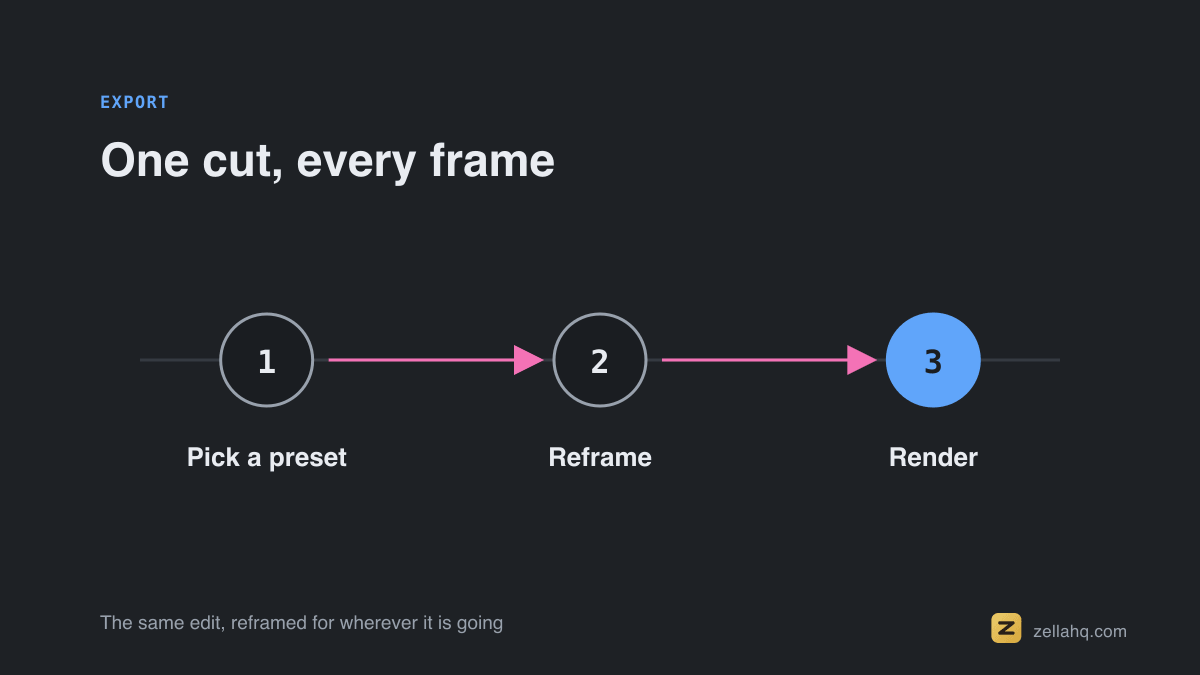
- Edit your video once in Zella.
- Choose a target ratio - 9:16, 4:5, 1:1, or 16:9.
- Turn on auto-reframe so the subject stays in frame, or set a manual crop offset.
- Export with the matching platform preset.
- Repeat for the next ratio. The underlying edit never changes - only the frame.
Because Zella keeps your project non-destructive and works 100% locally, generating each version is a quick crop-and-export rather than a fresh edit, and nothing leaves your device. See ship to every platform - one edit becomes every format.
Don't just letterbox
The lazy way to "fit" a landscape video into a vertical frame is to shrink it and pad the top and bottom with black bars. Don't. Letterboxing wastes most of a phone screen, kills attention on mobile-first feeds, and signals recycled content that vertical algorithms quietly punish.
True reframing crops into the action instead of fitting the whole frame inside the new one. That's the difference between a clip that merely fits a platform and one that looks made for it.
Auto-reframe versus a fixed crop
A landscape composition rarely has its subject dead center, so a naive vertical crop can chop off a face or the exact UI you're demonstrating. Two approaches solve this:
- Auto-reframe (motion tracking) follows the active region - your face, the cursor, the part of the screen that's moving - and keeps it inside the new frame as the action shifts. Best for talking-head and demo content, usually right out of the box.
- Fixed manual offset pins the crop to one spot. Best when the important thing sits off to one side and stays there, like a static layout or a UI panel.
Let the tracker follow lively content, pin the crop for static layouts, and always re-watch the result to confirm nothing essential drifted out of frame.
Mind the safe zones
Each platform overlays its own UI on top of vertical video - caption bars, usernames, progress bars, and a column of action buttons down the right side. Anything you place in those regions can get hidden. Keep critical content and text inside the visible center band.
| Platform | Top overlay | Bottom overlay | Right-side buttons |
|---|---|---|---|
| TikTok | ~200 px | ~350 px | ~130 px |
| Instagram Reels | ~250 px | ~400 px | ~150 px |
| YouTube Shorts | ~200 px | ~400 px | ~130 px |
A reliable rule of thumb: keep important visuals in the middle 60% of the frame, and hold text at least 10-15% away from the top and bottom edges. These numbers shift over time, so treat them as guidance, not gospel - the real test is watching the export in the actual app.
Keep captions readable across ratios
A caption that sits perfectly in a 16:9 frame can collide with platform UI once you crop to 9:16. Anchor your captions so they reposition with each ratio, leave a safe margin at the top and bottom of vertical exports, and re-check after every reframe that text, logos, and key UI still sit in the uncluttered center. A thirty-second review saves you from posting a vertical clip with its punchline tucked behind the share button.
If you're styling captions for short-form specifically, see best caption styles for short-form video.
Compose the original so it survives reframing
The easiest reframes start at record time, not in the export dialog. If you know a recording will become both a wide YouTube cut and a vertical Short:
- Keep the most important action near the center of the frame, where every crop can reach it.
- Leave breathing room around the edges so a vertical crop has something to slice into rather than cutting the subject.
- Avoid placing critical UI or text at the far left or right - those are exactly the regions a 9:16 crop discards.
This forethought costs nothing and turns reframing from a compromise into a clean operation. A video shot with reframing in mind yields strong versions in every ratio. If you're recording specifically for vertical, make a 9:16 reel from a screen recording walks through the capture side.
Per-platform tweaks worth making
Reframing to the right ratio is the baseline. The creators who get the most from each platform adjust for the audience, not just the dimensions:
- TikTok / Reels (9:16): Put the hook in the first second. Use bold, high-contrast captions - most viewers watch on mute in bright light.
- Instagram feed (4:5): The taller ratio occupies more screen as someone scrolls, so it earns a longer look than a square.
- YouTube (16:9): Long-form viewing intent is different - you can open with a little context before the payoff.
The underlying edit is shared; the hook framing, caption styling, and ideal length shift per destination. Treat each export as a tuned variant rather than a mechanical resize.
Does resizing lower quality?
Not if you export from a high-resolution master. Cropping a 1080p or 4K source down to a vertical frame keeps the pixels you keep sharp - the quality loss people complain about comes from upscaling a small or already-compressed file, or from re-encoding it several times. Edit and export from the original capture, not from a clip you already exported once.
Zella's free plan exports 1080p with no watermark; the optional one-time $89 Pro unlock adds 4K export plus the pro-depth toolset - 4K/8K export, motion keyframes, Color Match and scopes, effect masks, speed ramps and per-drum Beat Sync. If your master is 4K, you can crop hard into a vertical region and still land a clean 1080p Short. For more on that, see how to export 4K video on Mac.
Frequently asked questions
Can I make all three versions from one edit? Yes. Edit once, then reframe and export to each ratio. A non-destructive project turns every platform into a quick crop-and-export rather than a fresh edit.
Which aspect ratio gets the most reach right now? Vertical 9:16 dominates short-form discovery on TikTok, Reels, and Shorts. 16:9 is right for long-form YouTube, and 4:5 performs well in the Instagram feed.
How do I avoid black bars? Crop into the new ratio with tracking instead of fitting the whole frame inside it. Letterboxing is what produces the bars.
What if the important content is off-center? Use auto-reframe to follow it, or set a manual offset to pin the crop on it.
The bottom line
You don't need a separate edit per platform - you need one good master and a fast way to reframe it. Keep the project non-destructive, compose with extra room around your subject, crop into the action instead of letterboxing, and do a quick safe-zone check on every export. Do that and one video ships clean to TikTok, Reels, Shorts, the Instagram feed, and YouTube without ever leaving your device.
Download Zella and resize for every platform in minutes.
Make your next video with Zella.
Record, edit and ship on Mac and iPhone - local, private, free to start.
PART OF A SERIES
Reframing for vertical and square
One recording, every aspect ratio, with the face-aware crop doing the work.
- How to Resize a Video for TikTok, Instagram and YouTubeyou are here
- How to Make a 9:16 Reel From a Screen Recording
- How to Make a Video Vertical (9:16) on iPhone for TikTok
- Best Video Size and Aspect Ratio for Every Platform (2026)
All of it lives under Ship Everywhere.
RELATED