To remove filler words from a video on a Mac, use an editor with on-device speech detection: it transcribes the audio, flags fillers like "um", "uh" and "like", and ripple-deletes them so the video stays in sync. Apps such as Zella do this in one click, locally, with nothing uploaded.
Filler words are the fastest way to make a sharp recording sound amateur. The good news: on a Mac you can remove "um," "uh," and "like" automatically - in one pass, without sending your footage to a cloud service and without scrubbing the timeline by hand.
The short version: open your recording in a tool with on-device filler detection, toggle filler-word removal, and let it ripple-delete the stumbles so the rest of the timeline slides up and stays in sync.
The app used below, Zella, is a native Apple app rather than a Mac-only one: the Mac version ships today, and Zella for iPhone is available on the App Store, with one Pro purchase covering both.
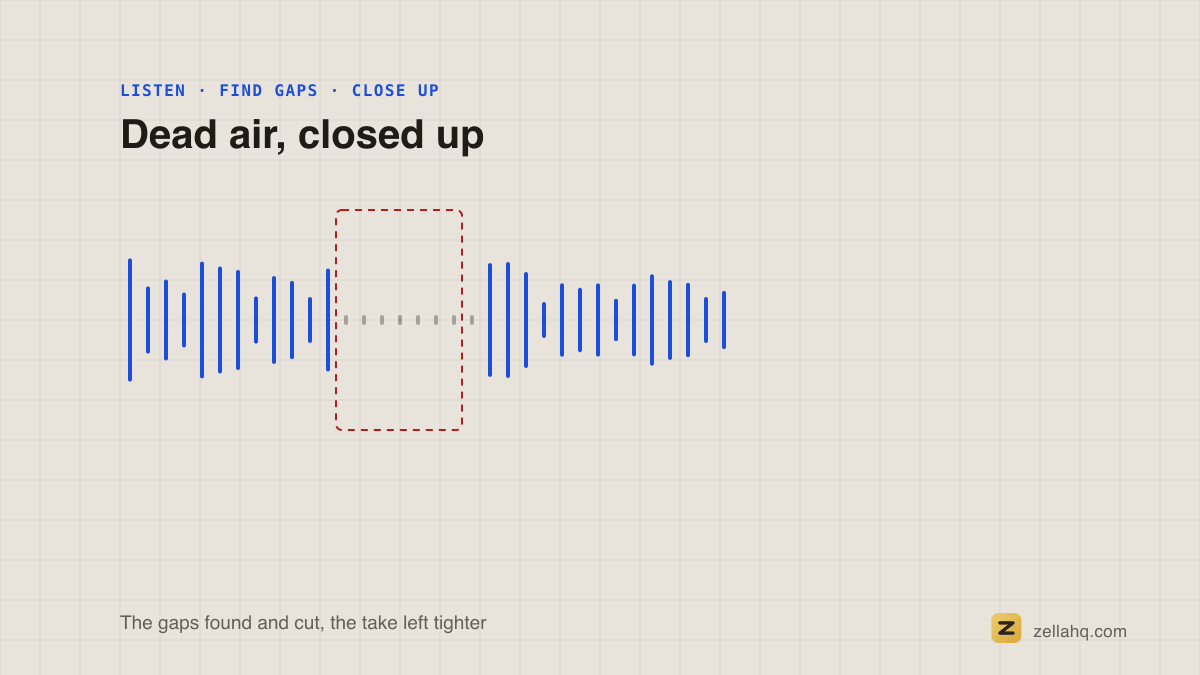
Remove filler words in one click with Zella
- Open your recording in Zella, or record a new one.
- Open the AI Cleanup panel.
- Toggle Remove filler words. Turn on Remove silences at the same time for the tightest result.
Zella detects filler words on-device using local speech recognition, built on Apple's Speech framework, which supports on-device transcription so audio never leaves the machine, then ripple-deletes them so the rest of the timeline slides up and stays in sync. Nothing is uploaded, there's no transcript service to wait on, and there's no account to create. Filler removal is part of Zella's free plan, alongside unlimited recording, no watermark, 1080p export (up to 2 minutes free; Pro for longer), captions, and auto-zoom.
How automatic filler-word removal actually works
Zella transcribes your audio locally, tags the known filler tokens, and removes those spans along with the tiny silences around them. Because it ripple-deletes, your captions and zoom blocks move with the cut and stay aligned - see AI cleanup for the full pass.
The whole pipeline runs on your device. That matters for two reasons: sensitive or internal recordings never leave the machine, and you're not waiting on an upload-transcribe-download round trip before you can edit.
Which filler words get removed
Most automatic tools, Zella included, target the same short list of high-frequency verbal crutches:
| Type | Examples | Notes |
|---|---|---|
| Hesitation sounds | um, uh, er, hmm | Almost always safe to cut |
| Discourse fillers | like, you know, I mean | "Like" can be a real word - review these |
| Soft starters | so, well, actually, basically | Cut at the start of a sentence, keep mid-thought |
| Repeated words | "the the," "and and" | Stutters and false starts |
Hesitation sounds are the safest to remove in bulk. Discourse fillers such as "like" and "you know" need a quick review, because sometimes they carry real meaning ("I like this layout"). A good tool lets you adjust how aggressive the pass is and undo any single cut.
Supported files and formats
Filler removal works on any audio or video you import - screen recordings, talking-head clips, podcasts, and webinars alike. Common containers like MP4, MOV, and M4A all work, and because Zella records natively on macOS you can clean up a take seconds after you stop recording, in the same app.
Manual vs automatic: why automatic wins
You can remove fillers by hand - scrub the waveform, find each "um," cut it, close the gap, repeat. For a ten-second clip that's fine. For anything longer it's soul-destroying and error-prone, and you'll miss some. Here's the trade-off:
| Manual editing | Automatic (on-device) | Cloud AI tools | |
|---|---|---|---|
| Speed | Slow, word by word | One pass over the whole clip | One pass, plus upload time |
| Accuracy | High but tiring | High, with review | High |
| Privacy | Local | Local | Footage uploaded |
| Account needed | No | No | Usually yes |
| Control over each cut | Full | Full (review and undo) | Varies |
Automatic detection does the same job across the whole timeline in one pass, then lets you review and undo any individual cut you disagree with. You keep the control of manual editing without the tedium - which is the whole reason on-device filler removal is worth using over a hand edit.
When to clean up by hand instead
Automatic removal is right most of the time. Do a manual pass when:
- A "like" is a real word ("I like this layout") - keep it.
- You use a filler intentionally for rhythm or comedic timing.
- A cut feels too abrupt - add a small buffer so it breathes.
In Zella you can review each cut on the timeline and undo any single one without redoing the whole pass.
Tune the sensitivity instead of maxing it out
Automatic removal has a sensitivity you can adjust. Crank it for fast, punchy short-form; ease it for a conversational podcast where some natural rhythm is part of the appeal. The goal isn't zero pauses - speech with no breath sounds robotic - it's removing the unintentional ones. Leaving a small buffer of 50-150ms around each cut keeps the result human, which is why a good tool ripple-deletes with a configurable gap rather than slamming words together.
Filler words across different content
- Talking-head and vlogs - fillers are most noticeable here because the viewer is watching your face; removing them is the single biggest delivery upgrade.
- Tutorials and demos - "um" while a page loads is doubly costly, since it pads an already slow moment; pair filler removal with silence removal.
- Podcasts - long-form tolerates a little natural filler for warmth, so tune the aggressiveness rather than stripping every last one.
- Short-form reels - be ruthless; the first second decides whether someone stays, so no stumbles in the hook.
What a filler-word edit looks like in practice
Take a typical two-minute talking-head intro. Recorded naturally, it might contain twenty or thirty "ums," a handful of "you knows," and several half-second pauses where you gathered a thought. Left in, those add up to fifteen or twenty seconds of dead weight and a noticeably less confident delivery.
Removed, the same intro is tighter, faster, and sounds rehearsed - without you having recorded a single extra take. On a rambly take, filler and silence removal together often cut 15-40% of the runtime in a single pass. The words you cut were never adding anything, so removing them is pure upside.
Polish the voice after the cut
Run Polish Voice once the fillers are gone. It normalizes loudness to −14 LUFS, de-esses harsh consonants, and applies gentle compression. The result sounds like it was mixed in a booth, not recorded at your desk.
How filler removal fits the rest of your edit
Filler removal is step one of a tight edit, not the whole thing. After it, remove silences to kill the gaps between sentences, add captions so muted viewers follow along, and auto-zoom to keep the eye engaged. Doing all of this in one local pass - see AI cleanup - is what turns a raw take into something that feels produced in minutes rather than hours.
Zella's free plan covers the whole cleanup workflow. If you later want unlimited export length, 4K export, plus the pro-depth toolset - 4K/8K export, motion keyframes, Color Match and scopes, effect masks, speed ramps and per-drum Beat Sync - there's an optional one-time $89 Pro unlock, no subscription. See pricing for the split.
Common mistakes to avoid
- Over-tightening. Removing every pause makes speech feel robotic. Leave 50-150ms of breathing room.
- Skipping captions. Many viewers watch muted; add on-device captions after cleaning.
- Editing the original. Keep edits non-destructive (Zella is, by default) so you can always revert.
Frequently asked questions
Does removing filler words need internet? No. In Zella it runs entirely on-device - ideal for sensitive or internal recordings, and there's no upload or account.
Will it cut real words by mistake? It targets known fillers and short silences, and you can review and undo any individual cut. Lower the sensitivity to keep more natural rhythm.
Does it work in other languages? It targets the spoken language's common fillers; review the result and edit anything it misses.
Will my captions and zooms stay aligned after cutting? Yes - they ripple with the timeline, so everything stays in sync.
The bottom line
To remove filler words from a video on a Mac: use on-device detection to flag and ripple-delete "um," "uh," and "like," tune the sensitivity to your content, leave a small buffer so it sounds human, then pair it with silence removal and captions for a tight, produced result - no upload, no account required.
Ready to try it? Get Zella and clean up your next recording in seconds.
Make your next video with Zella.
Record, edit and ship on Mac and iPhone - local, private, free to start.
PART OF A SERIES
Cutting dead air and filler words
The silence scan, the filler-word pass, and when to leave a pause alone.
- How to Remove Silence From a Video on Mac (Dead Air, Gone)
- How to Remove Filler Words From a Video on Macyou are here
- How to Remove Filler Words and Silences From iPhone Video
- When to Cut a Pause and When to Leave It In
All of it lives under One-Click.
RELATED