During a Recording in Zella: Pause, Resume & Stop
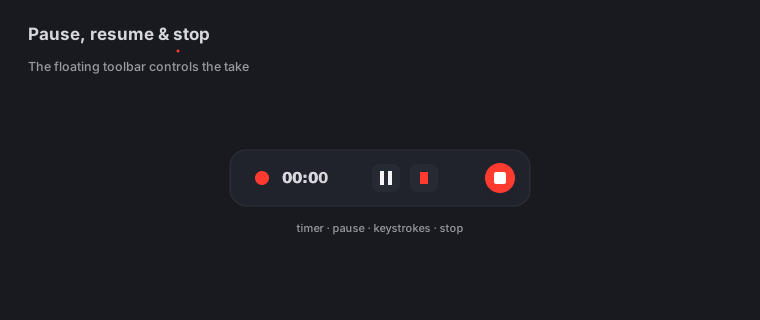
Quick answer (Mac): While recording, Zella shows a floating toolbar at the top of your screen. Click ‖ to pause (the timer freezes and the dot turns amber) and ▶ to resume - the result is one continuous clip with no gap and no audio drift. Click the red square (■) to stop; Zella finalizes the file and opens the editor automatically. Never force-quit during the few seconds of finalization.
On iPhone: tap record to start and stop to finish. There’s no floating toolbar - instead, every take is written in crash-safe segments, so an incoming call, a low battery or iOS reclaiming memory can’t wipe out the footage. See On iPhone.
On this page: the toolbar · stop · pause-resume · long recordings · device changes · where & when · on iPhone · impact · FAQ
What is the recording toolbar?
The recording toolbar is a small bar that floats at the top of your screen the moment a recording starts. Think of it as your live control panel while you record.
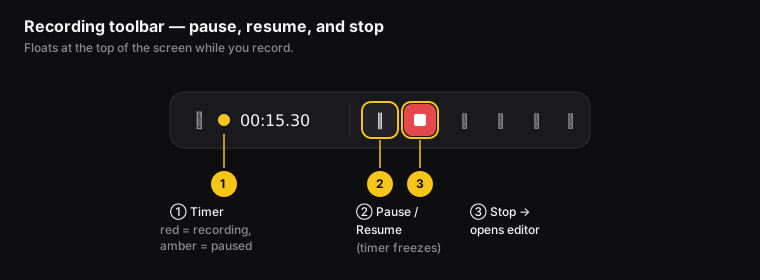
Figure: ① the timer (red while recording, amber while paused), ② pause/resume, ③ the red stop button that opens the editor.
From left to right you’ll see: a drag handle (⋮) for moving the bar, the timer (a red dot means recording, an amber dot means paused), pause/resume (‖ / ▶), stop (■), and on/off buttons for mic (🎙), camera (📷), cursor (⌖), and keystrokes (⌨) (the keys you press show on screen). The toolbar sits on top of everything else. It won’t show up in a region recording (when you record only part of your screen) unless it’s inside the area you picked.
How to stop a recording
- Click the red square (■ Stop) on the toolbar.
- Zella finalizes the file (finishes saving it - this takes a second or two).
- It saves the file to your output folder and opens the Studio editor with the clip loaded.
Your file is safe the moment saving finishes. Even if you close the editor without saving a project, the recording itself is already stored on your device.
Do not force-quit while Zella is finalizing. Give it those couple of seconds to finish writing the file. If you do force-quit, Zella’s crash recovery will still try to rescue the file the next time you open it - but a clean stop is always best.
How to pause and resume a recording
You don’t have to get everything right in one try. Pause to step away, fix something off-camera, or collect your thoughts, then pick up where you left off.
- Click ‖ Pause - the dot turns amber and the timer freezes (stops counting).
- Do whatever you need. Your screen and camera are not being recorded while you’re paused.
- Click ▶ Resume - the dot turns red and the timer starts counting again.
You end up with one smooth clip. The paused time is left out, and your audio and video stay perfectly lined up across the point where you resumed. There’s no drift (audio and video slowly slipping out of sync) and no seam to fix later.
How to record long sessions without drift
Zella is built for long recordings - webinars, full courses, and demos that run for many minutes:
- Audio and video stay in sync from start to finish. They won’t slowly slip apart over time.
- Your screen is kept awake while recording, so your Mac won’t fall asleep partway through and cut the file short.
- If the app crashes while recording, crash recovery offers to rescue the file the next time you open Zella.
Don’t put your display to sleep yourself while recording. Zella tells your Mac to keep the screen awake, but forcing it to sleep can end the screen recording early on some graphics chips.
What happens if you unplug a mic or camera mid-recording?
- Unplugging a mic or camera partway through is handled smoothly - Zella won’t freeze - but you lose that input from the moment you unplug it. If you need to swap a device, do it during a pause.
- Switching where sound plays (for example, to AirPods) doesn’t affect the recording. Zella records your mic and system audio directly.
Where and when to use pause/resume
- Where: tutorials with setup steps you do off-screen, courses where you reset between sections, or demos that wait on a slow task to finish.
- When: any time one interruption would otherwise force you to re-record everything. Pausing beats starting over.
- Habit: leave a moment of silence before you pause and after you resume. It makes cutting cleanly easier later.
On iPhone
The floating toolbar described above is a macOS thing. On the phone you tap record to start and stop to finish, and the editor opens with your take on the timeline.
Crash-safe, segmented recording
A phone faces hazards a Mac doesn’t, so Zella protects the take differently:
- The recording is written to disk as it goes, in segments, rather than held in memory until you stop.
- If a call interrupts you, the battery dies, or iOS backgrounds the app, the footage up to that point is safe.
- This is the mobile counterpart to the Mac’s crash recovery and sleep-safe long recordings above.
The practical upshot: record long takes on the phone without hovering over the stop button. A bad moment costs you the rest of the take, not the whole thing.
Swapping a mic mid-take
The same rule as the Mac applies - AirPods or a plugged-in mic captures cleaner narration than the built-in mic in a noisy room, so pick the one you trust before you start rather than switching mid-take.
What’s Mac-only here
The toolbar’s cursor (⌖) and keystroke (⌨) buttons have no iOS equivalent - cursor, click and keystroke tracking is Mac-only, because a phone has no cursor and no key presses to draw. Everything those overlays are for on a Mac tutorial is handled on the phone by callouts and zoom blocks instead.
Full guide: Recording on iPhone →
What impact clean recording control has
For creators and video editors, getting good at pause/resume and a clean stop means:
- Fewer wasted recordings - one interruption no longer costs you the whole take, so you finish faster.
- Cleaner raw footage - pausing during dead time (installs, page loads) leaves less to cut later.
- No broken files - a clean stop plus crash recovery means you almost never lose a recording, which is the most frustrating thing that can happen in video work.
Recording controls FAQ
Does pausing leave a gap or make the audio drift in the final video? No. The paused time is removed, and the clip plays as one piece with audio and video locked in sync across the resume point.
Where does my recording go after I stop?
To your output folder (~/Desktop/Zella by default), named Zella_<date>_<time>.mp4. The editor also opens automatically with the clip.
Can I keep recording if I unplug my mic? Yes, but you lose mic audio from that moment on. Make any device changes during a pause.
Is it safe if Zella crashes while recording? Yes - reopen the app and accept the recovery prompt to rescue the file you were recording (see Projects, Autosave & Snapshots).
My recording looks like it has very few frames - is it broken? Probably not. To save space, Zella skips frames that don’t change. So a still screen produces fewer frames but still plays smoothly. See Troubleshooting.
What if a call comes in while I’m recording on my iPhone? The take is segmented and crash-safe, so everything up to the interruption is preserved. Same if the battery dies or iOS backgrounds the app.
Can I show my keystrokes on screen on iPhone? No - cursor, click and keystroke tracking is Mac-only. Use a Keystroke callout on the phone if you need to show a shortcut.
Pro tips & gotchas
- Pause/resume keeps everything in one file - you don’t have to join clips together afterward.
- Turn on the ⌨ keystrokes display when showing off shortcuts, so viewers can see the keys you press.
- Keep the screen awake: Zella asks your Mac to stay awake, but if the screen dims it can hurt camera quality and even cut the file short.
- Use the timer in the toolbar to keep your pacing on track - glance at it instead of rambling.
- On the phone, long takes are safe by design. Segmented recording means you don’t need to stop and restart every few minutes to protect your work.
Related: Recording basics → · Recording modes → · Editor overview → · Projects & recovery → · Recording on iPhone →