Effects in Zella: Vignette, Blur, Grain & More
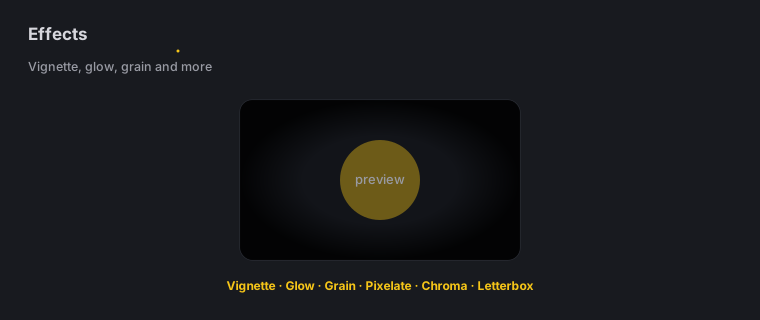
Quick answer (Mac): In Zella’s editor, open the Effects tab in the right inspector to add Vignette, Glow, Grain, Pixelate, Chroma, or Letterbox. To limit an effect to one area, add a feathered rectangle or ellipse mask. To censor sensitive content, add a Blur callout from the Arrows tab and size it over the secret. Effects bake into the exported file, so what you see is what you ship.
On iPhone: the same jobs get done with Effects → Looks, feathered masks, 16 overlay blend modes, and the blur and pixelate-censor callouts. See On iPhone.
On this page: what these effects do · how to add them · effect masks · blur callouts · where to use · when to use · on iPhone · impact · FAQ
What do video effects do?
Video effects change the look and mood of a shot. They don’t change what is on screen. They change how it feels. In Zella you get six signature effects. Each one gives your video a clear, recognizable style that tells viewers “this was edited on purpose.”
| Effect | What it does | The feeling it creates |
|---|---|---|
| Vignette | Darkens the frame edges | Focus pulled to the center |
| Glow | Soft bloom (a gentle halo) on bright spots | Dreamy, premium, “expensive” |
| Grain | Adds film grain (tiny specks like old film) | Cinematic, less sterile/“digital” |
| Pixelate | Blocky mosaic | Stylized censorship / retro |
| Chroma | Color-fringe (thin colored edges, like chromatic aberration) | Glitchy, energetic, modern |
| Letterbox | Black bars top and bottom | Cinematic widescreen |
Two helper tools work alongside them: masks (limit an effect to part of the frame) and blur callouts (hide private information).
How to add an effect in Zella (step by step)
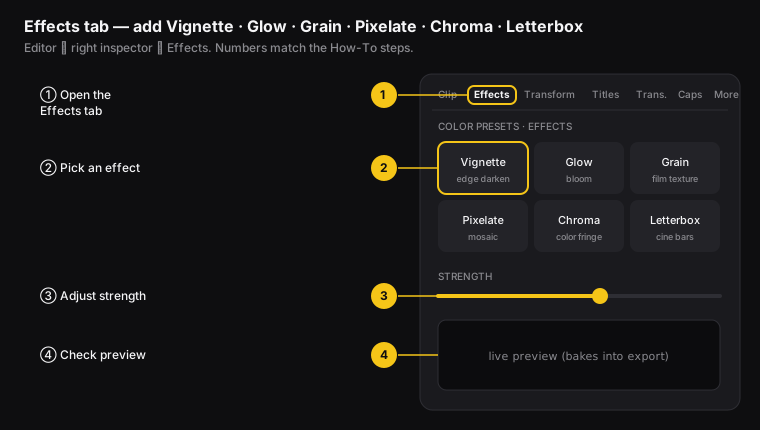
Figure: the Effects tab in the right inspector. ① open the tab, ② pick an effect, ③ adjust strength, ④ check the preview.
- Open your project in the Studio editor.
- Click the Effects tab in the right inspector.
- Choose an effect - Vignette, Glow, Grain, Pixelate, Chroma, or Letterbox.
- Adjust the strength until it looks intentional but not too strong.
- Watch the preview - the effect shows up live, and it will bake into (become part of) the exported file.
You can stack (combine) several effects at once. For example, Grain plus a light Vignette plus Letterbox makes a cinematic intro.
How to mask an effect to one region
A mask limits an effect (or a color grade) to only part of the frame. It has a feathered edge (a soft, fading border) so it blends in naturally.
- Apply the effect or color grade you want to limit.
- Add a mask and choose rectangle or ellipse.
- Position and size the mask over the area you want.
- Increase feather (the softness of the edge) so the border fades smoothly instead of showing a hard line.
Masking examples: darken only the corners while keeping the subject bright; drain the color from the background while a product stays in full color; glow only one highlighted button or menu.
How to blur or censor part of a video
A Blur callout hides private information - an API key (a secret password for software), an email, a face, or a license plate - so you can show real software safely.
- Open the Arrows tab in the right inspector.
- Add a Blur callout.
- Position and size it over the thing you want to hide. Drag its handles to cover the area.
- That area is truly hidden in the exported file, while the rest of the frame stays sharp.
Use Pixelate as a mask for a stylized “mosaic over a name” look, or the Blur callout for a clean, secure way to hide something.
Where to use video effects
For content creators and video editors, these effects pay off in specific spots:
- Intros and sizzle reels: Grain plus Vignette plus Letterbox make an instant cinematic opener.
- Product reveals: Glow on the big moment makes it feel premium.
- Reels and short-form: Chroma and quick Letterbox hits add energy.
- Tutorials with private data: Blur callouts over keys, emails, and dashboards.
- Separating the subject from the background: mask a Vignette, or drain the background’s color, so the viewer’s eye lands on the subject.
When to use video effects (and when not to)
- Use them when you want a set mood, to point attention somewhere, or to hide private data.
- Go light on tutorials - clarity comes first. Heavy grain or a strong vignette can make on-screen text hard to read.
- Go bolder on reels, intros, and reveals - short-form videos reward a strong style.
- Always blur secrets before you publish anything you recorded over a real, logged-in app.
- Don’t pile on every effect - two tasteful effects beat five that fight each other.
On iPhone
The three things this page is really about - style, limiting a treatment to one area, and hiding secrets - are all on the phone. They’re just reached from different places.
Style: Effects → Looks
Open Effects → Looks and apply one of the 92 color looks. Notably, Auto-Polish deliberately leaves your color alone - a preset forced onto footage it wasn’t made for does more harm than good - so a look is always a decision you make, one tap away. See Color grading.
Limiting a treatment to one area: feathered masks
Feathered masks work the same way on the phone, with the soft edge that keeps a treatment from showing a hard border. They’re part of the depth toolset - keyframes, the curve editor, feathered masks, speed ramps, Color Match and the luma scope - which is Zella Pro on iPhone and Mac alike. It gates the controls, not your video: a project that already uses a mask still previews and exports on every tier, and new installs get Pro Week free for seven days.
Hiding secrets: the censor callouts
Two of the phone’s 19 callout types exist for this:
- Blur - hides an area cleanly.
- Pixelate-censor - the blocky-mosaic version, for a stylized redaction.
Drop one over any key, face, email or licence plate and it’s hidden in the exported file, not just the preview. Censor before you export, exactly as on the Mac. See Callouts.
Something the Mac page doesn’t cover: blend modes
Titles and callouts on iPhone support 16 overlay blend modes - screen, multiply, overlay, soft light and more - so text and graphics sit in the footage instead of looking pasted on. Blend modes apply to callouts as well as titles, in the preview and in the export, so a Glitch region set to Screen or a Spotlight set to Multiply renders exactly the way you set it.
Full guide: On-device AI → · Captions, titles & arrows on iPhone →
What impact effects have when applied correctly
When you use effects sparingly, the payoff for creators and editors is real:
- Looks more professional - footage with color and texture reads as “professional,” which builds trust and watch-time.
- Better control of attention - vignettes and masks guide the eye, so viewers look where you want and miss less.
- Safe demos - blur callouts let you show real products without leaking passwords or customer data. That removes a big reason teams avoid publishing.
- Stronger brand consistency - using the same effect recipe every time (for example, your intro’s grain plus letterbox) makes every video feel like part of the same channel.
Used carelessly, the same effects hurt clarity. So the win comes from taste, not quantity.
Video effects FAQ
What’s the difference between a blur callout and an effect mask? A blur callout hides a specific area (for privacy or security). An effect mask limits any effect or color grade to an area for style reasons. Both have soft, feathered edges.
Will the effects show in the exported file or just the preview? They bake into the export (MP4, MOV, GIF) - meaning they become a permanent part of the file. The preview matches the real result closely. The exported file is the final, frame-for-frame version.
Can I blur a moving face or element? Yes - size the blur callout over the area and adjust its handles to follow the movement. Keep it a little larger than the subject to be safe.
Which effects are safe for tutorials? A light Vignette and a subtle Grain are usually safe. Avoid heavy Pixelate or Chroma over screens full of text - they make it hard to read.
Do effects slow down export? Effects add a little render time, but they export right on your device - Mac or iPhone. There’s no cloud queue (no waiting in line on a server).
How do I censor something on my iPhone? Use the blur or pixelate-censor callout and size it over the secret. It’s hidden in the exported file. See Captions, titles & arrows on iPhone.
Are feathered masks free? No - masks belong to the depth toolset, which is Zella Pro on Mac and iPhone alike. It gates the controls, not your video: a project that already uses a mask keeps previewing and exporting on any tier.
Pro tips & gotchas
- A light Vignette plus a subtle Grain flatter most footage. Keep the strength slider low for a natural look.
- Avoid heavy Pixelate or Chroma over screens full of text - they make it hard to read.
- Combine effects sparingly. The live preview shows the combined result before you commit.
- Effects render on your device at export - no cloud queue, but they do add some render time.
- On the phone, match the vibe with blend modes so titles and callouts sit in the scene rather than on top of it.
Related: Color grading & LUT looks → · Callouts (arrows, spotlights, blur) → · Titles & kinetic text → · Captions, titles & arrows on iPhone →