Zoom, Auto-Zoom & Keyframes in Zella
Quick answer (Mac): In Zella, click Auto Tools → Auto-Zoom Clicks → Apply to automatically punch in on every place you clicked. Add a manual zoom by clicking Zoom in the toolbar (set scale, target, and anchor). For full control, use the Transform tab to add scale/position/opacity keyframes that animate smoothly, and the graph editor to shape the easing. Turn on motion blur for fast moves.
On iPhone: zoom blocks are free, motion keyframes and the curve editor are part of Zella Pro, and Auto-Polish places emphasis zooms on your strongest spoken words for you. Auto-Zoom Clicks is Mac-only, because it needs recorded cursor data. See On iPhone.
On this page: why motion matters · auto-zoom · manual zoom · anchor · keyframes · graph editor · motion blur · on iPhone · impact · FAQ
Why add zoom and motion to a screen recording?
Movement is what makes a screen recording feel polished instead of plain. Zella gives you three ways to add it: automatic zooms that follow your mouse clicks, manual zooms you place yourself, and full control with keyframes (markers that say “be this size or position at this exact moment”) you can fine-tune with a curve editor.
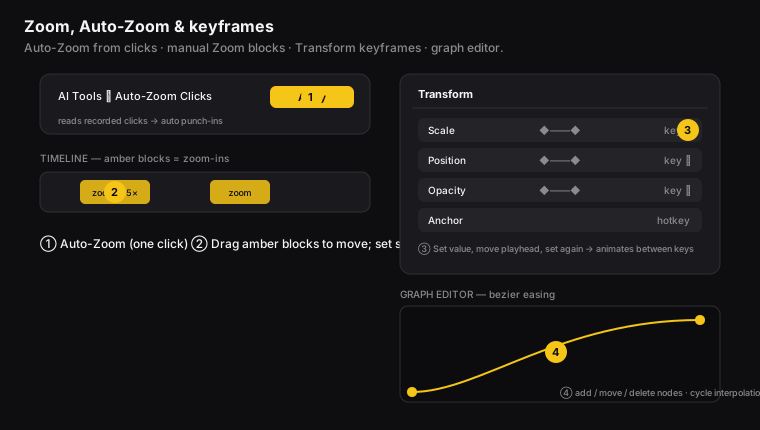
Figure: ① Auto-Zoom in one click, ② manual zoom blocks, ③ Transform keyframes, ④ the graph editor for easing.
How to auto-zoom on cursor clicks
What it does: it looks at where your mouse went during the recording and automatically zooms in wherever you clicked, then zooms back out. You get that polished, “pro tutorial” emphasis with no manual work.
- Auto Tools → Auto-Zoom Clicks → Apply.
- Zella finds your clicks and creates auto-zoom blocks, each one centered on a real click (about 1.5 to 2.5 seconds long).
- Watch the preview, then delete or adjust any zoom you don’t like.
This needs a recording that saved your mouse-movement data (Zella screen recordings save it for you). Tip: clicking on purpose while you record leads to better automatic zooms.
How to add a manual zoom block
What it does: it adds a zoom-in at the playhead (the vertical line that marks where you are in the video), so you can highlight anything - not just clicks.
- Move the playhead to where the zoom should start.
- Click Zoom in the top toolbar.
- An amber (orange) block appears in the timeline. It zooms in smoothly, holds, then zooms back out smoothly.
- Adjust the Scale (how far it zooms, like 2.5×), the Target (the spot it centers on), and the Timing (how long it takes to zoom in, hold, and zoom out). Drag the amber block to move it.
How to set the anchor point
The anchor is the point your zoom grows out of - think of it as the center of the zoom. Use the anchor hotkey (keyboard shortcut) to place it right on the button or menu you’re showing off, so the zoom lands there instead of on the middle of the screen.
How to animate with Transform keyframes
For full control, animate the clip in the Transform tab. A keyframe just pins a value (size, position, and so on) to a moment in time. Set two of them and Zella smoothly moves between them:
- Open the Transform tab.
- Move the playhead to the start of your move. Set a value (for example, Scale 1.0, Opacity 1.0 - opacity is how see-through it is, where 1.0 is fully solid) and add a keyframe.
- Move the playhead forward and change the value (for example, Scale 1.3, Opacity 0.65). This adds a second keyframe.
- The element now moves and fades smoothly between the two keyframes as the video plays.
You can add keyframes to scale, position, rotation, opacity (and the anchor). Use as many as you like.
How to shape easing with the graph editor
Open the graph editor to control the easing (how gradually a move speeds up or slows down). It uses a bezier curve (a smooth, adjustable curve you can bend by dragging points):
- Add a point on the curve, move it, delete it, or switch between linear (steady, even speed) and smooth (eases in and out).
- The curve and the preview update right away, so you can make a zoom feel snappy or silky.
How to add motion blur
For fast moves, turn on motion blur. It adds a natural smear to the moving element so the motion looks smooth instead of jumpy - the same blur you’d see if you moved your hand quickly in front of a camera. You’ll only notice it on fast moves. Slow, gentle moves won’t show much, and that’s normal.
On iPhone
Motion is not a desktop-only luxury - the phone has the same three layers, with one honest exception.
Zoom blocks (free)
Punch into a moment so the viewer looks exactly where you want. Zoom blocks are free on iPhone, same as on the Mac.
Motion keyframes and the curve editor (Pro)
- Motion keyframes animate position and scale over time - set a value at one point and another later, and Zella tweens between them.
- The curve editor shapes how that move accelerates and eases, instead of a robotic linear ramp. It’s the phone’s version of the graph editor above.
Keyframes, the curve editor, feathered masks, speed ramps, Color Match and the luma scope make up the depth toolset, which is part of Zella Pro on iPhone and Mac alike. Worth knowing exactly what that means: it gates the controls, not your video. A project that already uses them still previews and exports on every tier, and every new install gets Pro Week - the full Pro set free for seven days, no card and nothing to cancel.
Emphasis zooms, placed for you
Tap Auto-Polish and it frames the speaker, starts the video punched in about 1.3× on your face and settles out over roughly 1.7 seconds - the first few seconds decide retention - then places small emphasis zooms on your strongest spoken words through the whole video, capped so it stays tasteful and never stacks on a transition.
Zoom to the beat
Beat Sync pulses zooms and effects to the music, and it’s per band - drive them from the kick, the snare or the hats independently, each with its own sensitivity. Picking one drum usually reads cleaner than syncing to everything at once. See Sound on iPhone.
What’s Mac-only here
Auto-Zoom Clicks and the anchor hotkey (⌘⇧A). Auto-zoom reads the cursor and click data saved with a Mac screen recording, and cursor, click and keystroke tracking is Mac-only - a phone has no cursor to follow. On iOS, Auto-Polish’s emphasis zooms fill the same role, driven by your speech instead of your mouse.
Full guide: The iOS editor → · On-device AI →
What impact zoom and motion have
For creators and editors, movement keeps people watching:
- Eyes follow motion - a zoom onto the exact button tells the viewer where to look, so they don’t get lost or rewind.
- A polished feel - auto-zoom alone makes a plain screen recording look like a pro tutorial, which makes it feel higher-quality and more trustworthy.
- Easier to follow - zooming into small buttons and menus means viewers don’t have to squint or pause, so fewer people drop off.
- Minutes, not hours - auto-zoom does in one click what used to take dozens of keyframes by hand.
Zoom and keyframes FAQ
How do I make my screen recording zoom in automatically? Auto Tools → Auto-Zoom Clicks → Apply. It zooms in on every click using the mouse data saved with your recording.
How do I zoom into a specific spot manually? Click Zoom in the toolbar, then set the Scale, Target, and anchor to the area you want.
How do I animate an element (scale/move/fade)? Use the Transform tab: set a value and add a keyframe, move the playhead, then change the value. Zella animates between the keyframes.
Why don’t I see motion blur? It only shows on fast moves. Slow, gentle moves won’t smear.
My imported video won’t auto-zoom - why? Auto-zoom needs saved mouse data. Zella screen recordings on the Mac include it, but a video from somewhere else may not.
Does the iPhone have keyframes and a curve editor? Yes. Zoom blocks are free; motion keyframes and the curve editor are part of Zella Pro, the same as on the Mac. A project that already uses them keeps previewing and exporting on any tier.
Can I auto-zoom on clicks on my iPhone? No - Auto-Zoom Clicks is Mac-only, because it reads recorded cursor and click data. On the phone, Auto-Polish places emphasis zooms on your strongest spoken words instead.
Pro tips & gotchas
- Auto-Zoom Clicks turns your recorded clicks into zooms - let it create them first, then keep the ones you want.
- Amber blocks on the timeline are zooms. Drag them to move; drag an edge to change how long the zoom holds.
- For manual moves, use the Transform tab keyframes. Open the graph editor to smooth out the motion.
- Press ⌘⇧A to recenter the zoom anchor on the current frame (Mac only - there are no keyboard shortcuts on iOS).
- Use the curve editor on zooms and moves so they ease in and out instead of snapping. It’s the single change that makes phone motion look deliberate.
Related: AI cleanup → · Speed → · Timeline editing → · Transitions → · The iOS editor →