Speed & Ramps in Zella
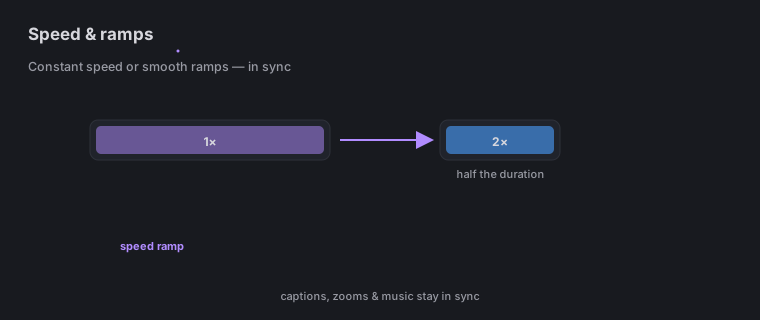
Quick answer (Mac): In Zella, cut a segment (B), select it, and set its speed in the transport’s 1× ▾ control. 2× halves that segment’s duration on export; values below 1× create slow motion. For a cinematic accelerate-then-decelerate, apply a speed ramp. Audio is pitch-corrected, and captions, zooms, and music beds stay in sync automatically.
On iPhone: the same retiming by touch - constant speed, Reverse, Instant Replay and Rewind are free, and speed ramps are part of the Pro depth toolset. See On iPhone.
On this page: constant speed · ramps · slow motion · sync · where & when · on iPhone · impact · FAQ
How to set a segment to 2× (constant speed)
What it does: it plays a chosen part of your video faster (or slower). At 2×, that part takes half as long in the final video.
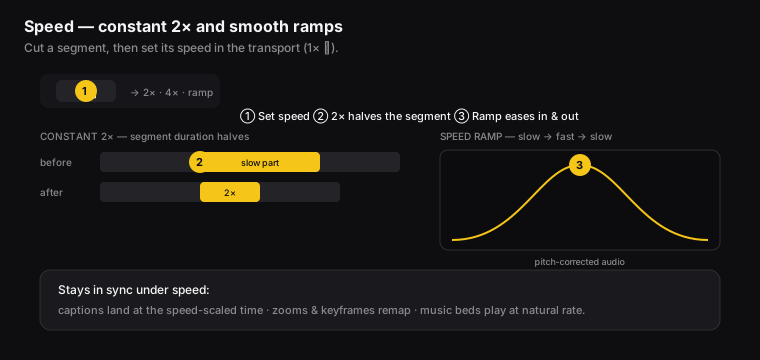
Figure: ① set the speed, ② 2× halves the segment, ③ a ramp eases speed in and out (audio pitch-corrected).
- Cut at the start and end of the part you want to speed up (a “cut” splits the clip; press B at each spot - chapter 9).
- Select that part (A mode).
- Set its speed with the 1× ▾ control in the transport (the playback bar). Choose 2×.
- That part now plays faster, and the video’s total length updates.
Use it for: fast-forwarding installs, builds, or long forms - anything where “now we wait” drags. Speeding a progress bar up 4× to 8× reads as “this just works.”
How to add a speed ramp
What it does: a speed ramp smoothly speeds up and then slows down across a part of the video, instead of jumping to a new speed all at once. It looks cinematic and is common in highlight reels.
- Select the part you want.
- Apply a ramp speed - that’s a speed that changes gradually, not one fixed number.
- That part eases from slow into fast and back. The audio pitch is corrected too, so sped-up speech doesn’t sound like a chipmunk.
How to speed up a picture-in-picture panel
What it does: speeds up a PiP overlay on its own, without touching the main video underneath. A PiP overlay is a second clip that sits on top of the main one, like a webcam corner or a screen-recording inset.
- Click the overlay’s block on the timeline to select it.
- Open the Transform tab in the right inspector and use its Speed control.
- The overlay’s block shrinks on the timeline to its new length, and the panel plays at the new rate. Its audio is retimed with it, so the panel stays in sync with itself.
Use it for: a long screen recording dropped in as a corner panel while you keep narrating at normal speed underneath. Run the panel at 2x or 4x and it finishes its task while your voice track carries on.
Note: this is separate from the segment speed above. Segment speed changes the main timeline and moves everything after it; overlay speed only changes that one panel.
How to create slow motion
Set a speed below 1× (like 0.5×) to stretch a moment out - great for lingering on a result or a big reveal. Pair it with a ramp for a dramatic slow-down into a key moment.
Does everything stay in sync under speed?
Yes, and this is the tricky part that Zella handles for you:
- Captions move to their new, correct times. A caption at 6.0 seconds inside a 2× part shifts to where it should now appear.
- Zoom blocks and keyframes shift too, so your emphasis still lands on the right moment.
- Background music keeps playing at its normal speed even during a sped-up part - so your music doesn’t turn into chipmunk sound.
You don’t have to line any of this up by hand. Change the speed, and everything else follows.
Where and when to use speed
- Where: setup tutorials (shorten installs and builds), demos (fast-forward slow tasks), reels (add energy with quick ramps), and reveals (slow-mo right into the payoff).
- When: after you’ve removed silences, speed up the slow action that’s left (not the dead air). Ramp into the “it works” moment.
On iPhone
You can bend time on the phone too, with a couple of retiming moves the Mac page doesn’t cover:
- Speed - slow a clip down or speed it up.
- Speed ramps - ramp smoothly between speeds rather than snapping.
- Reverse - play a clip backwards.
- Instant Replay - repeat a beat for emphasis.
- Rewind - play forward, then whip back.
What’s free and what’s Pro: constant speed, Reverse, Instant Replay and Rewind are free. Speed ramps belong to the depth toolset - keyframes, the curve editor, feathered masks, speed ramps, Color Match and the luma scope - which is Zella Pro on iPhone and Mac alike. It gates the controls, not your video: a project that already uses a ramp still previews and exports on every tier, and every new install gets Pro Week free for seven days.
These match the Mac’s tools exactly, so a project retimed on the phone behaves the same after you hand it over as a .zella file.
Full guide: The iOS editor →
What impact speed changes have
For creators and editors, speed controls the pace of your video:
- More people keep watching - shortening the boring parts (installs, loading, repeated typing) stops viewers from leaving during the slow bits.
- Cinematic energy - ramps give you that slick speed-up/slow-down feel of pro highlight edits, with no extra app.
- Shorter, tighter videos - a 3-minute tutorial can become a 90-second one that says the same thing, and shorter videos do better on every platform.
Speed FAQ
How do I speed up part of a video on a Mac? Cut out the part, select it, and set 2× (or higher) with the 1× ▾ control in the playback bar.
Does speeding up the video chipmunk the audio? No. The pitch is corrected, including during ramps.
What’s a speed ramp? A smooth speed-up-then-slow-down across a part of the video, instead of one fixed speed.
Will my captions and music stay in sync if I speed up the video? Yes. Captions and zooms shift to the new timing, and background music keeps its normal speed.
How do I make slow motion? Set a speed below 1× (like 0.5×) on that part.
Can I reverse a clip or add an instant replay on my iPhone? Yes. Reverse, Instant Replay, Rewind and constant speed are free on iPhone; speed ramps are part of the Pro depth toolset. See The iOS editor.
Pro tips & gotchas
- Use a constant (fixed) speed for simple fast-forwards. Use a ramp to speed up and slow down smoothly.
- Captions, zooms, keyframes, and music all shift with speed changes, so they stay in sync automatically.
- Speeding up long “thinking” pauses is the quickest way to tighten a tutorial without cutting anything out.
- Background music plays at its normal speed even when the video is sped up, so the track doesn’t chipmunk.
- Instant Replay on the phone is the cheapest emphasis trick there is - repeat the one beat that matters instead of saying it twice.
Related: Timeline editing → · AI cleanup → · Zoom & keyframes → · Audio → · The iOS editor →