Transitions in Zella
Quick answer (Mac): In Zella, cut your clip at the join (press B), open the Transitions tab, and pick a transition (Cross Dissolve, Whip Pan, Spin, Luma Fade, Light Leak, Lens Flare, Warp… 25 total) plus a duration (e.g. 0.5s). Zella blends the two segments at the seam. Use transitions sparingly - for tutorials a clean hard cut is usually best; save the flashy ones for intros, reels, and reveals.
On iPhone: the same 25 transitions, free on every plan. Auto-Polish blends the widest-spaced joins with a cross-dissolve (about eight, however long the take) for you, and Make it Viral adds matched sound effects under the strongest cuts. See On iPhone.
On this page: how to apply · the 25 types · which to choose · with other edits · limitations · on iPhone · impact · FAQ
How to apply a transition
A transition is the effect that connects one clip to the next (like a fade). Here’s how to add one:
- Cut your clip where you want the transition (press B - chapter 9). This makes a split.
- Open the Transitions tab (right inspector).
- Choose a transition type and how long it should last (its duration, like 0.5 seconds).
- Zella drops it at the split. The preview shows the two clips actually blending together - not a hard cut or a black flash.
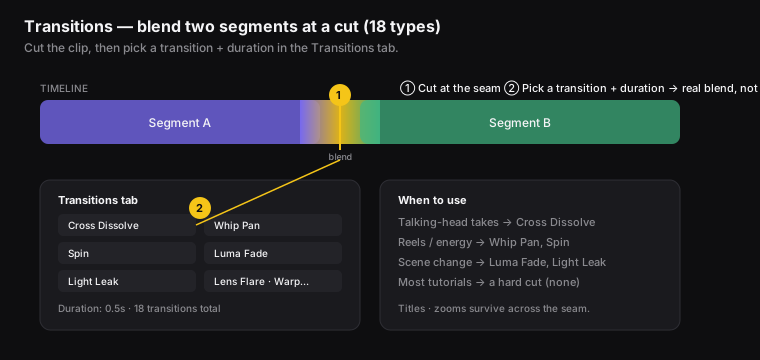
Figure: ① cut at the seam, ② pick a transition + duration - Zella blends the two segments.
What transitions are available?
Zella comes with 25 transitions, including:
- Cross Dissolve - a soft fade (the safe go-to choice).
- Whip Pan - a fast swipe to one side.
- Spin - a spinning wipe.
- Luma Fade - a fade based on the bright and dark areas of the image.
- Light Leak - a film-style burst of light.
- Lens Flare - a glare-of-light effect, like sun hitting a camera lens.
- Warp - a stretchy, distorted blend.
- Glitch Cut, Velocity Cut, Shake Cut, Whip Up, Zoom Punch, Circle Wipe, Pixelate, Flashback, Ink Bleed, Film Burn - the newer, higher-energy set.
- …plus wipes, slides, and zooms (25 in all). Each one really blends the two clips at the join, and all of them are free on every plan.
Let Zella place them for you (Auto-Transitions)
What it does: looks at your cuts and puts transitions on the ones that deserve them, instead of you picking each seam by hand.
- In the left sidebar, click Auto-Transitions.
- Zella analyses each cut on-device (how much the shot actually changes, the brightness shift, and how much motion there is) and picks a transition that suits each one.
- Click it a second time to remove every transition it added, along with any cuts it made itself.
It is deliberately sparing, and that is the point. A cut between two pieces of the same continuous take is a jump cut, and the natural treatment there is no transition at all - that is how talking-head footage is normally edited. So on a single-take recording Auto-Transitions places only a handful, spread across the video, rather than one at every cut.
That restraint matters most after Cut Empty Space, which can leave hundreds of cuts in a long recording. A dissolve on every one of those would make the video feel busy and would slow the editor down badly.
Use it for: a first pass on a multi-shot video. Then adjust individual seams by hand with the steps above.
Which transition should you use?
| Situation | Use |
|---|---|
| Two talking-head takes | Cross Dissolve (subtle) |
| Energetic reel cut | Whip Pan / Spin |
| Scene change in a story | Luma Fade / Light Leak |
| Stylish product reveal | Lens Flare / Warp |
| Most tutorials | A hard cut (no transition) |
Less is more. Using flashy transitions too often looks amateur. For tutorials, a clean cut or a quick dissolve is usually the right call. Save the fancy ones for intros, reels, and reveals.
How transitions work with titles, zooms, and J/L cuts
- Titles, images, and zooms keep working through a transition - they show up correctly on both sides of the cut.
- J/L cuts (where the sound starts before or continues after the picture) go well with transitions for a pro feel.
Known limitations
- Three effects don’t show up during the transition itself: text-behind-subject titles, magnifier callouts, and background replacement. They work everywhere else on the timeline, right up to the cut. If you need one, just move it a moment away from the transition.
On iPhone
The transition catalog is identical: 25 transitions on iPhone, the same 25 as the Mac, and free on every plan. The difference is how they get onto the timeline.
Let Auto-Polish place them
Tap Auto-Polish and it cuts where you naturally pause, then blends the widest-spaced joins with a gentle cross-dissolve (about eight, however long the take) - including the joins that silence removal just created. One quiet transition everywhere, not a different flourish at each cut: an earlier version mixed the whole catalog in and the edit developed a tic.
Any join can still be changed by hand afterwards. Tap the transition marker on the timeline and pick any of the 25.
Sound under the cuts
This is the part the Mac page doesn’t cover. On the phone, a cut can carry one matched whoosh, impact or riser underneath, picked by transition type - impacts land on the cut, whooshes straddle it, risers build in. Two things place them for you: Make it Viral, which puts them under the strongest cuts only, and Auto sound at cuts in the Audio tool, which you trigger yourself. Plain Auto-Polish leaves sound effects alone. Tap again to remove an auto-placed set; sounds you placed yourself stay put.
You can still place effects by hand: drag a sound on the timeline to snap it under any cut or transition.
The advice above still holds on the phone, and matters more there - short-form rewards energy, but a different transition at every single cut still reads as amateur. The single cross-dissolve is a better default than picking your favourite twelve times.
Full guide: On-device AI → · Sound on iPhone →
What impact transitions have
For creators and editors, transitions - used sparingly - show that your editing is thoughtful. They smooth over scene changes so a hard cut at a big moment doesn’t jolt the viewer. One tasteful dissolve into your demo, or a light leak between sections, makes the video feel higher-quality. Overusing them does the opposite. The real skill is knowing that the best transition is often no transition at all - a clean cut keeps tutorials fast and clear.
Transitions FAQ
How do I add a smooth transition between two clips? Cut at the join (B), open the Transitions tab, then pick a type and a duration.
What’s the best transition for a tutorial? Usually a hard cut (no transition) or a quick Cross Dissolve - keep it clean.
Do my titles disappear during a transition? No. Titles, images, and zooms show up on both sides of the cut.
Why did my keyframed zoom not animate across a transition? Keyframes don’t play during a transition. Move that motion slightly away from the transition.
Are there fewer transitions on iPhone? No - 25 on both, and free on every plan. On the phone, Auto-Polish also blends the widest-spaced joins with a cross-dissolve (about eight, however long the take), and Make it Viral adds a matched sound effect under the strongest cuts.
Can I use silence removal and transitions in the same project? Each one works fine on its own. When you combine them, the exported transition can sometimes run the full length by mistake - so double-check the length, or do the two edits separately. (This is a known edge case.)
Pro tips & gotchas
- Match the transition to the moment: a fade or dissolve for calm changes, and a light leak, lens flare, or warp for energetic ones.
- Transitions need video on both sides of the cut to blend, because they overlap the two clips.
- Less is more - one or two well-placed transitions look more professional than a different one at every cut.
- If you also removed silences in the same project, double-check where the transitions ended up after you export (a known edge case).
- On the phone, a whoosh on every cut makes an edit feel intentional - but let Auto-Polish’s matched set do it rather than stacking your own on top.
Related: Timeline editing → · J/L cuts & audio → · Titles → · Export → · Sound on iPhone →