 ZELLA
ZELLACaptions, Titles & Callouts on iPhone & iPad
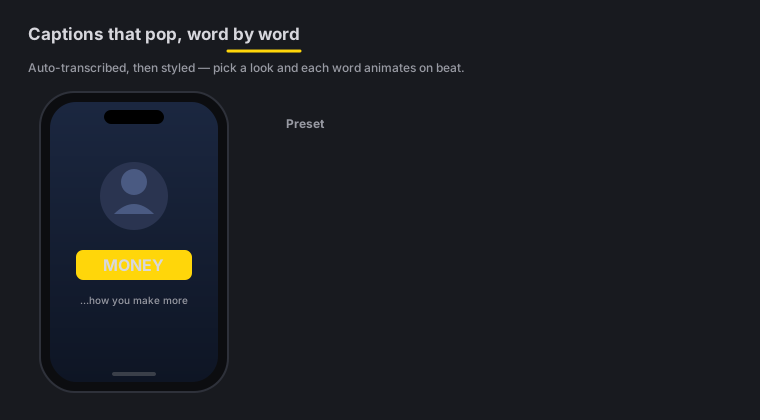
Quick answer: On the phone you get 9 viral caption presets with active-word highlight, SRT import and a transcript word editor to fix any word — plus on-device caption translation into 19 languages. Then Text Behind Subject (titles that sit between your background and you), 8 one-tap title templates with 12 kinetic entrances, 19 callout types, and 16 overlay blend modes. Captions are transcribed and translated on-device — nothing uploaded.
On this page: captions · edit the transcript · translate captions · Text Behind Subject · titles · callouts · blend modes · FAQ
Captions: 9 presets
Zella transcribes your audio on-device and styles it with one of 9 viral caption presets, each with active-word highlight — the word being spoken pops as it’s said, the style that drives watch-time on social. Add captions from the captions tool, or let Auto-Polish add them for you.
It’s the same caption engine as the Mac’s captions & subtitles, rebuilt for touch.
Fix words & import SRT
Transcription is close, but names and jargon sometimes need a fix:
- Transcript word editor — tap a word to correct it; the timing stays intact.
- SRT import — already have a subtitle file? Bring it in as your captions instead of transcribing.
Translate captions (on-device)
Reach a non-English audience without your video ever leaving the phone. Generate captions first, then pick a target language and Zella rewrites the caption track in place — 19 languages, including Spanish, Hindi, Portuguese (Brazil), French, German, Arabic, Japanese, Indonesian, Chinese (Simplified), Korean, Italian, Russian, Turkish, Vietnamese, Thai, Dutch, Polish, Ukrainian and English (UK).
Each translated line is re-flowed onto its original on-screen window, so word-pop and karaoke keep animating at the right moments, and the strongest words are re-emphasised in the new language rather than left highlighted on the English ones.
- Fully on-device via Apple’s Translation framework — there is deliberately no network path at all.
- Requires iOS 18 or later. On older versions the option simply isn’t offered; everything else still works.
- One-time language download. The first time you use a language, iOS may need to fetch its offline model. If it isn’t installed yet, Zella tells you exactly what to do — grab it in Settings › Translate. After that it’s instant and offline.
- If a language pair isn’t supported on your device, Zella says so plainly instead of silently doing nothing.
Text Behind Subject
Text Behind Subject places a title between your background and you, using the on-device subject cutout — so the words appear to sit behind you in the scene. It’s a striking, modern look that used to need a dedicated editor. Same feature as the Mac’s captions & titles.
Titles
Add headlines and lower-thirds from 8 one-tap title templates — Subscribe, Big Statement, Lower Third, Hook, Neon, Quote, Reveal and Caption Pop — each with gradient fills, stroke, shadow and box, and any of 12 kinetic entrances (fade, slide, pop, typewriter, blur-in, scale-in, drop-in, wipe and more). Drag them on the canvas to place them exactly where you want. This mirrors the Mac’s titles & kinetic text.
Callouts
Point attention exactly where it belongs with 19 callout types — arrow, box, ellipse, label, keystroke, spotlight, number, blur, leader line, popup, magnifier, highlighter, underline, pixelate-censor, emoji, sticky note, scribble, timer and glitch region. The blur and pixelate-censor callouts are how you keep secrets and faces out of frame. See the Mac’s callouts for the full catalog.
Overlay blend modes
Titles and callouts support 16 overlay blend modes — screen, multiply, overlay, soft light and more — so text and graphics sit naturally over your footage instead of looking pasted on.
iOS captions FAQ
Are captions transcribed on-device? Yes — the transcript is generated on the phone, with nothing uploaded.
Can I fix a wrongly-transcribed word? Yes. The transcript word editor lets you tap and correct any word without breaking the timing.
Can I bring my own subtitles? Yes — import an SRT file instead of transcribing.
Can I translate my captions? Yes — into 19 languages, entirely on-device on iOS 18 or later. Generate captions first, then pick a language. Each line keeps its original timing and re-emphasises the strongest words in the new language.
Does translation upload my video? No. It runs through Apple’s on-device Translation framework and has no network path at all. The first use of a language may need a one-time offline model download from Settings › Translate; after that it works offline.
What is Text Behind Subject? A title that sits between your background and you, using the on-device subject cutout — so it looks like it’s behind you in the scene.
How do I censor a face or a key on screen? Use the blur or pixelate-censor callout to cover it.
Pro tips & gotchas
- Let Auto-Polish add captions, then open the transcript editor to fix names and jargon.
- Fix the transcript before translating — corrections carry through, and re-translating a fixed transcript beats fixing it in a language you don’t read.
- Text Behind Subject needs a clear subject — it uses the on-device cutout, so it shines on talking-head shots.
- Censor before you export. Drop a blur or pixelate callout over any key, face or secret in frame.
- Match the vibe with blend modes so titles and callouts sit in the scene, not on top of it.
Related: On-device AI (Auto-Polish captions) → · Sound & music → · Export & handoff → · Mac captions → · Mac callouts →