 ZELLA
ZELLARecording on iPhone & iPad: Camera, Screen & Live Backgrounds
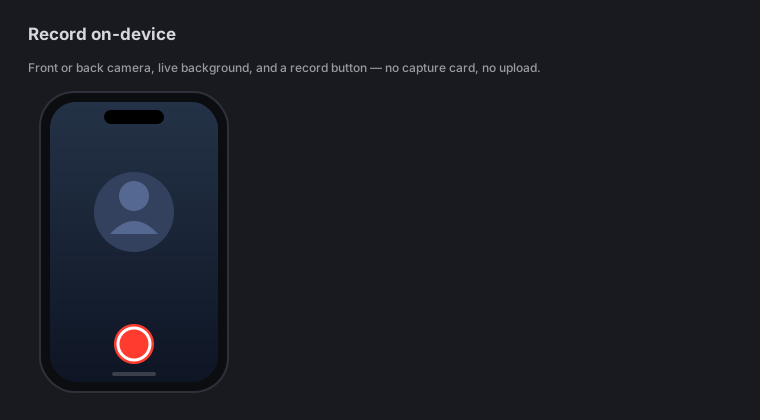
Quick answer: Zella for iPhone & iPad records with the front or back camera and mic, and you can blur, cut out or replace your background live while you film. It also captures your screen (ReplayKit) and can broadcast the whole device. Already shot something? Import from Photos or Files and edit it. Every take is segmented and crash-safe, so a phone call, an app switch or a low battery never costs you the recording.
On this page: camera recording · live backgrounds · screen recording · import footage · crash-safe takes · FAQ
Record with the camera
Point Zella at yourself or the world:
- Open Zella and start a camera recording.
- Pick the front camera (for talking head) or the back camera (for anything you’re pointing at).
- Your mic captures audio alongside the video.
- Tap record, do your thing, then tap stop — the editor opens with your take ready to cut.
This is the mobile version of the Mac’s camera capture — same idea, rebuilt for the phone.
Live background: blur, cutout or replace
You don’t have to wait until editing to fix your background — Zella can change it live while you film, using on-device segmentation on the Neural Engine (no green screen):
- Blur — softly blur whatever’s behind you.
- Cut out — remove the background entirely.
- Replace — drop in a different scene behind you.
Because it’s segmented on-device, nothing is uploaded, and you see the result in the viewfinder as you record. You can still fine-tune or change the background later in the editor. See the Mac’s Background remove & replace for the same feature on desktop.
Record your screen
Zella captures your screen using Apple’s ReplayKit:
- Screen recording — record what’s happening in Zella’s own capture.
- Whole-device broadcast — capture across the entire device, including other apps, via the system broadcast picker.
This is how you make app demos and how-to clips on the phone, the mobile counterpart to the Mac’s screen recording modes.
Import from Photos or Files
You don’t have to shoot inside Zella to edit inside Zella:
- Import from Photos — pull in a clip you already recorded on your phone.
- Import from Files — bring in footage from iCloud Drive, a Files provider, or elsewhere on the device.
Imported footage lands on the timeline like any recording, ready to cut, caption and grade.
Crash-safe, segmented recording
Long takes on a phone face real hazards — an incoming call, a low battery, iOS reclaiming memory. Zella records in segments so those never wipe out your work:
- The take is written as it goes, not held in memory until you stop.
- If a call interrupts you, the battery dies, or the app is backgrounded, the footage up to that point is safe.
- This mirrors the Mac’s crash-recovery and sleep-safe long recordings.
Record with confidence — you won’t lose a good take to a bad moment.
iOS recording FAQ
Can I use the back camera? Yes — pick the front or back camera before you record. Back is great for anything you’re pointing at; front for talking head.
Do I need a green screen to replace my background? No. Background blur, cutout and replace run on-device with Neural-Engine segmentation — no green screen, nothing uploaded.
Can I record other apps, not just Zella? Yes — the whole-device broadcast capture (ReplayKit) records across the device, including other apps.
Can I edit a video I already shot? Yes. Import from Photos or Files and it drops onto the timeline like a fresh recording.
What happens if I get a call mid-recording? Recording is segmented and crash-safe, so the footage up to the interruption is preserved — you don’t lose the take.
Pro tips & gotchas
- Set the background before you hit record — you’ll see the blur, cutout or replacement live in the viewfinder, but you can always change it later in the editor.
- Use the mic you trust. AirPods or a plugged-in mic captures cleaner narration than the built-in mic in a noisy room.
- Long take? Relax. Segmented recording means a call or a low battery won’t cost you the footage.
- Already have the clip? Skip recording — import it from Photos or Files and go straight to editing.
Related: The iOS editor → · On-device AI (background, Auto-Polish) → · Mac recording modes → · Webcam bubble & backgrounds →