 ZELLA
ZELLAThe iOS Editor: Timeline, Keyframes, Zoom & Speed
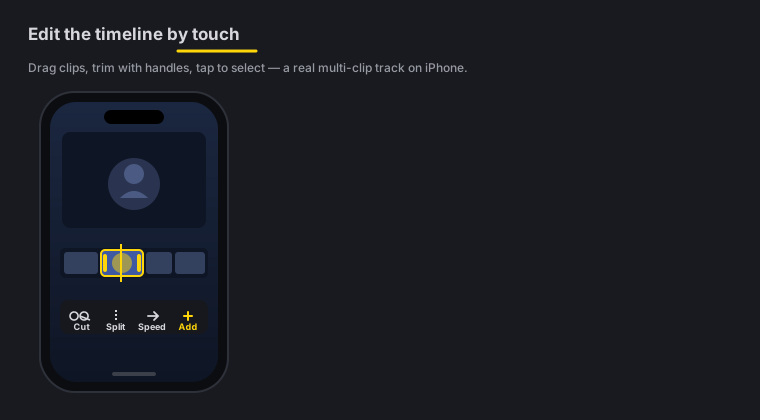
Quick answer: The iOS editor is a real multi-clip timeline you drive with your fingers — cut, trim, ripple-delete, drag to reorder, set per-clip volume. It has motion keyframes and zoom blocks with a curve editor, speed ramps, and Reverse, Instant Replay and Rewind retiming. It’s the same editor logic as the Mac app, rebuilt for touch.
On this page: the timeline · cut, trim & reorder · keyframes & zoom · speed & retiming · per-clip volume · FAQ
The timeline
When you stop recording (or import a clip), the editor opens with your footage on a multi-clip timeline. Everything you do — cut, caption, grade, add motion — happens here. Scrub with a drag, pinch to zoom the timeline in and out, and tap a clip to select it.
Every clip also draws its audio waveform right on the timeline, so you can cut by ear as well as by eye — find the pause between sentences, land a cut on a beat, or spot the cough you want to ripple out, precisely, without guessing from thumbnails.
It’s the same mental model as the Mac’s timeline editing, just sized for your thumbs.
Cut, trim, ripple & reorder
The core moves are all here:
- Cut — split a clip at the playhead.
- Trim — drag a clip’s edges to shorten or lengthen it.
- Ripple-delete — remove a section so the gap closes automatically, keeping everything tight (no empty space left behind).
- Reorder — drag clips to change their order.
Because ripple-delete closes gaps for you, cleaning up a rambling take is fast — cut the fumble, ripple it out, and the timeline stays seamless.
Keyframes and zoom blocks
Add movement and emphasis:
- Zoom blocks — punch into a moment so the viewer looks exactly where you want. Free.
- Motion keyframes (Pro) — animate position and scale over time; set a value at one point and another later, and Zella tweens between them.
- Curve editor (Pro) — shape how a keyframed move accelerates and eases, instead of a robotic linear ramp.
Keyframes, the curve editor, feathered masks, speed ramps, Color Match and the luma scope make up the depth toolset, which is part of Zella Pro on iPhone, iPad and Mac alike. It gates the controls, not your video: a project that already uses them still previews and exports on every tier.
This is the mobile version of the Mac’s zoom, auto-zoom & keyframes.
Speed ramps and retiming
Bend time on the phone:
- Speed — slow a clip down or speed it up.
- Speed ramps — ramp smoothly between speeds rather than snapping.
- Reverse — play a clip backwards.
- Instant Replay — repeat a beat for emphasis.
- Rewind — play forward, then whip back.
These match the Mac’s speed & ramps tools, so a project retimed on the phone behaves the same if you hand it to the Mac.
Per-clip volume
Every clip carries its own volume, so you can bring a loud clip down or push a quiet one up without touching the rest. Combined with the sound tools, you get a balanced mix right on the timeline.
iOS editor FAQ
Can I ripple-delete on the phone? Yes. Removing a section closes the gap automatically, so the timeline stays tight — no empty space left behind.
Does the phone have keyframes and a curve editor? Yes. Zoom blocks are free; motion keyframes and the curve editor are part of Zella Pro, the same as on the Mac. A project that already uses them keeps playing and exporting on any tier.
Can I reverse a clip or add an instant replay? Yes. Reverse, Instant Replay, Rewind and constant speed are free; speed ramps are part of the Pro depth toolset.
Is per-clip volume supported? Yes — each clip has its own volume so you can balance the mix clip by clip.
Is this the same editor as the Mac?
Same logic and tools, rebuilt for touch. Projects hand off to the Mac as a .zella file.
Pro tips & gotchas
- Pinch to zoom the timeline for frame-accurate cuts, then pinch back out to see the whole video.
- Ripple-delete is your friend — cut the fumble and ripple it out so the gap closes and pacing stays tight.
- Use the curve editor on zooms and moves so they ease in and out instead of snapping.
- Balance as you go with per-clip volume, before you add music and Auto-Duck.
Related: Recording on iPhone → · On-device AI (Auto-Polish) → · Sound & music → · Mac timeline editing → · Zoom & keyframes →