To make a video with AI from start to finish, run four passes: record your screen or camera, let AI clean up the raw take, review it by eye, then export at the size the platform wants. AI reliably handles transcription and captions, cutting silences and filler words, noise removal, auto-zoom and reframing to vertical 9:16. The hook, the order of the story and the caption spelling still come from you.
To make a video with AI from start to finish, run four passes: record your screen or camera, let AI clean up the raw take, review and adjust by hand, then export at the right size for the platform. AI does the tedious 80%, which is transcription, cutting dead air and reframing. The hook, the story and the final taste still come from you.
The phrase confuses people because it means two different things. One is generating footage that was never filmed, where a prompt becomes a clip. The other is editing video you recorded yourself, with AI doing the repetitive parts. This guide covers the second, because it is faster, cheaper, and produces content that looks like you instead of a stock render.
What can AI actually do, and what still needs you?
AI in 2026 is very good at the mechanical parts of editing and genuinely bad at the judgment parts. Knowing where the line sits is what separates a fast, good video from a fast, generic one.
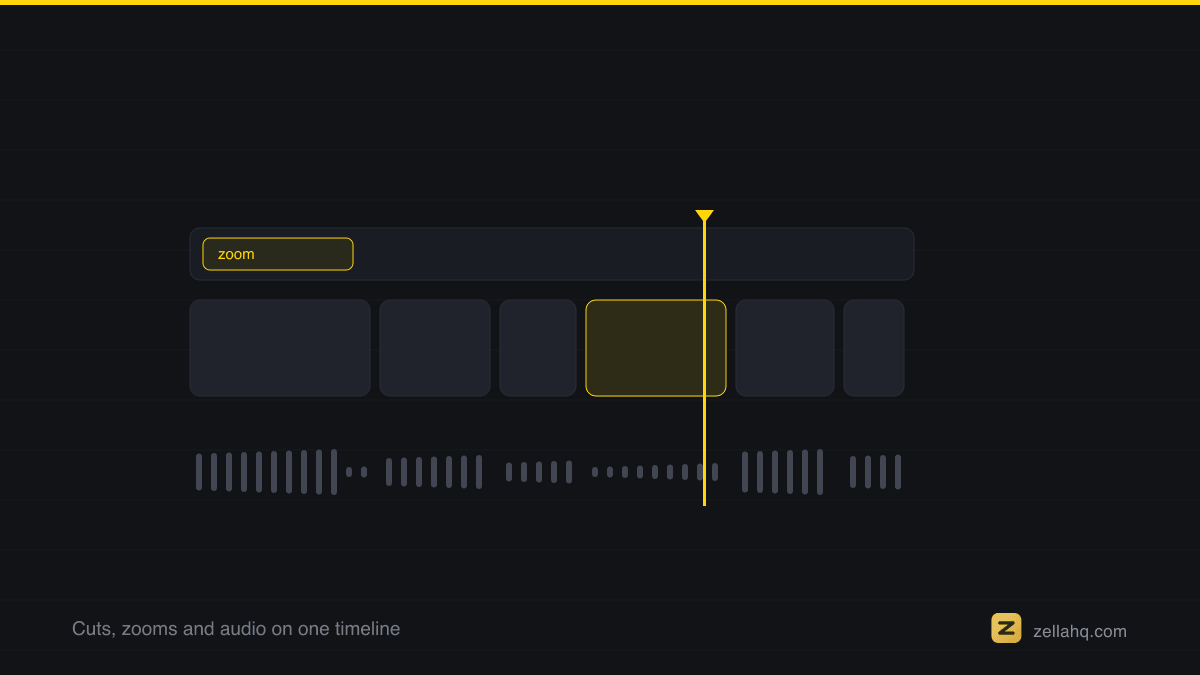
| AI does this reliably | You still have to do this |
|---|---|
| Transcribe audio and burn in captions | Write the hook. The first 3 seconds decide whether anyone stays |
| Cut silences and filler words (um, uh, so, like) | Decide which 20 seconds of a 5-minute take actually matter |
| Add auto-zoom pushes that track the action on screen | Proofread the captions. Transcription is around 95% right, so every name and number needs an eye |
| Remove background noise and even out loudness | Choose the tone, the humour and what stays in for personality |
| Cut out your background with no green screen | Pick the colour look. Automatic grading is a taste call, not a mechanical one |
| Reframe a horizontal take to vertical 9:16 | Decide the ending and the single ask it closes on |
Captions belong on the non-negotiable side of that table: roughly 85% of short-form is watched on mute. For the longer argument, read can AI edit my video for me. The short answer is most of it, not all of it.
Apple's AVFoundation does the assembling and the encoding underneath all of this.
This is Apple's Speech framework at work. It offers on-device recognition, which is what keeps the recording on the machine that made it.
The 6-step AI video workflow
Each step should feel like a review, not a rebuild.
- Plan a 10-second spine. Before recording, write one line for the hook and three bullets for the middle. That is the whole script, and it keeps the take tight so the AI has less to clean up.
- Record in one take. Screen, camera or both. Do not stop for mistakes. Pause, breathe, restart the sentence. The cleanup pass deletes the dead air anyway.
- Run the AI cleanup pass. This is the big time save. One tap of Auto-Polish cuts silences and filler words, adds auto-zoom, blends the cuts and cleans the voice, typically replacing 30 to 90 minutes of manual work. Captions are one more tap.
- Review and fix. Watch it once. Correct wrong caption words, delete any moment that drags, confirm the first 3 seconds land. This is where your judgment goes.
- Style the details. Pick a caption style, add a title card, drop in B-roll or an arrow where a point needs emphasis, and choose a colour look if you want one. Aim for a visual change every 2.5 to 4 seconds so the eye never settles.
- Export for the platform. Vertical 9:16 for Reels, TikTok and Shorts. 1080p is plenty for social. Match the platform's length sweet spot and post.
For a faster version of steps 3 to 5, see how to use AI to edit videos faster.
How long does an AI-edited video actually take?
A 60-second talking-head or demo clip, done this way, is roughly 15 to 25 minutes of real work:
| Step | Your time | Notes |
|---|---|---|
| Plan the spine | 2 minutes | One hook line, three bullets |
| Record one take | 5 minutes | Longer than the finished clip, on purpose |
| AI cleanup pass | About 2 minutes | Runs on its own. You are not at the keyboard |
| Review and fix captions | 5 to 10 minutes | The part that decides quality |
| Style and export | 3 to 5 minutes | Caption preset, title card, platform size |
The same clip cut by hand, with manual silence trimming, typed captions and keyframed zooms, ran an hour or more. AI does not make the video for you. It removes the parts of editing that were never creative.
Generative AI or AI editing: which one do you need?
| Generative video AI | AI video editing | |
|---|---|---|
| Input | A text prompt | Footage you filmed |
| Output | Footage that never existed | A cleaned-up cut of your take |
| Best for | Shots you cannot film | Tutorials, demos, talking-head clips |
| Looks like | A stock render | You |
| Where it runs | Almost always in the cloud | Cloud or fully on-device |
If you are making content about yourself or your product, the editing kind is what saves real time.
Frequently asked questions
Can AI make a whole video by itself? It can do the assembly: cut, caption, reframe, mix. It cannot do the direction. Expect AI to hand you a clean 90%-done edit that still needs your eye on the hook, the pacing and the caption spelling. Treat it as a fast first editor, not a replacement.
Does making a video with AI require a subscription? Not always. Many cloud tools bill per minute or per month. On-device editors like Zella run the same AI - cleanup, captions, background removal - free, with a one-time upgrade for pro export. Check pricing before you assume a monthly bill.
Is my footage private when I use AI editing? It depends on the tool. Most cloud editors upload your raw video to their servers to process it. On-device tools do the AI work locally, so nothing leaves your machine, which matters for client work, demos under NDA, or anything internal.
How accurate are AI captions? Around 95% out of the box, which sounds high until you realise it means a wrong word every couple of sentences, usually a name or a number. Read the captions once before you export. Wrong captions read as careless.
Does AI colour grading count as part of the cleanup? Treat it as a separate, optional step. Grading is a taste decision, and an automatic grade applied to every clip is the fastest way to make a channel look generic. Cleanup should tighten pacing and audio. The look should stay your choice.
Do it in Zella
Zella runs this entire workflow on your Mac or iPhone, on-device, with no account and no subscription.
- Record. Screen, camera or both. Recording length is unlimited and exports carry no watermark on the free plan.
- Let Auto-Polish run. On a fresh recording it starts automatically with zero clicks: silence and filler cuts, a hook title with an opening punch-in, emphasis zooms, noise removal and voice polish, and a ducked music bed. It deliberately never touches your colour.
- Or tap Make it Viral. One tap runs the full ready-to-post pass: dead-air trim, punch-in zooms, transitions, matched sound effects and a music bed, while keeping your original shape.
- Review and adjust. Fix caption words, trim anything slow, add a colour look if you want one from the 25 built in, or edit by typing plain-language instructions to the AI Assistant. The Assistant is free on both platforms and runs on your own API key.
- Export. 1080p up to 2 minutes on the free plan, and 1080p is free forever. A one-time $89 Pro unlocks unlimited length plus 4K, and 8K on Mac.
Every new install runs the full Pro feature set for 7 days, with no card and nothing to cancel. See what the AI cleanup actually does. The Mac app ships on the Mac App Store today, and Zella for iPhone is on the App Store.
Make your next video with Zella.
Record, edit and ship on Mac and iPhone - local, private, free to start.
RELATED