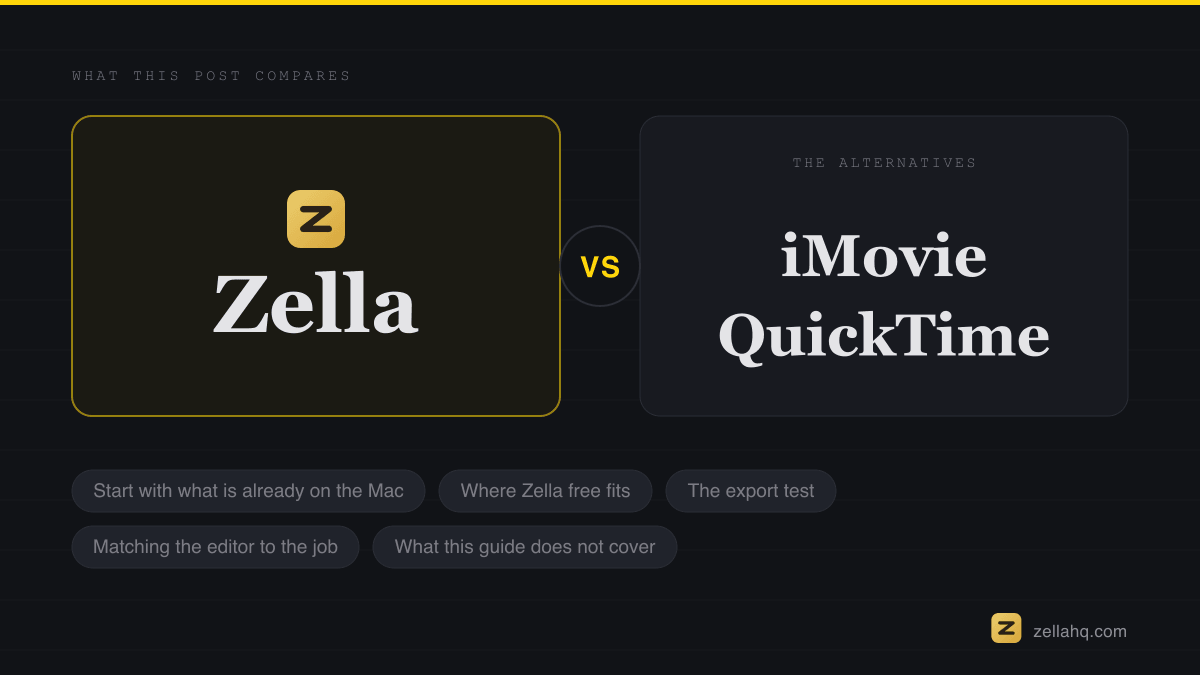
On a Mac you can edit for free without a watermark. Test any editor with a short export before you start. iMovie comes with your Mac and exports clean. Zella is free forever on Mac and iPhone with no watermark, no account and on-device captions, and free exports run up to 2 minutes at 1080p. Pick by the job: a trim and a title is easy anywhere, while captions, silence removal and screen recordings are where editors differ.
On this page
Mac owners are better placed than most. Your Mac already includes a capable editor, and several free ones export without stamping a logo on your work. The hard part is knowing which one suits the job in front of you.
Start with what is already on the Mac
iMovie is free from Apple and ships with new Macs. It exports clean video and handles a story-style edit well: trim clips, add titles, drop in a soundtrack. It is a good first stop for family video and simple projects.
QuickTime Player also comes with macOS. It can trim a clip and record your screen, which is all some people need.
Neither is built for the jobs that take time today: cutting every pause out of a talking video, adding captions that follow the speech, or zooming into the part of a screen recording that matters.
AVFoundation is the layer underneath - Apple's media framework, and what a Mac editor uses to assemble a timeline and encode the finished file.
Where Zella free fits
Zella is a screen recorder and AI video editor for Mac and iPhone. On a Mac the free tier covers:
- Screen and camera recording with your voice and the system sound, in one take.
- Auto captions made on your Mac. Captions work offline from the first launch.
- Silence and filler cutting, so a rambling take becomes a tight one.
- Zoom blocks, speed control and a multi-clip timeline.
- Clean export. No watermark and no account, at 1080p for up to 2 minutes. Zella Pro is a one-time purchase that lifts the length cap and adds 4K.
Nothing is uploaded to edit. The work happens on your device, which also means it runs without an internet connection.
The export test
Whatever you choose, test it the same way before a real project. Export a five second clip with a caption and a title, then check the corners and the end of the file for a logo or an end card. The full routine is in free video editor with no watermark.
Matching the editor to the job
- A trim and a title for a family clip: iMovie is plenty.
- A tutorial or a demo with your screen: you want a recorder and an editor in one place. See the best screen recorders for Mac for the options.
- A talking video that needs captions and tighter pacing: pick an editor with automatic captions and silence removal.
- A video longer than two minutes at 4K: check the export limits of the free tier before you start.
One thing to check on any Mac editor
Open the export screen before you edit and read it end to end. Look for a maximum length, a resolution limit and any prompt to sign in. A clear limit stated up front is fine, because you can plan around it. A surprise at the last step is what turns a free tool into an expensive afternoon.
What this guide does not cover
Zella runs on Mac and iPhone. If you also edit on a Windows PC, you will need a different editor there, and the five second export test applies to it too.
Frequently asked questions
What is the best free video editor for Mac with no watermark? It depends on the job. iMovie is a solid free default. Zella free adds on-device captions, silence cutting and screen recording with a clean export.
Does iMovie put a watermark on exports? No. iMovie exports without a watermark.
Can I record my screen and edit in the same free app? Yes, in Zella. You record on your Mac and edit in the same project.
Do free Mac editors work offline? Zella does. Editing and captions run on your Mac, so you can work without a connection.
Written by
Nasir Uddin Shamim
Founder of Zella
Nasir Uddin Shamim is the founder of Zella. He built his career in SEO, AI, and marketing - never short on ideas, but every one of them hit the same wall: turning a raw recording into a video worth posting. Like most beginners, he burned hours fighting complicated editors and shipped far less than he wanted to. So he built Zella, a screen recorder and AI editor for Mac and iPhone that does the hard parts for you - first to unblock himself, and now to help anyone go from raw clip to polished video without the learning curve.
More from Zella: fresh tutorials on the channels above, plus product updates and editing tips straight to your inbox.
Make your next video with Zella.
Record, edit and ship on Mac and iPhone - local, private, free to start.
RELATED