To add a transition, put two clips side by side on the timeline and drop the transition on the cut point where they meet. Use the plain cut for roughly 90 percent of edits, a cross dissolve at 0.5 to 1.5 seconds for time or mood shifts, and a whip pan or zoom at 0.2 to 0.5 seconds for energy. The best transition is usually the one nobody notices.
To add a transition between two clips, place them next to each other on your editing timeline and drop the transition onto the cut point where they meet, then set its duration - usually between 0.3 and 1 second. That is the whole mechanic. The harder skill is knowing which transition to use and, more often, choosing no transition at all. This guide covers the four types worth learning, when each fits, and how to add them.
Here is the rule most beginners get backward: a transition is not decoration, it's punctuation. A plain cut is a period. A cross dissolve is a comma that signals time passing. A whip pan is an exclamation point. Sprinkling fancy transitions on every clip is like writing every sentence with three exclamation points - it reads as amateur, not exciting. Professional editors use the plain cut for the overwhelming majority of edits (StudioBinder).
What is a video transition?
A video transition is the visual change from one clip to the next. The default and most common transition is the cut - an instantaneous switch from clip A to clip B with nothing in between. Every other transition (dissolve, whip pan, zoom, wipe, fade) adds a brief animated bridge over the cut point. Transitions are measured in duration: how many frames or seconds the bridge lasts.
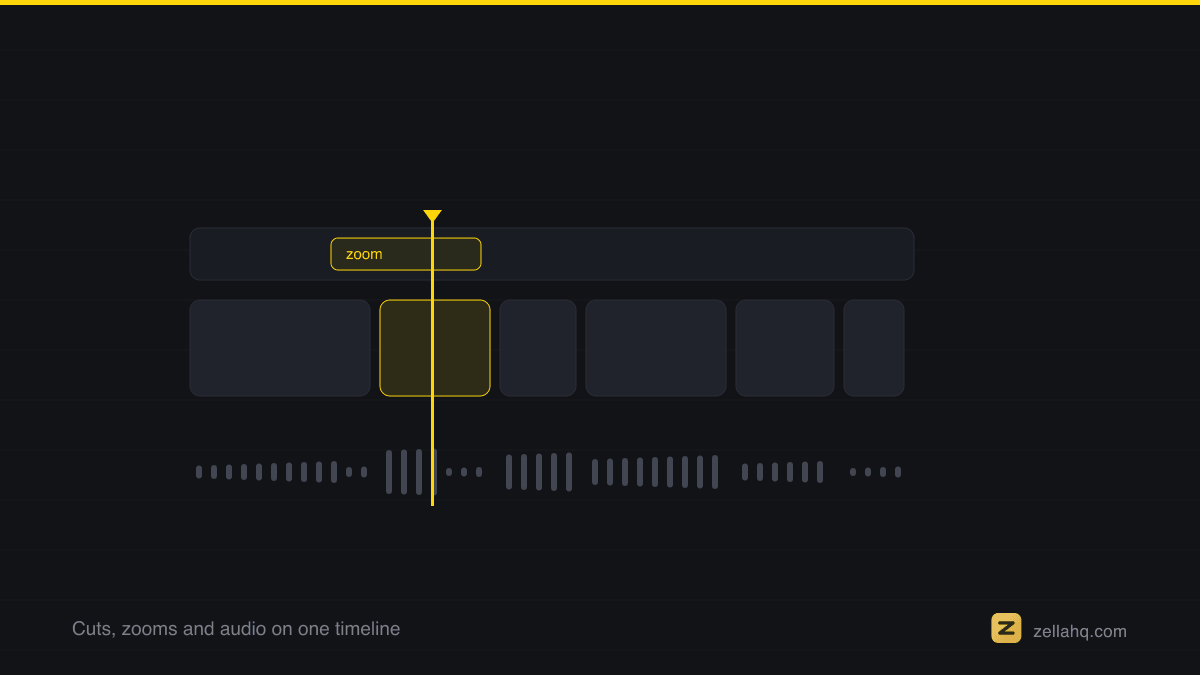
Two terms to know: the cut point is the exact frame where one clip ends and the next begins, and a transition's duration is how long it plays across that point. A 0.5-second cross dissolve, for example, blends the last 0.25 seconds of clip A with the first 0.25 seconds of clip B.
The four transitions that actually matter
You can ignore most of the transition packs in your editor. These four cover almost everything:
| Transition | What it looks like | When it fits | Typical duration |
|---|---|---|---|
| Cut | Instant switch, no animation | 90% of edits - dialog, action, continuity, keeping momentum | 0 (instant) |
| Cross dissolve | Clip A fades into clip B | Time passing, mood shift, montages, gentle scene changes | 0.5-1.5 s |
| Whip pan | Motion-blur swish between shots | Energy, speed, playful location or topic changes | 0.2-0.5 s |
| Zoom (push/punch-in) | Quick scale-in that snaps to the next shot | Emphasis, fast-paced social content, beat-synced edits | 0.2-0.4 s |
The cut
The cut is the strongest transition because it respects the viewer's attention and preserves momentum (Descript on transitions). Use it for dialog, action, and anything where continuity matters. If you're unsure which transition to use, the answer is almost always the cut.
The cross dissolve
A cross dissolve (or crossfade) blends one clip into the next. It signals a soft passage of time or a change in mood, and it's forgiving when two clips don't match perfectly. Reserve it for montages, memory sequences, or the seam between two sections of a video - not for every cut. Keep it around 0.5 to 1.5 seconds; longer feels like a dream sequence.
The whip pan
A whip pan is a fast camera pan that whips between two shots, connected by motion blur so the cut hides inside the movement (No Film School). It adds energy and works best when both clips contain real or simulated motion in the same direction. Tip: match the colors and brightness at the whip point so the eye can't find the seam. Keep it fast - 0.2 to 0.5 seconds.
The zoom (punch-in)
A quick zoom or "push" scales into the frame and snaps to the next shot. It's the workhorse of fast social edits - great for emphasis, reaction beats, and cutting on the beat of music. Short is better: 0.2 to 0.4 seconds. Overuse makes a video feel jittery.
When should you NOT add a transition?
Most of the time. Here's the less-is-more rule: if a transition draws attention to itself instead of the story, cut it. The best edits are the ones you don't notice. Specific cases to avoid transitions:
- Between every clip. A dissolve on all 40 cuts in a video is exhausting and looks unpolished.
- In fast dialog or action. A transition breaks the rhythm; use hard cuts.
- To fix a bad cut. A dissolve slapped over a jarring cut usually makes it worse. Fix the cut instead - trim the frames or add a cutaway.
- When the format is fast. TikTok and gaming edits usually want crisp cuts and quick zooms, not slow dissolves.
The reliable heuristic: match the transition to the tone. Cinematic and reflective content earns dissolves and fades; fast, high-energy content wants cuts and zooms.
How to add a transition, step by step
The exact clicks vary by editor, but the workflow is the same everywhere:
- Put two clips next to each other on your timeline so they share a cut point.
- Select the transition you want from your editor's transitions panel or menu.
- Drop it onto the cut point between the two clips (in most editors you drag it there, or select the cut and apply).
- Set the duration. Start at 0.5 seconds for a dissolve, 0.3 for a whip or zoom, and preview it.
- Watch it back at full speed. If your eye lands on the transition instead of the content, shorten it or delete it.
A frequent gotcha: transitions need overlapping footage. A 0.5-second dissolve consumes about 0.25 seconds of "handle" from each clip, so if a clip is trimmed to the exact frame with nothing extra, the transition can't build. Leave a little extra footage on each end before you trim.
How do you add transitions in Zella?
In Zella, the native recorder and AI editor for Mac and iPhone, transitions live on their own timeline lane. Drag one onto the join between two clips and it snaps to the cut point, so you never line up frames by hand.
There are 25 transitions in total, including all four covered above, and the same 25 ship on iPhone. Every one previews live before you commit. Because the editor runs entirely on-device, those previews are instant and nothing uploads.
If you would rather not touch the timeline, tell the AI Assistant "add a whip pan between the intro and the demo" and it places the transition for you. That is the edit-by-typing workflow described in editing video by typing on Mac. One-tap Make it Viral goes further and varies the transitions across every cut, which is the one case where automatic placement is deliberate rather than lazy. New to editing entirely? Start with our best video editing software for beginners guide.
Frequently asked questions
How long should a video transition be? For a cut, zero - it's instant. For a cross dissolve, 0.5 to 1.5 seconds. For a whip pan or zoom, keep it fast at 0.2 to 0.5 seconds (WeVideo). When in doubt, shorter reads as more professional.
What is the most common video transition? The plain cut. It accounts for the vast majority of edits in film and professional video because it keeps momentum and doesn't distract from the content. Every other transition is the exception, not the rule.
When should I use a cross dissolve instead of a cut? Use a cross dissolve to signal time passing or a mood shift - montages, memory sequences, or the seam between two sections. Use a cut for continuous action and dialog. If nothing about the moment is changing, keep the cut.
Why do too many transitions look bad? Because transitions are punctuation. Overusing them is like ending every sentence with an exclamation point - it stops meaning "exciting" and starts meaning "amateur." Fancy transitions pull the viewer's eye away from your actual content.
How do I make a whip pan transition look seamless? Match the direction of motion in both clips, and match their color and brightness at the transition point so the eye can't find the cut inside the motion blur. Keep the duration short, around 0.2 to 0.4 seconds.
Can I add transitions automatically? Yes. Some editors auto-place transitions at every clip join, but that usually violates the less-is-more rule. A better approach is to add them deliberately - or, in Zella, ask the AI Assistant to place a specific transition at a specific point so you stay in control.
The short version
Adding a transition is simple: drop it on the cut point between two clips and set the duration. Choosing one is the real skill. Use the plain cut for roughly 90 percent of your edits, a cross dissolve for time and mood shifts, and a whip pan or zoom when you genuinely want energy - always kept short. The best transition is usually the one your viewer never notices. When you're ready to try it hands-on, Zella lets you drag transitions onto snapping cut points or just describe the edit you want.
Make your next video with Zella.
Record, edit and ship on Mac and iPhone - local, private, free to start.
PART OF A SERIES
Transitions between clips
What to put on a cut, when to put nothing, and the sound that sells it.
- How to Add Transitions Between Video Clips (and When Not To)you are here
- How to Add Transitions Between Clips on iPhone
- When to Use a Transition, and When to Just Cut
All of it lives under Pro Editor.
RELATED