For LinkedIn, use a square (1:1) or vertical video, 30 to 90 seconds, with captions burned in because the feed autoplays on mute, and open with a specific insight or result in the first 3 seconds. Keep the tone professional but personal - talk like a person, not a press release - and end with a question or one soft CTA to drive comments.
For LinkedIn, use a square (1:1) or vertical video, 30 to 90 seconds long, with captions burned in because the feed autoplays on mute. Open with a specific insight or result in the first 3 seconds, keep the tone professional but personal, and end with a question or one soft call to action to drive comments. LinkedIn rewards conversation, so the goal is not just views, it is replies.
LinkedIn video is its own animal. The audience is at work, scrolling between meetings, sound off, skeptical of anything that smells like an ad. What plays on TikTok, fast cuts, trend audio, punchy slang, often falls flat here. What works is a clear, specific idea delivered by a real person who sounds like they actually do the job.
What makes a LinkedIn video different?
Three things set LinkedIn apart from other feeds.
- It autoplays muted. Like most social video, roughly 85% of LinkedIn video is watched without sound. Captions are not optional. If your point only exists in the audio, most of the feed never gets it.
- It rewards comments over views. LinkedIn's feed surfaces posts that spark conversation. A video that earns 40 thoughtful comments will out-reach one with 4,000 silent views. Engineer for the reply.
- The audience is professional, not casual. People are there to learn, hire, sell, and be seen as competent. Value and credibility beat entertainment. A specific, useful insight travels further than a clever edit.
LinkedIn documents its own supported formats and the usual failure cases in video sharing troubleshooting, which is worth checking before blaming reach.
Nielsen Norman Group's how users read on the web is worth reading before writing anything you expect a viewer to absorb in passing.
The LinkedIn video format that works
Use this structure. It fits a 45 to 90 second talking-head or screen-share clip.
- Hook with a specific claim (0:00 to 0:03). Lead with a concrete insight or result, not a warm-up. "I reviewed 200 cold emails last month. The ones that got replies all did one thing." Specific beats vague every time.
- Set the stakes (0:03 to 0:12). Say who this is for and why it matters now, so the right people lean in and the wrong ones scroll on. That self-selection is good, it lifts the comment-to-view ratio.
- Deliver the value (0:12 to 1:00). One idea, two or three supporting points. Do not cram five lessons into a minute. Depth on one point earns more comments than a shallow list.
- Land a takeaway (last 10 seconds). Summarize the one thing they should remember, so it is easy to quote back in the comments.
- Ask, do not just tell (final line). End with a genuine question or one soft CTA: "How are you handling this on your team?" A question invites replies, which is what the feed rewards.
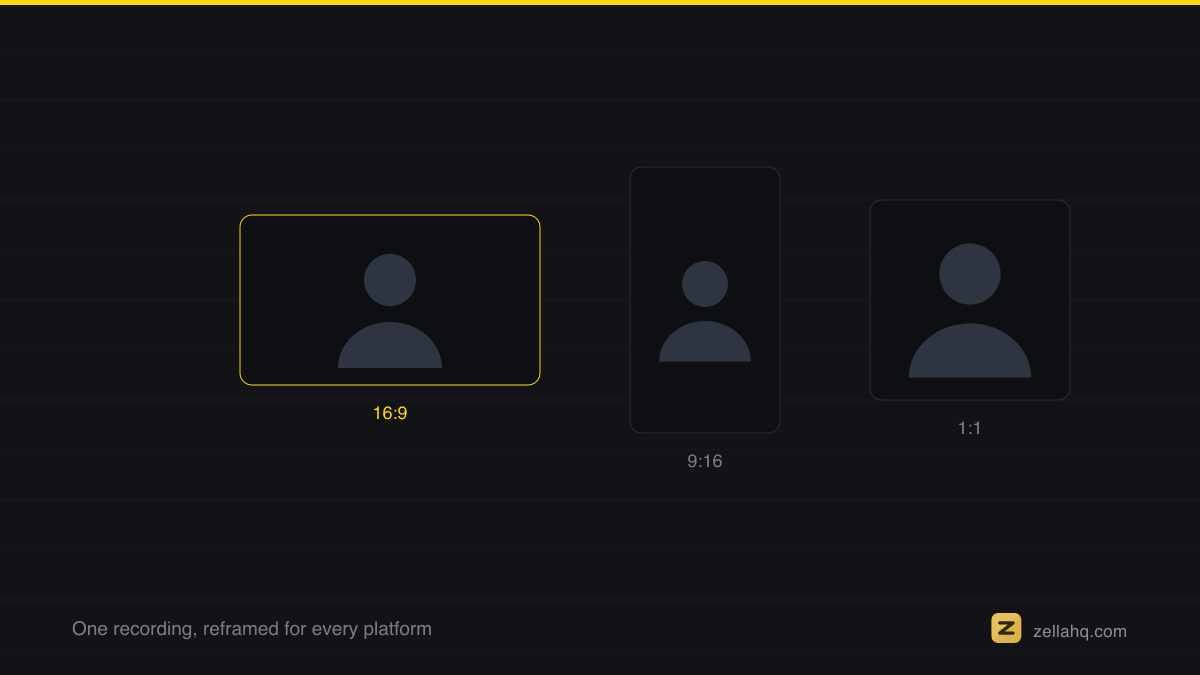
Square (1:1, 1080 x 1080) is the safe default because it fills more of the mobile feed than 16:9 while staying professional. Vertical (9:16, 1080 x 1920) takes even more screen space and suits a straight talking-head. Avoid pure landscape for feed posts. It renders small on a phone, and that is where most of your audience is scrolling.
Tone: professional but human
The biggest mistake on LinkedIn video is sounding like a brochure. The platform is professional, but the algorithm and the audience both reward a real human voice.
- Talk like a person. Say "I" and "you." Share the actual lesson, including what went wrong. Vulnerability and specificity read as credibility here.
- Drop the corporate throat-clearing. No "In today's fast-paced digital landscape." Get to the point in the first sentence.
- Show your face or your screen. A talking-head clip builds trust; a screen-share teaches. Both work far better than stock footage with text overlays. For the talking-head craft, see how to make talking-head videos engaging.
- Keep the edit clean, not flashy. Tight cuts and clear captions signal competence. Heavy effects and trend audio can read as unprofessional to a B2B audience.
How to get comments (not just views)
Engagement on LinkedIn is mostly about the comment section, and you can design for it.
- Ask one clear question at the end, tied to the viewer's own work.
- Take a mild stance. A specific, defensible opinion invites agreement and pushback, both of which are comments.
- Reply to every early comment in the first hour. Momentum in the first 60 minutes signals the feed to keep showing the post.
- Put the hook in the post text too, since the caption above the video is what many people read before they ever tap play.
Frequently asked questions
What is the best video length for LinkedIn? Thirty to 90 seconds is the sweet spot for feed videos. Long enough to deliver one real insight, short enough to finish between meetings. Native uploads support longer, but engagement tends to fall off past a couple of minutes unless the content is genuinely deep.
What aspect ratio should a LinkedIn video be? Square (1:1, 1080 x 1080) is the safest default because it fills more of the mobile feed than landscape while looking professional. Vertical (9:16) also works well. Avoid pure 16:9 landscape for feed posts, since it renders small on phones.
Do LinkedIn videos need captions? Yes. The LinkedIn feed autoplays on mute, and around 85% of viewers watch without sound. Burn captions directly into the video so your message lands even when nobody taps the volume. It is the single highest-impact edit for this platform.
How do I get more engagement on LinkedIn videos? Lead with a specific claim, deliver one focused insight, and end with a genuine question. Then reply to every comment in the first hour, since early conversation signals the feed to expand reach. Comments matter more than raw views here.
Can I record a LinkedIn video on my computer? Yes, and for screen-share or founder-led content it is often easier than filming on a phone. Record your talking head or screen, add captions, cut the dead air, and export a square clip. On a Mac, an AI editor can do the cleanup and captioning in one pass.
Make it in Zella
Zella is an on-device screen recorder and AI editor that makes LinkedIn-ready video without anything leaving your machine. The Mac app is on the Mac App Store today; Zella for iPhone is available on the App Store.
- Record your take. Capture your webcam, your screen, or both (a webcam bubble over a screen-share is perfect for LinkedIn). Recording is unlimited and watermark-free on the free plan.
- Let Auto-Polish run. The moment you stop, it automatically removes silences and filler words, adds subtle zooms and polishes the voice, so you sound tight and prepared. Clean captions are one more click. It leaves your colour untouched, which is the right default here anyway.
- Style the captions. There are 9 caption presets; pick a restrained one like Clean Minimal or Highlighter rather than Neon Glow, so the look matches the audience.
- Reframe to square or vertical. One click sets the canvas to 1:1 or 9:16, with Vision face-detection keeping you centred as you move.
- Export and post. 1080p, no watermark, up to 2 minutes on the free plan, which covers any LinkedIn clip. For longer videos, or 4K (8K on the Mac), the one-time $89 Pro unlock (pricing) adds unlimited length and higher resolutions, with no subscription and no account.
Captions, AI background removal, the AI Assistant (edit by typing with your own free key), and Auto B-Roll all run on-device. Download Zella free and post a LinkedIn video that starts conversations.
Make your next video with Zella.
Record, edit and ship on Mac and iPhone - local, private, free to start.
RELATED