Talking-head videos get boring because of dead air, filler words and one unchanging shot, and 50 to 60 percent of drop-offs happen in the first three seconds. Fix it by cutting silence and filler, changing the frame with zoom punch-ins and B-roll, burning in captions, and framing yourself against a clean background. Auto-Polish handles the cutting and the zooms in one on-device pass (one click on a Mac, one tap on an iPhone), and captions are one more click.
Why are talking-head videos boring, and how do you fix it?
Talking-head videos get boring because of three things: dead air and filler in the delivery, one static shot that never changes, and no visual support for what is being said. The fix is not a better personality; it is editing. Cut the filler, break up the single frame with zooms and B-roll, add captions, and clean up your framing and background. None of that needs a particular machine - a modern editor runs the whole list on your device, whether that is a Mac or an iPhone.
The gap is measurable. Third-party aggregates put talking-head videos in the 8 to 15 minute range at roughly 20 to 25 percent average retention, against 30 to 37 percent for more structured, format-driven pieces of the same length. YouTube publishes no retention benchmark of its own, so read that as a gap rather than a grade - and check it against your own recent videos of similar length, which is what YouTube actually recommends. Format and pacing, not the topic, make the difference.
How much do the first few seconds matter?
They decide almost everything. Third-party analyses put 50 to 60 percent of all drop-off inside the first three seconds. No platform publishes the figure, but the shape is visible on any retention graph you own. If your talking-head video opens with "Hey guys, so today I wanted to talk about," you have already lost half the audience before the value arrives.
Fix the open first:
- Cut every word of preamble. Start on the payoff or the promise from your title.
- Lead with the single most compelling sentence you have.
- If it is short-form, get to the point in the first second.
Why should you use tight cuts and remove filler?
Filler kills retention. Removing "um," "like," restarts, and rambling, and combining sentences, keeps the video moving and gets you more views (Gling). Dead air between sentences does the same damage more quietly.
Tightening delivery is the highest-leverage edit you can make on a talking-head video:
- Remove silences. Cut the pauses between sentences so the pace never sags.
- Remove filler words. Strip the "um"s and "you know"s so you sound sharper and more confident.
- Cut on the seams. Trim at the start of a new sentence so the cuts feel clean rather than choppy.
This is a one-pass job in Zella. Auto-Polish runs the moment a recording opens and does most of the list on your device: silence and filler cuts, noise removal and voice polish, a hook title and a ducked music bed, with captions one more click. One click on a Mac, where it also auto-zooms on your real clicks; one tap on an iPhone, where it places emphasis zooms instead. It deliberately leaves your colour alone, so the footage still looks like what you shot. If you want to do just one of these, see our guides on removing filler words and removing silence.
How do zoom punch-ins keep a static frame interesting?
A talking-head shot that never moves is what makes the format feel flat. Cutting between angles, overlaying graphics, or adding simple motion works especially well in talking-head formats where static shots dominate.
The cheapest version of "cut between angles" when you only have one camera is the zoom punch-in: on a jump cut, snap to a slightly tighter crop. It reads as a second camera and hides the jump at the same time. Punch in when you make a key point, punch out when you move on.
For screen recordings, an automatic version is even more effective. Zooming in on the exact spot you click keeps a screen tutorial legible and lively; see auto-zoom for screen recordings.
How does B-roll help a talking head?
B-roll is any supporting footage you cut over your voice: a screen capture, a product shot, a demo, a diagram. Videos with strong visual aids consistently outperform talking-head-only formats on retention. You can see it directly in the retention graph: the sag that shows up during a long unbroken talking stretch is usually where a visual should have gone.
You do not need a film crew. Effective B-roll for talking heads includes screen recordings, simple text overlays and callouts, product photos, and short clips that illustrate the point. Cut it in with a J-cut or L-cut so the audio flows underneath and the visual change feels smooth, not abrupt.
Do captions actually increase retention?
Yes, significantly. The large majority of social video is watched without sound - estimates cluster above 80 percent - and burned-in captions are reported to lift retention meaningfully because people can follow along on mute. Both are third-party numbers, and the mute figure in particular varies a lot by platform and audience. Captions in the first three seconds also reinforce your hook for silent viewers.
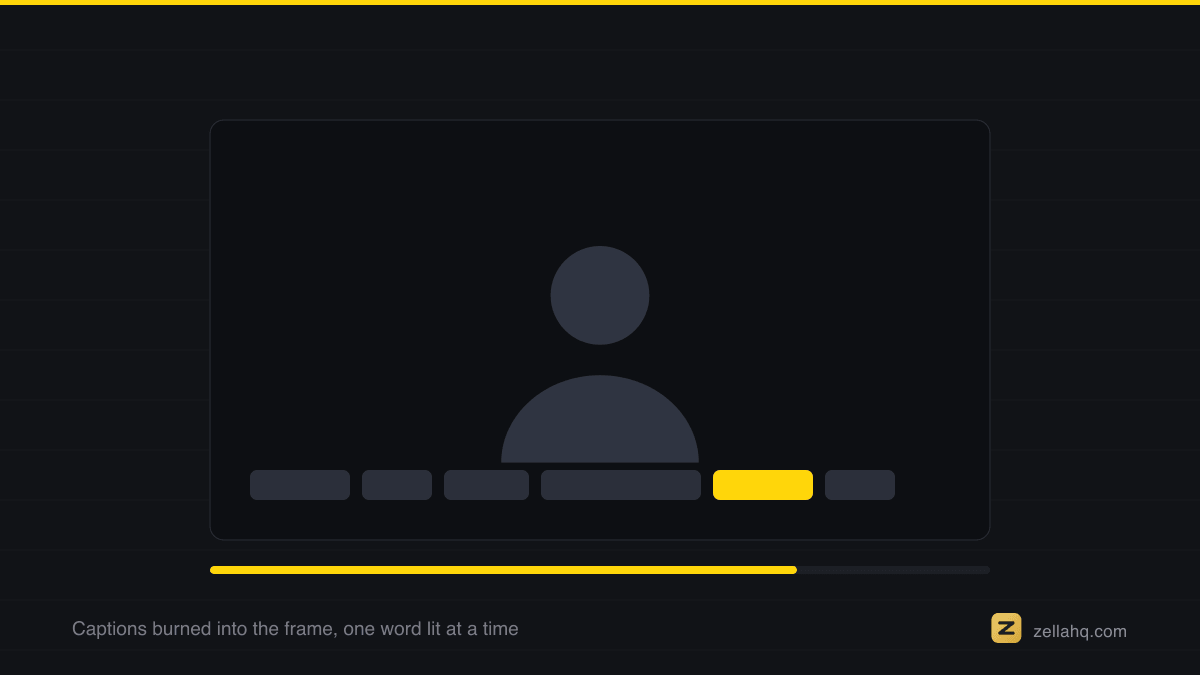
Captions are close to mandatory for talking-head content, which is dialogue-heavy by definition. Zella's on-device captions are word-level, with active-word highlighting and 9 presets to pick from, so your video works muted on any feed. On-device means your audio never leaves your machine and there is no per-minute transcription bill.
How should you frame yourself and set up the background?
Framing and background are the difference between "professional" and "webcam." Quick rules:
- Eye line at the top third. Put your eyes roughly a third of the way down the frame, not centered, and leave a little headroom.
- Look at the lens. Talking to the camera, not the screen, creates eye contact with the viewer.
- Light your face. A window or a lamp in front of you beats overhead lighting every time.
- Clean or blur the background. A cluttered room pulls focus. Blur it, replace it, or tidy it.
If your real background is messy, you do not need a green screen. Zella's AI background removal removes or replaces your background on-device, so you can drop in a clean color or image without any physical setup.
Talking-head engagement checklist
Run every talking-head video through this before you publish:
- Hook in the first 1 to 3 seconds; all preamble cut
- Silences and dead air removed
- Filler words removed
- Zoom punch-ins on key moments
- B-roll or screen capture over at least the flat stretches
- Captions burned in, styled, readable on mute
- Framed with eyes on the top third, looking at the lens
- Background clean, blurred, or replaced
- Reframed for the platform (9:16, 1:1, or 16:9)
Frequently asked questions
Why are my talking-head videos boring? Almost always pacing and visuals, not content. Dead air, filler words, and a single unchanging shot make even good material drag. Tight cuts, zoom punch-ins, B-roll, and captions fix most of it.
What is the single most important fix? The first three seconds. More than half of the people who leave do so in that window, so cut all preamble and open on your strongest line.
How long should a talking-head video be? As long as it stays interesting and no longer. Retention drops with length, so cut anything that does not serve the core message rather than padding to a target runtime.
Do I need a second camera for zoom punch-ins? No. A slight zoom into a tighter crop on a cut simulates a second angle from a single camera and hides the jump at the same time.
Are captions worth the effort for talking heads? Yes. Most social video is watched on mute, and captions are reported to raise retention appreciably. The exact percentage depends on who measured it; that captions help at all is not contested. Auto-generated captions make it nearly effortless.
What is the fastest way to polish a talking-head video on a Mac? Use a tool that automates the tedious parts. Zella is a free, on-device recorder and editor; its one-click Auto-Polish removes silences and filler, auto-zooms on your clicks, cleans the audio and lays a ducked music bed, and it also does background removal and platform reframing. It ships on the Mac App Store today, and Zella for iPhone is on the App Store. For editing by typing, the AI Assistant is free with your own key.
Make your next video with Zella.
Record, edit and ship on Mac and iPhone - local, private, free to start.
RELATED