On-Device AI on iPhone: Auto-Polish, Make Vertical, B-Roll & Assistant
Quick answer: On the phone, Auto-Polish is a full one-tap retention edit - it cuts silences and fillers, cuts again where you naturally pause, blends the widest-spaced joins with a cross-dissolve (about eight, however long the take), removes noise and polishes the voice with Apple’s Voice Isolation, opens with a hook title and zoom, places emphasis zooms, lays mood-matched background music with an arc, and breaks up any static stretch. Make it Viral runs that same pass with Beast keyword captions and adds the two bold layers on top: a colour pop and matched sound effects under the strongest cuts. Auto-Polish itself adds no captions; tap Captions for them. Clean Up does just the silences and fillers, Make Vertical crops to 9:16 while keeping your face centered, Make it a reel turns a clip into a reel in one tap, and transcript editing ripple-cuts the video as you delete words. The camera’s live background (blur, cut out or replace) is baked straight into the recording as you film. Everything runs on-device - nothing ever leaves the phone.
On this page: Auto-Polish · Make it Viral · Make Vertical · background removal · Auto B-Roll · AI Assistant · privacy · FAQ
Auto-Polish, in one tap
Auto-Polish is the flagship one-tap edit - a full retention-style edit of a raw take, built from what viral shorts actually share. Point it at a raw recording and it runs the whole pipeline, on-device:
- Removes silences - cuts the dead air between sentences, with word-safe padding so it never clips a word.
- Removes filler words - trims the um, uh and like.
- Adds a hook - an opening title built from your first spoken line, canvas-fit.
- Cuts where you actually pause - on a single continuous take it finds the real pauses in your delivery and cuts there. Never on a timer: an earlier version chopped every five seconds and the edit was exhausting to watch.
- Blends the widest-spaced joins - a gentle cross-dissolve on about eight cuts, spread across the whole take (including the ones silence removal just made) so nothing jumps and the edit never develops a tic.
- Removes noise & polishes the voice - Apple’s Voice Isolation engine, the same one Final Cut Pro uses, lifts your voice out of the room; then the studio polish adds warmth, compression and −14 LUFS broadcast loudness. Where that engine isn’t available, a neural denoiser stands in.
- Frames the speaker & punches the opening - zooms to your face, then starts the video punched in (~1.3×) on the face and settles out over ~1.7 s - the first 1-3 seconds decide retention, so they get their own move.
- Emphasis zooms - small zooms on your strongest spoken words through the whole video, capped so it stays tasteful and never stacks on a transition. If you move around the frame while you talk, they step aside entirely: zooms stacked on a moving subject read as chaos, so a walking demo keeps a steady frame.
- Mood-matched music with an arc - picks a loop to match your pace and energy, snaps its start to the take’s first beat, then dips under your speech, swells in pauses, and fades out at the end.
- Pattern interrupts - a final pass that scans the finished layout and breaks up any window that’s still visually static for six seconds or more.
Notice what’s not in that list. Auto-Polish adds no captions, applies no colour grade and places no sound effects. Captions are one tap of the Captions button, or ask the AI Assistant; Make it Viral still writes them. Grading is a taste decision, and a preset forced onto footage it wasn’t made for does more harm than good; effects under every cut sounded busy on real takes. Both were removed on purpose after people told us the results were too much. The 92 looks stay one deliberate tap away in Effects → Looks, the sounds stay under Auto Sound, and if you want both applied for you in one go, that is exactly what Make it Viral is.
If you’ve picked a platform preset, it finishes with a face-aware reframe to that aspect. Every step is undoable, and re-running Auto-Polish never stacks doubles - it replaces its own previous work.
See what it changes before you tap. Under both Auto-Polish and Make it Viral, See what it changes opens the list of steps that button will run, each with one plain line on what it does to your video. For Make it Viral, its two extra layers come first, because they are the whole difference. While a pass runs, the progress bar counts the same steps, so it finishes exactly where the edit does.
It’s the mobile version of the Mac’s AI cleanup - a raw phone recording becomes a tight, scored cut in a single tap, and captions are one more tap.
Make it Viral
Make it Viral sits directly under Auto-Polish in the Auto sheet, and it is the bolder sibling: the same one-tap retention edit, plus the two layers Auto-Polish deliberately leaves alone.
- Everything Auto-Polish does - silences, fillers, pause-cuts, cross-dissolves, voice, framing, music, pattern interrupts - plus Beast keyword captions, which Auto-Polish leaves out.
- Makes the colours pop - a bright, sunny lift on top of your footage. It skips itself entirely if you have already graded a clip yourself, so your own colour work is never overwritten.
- Sounds under the strongest cuts - matched whooshes, impacts and risers placed only where a cut really lands, kept at least four seconds apart and capped at roughly one join in two, so the edit never turns into a sound-effect reel.
It keeps your aspect ratio as it is, and reframes only if you have chosen a platform. Like Auto-Polish it has its own applied ✓ state and its own Revert, so the two one-taps can never undo each other by accident.
The Mac has the same button. On iPhone it arrived on 16 August 2026, in the Auto sheet.
Why “um” and “uh” actually get cut on iPhone. iOS transcribes with a verbatim on-device Whisper model, which writes disfluencies out in full - so filler removal can really see and cut them. (On the Mac, Apple’s speech engine returns a cleaned transcript, which is why the Mac doc warns that plain “um”/“uh” may survive.) From version 1.0.7 the model comes with the app, so it is there on a plane on first launch, fully offline. Bangla and Hindi-family languages get a free bigger model, offered the first time you caption them.
Make Vertical
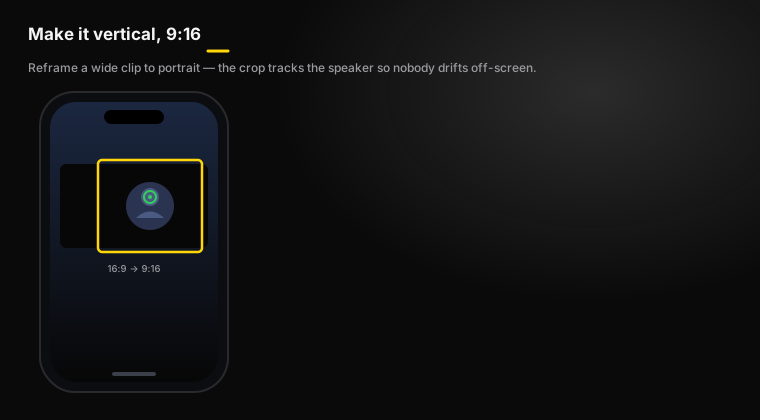
Make Vertical reframes your video to 9:16 for TikTok, Reels and Shorts, using face-aware auto-tracking so you stay centered as you move. One tap turns a horizontal or square recording into a vertical clip that’s ready to post. See the Mac’s reframe for the same idea on desktop.
Background removal & replacement
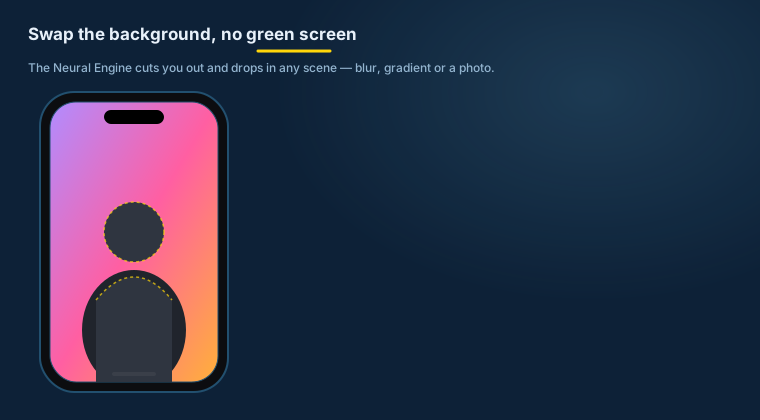
Beyond the live-while-you-record background from the recording tools, you can remove and replace the background in the editor too. It’s segmented live on the Neural Engine - no green screen, nothing uploaded - so you can drop yourself onto a different scene after the fact.
The cutout is locked to the main subject: the segmenter picks the largest person in frame and gates everyone else out, so someone walking behind you doesn’t get cut out with you, and the edge is choked so no pale halo crawls along your hairline over solid backgrounds.
Auto B-Roll
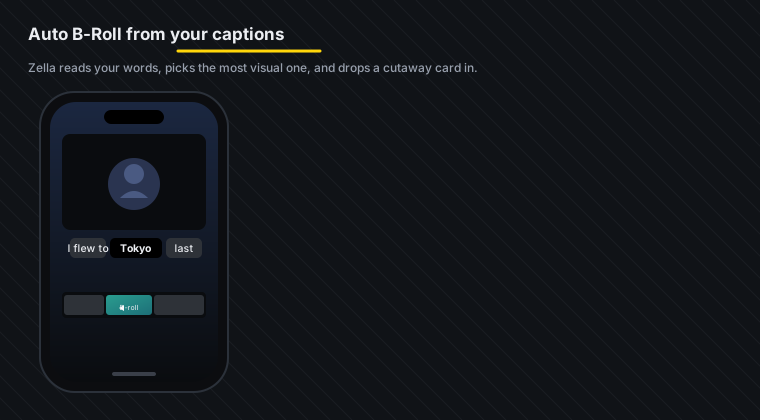
Auto B-Roll reads your captions, picks the most visual keyword per line on-device, and places a cutaway at each one automatically. On iPhone it works with no key and no account:
- Add captions first (Auto B-Roll works from them).
- Tap Add cutaways.
- Zella generates a cutaway card per keyword - a designed gradient card with the word on it - and drops each onto the timeline near the line that mentions it.
These are generated motion-graphic cards, not licensed stock footage - which is exactly why they need no key and never touch the network. The whole run is 100% on-device.
Optional: use real stock footage
Want actual stock clips instead? Open Use my own stock footage (Pexels / Pixabay), paste a free key from either provider, and tap Add stock b-roll. Zella stores the key in the Keychain on the device. Only the keyword leaves the phone to search; your video never does. This is the path the Mac’s Auto B-Roll uses.
The AI Assistant: edit by typing
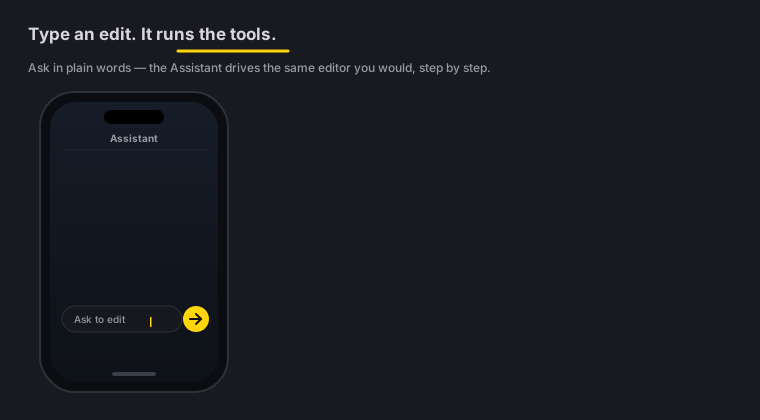
The AI Assistant lets you edit by typing plain English - 74 editing actions, driven by chat. Tell it “remove the dead air, add captions and make it vertical,” and it runs the whole chain. Ask it to add music, drop a sound effect, place a title, or export a specific format.
- Bring your own key - use a free language-model provider; the key stays on the device.
- On-device and private - your typed prompt and a short project summary, including caption text, are sent to your chosen provider. Your video is never uploaded.
It’s the mobile version of the Mac’s AI Assistant.
What actually leaves the phone?
Zella’s AI is on-device by default. Only two things are opt-in and network-based, and neither is on unless you turn it on:
- Stock b-roll (the optional Pexels / Pixabay path) sends only a keyword from your captions to the provider - never your video. The default cutaway cards are generated on the device and send nothing at all.
- The AI Assistant sends your typed prompt and a short project summary, including caption text, to the language-model provider whose key you added - never your video.
Everything else - Auto-Polish, captions, Make Vertical, background removal, caption translation, and the default Auto B-Roll cutaways - runs entirely on the device.
iOS AI FAQ
What does Auto-Polish do in one tap? The full retention edit: silence and filler cuts, extra cuts where you naturally pause, a cross-dissolve on the widest-spaced joins (about eight), noise removal and voice polish, a hook title with an opening zoom, emphasis zooms on your strongest words, mood-matched music that dips under your speech and swells in pauses, and pattern interrupts so nothing stays static for six seconds. It applies no colour grade, no sound effects and no captions.
What’s the difference between Auto-Polish and Make it Viral? Make it Viral runs the whole Auto-Polish pass and then adds the two layers Auto-Polish leaves out: a colour pop (skipped if you have graded a clip yourself) and matched sound effects under the strongest cuts. Auto-Polish is the safe edit; Make it Viral is the bold one. Both are free on every plan.
Can I re-run Auto-Polish after making changes? Yes - it replaces its own previous work instead of stacking doubles, so a re-run is always safe.
Does Make Vertical follow my face? Yes - it’s a face-aware 9:16 reframe, so you stay centered as you move.
Do I need a green screen for background removal? No. It’s segmented live on the Neural Engine, on-device, with nothing uploaded.
What key does Auto B-Roll need? None. The default Add cutaways generates gradient cutaway cards on-device with no key and no account. A free Pexels or Pixabay key is only needed for the optional real stock footage path, and it’s stored in the Keychain on the device - only the keyword ever leaves the phone.
Is my video sent anywhere by the AI Assistant? No. Only your typed prompt goes to your chosen provider. Your footage never leaves the phone.
Does Zella actually remove my “um”s on iPhone? Yes. iOS transcribes with a verbatim on-device Whisper model, so plain “um”/“uh” are written out and can be cut - unlike the Mac, where Apple’s cleaned transcript often drops them. From version 1.0.7 the model comes with the app, so it works fully offline from the first run.
Do I need a network connection for captions? Only for that one-time model download. If it hasn’t happened yet, Zella falls back to Apple’s on-device recognizer so captions still work offline - just from a cleaned transcript.
Pro tips & gotchas
- Start with Auto-Polish, then fine-tune by hand - it does the boring 80% in one tap.
- Captions before b-roll. Auto B-Roll reads your captions for keywords, so add captions first.
- No key needed to start. Cutaway cards work out of the box; add a free Pexels/Pixabay key only if you want real stock footage. The AI Assistant does need a free provider key, which stays on the device.
- Offline? Only stock b-roll and the Assistant need the network. Cutaway cards, captions, translation and everything else run with no network at all.
Related: Captions & titles → · The iOS editor → · Export & handoff → · Mac AI cleanup → · Mac AI Assistant → · Auto B-Roll →