The Zella Library: Find, Open & Manage Your Recordings
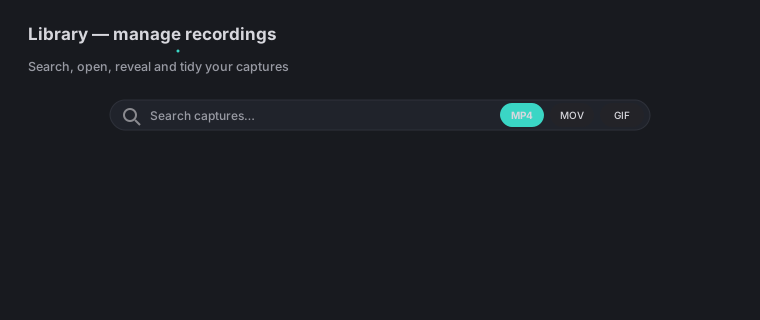
Quick answer: On the Mac, every recording you make lands in the Library. Open it with ⌘L or the menu-bar menu → Open Library. From there you can search captures by name, filter by format, open one straight into the editor, reveal it in Finder, or delete it - so you manage your recordings without hunting through folders. The Library is a Mac feature; on iPhone you bring footage in from Photos or Files instead, and projects travel between devices as
.zellafiles.
On this page: what the Library is · open it · search & filter · open in editor · reveal & delete · where files live · on iPhone · impact · FAQ
Everything on this page is the Mac app. For the phone, jump to On iPhone.
What is the Library?
The Library is Zella’s built-in browser for everything you’ve recorded. Instead of opening Finder and trying to remember which Zella_….mp4 was which, you get a visual grid of your recordings. It has search, filters by file type, and buttons that do things in one click. Think of it as home base between recording and editing.
How to open the Library
- Press ⌘L, or
- Click the Zella icon in the menu bar → Open Library.
The Library window opens with your captures listed newest-first.
How to search and filter your recordings
- Search: type in the “Search captures…” box to instantly narrow the list by file name.
- Filter by format: use the format filters (a file’s format is its type, shown by its ending) to show only MP4, MOV, GIF, or M4A files.
Use both at once - for example, search “demo” while showing only MP4 files - to zero in on the exact take you want.
How to open a recording in the editor
Double-click a recording (or right-click → Open in Editor). The Studio editor opens with that clip loaded, ready to cut, caption, and export - just like it was right after you recorded it.
How to reveal or delete a recording
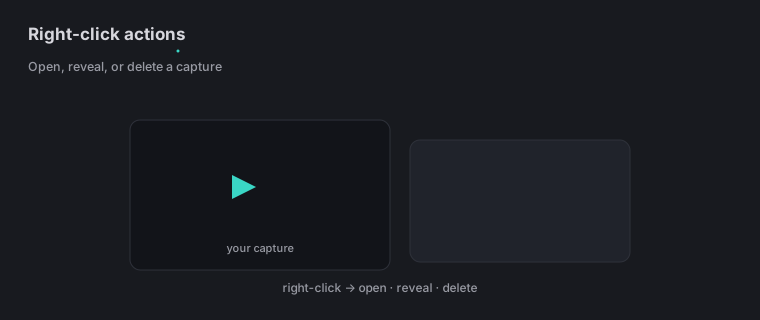
Right-click any recording to see what you can do with it:
- Open in Editor - load it into Studio.
- Reveal in Finder - jump straight to the file on your Mac (so you can move, copy, or upload it).
- Delete - remove the recording. (This one can’t be undone - the file is gone.)
Where do the files live?
Recordings are saved to your output folder - by default ~/Desktop/Zella - with names like Zella_<date>_<time>.mp4. The Library just reads what’s in that folder. You can pick a different output folder in the recording Setup panel (click the Change link). Since the Library points at your real files, Reveal in Finder always takes you to the actual recording, so you can back it up or share it.
On iPhone
There is no Library window on iPhone, and there’s no Finder to reveal a file in - iOS simply doesn’t work that way. The job the Library does on the Mac is split across three places on the phone:
- Bring in footage you already shot with Import from Photos or Import from Files (iCloud Drive, a Files provider, or anywhere else on the device). Imported clips land on the timeline exactly like a fresh recording. See recording on iPhone.
- A take you just recorded opens straight into the editor when you tap stop - there’s no round trip through a folder at all.
- Move a project to the Mac by exporting a
.zellafile, then opening it in the Mac app. Your timeline, cuts, captions and effects come with it, and it works in both directions. See export & handoff.
So the Mac habit of “record now, find it in the Library next week” becomes “shoot it, edit it, and either export it or hand it to the Mac.” If you want the Library’s grid, search and filters for a phone recording, hand the project over and use the Mac.
What the Library saves you
For content creators and video editors, the Library takes the hassle out of getting from recording to editing:
- No digging through folders - search by name instead of scrolling past dozens of files named by date and time.
- Straight to editing - open any past recording in Studio with one click, even days or weeks later.
- Easy cleanup - filter, preview, find, and delete old takes to keep your drive tidy, all from one window.
Library FAQ
Where do my Zella recordings go?
To your output folder (default ~/Desktop/Zella). The Library lists them all - open it with ⌘L.
How do I re-open an old recording to edit it? Open the Library (⌘L), find the recording (with search or filters), and double-click it or choose Open in Editor.
How do I find the actual file to upload it somewhere? Right-click the recording → Reveal in Finder.
Can I filter to just GIFs or audio exports? Yes - use the format filters (MP4 / MOV / GIF / M4A).
Does deleting in the Library remove the file? Yes - Delete removes the recording for good, so only use it when you’re sure.
Is there a Library on iPhone? No - the Library is a Mac feature. On the phone you import from Photos or Files, and a take you just finished opens straight into the editor. See recording on iPhone.
How do I get a phone recording into the Mac Library?
Export a .zella file from the phone and open it on the Mac. Your whole project comes across - see export & handoff.
Pro tips & gotchas
- Open the Library with ⌘L; it lists every recording with the newest on top.
- Use Search by name and filter by format (MP4/MOV/GIF/M4A) together to find a take fast.
- Right-click a recording for Open in Editor, Reveal in Finder, or Delete - Delete removes the file for good, so only use it when you’re sure.
- The Library reads your output folder (default
~/Desktop/Zella); change it with the Change link in the Setup panel. - The Library is Mac-only. On iPhone, import from Photos or Files - and hand a project to the Mac as a
.zellafile when you want the grid and the filters.
Related: Recording basics → · Importing media & projects → · Projects, autosave & snapshots → · Editor overview → · Recording & import on iPhone →