Titles & Kinetic Text in Zella
Quick answer (Mac): Open the Text tab in Zella’s editor, type your text, and give it one of 85 text animations in 12 families, each with its own way in, an optional loop and a way out. Add a gradient fill, stroke, shadow, or box so it reads over any footage, then anchor it so it stays put when you reframe to vertical. Titles save with the project (text + style + color) and survive across transitions. Use ready-made templates like Subscribe and Big Statement to start fast.
On iPhone: 12 one-tap title templates and the same 85 text animations, dragged straight onto the canvas - plus the same 3 animated text highlights (Marker Highlight, Underline Draw, Box Trace), Text Behind Subject and full-screen intro and outro cards. See On iPhone.
On this page: add a title · text animations · decorations · gradient · templates · anchoring · persistence · on iPhone · impact · FAQ
How to add a title
- Open the Text tab (right inspector).
- Add a title and type your text.
- Set its start time and duration - when it appears and how long it stays.
- Position it in the frame.
It shows up in the preview and bakes into (becomes part of) the exported file.
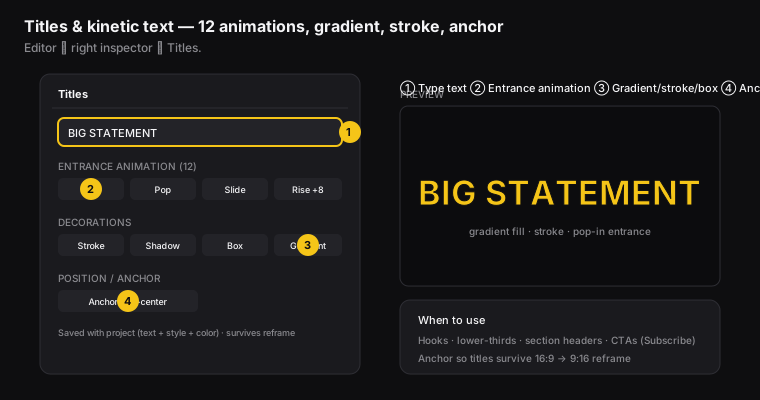
Figure: ① type text, ② pick a text animation, ③ add gradient/stroke/box, ④ anchor for reframe.
How to animate a title
Give the title a text animation instead of a plain pop-in. The Text Motion picker (in the Text tab on the Mac, under Animation on iPhone) holds 85 text animations in 12 families: Fade, Blur, Scale, Rotate, 3D, Slide, Bounce, Tracking, Decode, Wave, Glitch and Fill/Stroke. Tap a tile to see it move.
Each animation works on the text itself, letter by letter, word by word or line by line, and a title has three phases you set separately:
- In - how the text arrives (a letter-by-letter fade, a 3D flip, a decode that scrambles into the real word).
- Loop - optional movement while it sits on screen (a gentle wave, a breathing fade, a flicker).
- Out - how it leaves, so the title exits instead of just vanishing.
Pick the energy you want: a snappy bounce or scale for social media, a smooth fade or slide for tutorials. The same 85 are on Mac and iPhone and all of them are free. The old entrances are still there under the picker’s Classic tab, and the Highlight tab holds the three animated highlights. You can also ask the AI Assistant to set a title’s animation for you.
How to style with stroke, shadow, box, and alignment
Make the text easy to read over any footage:
- Stroke - an outline that keeps letters clear on busy backgrounds.
- Shadow - a drop shadow for depth, so the text stands off the background.
- Background - a solid colour plate behind the text. It is sized to the words, with rounded corners and even padding, so it reads like the label style you see on TikTok and Reels - great for caption-style titles and CTAs (the “call to action” buttons that ask viewers to do something). Works on every title style. Picking a colour makes it fully opaque; drag the opacity slider afterwards if you want it see-through, or press None to remove it.
- Alignment - left, centre, right, or justified. Typewriter always types from the left, so the control is fixed there for that style.
Combine them however you need. The preview shows exactly how it will look.
How to add a gradient fill title
Fill the title’s text with a top-to-bottom color gradient (a smooth blend from one color into another) instead of a single flat color. It’s a premium, modern look for big statements and hooks. Turn on gradient fill and choose the two colors. You’ll see the blend right in the text.
How to use title templates
Zella includes ready-made title styles and templates for common needs - for example, a Subscribe reminder pill and a Big Statement layout. You can drop in a polished, animated title without building it from scratch. Pick a template, then edit the text.
The Mac also ships three one-click creator looks: Gold Impact (a gold gradient on a rough brush slab with a black outline), Story Card (a serif on a soft white card) and Beast Pop (a white and gold two-tone with a heavy outline). Gradient titles can sit on plates, and outlines render under gradients and colours instead of swallowing them.
How to anchor a title for reframe
This is the feature that saves you when you publish in several shapes (aspect ratios):
- Anchor a title to a spot so that when you reframe (for example, 16:9 → 9:16), the title stays put - not cut off the edge or shoved off-center.
- Titles are responsive to the canvas, meaning they adjust to fit. So the same project exports cleanly to landscape, square, and vertical.
Do titles survive save and reopen?
Yes - your titles’ text, style, and color are saved with the project. Close and reopen the project, and they come back exactly as you set them (chapter 22). Titles also show up on both sides of a transition (the effect that links two clips).
Style a single line or word
New in Mac 1.0: select any range inside the text box - a word, a line, a character - and the Font cards, Font Size slider and Text Color apply to just the selection. A hint under the box confirms when you are styling a selection; with nothing selected they style the whole block, as before. Mix sizes, fonts and colors freely inside one title - the canvas and the export render exactly what the box previews.
Pick fonts visually
The font control is a gallery: every family renders its own name in its own typeface, so you choose with your eyes instead of memorising type names. Favourites float first (right-click a card to star it), and the selected family wears a ring.
On iPhone
Titles are one of the closest matches between the two apps.
The 12 templates
Add headlines and lower-thirds from 12 one-tap title templates - Subscribe, Follow Me, Like, Bell, Big Statement, Lower Third, Hook, Neon, Quote, Reveal, Caption Pop and Text Card - each with gradient fills, stroke, shadow and box, and any of the same 85 text animations (in, loop and out, in the 12 families above, with the classic entrances kept under Classic). Drag them on the canvas to place them exactly where you want, rather than typing coordinates.
Text Behind Subject
Text Behind Subject places a title between your background and you, using the on-device subject cutout - so the words look like they’re sitting behind you in the scene. It needs a clear subject, so it shines on talking-head shots.
Full-screen intro and outro cards
Here’s a trap worth understanding: a title is an overlay on video, so it can only be seen where there are frames underneath it. Drop a title past your last frame and it composites onto nothing and never appears. To put text before your first frame or after your last, the timeline has to grow - and that’s what a card does.
In Studio → Titles, the Full-screen cards row adds a solid card as a real clip, at the start (Intro card) or the end (Outro card), with your text centred over it:
- Text - anything you like. Leave it empty for a plain card (a breath, or a slot for a logo).
- Style - Dark, Light or Brand. Each carries its own text colour, so a light card never gets unreadable white text.
- Length - 1 to 8 seconds.
- Add music - lays a mood-matched bed under the whole video if there isn’t one already, because a card in silence feels broken.
An intro card pushes the rest of your edit right automatically, so nothing needs re-timing, and the card is a normal clip once it exists - trim it, recolour it, or delete it like any other. The Mac has its own take on this in intro & outro cards.
Blend modes
Titles on iPhone support 16 overlay blend modes - screen, multiply, overlay, soft light and more - so text sits naturally over your footage instead of looking pasted on.
Full guide: Captions, titles & callouts on iPhone →
What impact titles have
For content creators and video editors, titles do specific jobs that turn viewers into fans:
- Hooks keep people watching - a bold animated title in the first 2 seconds tells viewers what they’ll get and keeps them around.
- Lower-thirds build authority - a lower-third (a name bar near the bottom of the screen) that names you or the topic makes content feel produced and credible.
- CTAs drive action - a mid-video “Try it free” or an end-screen “Subscribe” title is where views turn into clicks and follows.
- Anchoring multiplies your reach - anchored titles let one edit ship to every shape without redoing where the text sits.
Titles FAQ
How do I add animated text to a video? Open the Text tab, type your text, and choose one of the 85 text animations: how it comes in, an optional loop, and how it leaves.
How do I make a gradient text title? Enable gradient fill in the Text tab and pick two colors.
Will my title get cut off when I make the video vertical? Not if you anchor it - anchored titles stay placed through a reframe.
Do titles save when I close the project? Yes - text, style, and color persist on reopen.
Is there a quick way to add a Subscribe or hook title? Use the built-in Subscribe and Big Statement templates, then edit the text. There are 8 template bundles on the Mac and 12 one-tap templates on iPhone.
Why doesn’t my title show at the very end of the video? Because a title is an overlay on video - past your last frame there’s nothing to composite onto. Use a full-screen outro card instead, which adds a real clip so the timeline grows. On iPhone that’s in Studio → Titles → Full-screen cards.
What is Text Behind Subject? A title that sits between your background and you, using the on-device subject cutout, so it looks like it’s behind you in the scene. See Captions, titles & callouts on iPhone.
Pro tips & gotchas
- Pick one of the 85 text animations, then dress it up with a gradient fill, stroke, shadow, or box for contrast.
- Set the anchor so the title adjusts to fit the shape you’ll export to.
- Title styling stays saved with the project - reopen it later and it’s exactly as you left it.
- Keep titles short and high-contrast. A gradient fill over a dark box reads on any background.
- On the phone, Text Behind Subject needs a clear subject - it uses the on-device cutout, so save it for talking-head shots.
Related: Callouts → · Reframe → · Transitions → · Color & effects → · Captions, titles & callouts on iPhone →