Recording Modes in Zella: Full Screen, Region, Window & Camera
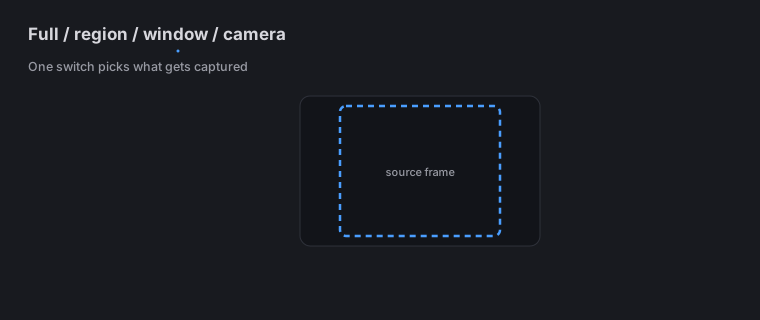
Quick answer (Mac): In Zella’s Setup panel, the Screen toggle plus the Full / Region switch give you four capture modes. Full screen captures the whole display; Region captures a rectangle you draw (with aspect presets for vertical/square); Window follows one app window; Camera-only (Screen off, Camera on) records just your webcam. Turn on Camera + Screen together for the classic creator “screen + face bubble” shot.
On iPhone the modes are different: front camera, back camera, screen recording, whole-device broadcast (other apps included), or import a clip you already shot. See On iPhone.
On this page: the four modes · full screen · region · window · camera-only · screen-plus-bubble · which to pick · on iPhone · FAQ
What recording modes does Zella have?
Four, all chosen in the Setup panel (menu bar → Zella icon):
| Mode | Sources | Best for |
|---|---|---|
| Full screen | Screen | Whole-app walkthroughs, presentations |
| Region | Screen (rectangle) | Focused demos, vertical reels |
| Window | Screen (one window) | One app, no desktop clutter |
| Camera-only | Camera | Intros, vlogs, talking heads |
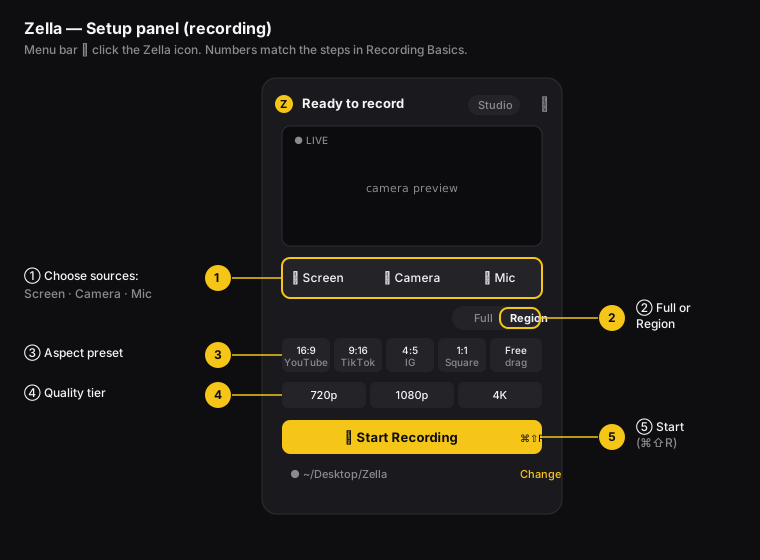
Figure: the Setup panel - ① sources and ② the Full/Region switch select your mode.
How to record the full screen
- Setup panel → Screen on → switch to Full.
- (Optional) Camera and Mic on.
- ⌘⇧R opens the panel, then Start Recording.
Where to use it: full-app walkthroughs and presentations where the whole screen matters. You can always reframe to vertical (reshape it into a tall video) later.
How to record a region (or vertical area)
- Setup panel → Screen on → switch to Region.
- Pick an aspect preset - the video’s shape - (16:9, 9:16, 4:5, 1:1) or Free for any size.
- Drag the dashed box to position it. In Free mode, drag the corner handles to resize it.
- ⌘⇧R opens the panel, then Start Recording.
Where to use it: a single window, part of a browser, or a phone-shaped 9:16 area for Reels. Zella records the region at its exact pixel size so the frame rate stays smooth, and the quality level is applied at export.
How to record one app window
- Setup panel → Screen on → choose Window and pick the target window.
- Start as usual.
Where to use it: recording one specific app cleanly. Zella follows the window if it moves, and won’t catch your desktop or other windows.
How to record camera-only
- Setup panel → Screen off, Camera on, Mic on.
- (Optional) open Studio to set a background, bubble shape, and mirror (see Camera & backgrounds).
- Pick an aspect (Portrait/9:16 is common) → Start Recording.
Where to use it: intros, outros, reaction shots, vlogs, and segments you’ll cut between screen recordings.
Low-light note: in a dark room your webcam lowers its frame rate (frames per second) so it can gather enough light. That’s your camera doing it, not Zella. Add more light for a smooth 30 frames per second. Your audio and timing aren’t affected.
How to record screen with a webcam bubble
This is the setup most tutorials use - a screen recording with your face layered on top in a small bubble:
- Setup panel → Screen on, Camera on, Mic on.
- (Optional) In Studio, set the bubble’s shape, size, corner, and background (Blur / AI Remove / solid color).
- Frame a region, or use Full, then start.
Zella keeps your lips in sync with the audio even when the bubble uses a blurred or AI-removed background. That’s normally the hardest case to get right.
Which recording mode should you use?
| Goal | Mode | Sources |
|---|---|---|
| App tutorial with voice | Full or Region | Screen + Mic |
| Tutorial with your face | Region + bubble | Screen + Camera + Mic |
| Vertical reel of a demo | Region 9:16 + bubble | Screen + Camera + Mic |
| Talking-head intro | Camera-only | Camera + Mic |
| Silent UI GIF | Region | Screen only |
| Single window, clean | Window | Screen (+ Mic) |
Why picking the right mode matters: the right mode means less to fix later. A tight Region keeps files small and keeps the viewer focused. A bubble shows your face, which builds the personal connection that earns you followers. Camera-only intros give you short clips you can reuse across videos (called bumpers). Choosing well up front saves you an editing pass later.
On iPhone
The four Mac modes above map onto a different set on the phone, chosen in the app rather than in a Setup panel:
| Mode | What it captures | Best for |
|---|---|---|
| Front camera | Your face + mic | Talking heads, intros, reactions |
| Back camera | Whatever you point at + mic | Products, demos in the world, vlogs |
| Screen recording | Zella’s own capture, via ReplayKit | Short in-app clips |
| Whole-device broadcast | The entire device, other apps included | App demos and how-to clips |
| Import | A clip already in Photos or Files | Editing footage you shot elsewhere |
Camera recording
Pick the front or back camera, tap record, tap stop - the editor opens with your take. You can set a live background (blur, cut out or replace) before you roll and watch it in the viewfinder as you film, all segmented on-device with no green screen.
Whole-device broadcast
This is the phone’s answer to a full-screen Mac recording. It goes through Apple’s system broadcast picker, so it captures across the whole device including other apps - which is exactly what an app demo needs.
The screen-plus-face look
On the phone you build it in the editor rather than at capture. Drop a second video over your main clip and it lands on its own timeline row as a picture-in-picture overlay layer: drag it anywhere on the canvas, choose rectangle, rounded, circle or a background-removed cutout, set its stacking order, and size it with independent Width and Height sliders (or tap Lock to original ratio to snap back). Same result as a webcam bubble, decided after the fact instead of before.
What’s Mac-only here
- Region capture - drawing a rectangle with an aspect preset. On the phone, record freely and use Make Vertical for a face-aware 9:16 reframe instead.
- Window capture - following one specific app window. The phone’s equivalent is the whole-device broadcast.
- Cursor, click and keystroke tracking, which is what feeds Auto-Zoom Clicks on the Mac. Phones have no cursor, so zoom on iOS comes from zoom blocks and Auto-Polish’s emphasis zooms instead.
Full guide: Recording on iPhone → · The iOS editor →
Recording modes FAQ
What’s the difference between Full and Region recording? Full records your whole display. Region records only a rectangle you draw, which means smaller files and more focus. You can also shape a region as vertical or square for social media.
Can I record my screen and webcam at the same time? Yes - turn on Screen and Camera for a screen recording with a face bubble.
How do I record just my webcam? Turn Screen off and Camera on (camera-only mode).
Why is my camera-only recording choppy / low fps? Usually it’s low light - webcams slow their frame rate (frames per second) in the dark. Add more light. (See Troubleshooting.)
Can I change the bubble background after recording? On the Mac you can adjust the bubble’s position and style in the Webcam tab, but replacing the background is a setting you choose before you record, in Studio Settings. On iPhone you can remove and replace the background in the editor too, after the fact.
Can I record one app window on my iPhone? Not as its own mode - window capture is Mac-only. Use the whole-device broadcast to capture other apps on iOS.
What are the recording modes on iPhone? Front camera, back camera, screen recording, whole-device broadcast, or import from Photos or Files. See Recording on iPhone.
Pro tips & gotchas
- Full screen is simplest for talks. Region keeps file size and workload down. Window follows a single app. Camera-only is a clean talking-head shot.
- Region recording captures at the region’s exact size. The quality levels (1080p/4K) are applied at export, not while recording.
- For a webcam-only recording, the camera and mic run on the same internal clock, so the audio and video line up automatically.
- Switch cameras in the middle of setup without restarting - you can swap the device right in the Setup panel.
- On the phone, the back camera is the underused one. It’s the better sensor on most iPhones, so use it for anything that isn’t a talking head.
Related: Recording basics → · Camera & backgrounds → · Reframe for any platform → · Recording on iPhone →