Timeline Editing in Zella: Cut, Trim & Ripple Delete
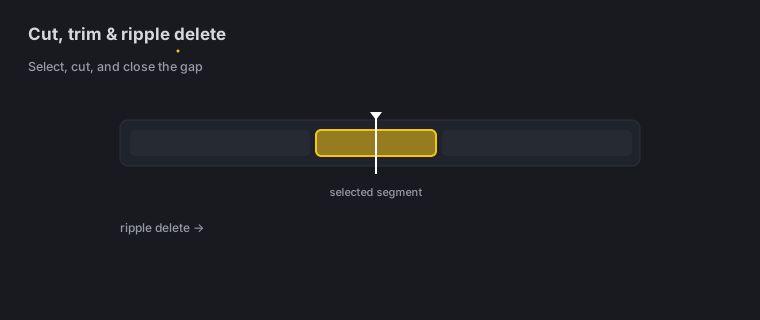
Quick answer (Mac): In Zella’s editor, click the timeline to move the playhead, press B to cut at that point, switch to A mode to select a segment, then press Delete (or 🗑) to ripple-delete it - the later content slides up to close the gap and the video gets shorter. Drag a clip edge to trim. Everything is undoable with ⌘Z.
On iPhone: the same four moves, by touch - cut at the playhead, trim by dragging a clip’s edges, ripple-delete so the gap closes, and drag to reorder. Pinch to zoom the timeline. See On iPhone.
On this page: the timeline · move playhead · cut · a vs b mode · trim · ripple delete · undo · on iPhone · impact · FAQ
What is the timeline?
The timeline at the bottom of the editor is where you shape the video by hand - cutting, trimming (shortening from the ends), and deleting sections. The waveform shows your audio (tall bars = speech, flat = silence), thumbnails show the picture, and yellow bracket markers show your cuts.
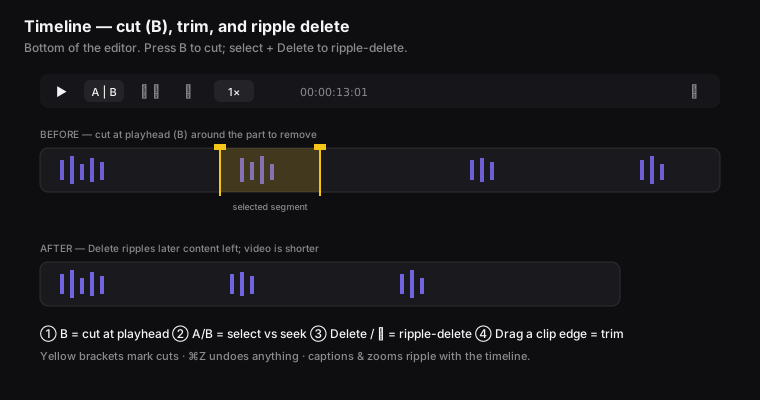
Figure: ① B cuts at the playhead, ② A/B toggles select-vs-seek, ③ Delete ripple-deletes the selection, ④ dragging a clip edge trims.
For silence and filler words, don’t cut by hand. Use the one-click AI cleanup tools instead - they find and remove every gap or filler at once, closing the gaps for you.
How to move the playhead
The playhead is the vertical line that marks where you are in the video.
- Click anywhere on the timeline to jump the playhead there.
- Press ▶ Play to move through the video, then stop where you want to make a change.
- 🔍- / 🔍+ zoom the timeline in or out so you can work down to a single frame.
How to cut a clip at the playhead
A cut splits the clip into two pieces at the playhead. It doesn’t delete anything - it just creates an edit point you can use for transitions, speed changes, or deleting.
- Press the B key (the fast way), or click the Cut tool in the top toolbar.
A yellow bracket marker appears where you split it. There’s a tiny delay built in, so pressing quickly won’t create a pile of extra cuts.
What are A mode and B mode?
The A / B switch in the transport (the row of playback controls) changes what happens when you click the timeline:
- B mode - click to seek (just move the playhead). Use this while you’re reviewing the video.
- A mode - click to select and seek to a segment. Use this when you want to pick a section to do something with (like delete it).
How to trim a clip
To shorten a clip from its start or end (without removing anything from the middle):
- Hover over the edge of a clip or segment in the timeline.
- Drag the edge handle (a yellow marker) inward to trim it.
You can also type exact Start / End / Duration values in the Clip inspector tab. A single edge drag can trim and close the gap in one move.
How to ripple-delete a section
A ripple delete removes a selected section and slides everything after it earlier so there’s no empty gap. This is how you cut out mistakes, dead air, or whole tangents.
- In A mode, select the segment you want to remove (if you need to, press B at its start and end first to cut it out).
- Press Delete / Backspace, or click the 🗑 trash in the transport.
- The section is removed. Everything after it slides up to fill the gap, and the video gets shorter.
Captions, zooms, and other timed items after the cut move along with the timeline, so they stay lined up.
How to undo
Every edit can be undone: ↶ Undo / ⌘Z and ↷ Redo / ⌘⇧Z. You can undo as many steps as you want, so feel free to experiment.
On iPhone
The phone has a real multi-clip timeline, not a trimmer. The core moves are the same ones described above, driven with your fingers instead of B and A:
- Cut - split a clip at the playhead.
- Trim - drag a clip’s edges to shorten or lengthen it.
- Ripple-delete - remove a section and the gap closes automatically, so nothing is left behind.
- Reorder - drag clips to change their order.
Scrub with a drag, pinch to zoom the timeline in for a frame-accurate cut and back out to see the whole video, and tap a clip to select it.
Cut by ear, not just by eye
Every clip draws its audio waveform right on the timeline. Find the pause between two sentences, land a cut on a beat, or spot the cough you want to ripple out - precisely, without guessing from thumbnails.
Cutting by deleting words
The phone has a shortcut the mouse can’t match: transcript editing. Generate captions, then delete a word or a line from the transcript and Zella ripple-cuts the video to match. It’s the fastest way to remove a fumbled sentence without hunting for its edges on the timeline.
What’s different from the Mac
There are no keyboard shortcuts on iOS, so there’s no B to cut, no A/B mode switch, and no ⌘Z - undo is a control in the app. And for silence and filler words, don’t cut by hand on the phone either: tap Clean Up or Auto-Polish and they go in one pass. See AI cleanup.
Full guide: The iOS editor →
What impact good timeline editing has
For creators and video editors, cutting cleanly by hand is what removes the “amateur” feel that the AI tools can’t reach: a fumbled sentence, a tangent, or a long pause where you lost your place. Tight pacing is the number one reason people keep watching. Cutting the slow middle of a take keeps viewers around, and ripple-delete makes those cuts smooth instead of leaving awkward gaps. Combined with AI cleanup, a 10-minute raw take can become a 5-minute video that people actually finish.
Timeline editing FAQ
How do I cut a part out of the middle of a video? Cut (B) at the start and end of the part, select it in A mode, and press Delete to remove it and close the gap.
What’s ripple delete? It means removing a section and sliding the rest of the timeline up to close the gap, so there’s no empty space left behind.
How do I trim just the start or end of a clip? Drag the clip’s edge handle inward, or type Start/End values in the Clip tab.
Can I undo a delete? Yes - ⌘Z brings it back.
Do my captions move when I delete a section? Yes - captions and zooms slide along with the timeline and stay lined up.
Can I ripple-delete on my iPhone? Yes. Removing a section closes the gap automatically, exactly as on the Mac - no empty space left behind. See The iOS editor.
How do I make a frame-accurate cut on a small screen? Pinch to zoom the timeline in, make the cut, then pinch back out.
Pro tips & gotchas
- The core loop: click to place the playhead → B to cut → A to select → Delete to remove the section and close the gap.
- All cuts snap to the frame grid (they land exactly on a frame), so your edits stay precise.
- Zoom the timeline in for careful trims. Drag a clip edge to trim without making a cut.
- Made a mess? ⌘Z walks back as many steps as you need on the Mac; on the phone, use the undo control in the app.
- On the phone, delete the word, not the frames. Editing the transcript ripple-cuts the video for you, which beats hunting for a sentence’s edges by hand.
Related: AI cleanup (auto silence/filler removal) → · Transitions → · Speed → · Editor overview → · The iOS editor →