Captions, Titles & Arrows on iPhone
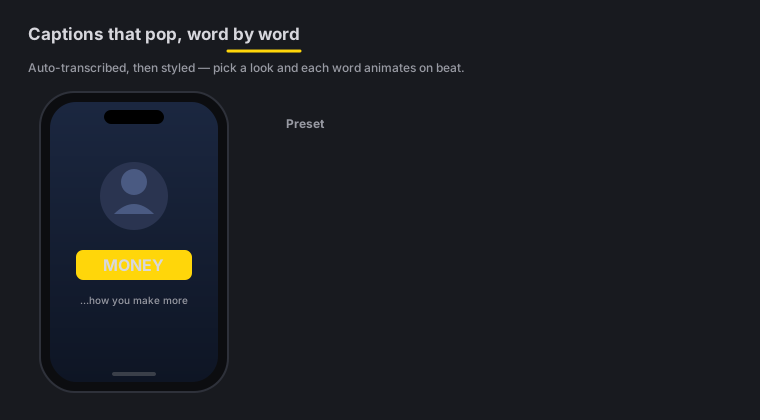
Quick answer: On the phone you get 9 viral caption presets with active-word highlight, SRT import and a transcript word editor to fix any word - plus on-device caption translation into 19 languages. Then Text Behind Subject (titles that sit between your background and you), 12 one-tap title templates and 85 text animations, 3 animated text highlights that draw a marker, underline or box across your words line by line, 19 arrow & label types (callouts, as editors call them) that can draw themselves on over text in your footage, and 16 overlay blend modes. Captions are transcribed and translated on-device - nothing uploaded.
On this page: captions · edit the transcript · translate captions · Text Behind Subject · titles · intro & outro cards · arrows & labels · blend modes · FAQ
Captions: 9 presets
Zella transcribes your audio on-device and styles it with one of 9 viral caption presets, each with active-word highlight - the word being spoken pops as it’s said, the style that drives watch-time on social. Add captions with one tap of the Captions button, ask the AI Assistant, or run Make it Viral, which captions as part of its pass. Auto-Polish does not add captions.
It’s the same caption engine as the Mac’s captions & subtitles, rebuilt for touch.
Fix words & import SRT
Transcription is close, but names and jargon sometimes need a fix:
- Transcript word editor - tap a word to correct it; the timing stays intact.
- SRT import - already have a subtitle file? Bring it in as your captions instead of transcribing.
What language you speak
Zella transcribes what it hears, on the phone, with no upload. The picker offers 27 spoken languages, and captions come out in that language’s own script.
18 of the 27 are verified end to end. Each was measured on native-voice audio through the exact decode path the app uses, and scored on two things: the output had to be in the right writing system, and the words had to match what was actually said. English, Spanish, French, German, Italian, Dutch, Polish, Hindi, Tamil, Russian, Indonesian, Japanese, Korean, Chinese, Thai, Turkish, Vietnamese and Arabic. (Portuguese and Kannada came back in the right script but with shaky words on the test voices, so they are not on that list yet.)
The rest are offered because the underlying model supports them, but we have not measured them ourselves. Treat those as “should work” rather than “we checked”.
Bengali and Telugu: use English captions instead
We tested both properly and they do not work on-device. On a real conversational বাংলা take, every phone-capable model - including the largest - produced a repetition loop rather than a transcript. That is a known weakness in the speech model for these languages, not something a setting fixes, so Zella does not claim Bengali or Telugu transcription and says so in the app when you pick one.
What does work is the next section: speak বাংলা, get English captions. That path was measured on the same audio and reads fluently.
English captions (translate)
Speak any supported language and get English captions, on the phone, with nothing uploaded. It is a labelled switch in Studio, right under the language picker - never applied silently, because captions that quietly change language are worse than no captions.
This is the practical answer for any language the transcriber cannot hold, and it is genuinely useful even for ones it can: a Hindi or Tamil take captioned in English reaches an audience the original script does not.
Why this matters more than it sounds. Every mainstream alternative that offers speech-to-text sends your audio to a server to do it. CapCut’s own privacy policy describes uploading content before you post and retaining transcribed text. Zella’s translation runs in the same place as everything else it does: on your device, with no account and no network path. Your unreleased footage and whatever you said over it stay yours.
Translate captions (on-device)
Reach a non-English audience without your video ever leaving the phone. Generate captions first, then pick a target language and Zella rewrites the caption track in place - 19 languages, including Spanish, Hindi, Portuguese (Brazil), French, German, Arabic, Japanese, Indonesian, Chinese (Simplified), Korean, Italian, Russian, Turkish, Vietnamese, Thai, Dutch, Polish, Ukrainian and English (UK).
Each translated line is re-flowed onto its original on-screen window, so word-pop and karaoke keep animating at the right moments, and the strongest words are re-emphasised in the new language rather than left highlighted on the English ones.
- Fully on-device via Apple’s Translation framework - there is deliberately no network path at all.
- Requires iOS 18 or later. On older versions the option simply isn’t offered; everything else still works.
- One-time language download. The first time you use a language, iOS may need to fetch its offline model. If it isn’t installed yet, Zella tells you exactly what to do - grab it in Settings › Translate. After that it’s instant and offline.
- If a language pair isn’t supported on your device, Zella says so plainly instead of silently doing nothing.
Text Behind Subject
Text Behind Subject places a title between your background and you, using the on-device subject cutout - so the words appear to sit behind you in the scene. It’s a striking, modern look that used to need a dedicated editor. Same feature as the Mac’s captions & titles.
Titles
Add headlines and lower-thirds from 12 one-tap title templates - Subscribe, Follow Me, Like, Bell, Big Statement, Lower Third, Hook, Neon, Quote, Reveal, Caption Pop and Text Card - each with gradient fills, stroke, shadow and box, and any of 85 text animations in 12 families (Fade, Blur, Scale, Rotate, 3D, Slide, Bounce, Tracking, Decode, Wave, Glitch and Fill/Stroke). Set it in Text Animations: in the add form for a new title, or by selecting a placed title and opening its Text Animations group. Choose how the text comes in, an optional loop while it is on screen, and how it leaves, letter by letter, word by word or line by line; the old entrances are kept under Classic and the three highlights under Highlight. Every family and setting is in Text animations. Drag them on the canvas to place them exactly where you want. This mirrors the Mac’s titles & kinetic text.
Fonts: 51 faces you judge by looking
The font picker shows 51 faces, grouped as Sans, Viral, Display, Handwritten, Serif, Script and Mono, in a grid of cards that each draw a big “Aa” in the face itself - you judge a font by looking at it, not by its name. Long-press any card to star it; starred fonts collect at the front of the grid. Five of the viral faces ship inside the app - Fjalla One, Archivo Black, Bangers, Luckiest Guy and Marker Pro - so they render on any iPhone with nothing to download.
Add your own fonts
The first card in the font picker is Add font. Tap it and choose .ttf, .otf, .ttc or .otc files from Files; they collect under the My fonts chip, in any script (Bangla, Hindi, Arabic, Thai, Chinese, Japanese, Korean and more), and the same picker serves captions and titles. Long-press one of your fonts for Remove from My fonts. When you send the project to the Mac as a .zella file, the fonts it uses travel with it. Only use fonts you have the right to use. Full guide: Use your own fonts.
Animated text highlights
Three quick looks do something the others do not: they animate a decoration behind your words, line by line, the way a hand moves a marker across a page.
- Marker Highlight - a translucent gold band that sweeps across each line in turn. Your text reads through it, and so does the video underneath.
- Underline Draw - a gold line that draws itself under each line of text.
- Box Trace - a single outline that traces itself clockwise around the whole title, one edge at a time.
They take about half a second per line, so the movement is slow enough to watch rather than a flicker at the start. Pick one from the Quick looks row and your title arrives with two lines of placeholder text, because the sweep only reads as motion when there is a second line for it to move on to. Change the colour with the accent picker; leave it alone and it stays Zella gold.
The bands are measured from the actual pixels of your text, not from the font’s metrics, which is why they hug Bengali, Hindi, Arabic and every other script exactly as tightly as they hug Latin.
Quick looks: one tap for a finished title
Above the controls sits a row of 24 quick looks - Clean Bold, Marker Highlight, Underline Draw, Box Trace, Highlight, Neon, Sunset, Elegant, Marker, News Bar, Typewriter and Lyric, then the 12 creator looks: Gold Title, Story Card, Hook Yellow, Sticker Label, Highlighter Swipe, Frosted Pill, Editorial Serif, Chat Bubble, Chunky 3D, Keyword Punch, Typewriter Receipt and Gradient Pop. Each one sets the font, colour, stroke, shadow, box and entrance together, so a title looks designed before you touch a single slider. Everything stays editable afterwards.
The second, third and fourth are the animated text highlights described just above: they sit near the front of the row on purpose, because a decoration nobody scrolls to is a decoration nobody uses.
The 12 creator looks are the ones built for short-form thumbnails and hooks:
- Gold Title - heavy Archivo Black in a gold gradient, black-outlined on a near-black slab, popping in. The thumbnail headline.
- Story Card - dark Georgia serif on a soft white card that fills the frame, fading in. For quotes and story beats.
- Hook Yellow - condensed caps in highlighter yellow with a fat outline, the classic talking-head hook.
- Sticker Label - chunky white type on a hot-pink rounded tag, tilted like a slapped-on sticker.
- Highlighter Swipe - dark type with a yellow marker sweeping in behind it.
- Frosted Pill - a smoked-glass caption pill with a thin light rim.
- Editorial Serif - a magazine-style italic serif with the last word set upright.
- Chat Bubble - a sent-message bubble, for texting-story videos.
- Chunky 3D - a rounded comic face, yellow on the front with a stacked 3D extrude.
- Keyword Punch - a bold white line where the longest word punches out bigger in red.
- Typewriter Receipt - monospace print on an off-white receipt strip that types on.
- Gradient Pop - a vivid pink-to-orange fill with a thin outline.
While a title is selected, a dashed box shows the outline of its text, and the Edit button sits just outside that box instead of on top of your words.
The Lyric look is the lyric-video style: condensed caps, one line chipped in teal, a typewriter entrance. The chip comes from Highlight 2nd line only (under Box color), which colors a single line of a multi-line title instead of boxing the whole block - and your own line breaks stay exactly where you typed them.
Full-screen intro & outro cards
A title is an overlay on video - it can only be seen where there are frames underneath it. So a title dropped past your last frame composites onto nothing and never appears. To put text before your first frame or after your last, the timeline has to grow, and that’s what a card does.
In Studio → Text/Titles, the Full-screen cards row at the top adds a solid card as a real clip - at the start (Intro card) or the end (Outro card) - with your text centred over it:
- Text - anything you like; leave it empty for a plain card (a breath, or a slot for a logo).
- Style - Dark, Light or Brand. Each style carries its own text colour, so a light card never gets unreadable white text.
- Length - 1 to 8 seconds.
- Add music - lays mood-matched background music under the whole video if there isn’t one already. A card in silence feels broken; this is one tap instead of a trip to the Audio tool.
An intro card pushes the rest of your edit right automatically, so nothing needs re-timing. The card is a normal clip once it exists - trim it, recolour it, or delete it like any other.
Arrows & Labels (callouts)
The Arrows & Labels tab points attention exactly where it belongs with 19 types - arrow, box, ellipse, label, keystroke, spotlight, number, blur, leader line, popup, magnifier, highlighter, underline, pixelate-censor, emoji, sticky note, scribble, timer and glitch region. The blur and pixelate-censor types are how you keep secrets and faces out of frame, and the AI Assistant can place them for you: type “blur the access token” and it finds the text on screen. See the Mac’s callouts guide for the full catalog - the Mac tab is named Arrows and carries one extra type, the corner-bracket Target frame.
Marking up text that is in your footage
Filming a book page, a document or a screenshot and want to mark a line of it? Drop a highlighter, underline, box or ellipse over the words and it draws itself on, left to right, like a marker moving across the page. That is the Draw On animation, and those four types are born with it - you do not have to switch it on.
Blur and pixelate-censor deliberately do not draw on. Wiping a censor into place would show the thing it exists to hide.
Any annotation can be resized freely: select it and drag any of the eight handles round its edge. Only the edge you drag moves, so you can pull a highlighter into the wide, thin band a single line of text needs. Pinch on the canvas still scales the whole thing at once when that is quicker, and a two-finger twist rotates it.
Change the animation any time under In and Out in the annotation’s inspector: None, Fade, Pop, Slide Up, Slide Down or Draw On.
Typing into an arrow or label
The types that carry words or figures - Number, Label, Keystroke, Sticky Note, Emoji and Timer - have a text field right in their inspector, under Placed arrows & labels. Tap a Number badge and type 3, put the real shortcut in a Keystroke, write the actual note on a Sticky Note. Same as the Mac’s callout inspector.
Overlay blend modes
Titles and arrows & labels support 16 overlay blend modes - screen, multiply, overlay, soft light and more - so text and graphics sit naturally over your footage instead of looking pasted on.
Blend modes apply to arrows & labels as well as titles, in the preview and in the export - so a Glitch region set to Screen, or a Spotlight set to Multiply, renders exactly the way you set it.
iOS captions FAQ
Are captions transcribed on-device? Yes - the transcript is generated on the phone, with nothing uploaded.
Can I fix a wrongly-transcribed word? Yes. The transcript word editor lets you tap and correct any word without breaking the timing.
Can I bring my own subtitles? Yes - import an SRT file instead of transcribing.
Can I translate my captions? Yes - into 19 languages, entirely on-device on iOS 18 or later. Generate captions first, then pick a language. Each line keeps its original timing and re-emphasises the strongest words in the new language.
Does translation upload my video? No. It runs through Apple’s on-device Translation framework and has no network path at all. The first use of a language may need a one-time offline model download from Settings › Translate; after that it works offline.
What is Text Behind Subject? A title that sits between your background and you, using the on-device subject cutout - so it looks like it’s behind you in the scene.
How do I censor a face or a key on screen? Use the blur or pixelate-censor type from Arrows & Labels to cover it. For keys, tokens, passwords and emails, ask the Assistant to “blur the access token” and it finds them for you (Blur sensitive info).
Can I use my own fonts on iPhone? Yes. Tap Add font in the font picker and choose font files from Files. See Use your own fonts.
Pro tips & gotchas
- Tap Captions (or run Make it Viral), then open the transcript editor to fix names and jargon.
- Fix the transcript before translating - corrections carry through, and re-translating a fixed transcript beats fixing it in a language you don’t read.
- Text Behind Subject needs a clear subject - it uses the on-device cutout, so it shines on talking-head shots.
- Censor before you export. Drop a blur or pixelate region over any key, face or secret in frame.
- Match the vibe with blend modes so titles and arrows sit in the scene, not on top of it.
Related: On-device AI (Auto-Polish, Make it Viral) → · Sound & music → · Export & handoff → · Mac captions → · Mac callouts → · Text animations → · Your own fonts →