Captions & Subtitles in Zella
Quick answer (Mac): Open the Captions tab in Zella’s editor and click Transcribe audio - Zella transcribes on-device (no upload) into a word-level transcript, in any of 27 spoken languages. Pick one of 10 viral styles (Word Pop, Hormozi, Karaoke, Pop Box, Neon Glow, Clean Minimal, Beast, Hero, Highlighter, Bounce), set size/color/position, and the captions burn into your export. Need a file? Export SRT, VTT, or CSV. Captions stay aligned even after you cut the video.
On iPhone: the same on-device engine and the same 27 spoken languages, with 9 viral presets, active-word highlight, a transcript word editor and SRT import - plus one thing the Mac doesn’t have: on-device caption translation into 19 languages on iOS 18 or later. See On iPhone.
On this page: why captions matter · transcribe · styles · active-word highlight · size & position · edit text · ripple · export SRT/VTT · on iPhone · impact · FAQ
Why add captions to a video?
Most social video is watched with the sound off. That makes captions one of the most powerful edits you can make - they boost watch-time (how long people keep watching) and accessibility (how easy your video is for everyone to follow). Zella writes the captions right on your device (nothing gets uploaded), turns them into fun animated captions, and can also save them as standard subtitle files. You don’t need a separate caption app.
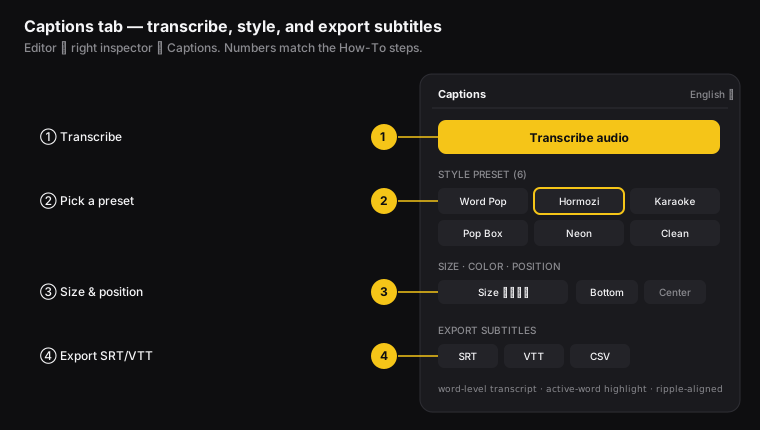
Figure: the Captions tab. ① Transcribe, ② pick a preset, ③ set size & position, ④ export SRT/VTT/CSV.
How to transcribe a video
On the Mac:
- Open the Captions tab (right inspector).
- Pick the Language you spoke. English is the default, and 27 are offered, each named in its own script. One language per pass.
- Non-English languages run through Zella’s own on-device model, which downloads once. A model size control sits beside the picker: roughly 77 MB, 148 MB or 466 MB. The two smaller sizes romanise non-Latin scripts, and Zella says so inline when you pair one with a language it cannot render properly.
- Click Transcribe audio.
On iPhone the same pass is a tap - see Add captions below.
Zella listens to your audio right on your device and builds a word-level transcript (a written list of every word that was said, with the exact time each one happens). It captures every word, in order, not just the last phrase. Then it lines up the captions with the speech.
The clip needs spoken audio to work. A silent screen recording has nothing to caption.
How to choose a caption style
Zella comes with 10 ready-made caption styles (presets) on the Mac that are popular on social media - 9 of them on iPhone. Pick the one that fits your channel:
| Preset | Look | Best for |
|---|---|---|
| Word Pop | Words snap in as spoken | High-energy social |
| Hormozi | Bold, high-contrast, yellow keyword | Hooks, sales |
| Karaoke | Active word fills with color | Retention |
| Pop Box | Active word on a color chip | Clean + bold |
| Neon Glow | Glowing text, full line | Stylized reels |
| Clean Minimal | Sentence captions, subtle fade | Tutorials, courses |
| Beast | One BIG word at a time | MrBeast-style hooks |
| Highlighter | Marker sweeps the spoken word | Explainers |
| Bounce | Active word bounces bigger | Playful reels |
| Hero | Gradient keyword inside a target frame | Big statements, hero shots |
Select one in the Captions tab; each looks visibly different.
What is active-word highlighting?
With styles like Karaoke (and other word-by-word styles), the word being spoken right now lights up, then the highlight moves to the next word, and so on across the line. This is the look that keeps viewers glued to the screen. It turns on by itself for any style that uses it.
How to set caption font size, color, and position
In the Captions tab set:
- Font - Zella ships with the caption fonts creators actually use to go viral: Montserrat, Poppins, Anton, and Bebas Neue (Montserrat is the default). You can also import your own
.ttf/.otffrom the font picker. - Font size - larger for vertical/social, smaller for desktop tutorials.
- Color - match your brand. The color stays even if the video itself is turned black-and-white.
- Position - a slider from top to bottom: drop captions low for the classic subtitle spot, or raise them toward the center for reels.
How to edit caption text
The auto-transcript is very good, but not perfect - it can trip over names, slang, or brand words:
- Click a caption line in the Captions tab and fix the text.
- Your change stays put and shows up in both the preview and the final video.
Do captions stay aligned after cuts?
Yes. Captions know where they belong in time. If you ripple-delete a chunk - that means delete a piece and close the gap (chapter 9) - or run Cut Empty Space or Remove Fillers (chapter 10), the later captions slide earlier to match the shorter video and stay on the right words.
How to export SRT, VTT, or CSV subtitles
Maybe you want to upload captions to YouTube, feed them to a web video player, or translate them into another language. SRT, VTT, and CSV are the three common subtitle file formats for this:
- In the Captions tab, use export to save an SRT, VTT, or CSV file.
- The file opens cleanly in any standard tool, and it has the same number of caption lines you see in Zella.
You can also import an SRT to build a caption track from a transcript you made somewhere else.
On iPhone
Captions on the phone are the same engine, rebuilt for touch - and this is one of the pages where iOS has a feature the Mac doesn’t.
Add captions
Zella transcribes your audio on-device and styles it with one of 9 viral caption presets, each with active-word highlight - the word being spoken pops as it’s said. Add them from the captions tool, or let Auto-Polish add them for you in the Beast style, with keyword emphasis and one emoji per line.
The iOS transcript comes from a verbatim on-device Whisper model, which is why filler removal on the phone really does cut plain “um” and “uh”. The model downloads once, about 145 MB, the first time you transcribe.
Fix a word, or bring your own
- Transcript word editor - tap a word to correct it. The timing stays intact.
- SRT import - already have a subtitle file? Bring it in instead of transcribing.
Deleting words in the transcript also ripple-cuts the video to match, which makes it a cutting tool as much as a proofreading one.
What language you can speak
Two different things share the word “translate”, so it is worth separating them.
Transcription is what language you speak. Mac and iPhone all offer 27 spoken languages and caption in that language’s own script. On iPhone, 18 are verified end to end on native-voice audio, and Bengali and Telugu are not among them - both were measured and both fail on-device, so Zella does not claim them there and says so when you pick one.
English captions (translate) is the switch for exactly that case: speak any supported language, get English captions, still entirely on the phone. Full detail in captions on iPhone.
Translate your captions, on-device (iOS only)
This one has no Mac equivalent, and it is only about translation: the Mac transcribes all 27 spoken languages, it just does not rewrite a finished caption track into another language. Generate captions, pick a target language, and Zella rewrites the caption track in place - 19 languages, including Spanish, Hindi, Portuguese (Brazil), French, German, Arabic, Japanese, Indonesian, Chinese (Simplified), Korean, Italian, Russian, Turkish, Vietnamese, Thai, Dutch, Polish, Ukrainian and English (UK).
- Each translated line is re-flowed onto its original on-screen window, so word-pop and karaoke keep animating at the right moments, and the strongest words are re-emphasised in the new language rather than left highlighted on the English ones.
- Fully on-device through Apple’s Translation framework - there is deliberately no network path at all.
- Requires iOS 18 or later. On older versions the option simply isn’t offered; everything else still works.
- One-time language download. The first use of a language may need iOS to fetch its offline model from Settings › Translate. Zella tells you exactly what to do rather than failing quietly.
- If a language pair isn’t supported on your device, Zella says so plainly instead of silently doing nothing.
Fix the transcript before you translate. Corrections carry through, and re-translating a corrected transcript beats fixing it in a language you don’t read.
What’s different from the Mac
- 9 presets instead of 10.
- Caption translation into 19 languages, which the Mac does not have. Spoken-language transcription is the same 27 on both.
- SRT import is documented on iOS; the SRT / VTT / CSV export workflow above is the Mac path, so if you need caption files for YouTube or a web player, do that leg on the desktop.
Full guide: Captions, titles & callouts on iPhone →
What impact captions have
For creators and editors, captions give you a lot back for a little effort:
- More watch-time and more finished views - people watching with the sound off stay because they can follow along, and animated word-by-word captions really do hold attention.
- A bigger audience - captioned video works for deaf and hard-of-hearing viewers, and for anyone in a quiet place like an office or a bus. That reaches more people.
- Easier to find in search - an exported SRT gives platforms a text version of your video, which helps it show up in search (this is often called SEO, or search engine optimization).
- Faster to make - writing captions on your device plus ready-made styles replaces a separate captioning app and hours of lining up text by hand.
Captions FAQ
How do I add subtitles to a video on a Mac for free? Open Zella’s Captions tab → Transcribe audio → pick a style. It all runs on your Mac, with no subscription - and the same on-device transcription is on iPhone.
Are captions burned in or a separate file? Both. They can be baked right into your MP4/MOV/GIF export, and you can also save a separate SRT/VTT/CSV file.
Do captions keep their color on a black-and-white video? Yes. The footage turns gray, but the captions keep their color.
Will captions stay in sync if I cut the video? Yes. They shift along with your edits and stay on the right words.
Can I fix a misheard word? Yes. Click the caption line on the Mac, or tap the word in the transcript editor on iPhone. The fix sticks and shows up in the video.
Can I translate my captions? On iPhone, yes - into 19 languages, entirely on-device, on iOS 18 or later. It’s the one caption feature the Mac app doesn’t have. Note the difference from speaking another language: both platforms transcribe the same 27 spoken languages, so if you speak Spanish you get Spanish captions everywhere. Translation is only about rewriting a finished caption track into a different language afterwards.
Does translating upload my video? No. It runs through Apple’s on-device Translation framework and has no network path at all. Only the first use of a language may need an offline model from Settings › Translate.
How many caption styles are there? 10 on the Mac and 9 on iPhone, all with active-word highlight.
Pro tips & gotchas
- Transcription works one spoken phrase at a time and breaks long videos into pieces, so give it a moment on big files.
- Pick a style first, then adjust size and position. Use Fit to keep text on one line, or Fill to make it bigger for emphasis.
- Export SRT/VTT to upload captions to YouTube, or CSV to open the transcript in a spreadsheet.
- Captions stay in sync even after lots of cuts - Zella handles this for you automatically.
- On the phone, let Auto-Polish add the captions, then open the transcript editor to fix names and jargon before you translate.
Related: AI cleanup (silences/fillers) → · Reframe for vertical → · Color & black-and-white → · Export → · Captions & titles on iPhone →