AI Cleanup in Zella: Cut Empty Space & Filler Words
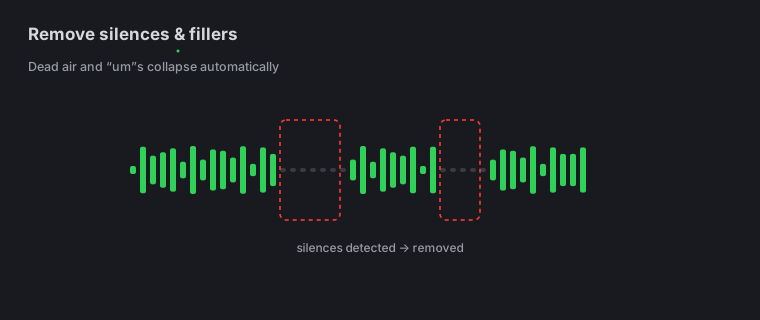
Quick answer (Mac): In Zella’s editor, open the Auto Tools sidebar and click Cut Empty Space to ripple-delete every silent gap (your video gets shorter without chopping words). Then click Remove Fillers to cut “um, uh, like, you know, so.” For a one-click picture lift, use a colour preset in the Effects tab. Every action is undoable with ⌘Z.
On iPhone: tap Clean Up for silences and fillers in a single pass, or Auto-Polish for the whole retention edit - cuts, captions, voice polish, hook title, emphasis zooms and a music bed in one tap. The AI is free on both platforms and runs on-device. See On iPhone.
On this page: what AI cleanup does · find it · remove silences · remove fillers · auto-enhance · undo · order & impact · on iPhone · FAQ
What does AI cleanup do?
AI cleanup turns a raw, rambling take into a tight, professional cut without editing by hand. It studies your audio (and cursor) and makes edits or polish in one click. When it removes something, the gap closes automatically. The main tools - Cut Empty Space and Remove Fillers - are what make talking-head and tutorial videos watchable. (Auto-Zoom is covered in chapter 12; Polish Voice and Auto-Duck in chapter 14.)
Where to find the AI cleanup tools
In the editor, go to the left sidebar → Auto Tools tab → QUICK POLISH section. Each tool is a row with an Apply button.
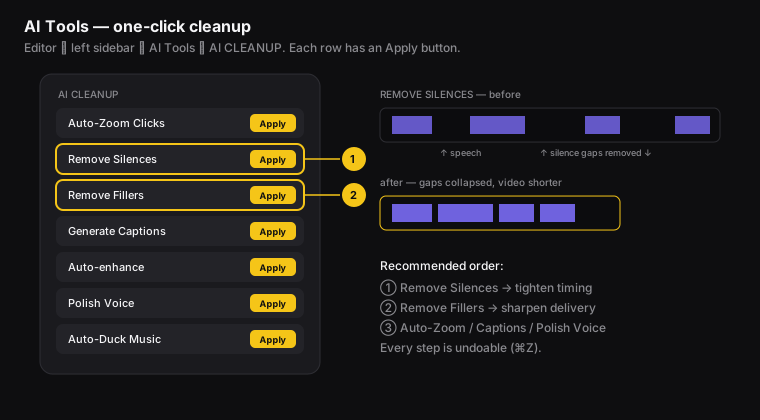
Figure: the QUICK POLISH list. ① Cut Empty Space and ② Remove Fillers ripple-delete gaps and filler words; the before/after timeline shows the video tightening.
How to remove silences from a video
What it does: listens to your audio, finds the silent gaps between sentences, and removes them so the gaps close automatically - making the video tighter and shorter without cutting anyone off mid-word.
- Auto Tools → Cut Empty Space.
- Zella scans your audio and lists the silences it will cut (like
Silence · 2.6s). - It removes them and closes every gap. The video shrinks down to just the parts where you’re talking.
A rambling 49-second take usually becomes about 29 seconds of pure content. The cuts land exactly on a frame and respect word edges, so your speech isn’t clipped.
How to remove filler words
What it does: finds and removes filler words (the little words you say without meaning to) so you sound clear and confident.
- Auto Tools → Remove Fillers.
- Zella turns your speech into text, spots likely fillers, and lists the cuts (like
"like"or"so" (sentence start)). - Click Apply to remove them and close the gaps.
Kinds of fillers: hard fillers (“um,” “uh”), soft fillers (“like,” “you know”), and phrase or sentence-starter fillers (like “so,” “OK,” or “I mean” at the start of a sentence).
A note on “um” and “uh” (Mac only): Apple’s built-in speech engine (the part of your Mac that turns speech into text) often won’t write out plain “um”/“uh” sounds, so they may not show up as things you can remove. Soft fillers and sentence-starter fillers are caught reliably. Cut any leftover “um”s by hand (chapter 9). This caveat does not apply on iPhone - the iOS app transcribes with a verbatim on-device Whisper model that writes disfluencies out in full, so filler removal catches them.
How to auto-enhance the picture
What it does: applies a gentle, tasteful polish - a small lift to exposure (brightness), contrast, saturation (color richness), shadows, and sharpness.
- Effects tab → pick a colour preset.
- Fine-tune it (or undo it) in the Color Board on the Effects tab (chapter 17).
Use it on flat-looking screen or webcam footage that needs a quick boost before you post it.
How to undo a cleanup
If a cleanup cut too much, press ↶ Undo or ⌘Z to bring back the previous version cleanly. Cleanups are normal edits you can undo - try a different mix (just silences, or just fillers).
What order to run cleanup, and why it matters
- Cut Empty Space - tighten the timing.
- Remove Fillers - sharpen the delivery.
- Auto-Zoom (12), Enable Captions (11), Polish Voice + Auto-Duck (14).
- Effects tab colour preset - final picture lift.
Why this matters for creators and editors: removing silence and fillers is the single biggest “feels professional” win for talking videos. It cuts the dead air that makes people click away, gets more words into less time, and removes the little “amateur” habits - often turning a 6-minute ramble into a tight 4-minute video that holds your audience. And because it’s one click and fully undoable, it replaces what used to be 30 minutes of scrubbing through the footage by hand.
On iPhone
All of Zella’s AI is free on iPhone too - it isn’t a paid tier and it isn’t a cloud service. The phone packages it as two taps rather than a list of separate tools.
Clean Up
Clean Up is the direct counterpart to Cut Empty Space plus Remove Fillers: one tap, both passes, gaps closed. Use it when you want a tighter take and nothing else touched.
Auto-Polish: the whole edit in one tap
Auto-Polish is the flagship. Point it at a raw recording and it runs a full retention-style edit on-device:
- Removes silences - the dead air between sentences, with word-safe padding so it never clips a word.
- Removes filler words - the um, uh and like.
- Adds a hook - an opening title built from your first spoken line.
- Keeps a cut cadence - cuts spread across the whole take so no stretch drags, with a varied transition on every join rather than the same dissolve twelve times.
- Removes noise and polishes the voice - neural denoise under the speech, then warmth, compression and −14 LUFS broadcast loudness.
- Captions in the Beast style - big word-pop captions with keyword emphasis and one emoji per line.
- Frames the speaker and punches the opening - starts punched in about 1.3× on your face and settles out over roughly 1.7 seconds, because the first few seconds decide retention.
- Emphasis zooms - small punch-ins on your strongest spoken words, capped so it stays tasteful.
- Mood-matched music with an arc - a loop matched to your pace, snapped to the take’s first beat, ducking under speech and fading out at the end.
- Pattern interrupts - a final pass that breaks up any window still visually static for six seconds or more.
Auto-Polish deliberately applies no color grade and no sound effects. Grading is a taste decision, so the looks stay one tap away in Effects → Looks, and both layers belong to Make it Viral. Every step is undoable, and re-running Auto-Polish replaces its own previous work instead of stacking doubles, so a second run is always safe.
Your “um”s really do get cut on iOS
This is the one place the phone genuinely beats the Mac. iOS transcribes with a verbatim on-device Whisper model, which writes disfluencies out in full - so filler removal can see and cut plain “um” and “uh”. The Mac’s caveat above doesn’t apply.
The honest caveat: that model is downloaded once, about 145 MB, the first time you transcribe, with a progress note. After that it’s fully offline. If it hasn’t downloaded yet, Zella falls back to Apple’s on-device recognizer, so captions still appear - they’re just from a cleaned transcript, and stray “um”s may need a manual trim.
Also free on the phone
- Auto B-Roll reads your captions, picks the most visual keyword per line on-device, and drops a generated cutaway card at each one - no key, no account and no network at all. A free Pexels or Pixabay key is only needed for the optional real-stock-footage path, and even then only the keyword leaves the phone.
- The AI Assistant edits by typing plain English - 72 actions on iPhone, 102 on the Mac. Only your typed prompt goes to your chosen provider; your video never leaves the device.
What’s Mac-only here
Auto-Zoom Clicks needs recorded cursor and click data, and cursor, click and keystroke tracking is Mac-only. On the phone, the equivalent emphasis comes from Auto-Polish’s emphasis zooms and manual zoom blocks.
Full guide: On-device AI on iPhone →
AI cleanup FAQ
How do I automatically cut dead air from a video? Open Auto Tools → Cut Empty Space. It removes every silent gap and closes the gaps for you.
Does removing silences cut off the ends of words? No - the cuts respect word edges and land exactly on a frame.
Why aren’t my “um”s being removed? On the Mac, Apple’s speech engine often doesn’t write out plain “um/uh.” Remove those by hand, or let filler removal handle “like/you know/so.” On iPhone they are removed - iOS uses a verbatim on-device Whisper model that writes them out in full.
Is the AI free on iPhone? Yes. All of it, on both platforms - Auto-Polish, Clean Up, captions, background removal, Auto B-Roll and the AI Assistant. Free is capped only on export length and resolution, and there’s never a watermark.
What’s the one-tap equivalent on the phone? Clean Up for silences and fillers, or Auto-Polish for the whole retention edit. Re-running Auto-Polish is safe - it replaces its own previous work rather than stacking. See On-device AI.
Can I undo if it cuts too much? Yes - ⌘Z brings back the previous version. Run the tools one at a time to control how much gets cut.
Will my captions stay lined up after I remove silences? Yes - captions and other timed items slide along with the timeline and stay on the right words (chapter 11).
Pro tips & gotchas
- Always Preview before you Apply - adjust the silence threshold (how quiet counts as silence) and padding (the small buffer kept around each cut) so you don’t clip the start of words.
- Filler removal has hard and soft levels - start light, then run it again if you want a tighter cut.
- Run cleanup before captions, so the text matches the final timing.
- Fillers spoken by a text-to-speech voice don’t always get flagged as fillers - check the preview for those cases.
- On the phone, start with Auto-Polish, then fine-tune by hand. It does the boring 80% in one tap, and it never touches your color.
Related: Captions → · Auto-Zoom & keyframes → · Polish Voice & Auto-Duck → · Manual timeline editing → · On-device AI on iPhone →