Exporting from Zella: MP4, MOV, GIF & M4A
Quick answer: On the Mac, click Export in the editor to open the Export & Share dialog. Choose a Platform (TikTok, YouTube, Instagram, Square, Original - this sets the dimensions), a Format (MP4 for everywhere, MOV for max quality, GIF for loops, M4A for audio), and a Quality (720p / 1080p / 4K / 8K). On iPhone, tap Export, pick the same four formats and a TikTok / Reels / Shorts, YouTube or Instagram preset - or hand the whole project to the Mac as a
.zellafile. Either way, all your edits bake into the file, free exports are always watermark-free, and cancel leaves nothing half-written.
On this page: the dialog · platform · format · quality · Pro formats · reframe · what bakes in · GIF · cancel · on iPhone · recipes · FAQ
The dialog walkthrough below is the Mac flow. For the touch version, jump to On iPhone.
What is the Export dialog?
Click Export (top-right of the editor) to open Export & Share. It gives you four choices: Platform, Format, Quality, Reframe.
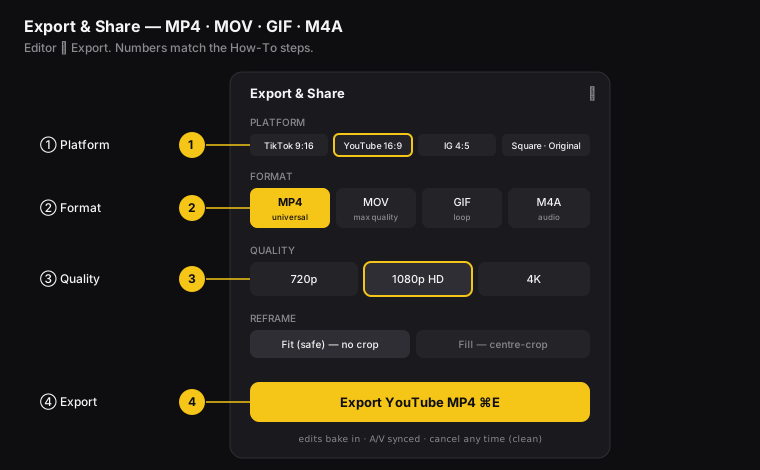
Figure: ① Platform (sets dimensions), ② Format, ③ Quality, ④ Export.
How to choose an export platform and size
Pick where the video is going. This sets the output dimensions (the width and height of the video, in pixels):
- TikTok / FB Reels / YT Shorts / IG Reels - 1080×1920 (9:16)
- IG Feed - 1080×1350 (4:5)
- Square - 1080×1080 (1:1)
- YouTube / X / Twitter - 1920×1080 (16:9)
- Original - the source size
The dialog shows the final dimensions, for example 1280×550 → 1920×1080.
How to choose a format (MP4, MOV, GIF, M4A)
| Format | What you get | Use it for |
|---|---|---|
| MP4 | H.264 (a common video format that plays almost everywhere) | The default for every platform |
| MOV | Highest quality | Handing the file off to another editor |
| GIF | Looping animation, no sound | Docs, changelogs, PRs, chat |
| M4A | Audio only (Apple’s audio format) | Grabbing just the audio, like for a podcast |
How to choose export quality (720p, 1080p, 4K)
- 720p - smaller files. Good for quick clips you share and tiny GIFs.
- 1080p HD - the everyday default for social posts and tutorials.
- 4K - the most detail. Good for sharp on-screen text or keeping the file useful for years.
Zella keeps the quality sensible for your source and platform, so you never end up with a blurry, stretched file. The dialog shows the final pixel size.
720p and 1080p are free forever. A free export can be up to 2 minutes long, at up to 1080p, and it always comes out clean - there is no watermark on any tier. 4K (and 8K on the Mac) is part of Zella Pro, as is lifting the 2-minute cap.
Pro export formats
These four are part of Zella Pro, on Mac and iPhone alike. Everything else on this page is free on every device.
- Transparent background - export a background-removed clip with a real alpha channel, so your cutout drops straight onto any layer in another editor. On the Mac this is ProRes 4444 with alpha; on iPhone it is HEVC with alpha. Both write a .mov - an .mp4 cannot carry an alpha channel. Set a clip’s background to Remove for a true cutout; otherwise only the uncovered canvas is transparent.
- 60 fps - render at 60 frames per second instead of your project’s frame rate. Good for gameplay and fast motion.
- Custom bitrate - pick the quality/size trade-off yourself instead of using Zella’s tuned setting.
- Multi-aspect export queue - render 9:16, 1:1 and 16:9 from one edit in a single action, as three separate files. Pick the aspects you want and Zella renders them one after another, then puts your editor back exactly as it was.
Gate reveal, not render. If a project already uses a Pro feature - keyframes, a mask, a saved template - it still previews and exports on every tier. Pro controls what you can reach, never whether your existing work will render.
How to set Fit or Fill at export
In the dialog, Reframe lets you choose how the video fits the frame for this one export, without changing your project’s platform. Fit is the safe choice: it shows the whole picture and may add black bars (called letterboxing) to fill the extra space. Fill crops in from the center so the picture fills the frame, but the edges may get cut off. (More in Reframe.)
What edits get baked into the export?
When you export, Zella writes everything into the file: captions (timed correctly), zoom, keyframes, and speed changes (all lined up and in sync), color, effects, masks, blur callouts, titles and callouts (locked in place), and your polished voice with the music ducked (turned down so your voice stays clear). The exported MP4 or MOV is the final, official version - every frame is exact, and the picture and sound stay in sync. Even projects with many cuts and transitions export cleanly, with no picture-and-sound drift between segments (nothing slowly slips out of sync).
How to export a GIF with captions and zoom
A GIF keeps your captions and zoom, so an animated doc GIF still shows the zoom-ins and on-screen text:
- Export → Format: GIF → choose a size → Export.
GIFs never have sound and they loop forever. That makes them perfect for a 5-10 second clip in a README, changelog, or chat.
How to cancel an export
Click the ✕ on the export progress dialog. The cancel is clean - Zella doesn’t leave a half-finished file behind, and the editor keeps working normally. Just export again when you’re ready.
On iPhone
The phone exports the same four formats - MP4, MOV, GIF and M4A - and skips the dimension guesswork with one-tap platform presets:
- TikTok / Reels / Shorts - vertical 9:16.
- YouTube - horizontal 16:9.
- Instagram - its own frame.
Pair a preset with Make Vertical and a horizontal recording becomes a post-ready vertical clip in a couple of taps. Pick the preset last, once your edit is locked, so the reframe matches your final layout.
Hand the project to the Mac instead
Started on the phone but want the big screen to finish? Export the project as a .zella file and open it on the Mac. Your timeline, cuts, captions and effects come across, so you carry on with a mouse and keyboard instead of starting over. It works in both directions - see iPhone vs Mac.
What differs between the two
| Mac | iPhone | |
|---|---|---|
| Formats | MP4 · MOV · GIF · M4A | The same four |
| Free ceiling | 2 min, up to 1080p, no watermark | Identical |
| Top resolution (Pro) | 8K | 4K |
| Transparent export (Pro) | ProRes 4444 with alpha | HEVC with alpha |
| Handoff | Opens a .zella file from the phone | Writes a .zella file for the Mac |
8K export is Mac only. Everything else on this list behaves the same on both, and Pro is a Universal Purchase - one payment unlocks Mac and iPhone together, so you never buy 4K twice.
Full detail: Export & Mac handoff on iPhone.
Export recipes by goal
| Goal | Platform | Format | Quality |
|---|---|---|---|
| YouTube tutorial | YouTube | MP4 | 1080p (or 4K) |
| TikTok / Reel / Short | TikTok | MP4 | 1080p |
| Instagram feed | IG Feed | MP4 | 1080p |
| Doc / changelog loop | Original | GIF | 720p |
| Podcast audio | Original | M4A | - |
| Hand-off to an editor | Original | MOV | 4K |
Why this matters for creators and editors: because Platform sets the exact dimensions and all your edits are written into the file, you get a ready-to-post file in one click. No resizing, no re-saving in a second app, no separate tool to burn in captions. Record once, then export a YouTube version, a TikTok version, and a GIF in minutes.
Export FAQ
What’s the best format for posting to social media? MP4 at 1080p with the matching platform preset. It plays everywhere and comes out at the right dimensions.
How do I make a GIF of my screen recording? Export → Format: GIF. Captions and zoom are included. There’s no audio, since GIFs can’t have sound.
Do my captions and effects show up in the exported file? Yes - everything is written into the file. It’s the final version, with every frame exact.
Can I export the same video for multiple platforms? Yes - change the Platform and export again. See Reframe to get several shapes from one recording.
What happens if I cancel mid-export? Nothing bad happens. The cancel is clean, with no half-finished file left behind.
Can I export from my iPhone? Yes - the same MP4, MOV, GIF and M4A, with TikTok / Reels / Shorts, YouTube and Instagram presets. See export on iPhone.
Does the free tier watermark anything? No. Free exports are clean on every device and every tier. The only free limits are 2 minutes and 1080p, and 1080p is free forever.
If I bought Pro on the Mac, do I pay again on my phone? No. Pro is a Universal Purchase - one payment of $89 covers Mac and iPhone.
Can I get 8K on the phone? No - 8K is Mac only. Pro on iPhone tops out at 4K, and transparent export there is HEVC with alpha rather than ProRes 4444.
How do I move a project from my phone to my Mac?
Export it as a .zella file on the phone and open that file on the Mac. Your whole edit travels with it.
Pro tips & gotchas
- Choose format + quality + platform in the dialog. You can set defaults in Studio → Export so you don’t have to re-pick them every time.
- A GIF keeps your effects but has no sound - great for silent loops. Use MP4 for anything on social media.
- Export happens on your own device, and cancel is clean - it never leaves a half-finished file behind.
- Need the same edit for two platforms? Change the Platform and export again - see Reframe.
- On the phone, pick the platform preset last so the reframe matches your finished layout - and use a
.zellafile when you’d rather finish the edit on the Mac.
Related: Reframe for any platform → · Captions → · Projects & autosave → · Workflow recipes → · Export & handoff on iPhone →