Studio Settings & Recording Options: The Complete Reference
Quick answer: On the Mac, two places hold all of Zella’s recording options. The Setup panel (menu-bar → Zella) sets your sources, mode, aspect, quality, output folder, and camera/mic device. The Studio Settings panel (Setup panel → Studio) has five tabs - Camera, Border, Zoom, Cursor, Export - that style the bubble, set a border, configure recording-time auto-zoom, polish the cursor, and pick a default export. On iPhone the same choices are far shorter: front or back camera, the live background, screen or whole-device capture, or import, with everything you can hear behind the Audio button in the timeline toolbar. This page is the full reference for both.
On this page: the setup panel · pick camera & mic · studio settings tabs · border · recording auto-zoom · cursor · default export · countdown · on iPhone · FAQ
Sections up to the countdown describe the Mac panels. For the phone, jump to On iPhone.
The Setup panel options
Click the Zella icon in the menu bar to open the Setup panel (“Ready to record”). It holds the main recording choices:
| Option | Choices |
|---|---|
| Sources | Screen · Camera · Mic (+ system audio) |
| Mode | Full screen · Region · Window · Camera-only |
| Aspect preset | 16:9 (YouTube) · 9:16 (TikTok) · 4:5 (Instagram) · 1:1 (Square) · Free |
| Quality | 720p · 1080p · 4K |
| Output folder | Default ~/Desktop/Zella (change it with Change) |
For step-by-step guides, see Recording basics and Recording modes.
How to pick your camera and microphone
In the Setup panel you can choose which devices to use, not just whether they’re on:
- Camera - pick from your connected cameras (built-in, Continuity Camera, or a plug-in USB webcam). The default is “Front camera (default).” You can switch on the fly - Zella changes to the new camera without making you start setup over.
- Microphone - pick your input from the Microphone menu (built-in, AirPods, a USB mic like a Yeti, and so on).
Pick the right devices here so you don’t find out later that the wrong mic was recording the whole time.
Studio Settings: the five tabs
Open the Setup panel → click Studio. Five tabs:
| Tab | What it controls | Deep dive |
|---|---|---|
| Camera | Bubble shape, size, position, background, Touch-up / Auto-light / Mirror | Camera & backgrounds · Look & sound good |
| Border | The bubble’s edge - style, color, width | below |
| Zoom | Recording-time auto-zoom - on-click, level, hold | below |
| Cursor | Silky cursor, cursor style, click rings, keystrokes | Cursor, clicks & keystrokes |
| Export | Default format, quality, platform & save location | below |
Border tab: style the bubble edge
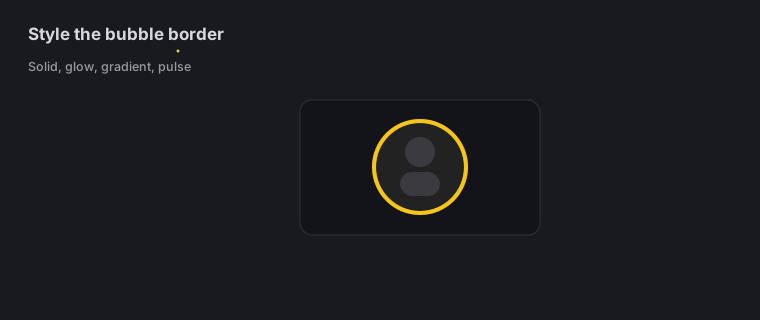
Give your camera bubble a border so it stands out cleanly over anything on your screen. There are three controls:
- Border Style - None · Solid · Gradient · Glow · Animated · Pulse. (Animated and Pulse add a bit of motion; Glow adds a soft halo of light around the edge.)
- Border Color - Accent · White · Gold · Rose · Neon · Rainbow.
- Border Width - set how thick the border is, measured in points.
A Solid white or Accent border a few points thick is a clean, safe choice. Save Glow / Neon / Rainbow for high-energy, social-style content.
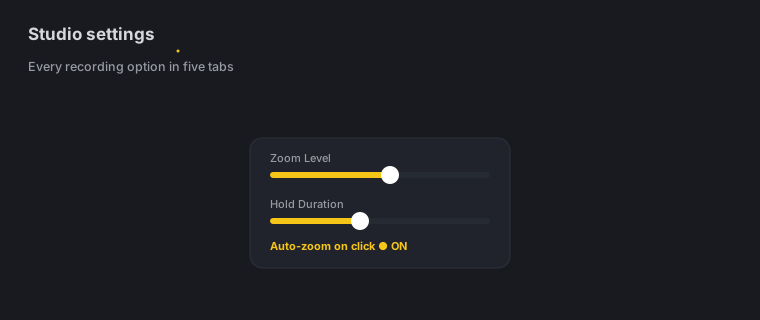
Zoom tab: recording-time auto-zoom
This is a different setting from the editor’s auto-zoom - this one sets up auto-zoom while you record:
- Auto-zoom on click - turn on to zoom in whenever you click during recording.
- Zoom Level - how far to zoom in (a slider, around 30-70%).
- Hold Duration - how long to stay zoomed in before pulling back out (a slider, around 1-5 seconds).
- Trigger - which clicks cause a zoom: Left click · Double click · Both.
Set these to match your style (a 50% zoom held for about 2 seconds looks good for most demos). You can still add, remove, and fine-tune zooms in the editor later - see Zoom, auto-zoom & keyframes.
Cursor tab
Cursor smoothing, cursor styles (Ring / Dot / Spotlight / Arrow Glow), animated click rings, and on-screen keystrokes live here. Full details: Cursor, clicks & keystrokes.
Export tab: default format & quality
Set what new projects start with, so you don’t have to pick these every time:
- Default Format - MP4 · MOV · GIF · M4A.
- Default Quality - 720p · 1080p · 4K.
- Default Platform - TikTok · YouTube · Instagram · X · Facebook (this sets the frame shape and size new exports aim for).
- Save Location - the folder your exports get saved to; use Change / Choose to point it somewhere else.
- General - Start Zella at login, which keeps the record shortcut ready, and Auto-Polish new recordings, which runs Auto-Polish on every recording the moment it opens the editor. Turn that off if you would rather start from the raw take; the button is still one click away in the sidebar.
These are just starting points - you can still change the format, quality, platform, and frame shape for any single video in the Export dialog.
The countdown
When a recording starts, Zella shows a full-screen 3-2-1 countdown, giving you a moment to get ready before recording actually begins. For more on-screen helpers you can use while recording, see Cursor, clicks & keystrokes.
On iPhone
There is no menu-bar Setup panel and no five-tab Studio Settings on the phone - the equivalent choices are made right where you use them.
Before you record
| Choice | Options |
|---|---|
| Camera | Front (talking head) or back (anything you’re pointing at), with your mic alongside |
| Live background | Blur · Cut out · Replace - segmented on the Neural Engine and visible in the viewfinder as you film |
| Screen capture | Screen recording inside Zella, or whole-device broadcast across every app via the system broadcast picker |
| Already shot it? | Import from Photos or Import from Files |
Full steps in recording on iPhone.
Where the sound settings live
Everything you can hear sits behind one button: Audio, in the timeline toolbar. It holds the selected clip’s volume (0-200%, with a mute), a row for every video overlay with its own level and mute, and the whole sound library - effects, voice changers, music with Auto-Duck, and the voice tones. See sound on iPhone.
Where the export settings live
You pick format and a platform preset at export time rather than setting defaults in a panel first: MP4, MOV, GIF or M4A, with TikTok / Reels / Shorts, YouTube or Instagram. See export & handoff.
What’s Mac-only here
Four things on this page have no touch counterpart, and it’s worth saying so plainly:
- Window and Region capture modes - the phone captures its screen or the whole device, not a rectangle you draw.
- The Border tab - bubble border styles, colours and widths belong to the Mac’s webcam bubble. On the phone, a second video lands as an overlay layer with its own shape (rectangle, rounded, circle or a background-removed cutout) and free-form width and height, set in the iOS editor.
- The Cursor tab - no mouse pointer to smooth, style or ring.
- Recording-time auto-zoom on click - no clicks to trigger it. On the phone, Auto-Polish places emphasis zooms on your strongest spoken words instead, and you can add zoom blocks by hand at any time.
Why these settings matter
For content creators and video editors, setting up Studio Settings once pays off on every recording:
- A consistent look - keeping the same bubble shape, border, and background makes every video clearly yours.
- Less editing - auto-zoom while recording, plus the right devices, means the recording is closer to finished, so there’s less to cut.
- No nasty surprises - picking your camera and mic up front avoids the “wrong mic recorded the whole thing” redo.
Studio Settings FAQ
Where do I choose which microphone Zella records? In the Setup panel - use the Microphone picker. Same place for the camera.
How do I make the recording zoom in automatically when I click? Go to Studio → Zoom → Auto-zoom on click, then set the zoom level, hold duration, and trigger.
How do I add a border around my webcam bubble? Go to Studio → Border - pick a style (Solid, Glow, and so on), a color, and a width.
Can I set a default export format so I don’t pick it every time? Yes - Studio → Export sets the default format and quality; you can still change it for any single video in the Export dialog.
Is the recording-time auto-zoom the same as the editor’s Auto-Zoom? They work together: the Zoom tab sets how auto-zoom behaves; the editor’s Auto-Zoom Clicks creates the zooms and lets you fine-tune them.
Where are these settings on iPhone? There’s no Setup panel or Studio Settings on the phone. Camera, background and capture mode are chosen as you start a recording; the sound settings live behind the Audio button in the timeline toolbar; and format and platform are picked at export. See On iPhone.
Can I record a single window or a drawn region on my iPhone? No - window and region capture are Mac-only. On the phone you record Zella’s own screen capture or the whole device via the system broadcast picker.
Pro tips & gotchas
- Set up Studio Settings once - a consistent bubble, border, and background make every video clearly yours.
- Turning on auto-zoom while recording (Studio → Zoom) means less zooming to add later; you can still fine-tune it in the editor.
- Set your Default Format/Quality/Platform (Studio → Export) so new exports start out right.
- Choose your camera and microphone in the Setup panel before recording to avoid the “wrong mic” redo.
- On the phone, the one thing to set in advance is the live background - pick front or back camera, choose blur, cutout or replace, and you’re recording.
Related: Recording basics → · Webcam bubble & backgrounds → · Look & sound good → · Cursor, clicks & keystrokes → · Zoom & keyframes → · Recording on iPhone → · The Audio tool →