Recording on iPhone: Camera, Screen & Live Backgrounds
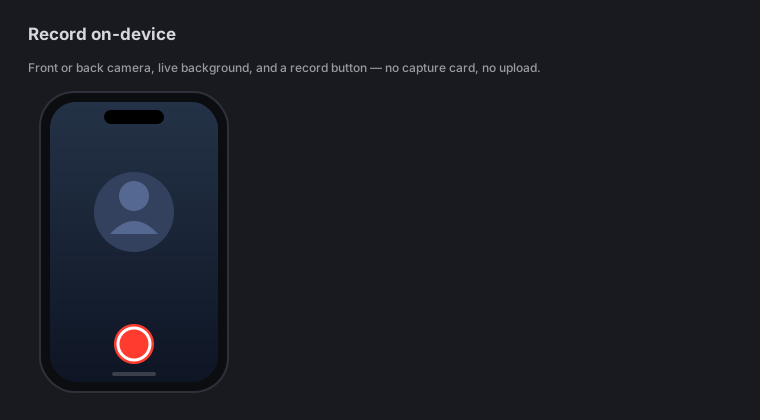
Quick answer: Zella for iPhone records with the front or back camera and mic, and you can blur, cut out or replace your background live while you film. It also captures your screen (ReplayKit) and can broadcast the whole device. Already shot something? Import from Photos or Files and edit it. Every take is segmented and crash-safe, so a phone call, an app switch or a low battery never costs you the recording.
On this page: camera recording · live backgrounds · screen recording · import footage · crash-safe takes · FAQ
Record with the camera
Point Zella at yourself or the world:
- Open Zella and start a camera recording.
- Pick the front camera (for talking head) or the back camera (for anything you’re pointing at).
- Your mic captures audio alongside the video.
- Tap record, do your thing, then tap stop - the editor opens with your take ready to cut.
This is the mobile version of the Mac’s camera capture - same idea, rebuilt for the phone.
Pinch to zoom
Pinch the preview to zoom either camera in or out, before or during a take. Double-tap returns to 1x.
The 0.5x / 1x / 2x buttons are a different control: they swap the physical lens, which is why they jump. Pinch is continuous.
The teleprompter
The hardest part of a talking-head take is remembering your words while looking at the lens. Tap Teleprompter above the record button, paste or type your script, and it scrolls over the preview while you record.
- You set Reading pace in words per minute, not an abstract speed. The scroll is timed to your script’s real height, so it finishes exactly when you do.
- It waits a beat after the countdown before it starts moving, and holds a couple of lines back at the end so the last line is still there when you get to it.
- It pauses when you pause and rewinds between takes.
- The panel starts collapsed - most takes are unscripted - and the script never appears in your video. It is on your screen only, which is also why it is camera-only: on a screen recording it would be part of the recording.
Live background: blur, cutout or replace
You don’t have to wait until editing to fix your background - Zella can change it live while you film, using on-device segmentation on the Neural Engine (no green screen):
- Blur - softly blur whatever’s behind you.
- Cut out - remove the background entirely.
- Replace - drop in a different scene behind you.
Because it’s segmented on-device, nothing is uploaded, and you see the result in the viewfinder as you record. You can still fine-tune or change the background later in the editor. See the Mac’s Background remove & replace for the same feature on desktop.
Removing the background in the editor
Tapping Remove background in the editor drops you straight onto a soft bokeh backdrop - a finished studio look with no setup, rather than a flat black cutout. It’s a starting point, not a lock-in: switch to a plain cutout, a transparent plate for exporting to another editor, a blur of your own room, or any of the 40 built-in backdrops (20 stills and 20 animated) whenever you like.
The editor’s Blur is a portrait-mode look: the room behind you goes soft, slightly dimmed and a little less saturated, while you are gently brightened and sharpened so you stand out against it.
How the cutout holds up when you move
Static shots are the easy case. Zella’s matte is built for the hard one - you, gesturing:
- Two models must agree. Every frame is matted by Apple’s person segmentation and its person-instance detector, and only what both accept survives. On fast-motion frames each model can briefly hallucinate a chunk of the room into you; because they rarely do it on the same frame, the other one vetoes it.
- The edge tightens where you move. Motion blur physically mixes wall colour into the pixels along a moving arm or hand, so no amount of recolouring can rescue them - Zella detects the moving region and trims those pixels instead. Still parts of the frame keep every strand of hair.
- Edge decontamination. On export, the thin shell around your silhouette takes its colour from you rather than the room, so hair stops carrying a faint rim of the background you removed.
- Everyone in frame is kept. A second person is never mistaken for clutter and deleted.
Record your screen
Zella captures your screen using Apple’s ReplayKit:
- Screen recording - record what’s happening in Zella’s own capture.
- Whole-device broadcast - capture across the entire device, including other apps, via the system broadcast picker.
This is how you make app demos and how-to clips on the phone, the mobile counterpart to the Mac’s screen recording modes.
Import from Photos or Files
You don’t have to shoot inside Zella to edit inside Zella:
- Import from Photos - pull in a clip you already recorded on your phone.
- Import from Files - bring in footage from iCloud Drive, a Files provider, or elsewhere on the device.
- Add → Clip from another project - reach a take you already recorded in Zella, in one of your other projects, without exporting it anywhere first. See pulling in a clip from another project.
Imported footage lands on the timeline like any recording, ready to cut, caption and grade.
The third one is worth singling out, because the obvious workaround is the slow one: if the clip is already a Zella recording, you do not need to export it to Photos and import it back. It is in your library, and the picker reaches it directly.
Crash-safe, segmented recording
Long takes on a phone face real hazards - an incoming call, a low battery, iOS reclaiming memory. Zella records in segments so those never wipe out your work:
- The take is written as it goes, not held in memory until you stop.
- If a call interrupts you, the battery dies, or the app is backgrounded, the footage up to that point is safe.
- This mirrors the Mac’s crash-recovery and sleep-safe long recordings.
Record with confidence - you won’t lose a good take to a bad moment.
iOS recording FAQ
Can I use the back camera? Yes - pick the front or back camera before you record. Back is great for anything you’re pointing at; front for talking head.
Do I need a green screen to replace my background? No. Background blur, cutout and replace run on-device with Neural-Engine segmentation - no green screen, nothing uploaded.
Can I record other apps, not just Zella? Yes - the whole-device broadcast capture (ReplayKit) records across the device, including other apps.
Can I edit a video I already shot? Yes. Import from Photos or Files and it drops onto the timeline like a fresh recording. If you shot it in Zella, use Add → Clip from another project instead and skip the export entirely.
What happens if I get a call mid-recording? Recording is segmented and crash-safe, so the footage up to the interruption is preserved - you don’t lose the take.
Pro tips & gotchas
- Set the background before you hit record - you’ll see the blur, cutout or replacement live in the viewfinder, but you can always change it later in the editor.
- Use the mic you trust. AirPods or a plugged-in mic captures cleaner narration than the built-in mic in a noisy room.
- Long take? Relax. Segmented recording means a call or a low battery won’t cost you the footage.
- Already have the clip? Skip recording - import it from Photos or Files and go straight to editing. If it is already a Zella recording, Add → Clip from another project reaches it without an export at all.
Related: The iOS editor → · On-device AI (background, Auto-Polish) → · Mac recording modes → · Webcam bubble & backgrounds →