The iOS Editor: Timeline, Keyframes, Zoom & Speed
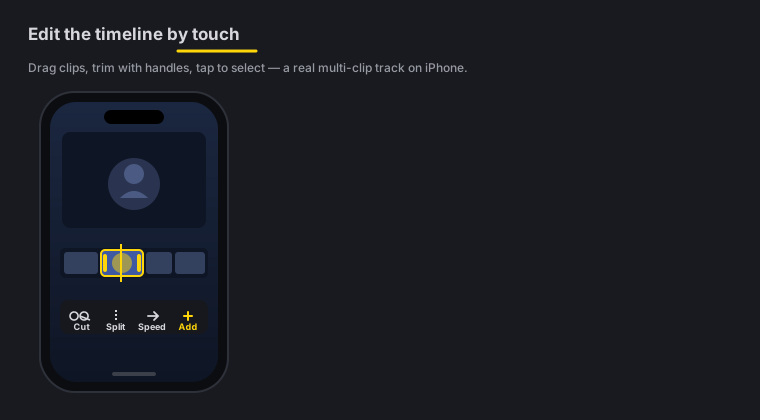
Quick answer: The iOS editor is a real multi-clip timeline you drive with your fingers - cut, trim, ripple-delete, drag to reorder, set per-clip volume. It has motion keyframes and zoom blocks with a curve editor, speed ramps, and Reverse, Instant Replay and Rewind retiming. It’s the same editor logic as the Mac app, rebuilt for touch.
On this page: the timeline · cut, trim & reorder · keyframes & zoom · speed & retiming · volume & the Audio tool · overlay layers · FAQ
The timeline
When you stop recording (or import a clip), the editor opens with your footage on a multi-clip timeline. Everything you do - cut, caption, grade, add motion - happens here. Scrub with a drag, pinch to zoom the timeline in and out, and tap a clip to select it.
Every clip also draws its audio waveform right on the timeline, so you can cut by ear as well as by eye - find the pause between sentences, land a cut on a beat, or spot the cough you want to ripple out, precisely, without guessing from thumbnails.
It’s the same mental model as the Mac’s timeline editing, just sized for your thumbs.
Everything on the timeline drags from both ends
Tap a sticker, title, background-music or picture-in-picture block to select it, and grips appear at both ends. Drag the middle to move it, drag either end to change how long it lasts. Dragging the left end changes when it starts without moving where it ends.
Transitions sit on the cut they belong to. Tap one to select it (the strip that appears has Edit and Delete), drag it onto a different cut, or press and hold for Delete.
Tap a block to edit it
Callouts - boxes, arrows, highlights and emoji - have their own lane on the timeline, directly under the title cards, and drag and trim like every other block. Tap a callout or a title card and its panel opens on that object, scrolled to it and ringed, rather than on the controls for adding a new one. It is the same as tapping the object on the video itself.
With VoiceOver on, every block on the timeline - title cards, captions, sounds, music and callouts - can be reached and is read out by name, and the scrub lane moves in one-second steps. The editor also works better with Voice Control, Reduce Motion and Larger Text.
Record without leaving your project
Need one more shot? Add → Record a clip opens the camera over your edit, and the take joins the timeline you are already working on rather than starting a second project. The playhead lands on the new footage.
Pull in a clip from one of your other projects
Already shot it in Zella? Add → Clip from another project lists every recording sitting in your other Zella projects, newest project first, each with a thumbnail and its length. Tick the ones you want and tap the button at the bottom, which counts what you ticked - Add 1 clip to the timeline, Add 3 clips to the timeline. No exporting to Photos first, and no round trip.
Three things worth knowing:
- One row per recording, not per cut. A project you chopped into thirty pieces with Cut Empty Space still shows its one take once, and you get the whole take, untrimmed. Trims you made over there are that project’s edit, not the recording’s - trim this copy however you like.
- Rows are named in plain words - Recording, Screen recording, Imported clip, Photo clip - rather than the file name the phone generated.
- Nothing is copied or moved. The new clip points at the same file, so the other project keeps working and deleting it later never takes your footage with it.
Clips land at the end of your timeline and the playhead moves to them, the same as recording one.
The panels do not cover your video
Add leads the tool strip: one tap gets you Record a clip, Stickers, Music and picture-in-picture, the things you reach for most while building an edit. Every panel tool after it - Captions, Text, Audio, Effects, Speed, Studio - opens as a panel that leaves the canvas on screen. (The footer scrolls sideways; a half-visible tool at the edge means there is more to the right.) On 6.1-inch phones the timeline lanes sit fully above the tool strip, and title and callout rows have bigger touch bands, so they are easier to grab.
The editor also teaches itself as you go. One-time tips appear at the right moment - “Drag the yellow edges of a clip to trim it” over your first timeline, “Drag your text on the video to move it” after your first title - each dismissed with a tap on Got it and never shown again. And every delete answers back: “Deleted - tap Undo to bring it back”, where Undo is the labelled button in the top bar. The video resizes to share the space instead of hiding underneath, and the editor stays live behind the panel: you can scrub, move the playhead and tap a clip without closing anything. Drag a panel up for more room, down for more video.
Cut, trim, ripple & reorder
The core moves are all here:
- Cut - split a clip at the playhead.
- Trim - drag a clip’s edges to shorten or lengthen it.
- Ripple-delete - remove a section so the gap closes automatically, keeping everything tight (no empty space left behind).
- Reorder - drag clips to change their order.
Because ripple-delete closes gaps for you, cleaning up a rambling take is fast - cut the fumble, ripple it out, and the timeline stays seamless.
Keyframes and zoom blocks
Add movement and emphasis:
- Zoom blocks - punch into a moment so the viewer looks exactly where you want. Free.
- Motion keyframes (Pro) - animate position and scale over time; set a value at one point and another later, and Zella tweens between them.
- Curve editor (Pro) - shape how a keyframed move accelerates and eases, instead of a robotic linear ramp.
Keyframes, the curve editor, feathered masks, speed ramps, Color Match and the luma scope make up the depth toolset, which is part of Zella Pro on iPhone and Mac alike. It gates the controls, not your video: a project that already uses them still previews and exports on every tier.
This is the mobile version of the Mac’s zoom, auto-zoom & keyframes.
Speed ramps and retiming
Bend time on the phone:
- Speed - slow a clip down or speed it up.
- Speed ramps - ramp smoothly between speeds rather than snapping.
- Reverse - play a clip backwards.
- Instant Replay - repeat a beat for emphasis.
- Rewind - play forward, then whip back.
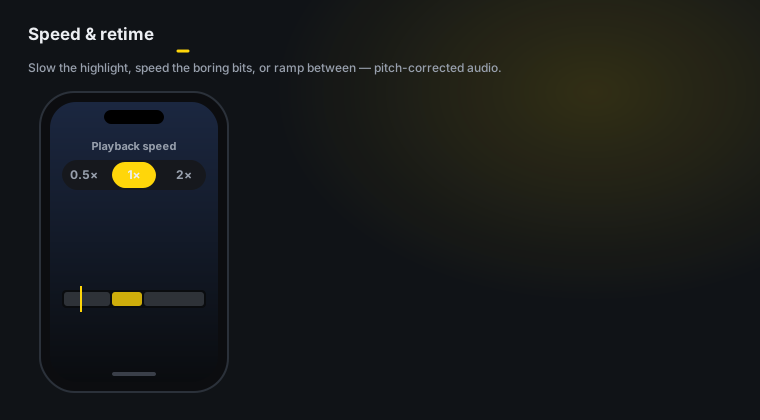
These match the Mac’s speed & ramps tools, so a project retimed on the phone behaves the same if you hand it to the Mac.
Per-clip volume
Every clip carries its own volume, so you can bring a loud clip down or push a quiet one up without touching the rest.
Tap Audio in the timeline toolbar to open the mixer. It holds the selected clip’s volume from 0 to 200% (100% is the original level, 200% pushes a quiet take up) with a one-tap mute, plus a row for every video overlay on the timeline - its own level and mute - and the whole sound library: effects, voice changers, music that dips under your voice and the voice tones. One place for everything you can hear.
Overlay layers (picture-in-picture)
Drop a second video over your main clip and it lands on its own timeline row as a picture-in-picture layer. Drag it anywhere on the canvas, choose rectangle, rounded, circle or a background-removed cutout, and set its stacking order.
Size is free-form: Width and Height are independent sliders, so you can stretch a layer to fill a band across the frame or squeeze it into a tall sliver - no longer locked to the source’s aspect ratio. Pinching on the canvas keeps whatever proportions you set, and Lock to original ratio snaps it back in one tap. Circular overlays stay perfect circles.
iOS editor FAQ
Can I ripple-delete on the phone? Yes. Removing a section closes the gap automatically, so the timeline stays tight - no empty space left behind.
Does the phone have keyframes and a curve editor? Yes. Zoom blocks are free; motion keyframes and the curve editor are part of Zella Pro, the same as on the Mac. A project that already uses them keeps playing and exporting on any tier.
Can I reverse a clip or add an instant replay? Yes. Reverse, Instant Replay, Rewind and constant speed are free; speed ramps are part of the Pro depth toolset.
Is per-clip volume supported? Yes - each clip has its own volume so you can balance the mix clip by clip.
Is this the same editor as the Mac?
Same logic and tools, rebuilt for touch. Projects hand off to the Mac as a .zella file.
Pro tips & gotchas
- Pinch to zoom the timeline for frame-accurate cuts, then pinch back out to see the whole video.
- Ripple-delete is your friend - cut the fumble and ripple it out so the gap closes and pacing stays tight.
- Use the curve editor on zooms and moves so they ease in and out instead of snapping.
- Balance as you go with per-clip volume, before you add background music.
Related: Recording on iPhone → · On-device AI (Auto-Polish) → · Sound & music → · Mac timeline editing → · Zoom & keyframes →