Recording Your Screen in Zella
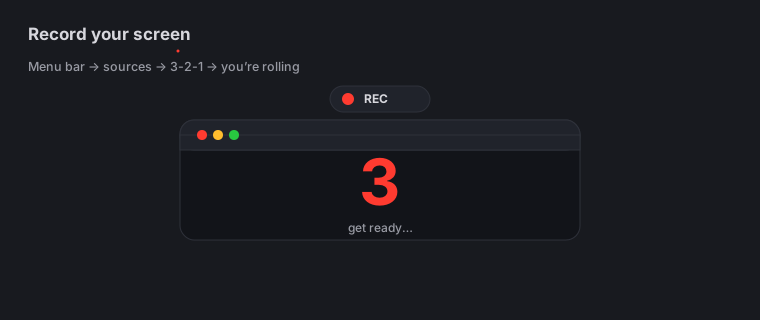
Quick answer (Mac): Click the Zella icon in your menu bar to open the Setup panel. Toggle your sources (Screen · Camera · Mic), pick Full or Region with an aspect preset (16:9, 9:16, 1:1…), choose a quality (720p / 1080p / 4K), then press ⌘ ⇧ R to start. Click the red square in the floating toolbar to stop - the editor opens automatically with your clip.
On iPhone: open Zella, choose the front or back camera, and tap record, then tap stop. You can also capture your screen or the whole device with ReplayKit, or skip recording entirely and import from Photos or Files. See On iPhone.
On this page: open the panel · choose sources · full vs region · quality · start · stop · what good looks like · on iPhone · FAQ
How to open the recording Setup panel
Click the Zella icon in your menu bar (top-right of the screen). The “Ready to record” Setup panel appears. Everything you need to get started is right here.
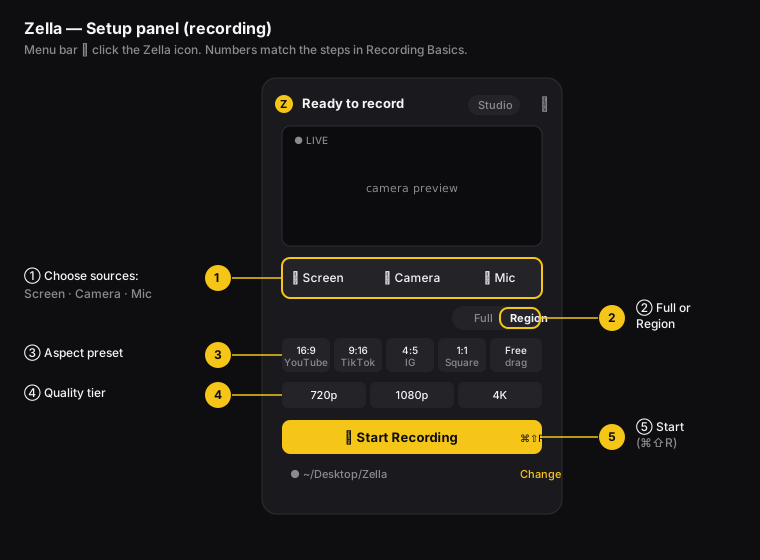
Figure: ① choose sources, ② Full or Region, ③ aspect preset, ④ quality tier, ⑤ Start Recording.
How to choose what to record
Turn on the sources you want in the row of icons:
- 🖵 Screen - records your display.
- 📷 Camera - includes your webcam. It can float in a bubble over the screen, or be the only thing recorded if you turn Screen off.
- 🎙 Mic - records your microphone and your computer’s audio (system audio).
Common combinations: tutorial with voice = Screen + Mic · creator shot = Screen + Camera + Mic · talking head = Camera + Mic · silent UI GIF = Screen only.
How to record full screen or a region
Use the Full / Region switch:
- Full - records your entire display.
- Region - records only a rectangle that you draw. Pick an aspect preset - the shape of the video - such as 16:9 YouTube (a wide shape), 9:16 TikTok (a tall, phone-shaped video), 4:5 Instagram, or 1:1 Square. Or pick Free to drag any custom size you want. Drag the dashed box to position it. The label shows the current size as you go, for example
1280×720 [720p].
Picking a preset also sets up the matching export platform for later. So a 9:16 recording is already aimed at TikTok/Reels.
How to set recording quality
Pick 720p, 1080p, or 4K (these are quality levels, from lower to higher; more pixels means a sharper picture but a bigger file). Use 1080p for most social media and tutorial videos. Use 4K when you need to show fine detail in an app. Use 720p for small GIFs and quick clips you send to your team. (Zella records a region at its exact pixel size for smooth video, and the quality level is applied when you export.)
How to start recording
Two ways:
- Press ⌘ ⇧ R (the reliable way), or
- Click the Start Recording button.
Zella lines up the audio and video timing, then starts. The Setup panel hides itself, and a small floating toolbar with a running timer appears.
How to stop recording
Click the red square (■ Stop) in the floating toolbar. Zella finishes saving the file and opens the Studio editor with your recording already loaded. See pause, resume & stop for more on the toolbar.
What does a good recording look like?
- Smart, roughly 15 fps - to keep files small, Zella skips frames when nothing on screen is changing. So a still screen really does show fewer frames, and it still plays back smoothly.
- In sync - the audio lines up with what’s happening on screen, and (for camera bubbles) with your lips.
- Complete - it opens and plays all the way through, start to finish.
On iPhone
There’s no menu bar, no Setup panel and no keyboard shortcut on the phone - you open Zella and record.
Record with the camera
- Open Zella and start a camera recording.
- Pick the front camera (talking head) or the back camera (anything you’re pointing at).
- Your mic captures audio alongside the video.
- Tap record, do your thing, then tap stop. The editor opens with your take ready to cut.
You can also blur, cut out or replace your background live while you film - it’s segmented on-device on the Neural Engine, with no green screen, and you see it in the viewfinder as you record. Details in Camera & backgrounds.
Record your screen
Zella captures with Apple’s ReplayKit in two ways:
- Screen recording - records what’s happening in Zella’s own capture.
- Whole-device broadcast - captures across the entire device, including other apps, through the system broadcast picker. This is how you make app demos on the phone.
Or don’t record at all
Import from Photos or Import from Files and the clip lands on the timeline exactly like a fresh recording, ready to cut, caption and grade.
Long takes are crash-safe
Phones face hazards a Mac doesn’t - an incoming call, a low battery, iOS reclaiming memory. Zella writes each take in segments as it goes rather than holding it in memory, so if you’re interrupted, the footage up to that point is safe. You don’t lose the take.
What’s different from the Mac
- No region or window capture. Drawing a rectangle to record, and following a single app window, are Mac-only. On the phone you capture the camera, Zella’s screen, or the whole device.
- No quality tier picker before you record. You choose resolution at export instead, where 1080p is free forever and 4K is Pro.
- Vertical is a one-tap edit. Instead of framing a 9:16 region up front, record however you like and tap Make Vertical for a face-aware 9:16 reframe.
Full guide: Recording on iPhone →
Why record locally with Zella (the benefit)
For content creators and video editors, recording in Zella means a few nice things. There’s no cloud upload, so your footage stays on your device and stays private. There’s no subscription. Your recording opens straight into a full editor, so you skip the usual dance of exporting from one app and importing into another. And the file already knows which platform it’s for, based on the shape you picked. You can go from an idea to a finished, captioned, correctly-sized video without ever leaving one app.
Screen recording FAQ
How do I record my screen on a Mac with audio? Turn on Screen and Mic in the Setup panel; system audio is mixed automatically.
How do I record a vertical (9:16) video for TikTok? On the Mac, switch to Region, choose the 9:16 preset, position the box, and record. Or record in 16:9 and reframe to TikTok (reshape it to be tall) later. On iPhone, record however you like and tap Make Vertical for a face-aware 9:16 reframe.
How do I record on my iPhone? Open Zella, pick the front or back camera, and tap record - or capture your screen (and other apps) with the whole-device broadcast. See Recording on iPhone.
What happens if I get a phone call mid-recording? On iOS, recording is segmented and crash-safe, so the footage up to the interruption is preserved. You don’t lose the take.
Where is my recording saved?
In your output folder (default ~/Desktop/Zella). Change it with the Change link in the panel.
The Start Recording button doesn’t respond - what do I do? Click the panel once to give it focus, then click Start Recording again. The panel is a special kind of window that doesn’t take focus on its own. ⌘⇧R opens and dismisses the panel rather than starting a take, and ⌘⇧S stops one that is already running.
Do I need to grant permissions? Yes, but only once - Screen Recording, Camera, Mic, and Speech (for captions). See Installation & Permissions.
Pro tips & gotchas
- Pick the aspect preset that matches your platform before you record. It sets the default shape and platform used at export.
- Use Region for a tight, focused crop. A smaller recording area runs more smoothly on older Macs than recording the full screen.
- Stop with the red square in the floating toolbar (or the menu-bar icon). The editor opens automatically with your clip.
- ⌘⇧R starts and stops recording without opening the panel - handy once your settings are set the way you like. There are no keyboard shortcuts on iPhone; everything is a tap.
- On the phone, set your background before you hit record - you’ll see the blur, cutout or replacement live in the viewfinder, though you can still change it later in the editor.
Related: Recording modes → · Camera & backgrounds → · Pause/resume & stop → · Recording on iPhone →