Webcam Bubble & Backgrounds in Zella
Quick answer (Mac): In Zella’s Setup panel, click Studio to open Studio Settings. On the Camera tab, pick a bubble shape (Circle/Wide/Portrait), size (S/M/L), and default corner, then choose a background - Camera (real), Blur, Remove (AI background removal), a solid color, or an image preset (Bokeh, Office, Nature, Sunset). Toggle Mirror off when showing text to camera. The Border, Zoom, and Cursor tabs fine-tune the rest.
On iPhone: set the background live in the viewfinder before you record - blur, cut out or replace - or change it in the editor afterwards, with 40 built-in backdrops (20 stills and 20 animated). See On iPhone.
On this page: open Studio Settings · camera tab · backgrounds · mirror · border/zoom/cursor · recommended setups · adjust later · on iPhone · impact · FAQ
How to open Studio Settings
- Click the Zella icon in the menu bar to open the Setup panel.
- Click Studio (top-right).
The Studio Settings panel opens with five tabs: Camera · Border · Zoom · Cursor · Export. Click Back to return.
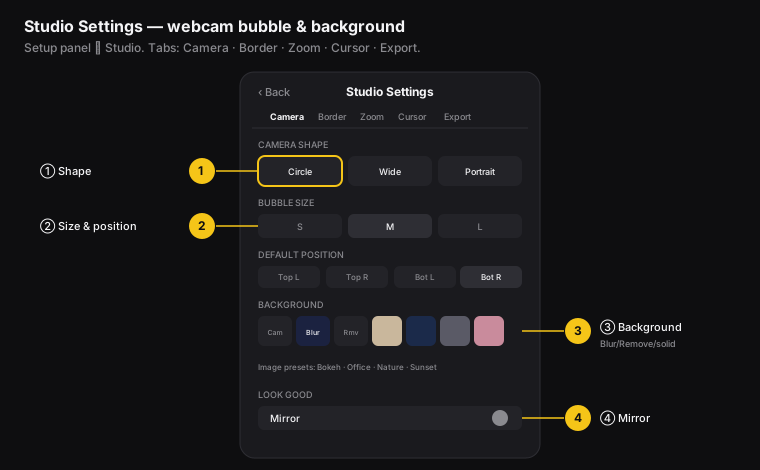
Figure: ① camera shape, ② bubble size & position, ③ background (Blur/Remove/solid/image), ④ mirror.
How to set the bubble shape, size, and position
On the Camera tab:
- Camera Shape - Circle (the classic round shape), Wide (a rounded, landscape shape), or Portrait (a tall shape that’s great for 9:16 vertical video).
- Bubble Size - S / M / L (small, medium, or large). Medium is a good default for tutorials.
- Default Position - Top L · Top R · Bot L · Bot R (top-left, top-right, bottom-left, bottom-right). It’s bottom-right by default. You can also drag the bubble anywhere you want in the editor afterward.
How to blur or replace your background
Under Background:
- Camera - your real background, left as-is (this is the easiest on your Mac).
- Blur - gently blurs your real background.
- Remove - uses AI to cut you out and drop your background completely.
- Studio / Navy / Slate / Rose - solid-color backdrops.
- Image Presets - swap in a scene: Bokeh, Office, Nature, Sunset (scroll for more).
Performance: Blur, Remove, and image backgrounds use the graphics chip (GPU) and may run slower on Intel Macs. Camera (live) is the easiest option on your Mac. Zella keeps your lips in sync even with one of these processed backgrounds.
When to turn Mirror on or off
The Mirror toggle (under “Look Good”) flips the camera left-to-right so it matches how you see yourself in a mirror. Turn it off when you’re going to hold up text or a screen to the camera. Otherwise the text will look backwards to your viewers.
Border, Zoom, and Cursor tabs
- Border - add and style a border around the bubble so it stands out cleanly over anything on screen.
- Zoom - set the defaults for how auto-zoom behaves while recording. (You get fine control later in the editor - see chapter 12.)
- Cursor - set the cursor style and whether clicks and movement are highlighted. The cursor data Zella records also powers auto-zoom when you click.
- Export - the default export format, quality, and platform for new projects.
Recommended bubble setups
| Content | Shape | Size | Position | Background |
|---|---|---|---|---|
| YouTube tutorial | Circle | M | Bottom-right | Blur |
| Vertical reel | Portrait | L | Bottom area | Remove or image |
| Course lesson | Wide | M | Bottom-left | Studio (solid) |
| Quick async update | Circle | S | Top-right | Camera (live) |
How to adjust the bubble after recording
You’re not locked in. In the editor:
- Open the Webcam tab (in the inspector on the right) to adjust the bubble’s settings.
- On an Original-shape preview, you can drag the bubble to move it. On a cropped or reframed preview, use the position sliders instead.
UGC Cutout (float over your screen)
In the AI Background panel, click UGC Cutout (shown when a camera bubble is present). In one click it removes the bubble’s background, drops the border and circle mask, and enlarges you into a full figure that stands over your screen content - the viral reaction/UGC look. Everything stays draggable, so you can reposition or resize afterward. Because the background removal runs on-device, nothing uploads.
Scene switch: camera full-screen or bubble
Both your screen and your camera are recorded as separate layers, so you can cut between them in the editor - no need to decide while recording. In the Webcam tab, use the Scene control at the playhead: “Camera full-screen here” cuts to you talking straight to camera, and “Back to bubble here” returns to the bubble over your screen. Add as many switches as you like; it’s saved with the project and matches on export.
How to show your name on the camera bubble
In the editor’s Webcam tab, turn on the name label and type your name in the “Your name” field. Zella shows it as a small label on your camera bubble. It’s a built-in lower-third (a name caption near the bottom of the screen), so viewers know who’s talking without you having to build a separate title. Leave the field blank (or turn the toggle off) to hide it. This pairs well with the Look & Sound Good camera touch-ups.
On iPhone
The phone gets the same background toolkit, with one big difference: you don’t have to decide before you record.
Set it live, while you film
Zella can change your background as you shoot, using on-device segmentation on the Neural Engine - no green screen:
- Blur - softly blur whatever’s behind you.
- Cut out - remove the background entirely.
- Replace - drop in a different scene behind you.
You see the result in the viewfinder as you record, and nothing is uploaded.
Or change it in the editor
Tap Remove background in the editor and you land on a soft bokeh backdrop - a finished studio look with no setup, rather than a flat black cutout. It’s a starting point, not a lock-in. Switch to a plain cutout, a transparent plate for taking into another editor, a blur of your own room, or any of the 40 built-in backdrops (20 stills and 20 animated) whenever you like.
How the cutout holds up when you move
Static shots are the easy case. The matte is built for the hard one - you, gesturing:
- Two models must agree. Every frame is matted by Apple’s person segmentation and its person-instance detector, and only what both accept survives. On fast-motion frames either model can briefly hallucinate a chunk of the room into you; because they rarely do it on the same frame, the other one vetoes it.
- The edge tightens where you move. Motion blur physically mixes wall color into the pixels along a moving arm, so no amount of recoloring rescues them - Zella trims those pixels instead. Still parts of the frame keep every strand of hair.
- Edge decontamination. On export, the thin shell around your silhouette takes its color from you rather than the room, so hair stops carrying a faint rim of the background you removed.
- Everyone in frame is kept. A second person is never mistaken for clutter and deleted.
The bubble equivalent: overlay layers
There’s no Setup-panel bubble on the phone. Instead, drop a second video over your main clip in the editor and it lands on its own timeline row as a picture-in-picture layer. Drag it anywhere on the canvas, choose rectangle, rounded, circle or a background-removed cutout, and set its stacking order. Width and Height are independent sliders, so a layer can stretch into a band across the frame or a tall sliver; Lock to original ratio snaps it back in one tap, and circular overlays stay perfect circles.
Exporting yourself with no background at all
Transparent-background export is Zella Pro on both platforms: HEVC with alpha on iPhone, ProRes 4444 on the Mac.
Full guide: Recording on iPhone → · On-device AI →
What impact a good bubble setup has
For content creators and video editors, the camera bubble is the personal connection that turns a faceless screen recording into content people actually follow:
- More trust and longer watch time - seeing a real person makes viewers feel connected to you, and that keeps them watching and subscribing.
- A consistent look - using the same shape, size, and background every time makes your videos instantly recognizable as yours.
- A clean, focused frame - the Blur and Remove backgrounds hide a messy room, so the focus stays on you and the screen.
Camera and background FAQ
How do I add my webcam as a bubble over a screen recording? Turn on Camera + Screen in the Setup panel; configure the bubble in Studio → Camera.
How do I blur or remove my background? Go to Studio → Camera → Background → Blur or Remove (an AI cutout).
Why does text look backwards in my camera? Mirror is on. Turn it off when you’re showing text to the camera.
Can I move the bubble after I record? Yes. Drag it on the Original preview, or use the sliders in the Webcam tab on a cropped preview.
Will background replacement slow down my Intel Mac? It can. Use the Camera (live) background for the smoothest performance. This is a Mac-only concern - iPhone segment on the Neural Engine.
Can I blur or replace my background on iPhone? Yes - live while you film, and again in the editor afterwards, with 40 built-in backdrops. No green screen, nothing uploaded. See Recording on iPhone.
Do I have to choose the phone’s background before I record? No. Whatever you set live in the viewfinder, you can still change in the editor later.
Pro tips & gotchas
- Turn Mirror off whenever you’ll show text or a screen to the camera, or it will read backwards.
- Blur and replacement backgrounds use the graphics chip (GPU). On an older Mac, a solid color is the lightest and most reliable option.
- Place the bubble where it won’t cover the part of the app you’re about to demo. You can also move it later in the editor.
- Pair Touch up with Auto light for a flattering, well-lit look on any webcam - see Look & sound good.
- On the phone, Remove background starts you on a soft bokeh backdrop, not a black void. If you want the flat cutout, switch to it deliberately.
Related: Recording modes → · Auto-zoom & cursor → · Reframe → · Recording on iPhone →