Reframing in Zella: 9:16, 1:1 & 16:9
Quick answer: On the Mac, open the editor’s left sidebar → PLATFORM and click a target (TikTok 9:16, IG Feed 4:5, Square 1:1, YouTube 16:9, Original). Use Fill to center-crop into the new aspect (edges may be cut) or Fit to letterbox (nothing cropped), then nudge the crop offset to keep the action framed. Vision auto-track follows the subject. On iPhone, tap Make Vertical for a one-tap face-aware 9:16 reframe, then pick a platform preset when you export. Either way: record once, export every aspect.
On this page: pick an aspect · fit vs fill · center crop · crop offset · captions · titles & callouts · auto-track · on iPhone · one-to-many · FAQ
The steps below are the Mac flow. For the touch version, jump to On iPhone.
How to pick a platform and aspect ratio
In the editor’s left sidebar → Auto Tools → PLATFORM, click a target:
- TikTok / YT Shorts / IG Reels / FB Reels - 9:16 (1080×1920)
- IG Feed - 4:5
- Square - 1:1 (1080×1080)
- YouTube / X / Twitter - 16:9 (1920×1080)
- Original - the source aspect, unchanged
The preview and the export size update right away. The platform you pick also sets a smart default in the Export dialog.
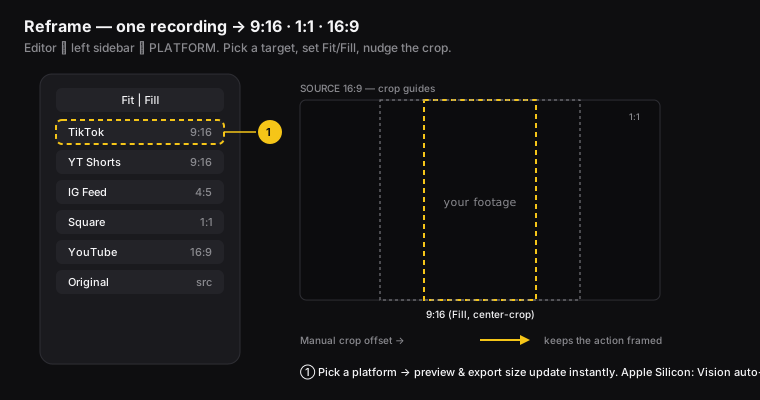
Figure: ① pick a platform; Fill center-crops into the new aspect, and the crop offset keeps the action framed.
What is the difference between Fit and Fill?
At the top of the Platform list is the Fit / Fill switch:
- Fit (safe) - adds bars around the video (letterboxing on top and bottom, or pillarboxing on the sides) so nothing is cropped. Best when every pixel matters, like a full app screen.
- Fill - center-crops (zooms in and trims from the center) to fill the frame, so the edges may get cut off. Best for talking-head videos and footage where the subject is centered.
How center crop works
With Fill, Zella crops from the center so the middle of the frame stays in view. For most webcam footage and centered-subject footage, this is exactly right - your face or subject stays in the shot even after the vertical crop.
How to shift the crop with manual offset
If the important part isn’t dead center (for example, your demo is on the right side of the screen):
- Use the crop offset controls to shift the framing left or right (and up or down).
- The visible window moves by the amount you set, keeping the action in frame even after the crop to vertical.
How captions fit a reframed video
When you reframe to a narrower shape, Zella keeps captions inside the frame (it knows whether you chose Fit or Fill) so they don’t run off the screen. Set the caption size and position for the new shape in the Captions tab. Large and centered usually reads best on 9:16.
Do titles and callouts survive a reframe?
Yes - titles and callouts you anchored (18, 19) stay where you put them through a reframe. They adjust to fit the new canvas instead of getting cut off or shoved off-center. It’s best to reframe before you finalize where your titles and callouts sit, or double-check them afterward.
What is Vision auto-track?
Zella can use Vision face detection to follow the subject when cropping to vertical, so a moving subject stays in frame instead of walking out of a fixed center crop. This runs on both Apple Silicon and Intel Macs (on Intel it uses the CPU). You can also use center crop plus manual offset for fixed framing.
On iPhone
The phone reaches the same place in fewer taps. Instead of a Platform list in a sidebar, reframing is two named actions:
- Make Vertical - one tap runs a face-aware 9:16 reframe with auto-tracking, so you stay centered as you move. A horizontal or square recording becomes a vertical clip ready for TikTok, Reels and Shorts. It is the phone’s answer to Fill plus a crop offset plus auto-track, rolled into one button.
- Pick a platform preset when you export - TikTok / Reels / Shorts for vertical 9:16, YouTube for horizontal 16:9, or Instagram for its own frame. The preset sets the output dimensions so you never guess at pixels.
Do them in that order. Reframe first, so the face tracking decides which slice of the width you keep, then pick the preset last, once your edit is locked.
If you have already chosen a platform preset, Auto-Polish finishes its one-tap run with a face-aware reframe to that aspect - so a raw take comes out of a single tap already shaped for where it is going.
The steps are identical on iPhone; there is nothing extra to learn on the bigger screen.
Full detail: Make Vertical and the on-device AI · export presets.
How to turn one recording into every platform
The big payoff - record once, ship everywhere:
- Record a 16:9 demo and finish the edit.
- Export YouTube (16:9).
- Platform → TikTok (9:16), Fill, nudge crop offset, bump caption size → export.
- Platform → Square (1:1) → export.
Impact for creators and editors: reframing saves you from re-recording or re-cropping in another app. One take becomes a YouTube video, a TikTok/Reel/Short, and a square feed post in minutes. You get far more reach out of every hour you spend recording, which is the whole point of short-form content.
Reframe FAQ
How do I make a horizontal video vertical for TikTok? Open PLATFORM → TikTok, choose Fill, and nudge the crop offset so the subject stays centered.
Will Fill cut off part of my video? Yes - Fill crops from the center to fill the frame. Use Fit if you can’t lose any edges (it adds bars instead).
How do I keep my face in frame when going vertical? Center-crop keeps the middle. Use manual offset if you’re off-center, or Vision auto-track (Apple Silicon and Intel alike).
Do my captions overflow when I reframe? No - captions stay inside the reframed frame. Just set the size and position for the new shape.
Is auto-tracking available on Intel Macs? Yes - Vision face detection runs on both Apple Silicon and Intel Macs (on Intel it uses the CPU). You can also use manual offset for fixed framing.
How do I make a video vertical on my iPhone? Tap Make Vertical for a face-aware 9:16 reframe, then choose the TikTok / Reels / Shorts preset when you export. See on-device AI.
Does the phone follow my face too? Yes - Make Vertical is face-aware and auto-tracks, so you stay centered as you move.
Pro tips & gotchas
- Set the Platform when you record, so the export defaults to the right shape - one capture, many outputs.
- Use Fill to crop into the frame (good for making 9:16 from a 16:9 source), or Fit to add bars and keep everything visible.
- Nudge the crop offset to keep the subject centered after a Fill crop.
- Auto-tracking (Vision face detection) runs on both Apple Silicon and Intel Macs; use the manual offset any time you want fixed framing.
- On the phone, reframe before you pick the preset. Make Vertical decides which slice of the width you keep; the platform preset only sets the output size.
Related: Export → · Captions → · Titles & kinetic text → · Workflow recipes → · Make Vertical on iPhone →