What Is Zella?
Quick answer: Zella records your screen and camera, then edits the footage with AI - all locally. On the Mac it lives in your menu bar, opens straight into a full editor when you stop recording, and ships platform-ready videos (TikTok, YouTube, Instagram). Zella for iPhone is the same studio rebuilt for touch, and it’s on the App Store. No cloud, no account, no subscription. The workflow is always Record → Edit → Ship.
This page describes the Mac app. For the phone, jump to On iPhone.
On this page: what Zella is · what you can make · the workflow · the two windows · where files go · requirements · 60-second start · on iPhone · FAQ
What is Zella?
Zella is two tools combined into one native Apple app: a screen and camera recorder and an AI video editor (called “Studio”) that opens the moment you stop recording. It runs on Mac and iPhone, and one purchase covers both.
Everything - capturing, editing, adjusting color, adding captions, reframing (changing the video’s shape for different platforms), and exporting - runs right on your device. There’s no account to make, no waiting in an online line for your video to process, and no subscription.
On the Mac, the recorder lives in your menu bar and Studio opens in its own window. On iPhone, you open the app and record, and the editor opens with your take ready to cut. This chapter covers the Mac; Zella for iPhone covers the phone, and there is a quick tour further down this page.
What can you make with Zella?
- YouTube tutorials and long-form explainers
- TikTok / Instagram Reels / YouTube Shorts (vertical)
- Product demos and feature walkthroughs
- Course lessons and onboarding videos
- Bug reports and async updates for your team
- GIFs for docs, changelogs, and pull requests
What is the Record → Edit → Ship workflow?
Everything in Zella follows three stages:
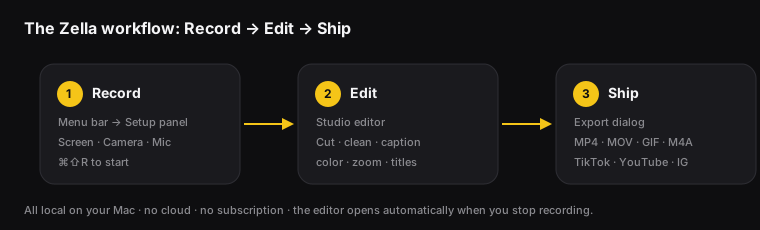
| Stage | Where | What you do |
|---|---|---|
| Record | Menu bar → Setup panel | Choose a source, frame the shot, hit record |
| Edit | Studio (Editor) | Cut, clean, caption, color, add motion |
| Ship | Export dialog | Pick a platform + format, export the file |
You don’t have to use every tool. A great clip can be as simple as record → remove silences → export.
What are the two windows?
- The Setup panel (recording): opens from the menu-bar icon (it says “Ready to record”). Here you pick your sources, choose Full or Region, set aspect presets (the shape of your video), pick a quality, and press Start Recording (⌘⇧R opens this panel from anywhere). See Recording Basics.
- The Studio / Editor: opens after a recording, or when you open a file. It has an Auto Tools sidebar on the left, a preview in the center, an inspector with six tabs on the right, and a timeline along the bottom. See Editor Overview.
Where does Zella save files?
- Recordings → your output folder (default
~/Desktop/Zella), namedZella_<date>_<time>.mp4. - Exports → wherever you choose in the Export dialog.
- Imported images → turned into short clips and stored in Application Support → Zella → Stills, so your projects survive a restart.
- Projects → saved automatically, so you can close and reopen them without losing work.
You own all of it. Move, back up, or delete these files like any other.
What do you need to run Zella?
- macOS 14 (Sonoma) or later.
- Apple Silicon or Intel. (Everything runs on both - including automatic tracking of your face when reframing. On Intel Macs the tracking runs on the CPU, so it is slower, but it works.)
- A microphone for narration (built-in, AirPods, or USB mic).
- A webcam for a camera bubble (built-in, Continuity Camera, or external).
How do I start in 60 seconds?
- Click the Zella icon in your menu bar.
- Choose a source - Screen, Camera, or both - and a region/preset.
- Press ⌘ ⇧ R (or click Start Recording).
- Do your thing, then press the Stop square when you’re done.
- The Editor opens automatically. Click Auto Tools → Cut Empty Space, then Enable Captions.
- Pick a platform (e.g. YT Shorts), click Export, choose 1080p, hit Export.
That’s record → edit → ship.
On iPhone
Zella isn’t Mac-only. Zella for iPhone is the same on-device studio, rebuilt native for touch: record, cut, caption, grade, add AI b-roll and reframe entirely on the device, with no cloud and no account. It is an iPhone app and needs iOS 18 or later. It installs and runs on iPad in iPhone compatibility mode; an iPad-native layout is not part of this release.
It’s on the App Store. The Mac app is on the Mac App Store too.
Sixty seconds on the phone:
- Open Zella and start a camera recording - front camera for a talking head, back camera for anything you’re pointing at.
- Tap record, say your piece, then tap stop. The editor opens with your take on the timeline.
- Tap Auto-Polish. One tap cuts the silences and filler words, adds captions, removes noise and polishes your voice, drops in a hook title and lays a mood-matched music bed.
- Tap Make Vertical for a face-aware 9:16 reframe, then export with the TikTok / Reels / Shorts preset.
One purchase covers every device. Zella Pro is a Universal Purchase - the one-time $89 unlocks Mac and iPhone together. Free is the same generous product on both: the complete editor, all the AI, unlimited recording and watermark-free export up to 2 minutes at up to 1080p. 1080p is free forever. Every new install also runs Pro Week - the full Pro set free for seven days, with no card, no account and nothing to cancel.
What stays on the Mac. A few things on this page are desktop-only by nature: the Library, keyboard shortcuts, window and region capture, cursor, click and keystroke tracking, 8K export, ProRes 4444 transparent export, and the Intel vs Apple Silicon notes above. Everything else - the timeline, the AI, captions, color, export - is on both.
Full guide: Zella for iPhone → · iPhone vs Mac →
Getting started FAQ
Is Zella free / is there a subscription? Zella is a native app you run locally - no subscription, no cloud account.
Does my footage go to the cloud? No. Recording, transcription, editing, and export all happen on your device.
Do I need a separate editor after recording? No - the full editor opens automatically when you stop recording.
Will it run on my Intel Mac? Yes. The few extras that need Apple Silicon (like automatic face tracking) just turn themselves off on Intel.
What’s the fastest way to a finished video? Record → Cut Empty Space → Enable Captions → pick a platform → Export.
Is there an iPhone version? Yes - Zella for iPhone is the same on-device studio rebuilt for touch. It’s on the App Store. The Mac app is on the Mac App Store too. See Zella for iPhone.
Do I buy Zella Pro twice for the Mac and the phone? No. Pro is a Universal Purchase - one payment of $89 unlocks Mac and iPhone.
Pro tips & gotchas
- Zella lives in the menu bar (top-right) on the Mac, not the Dock - click its icon to start. On iPhone it’s a normal app you open from the Home Screen.
- You don’t have to finish in one sitting. Projects save automatically and reopen from the Library (⌘L).
- Record a couple of extra seconds at the start and end. Ripple delete (deleting a section so the gap closes automatically) trims them later without leaving empty space.
- The fastest start from anywhere is the global shortcut ⌘⇧R.
Related: Installation & permissions → · Recording basics → · Editor overview → · Workflow recipes → · Zella for iPhone →