To make a 9:16 reel from a screen recording, reframe the landscape video to vertical and let the crop follow the action with face-aware auto-track instead of letterboxing, then add captions and export at 1080x1920. Apps like Zella reframe to 9:16 in one click, using Apple's Vision framework to detect and follow the face so the crop tracks the speaker instead of sitting still.
Most screen recordings are landscape. Most short-form video - TikTok, Reels, Shorts - is vertical 9:16. The fastest way to bridge the gap is to edit once in landscape, then reframe to 9:16 with auto-tracking so the important part of the frame stays on screen.
No re-recording, no keyframing the crop position by hand, no black bars. Zella does the reframe in one click and keeps your captions and zoom intact - all on your device, no upload. Zella is a native Apple app: the Mac app ships today, and Zella for iPhone is out now on the App Store.
One-click reframe to 9:16
- Finish your edit in Zella - trim, captions, zoom, the works.
- On the Mac, choose Reframe → 9:16. On iPhone, tap Make Vertical instead - that one tap is the whole reframe.
- On the Mac, pick Auto-track so the frame follows the action (Vision face detection, on Apple Silicon and Intel), or center-crop / manual offset for fixed framing. Make Vertical already auto-tracks.
Auto-track watches the frame and keeps the subject - your face, the cursor, the active panel - centered as things move, so you never touch a keyframe. Export at 1080×1920 and the reel is ready to post.
Why reframing beats re-recording or letterboxing
The amateur way to make a vertical reel is to record everything twice - once landscape, once portrait - or to drop a landscape clip into a 9:16 box with big black bars top and bottom. Both waste time and screen space. Reframing solves it: you edit once in landscape, then crop intelligently to vertical, keeping the important part of the frame filling the whole screen.
| Approach | Screen used | Effort | Best for |
|---|---|---|---|
| Re-record vertically | Full | Highest - shoot twice | Almost never worth it |
| Letterbox / black bars | ~40% | Low | Quick, but looks lazy and hurts watch time |
| Blur-padded background | ~60% | Low | Acceptable filler when the source can't crop |
| Reframe + auto-track | Full | Low - one click | Reels, Shorts, TikTok that actually fill the frame |
Filling the frame matters: vertical viewers expect edge-to-edge content, and platforms tend to favor video that holds attention. Black bars do the opposite.
Center-crop vs auto-track vs manual offset
The reframe gives you three ways to decide what stays in the 9:16 window:
- Center-crop - fastest; great when the action is already centered, like a centered app window or a talking head on axis.
- Auto-track - the crop follows the subject; best for moving content, walking-and-talking, or a cursor that roams the screen.
- Manual offset - you set a fixed crop position; ideal when the important thing sits off-center and stays put, like a sidebar or a corner panel.
Pick per clip - a reel often mixes all three across its segments. Auto-track (Vision face detection) runs on both Apple Silicon and Intel; center-crop and manual offset are there whenever you want fixed framing.
Add captions that travel
Short-form lives and dies on captions - most people watch muted. Turn on a viral preset like Word Pop or Hormozi with active-word highlight, anchor the captions, and they sit correctly inside the 9:16 safe zone when you reframe. You can even export a captioned GIF for autoplay previews. More on styling in best caption styles for short-form video and adding captions without uploading.
Design for the phone, not the desktop
A reel is watched on a phone, vertically, often muted, with platform UI overlapping the top and bottom. Design for that:
- Keep the subject in the center band - clear of the top and bottom platform overlays.
- Caption high enough - leave room at the bottom for the caption bar and posting UI.
- Mind the right-side icons - keep important visuals clear of the like/share column.
- Pair reframe with auto-zoom - small UI text from a desktop app is unreadable on a phone unless you push in.
Platform export presets
Zella ships presets so you don't memorize dimensions:
| Platform | Aspect | Resolution |
|---|---|---|
| TikTok / Reels / Shorts | 9:16 | 1080×1920 |
| Instagram feed | 4:5 | 1080×1350 |
| YouTube / X | 16:9 | 1920×1080 |
| Square (LinkedIn, feeds) | 1:1 | 1080×1080 |
1080×1920 is the sweet spot for 9:16 - sharp on every phone without bloating the file, and it matches what each platform expects, so nothing gets re-compressed harder than necessary. If you'll zoom in during the reframe, record or export from a high-resolution source so the cropped vertical stays crisp; see exporting 4K on Mac.
One edit, every platform
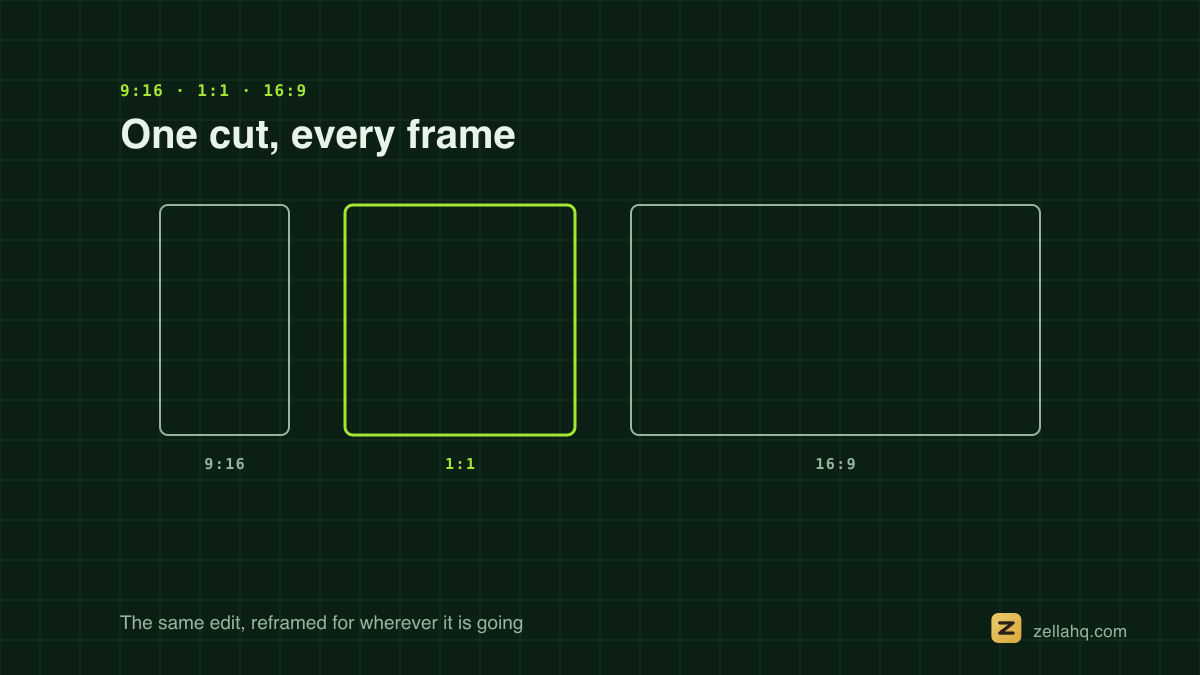
Once your edit is done, export the same project to each ratio: 9:16 for TikTok, Reels, and Shorts; 4:5 for the Instagram feed; 16:9 for YouTube; 1:1 if you need square. See how to resize a video for TikTok, Instagram, and YouTube.
The creators who win at short-form rarely shoot vertical from scratch - they treat every long recording as a quarry to mine. A single screen recording, webinar, or podcast holds several reel-worthy moments, and reframing is what extracts them without re-shooting.
Hook, pacing, and the first second
Reframing gets the format right, but a reel still lives or dies on the first second. Start on the payoff or the most surprising moment, not the setup - viewers decide instantly whether to stay. Keep pacing tight with silence and filler removal, keep the frame alive with auto-zoom, and aim for roughly 15-45 seconds: one clear idea, hooked hard, tightened so it never drags. Format plus hook plus pacing is the whole recipe.
Common mistakes to avoid
- Letterboxing instead of reframing. Black bars waste screen space and hurt performance.
- Captions cut off by the UI. Test against the platform's safe zones before posting.
- Forgetting a 16:9 version. Make both from one edit for YouTube plus Shorts.
- Cropping from a low-res source. Zooming a soft 720p clip into vertical looks blurry - start high-res.
Where Zella fits
Zella is a native recorder and AI editor for Mac and iPhone that runs 100% locally - no cloud, no account, nothing uploaded. Online auto-reframe tools send your video to a server; Zella does the Vision reframe on-device.
Shooting on your phone instead? Zella for iPhone does the same face-aware 9:16 reframe with one tap of Make Vertical. The Mac app ships today and the iPhone app is out now on the App Store.
The free plan covers unlimited recording (free exports run up to 2 minutes) with no watermark, 1080p export, AI cleanup, captions, and auto-zoom - enough to ship 9:16 reels start to finish. A one-time $89 Pro unlock adds unlimited export length and 4K, plus the depth toolset: keyframes with a curve editor, live luma scopes, Color Match, feathered effect masks, speed ramps and per-drum Beat Sync. Colour grading, every transition, reframe and all caption styles are free. See features and pricing.
Frequently asked questions
Can I make a vertical reel from a landscape Loom or any existing recording? Yes - import the file and reframe it to 9:16. You don't need to have recorded it in Zella.
Does reframing reduce quality? Only if your source is low-res. Cropping to vertical discards pixels, so start from a high-resolution recording and the 9:16 export stays crisp.
Does one 9:16 export work on TikTok, Reels, and Shorts? Yes - 1080×1920 covers all three. It's still worth tweaking the hook and length per platform before you post.
Will auto-track work on Intel Macs? Yes - the Vision face detection runs on Intel too (on the CPU). Center-crop and manual offset are also there whenever you want fixed framing.
The bottom line
To make a 9:16 reel from a screen recording, edit once in landscape, reframe to vertical with auto-track (or center-crop / manual offset), caption it for muted viewers, and export at 1080×1920 - designing for a muted phone screen and reusing the same edit for every other platform. No double-recording, no black bars, no manual keyframing.
Download Zella and ship your first reel today.
Make your next video with Zella.
Record, edit and ship on Mac and iPhone - local, private, free to start.
PART OF A SERIES
Reframing for vertical and square
One recording, every aspect ratio, with the face-aware crop doing the work.
- How to Resize a Video for TikTok, Instagram and YouTube
- How to Make a 9:16 Reel From a Screen Recordingyou are here
- How to Make a Video Vertical (9:16) on iPhone for TikTok
- Best Video Size and Aspect Ratio for Every Platform (2026)
All of it lives under Ship Everywhere.
RELATED