On iPhone, tap Teleprompter above the record button in Zella, paste your script and set Reading pace in words per minute; it scrolls over the camera preview and never appears in your video. On Mac, the Teleprompter button on the floating recording toolbar opens your script in a panel that is not recorded.
On this page
- Why a built-in teleprompter beats a notes app
- How to use the teleprompter on iPhone
- How the pace works
- How to use the teleprompter on Mac
- Why the iPhone teleprompter is camera-only
- Writing a script for the teleprompter
- Tips for reading naturally
- Common mistakes
- After the take
- Resources and further reading
- Frequently asked questions
The easiest way to read a script while you record is a teleprompter built into the recorder itself, so the words sit next to the lens and never end up in the video. In Zella for iPhone, tap Teleprompter above the record button, paste your script and set a reading pace. On the Mac, the floating recording toolbar has a Teleprompter button that opens your script in a panel that is not recorded.
No second app, no tablet propped on books, no screen recording of your own notes. Download Zella for iPhone or Mac and try it on a short script first.
Why a built-in teleprompter beats a notes app
Reading from a separate notes app has three problems. Your eyes drift away from the lens. You scroll with one hand, which shows. And on a screen recording, the notes are part of the recording.
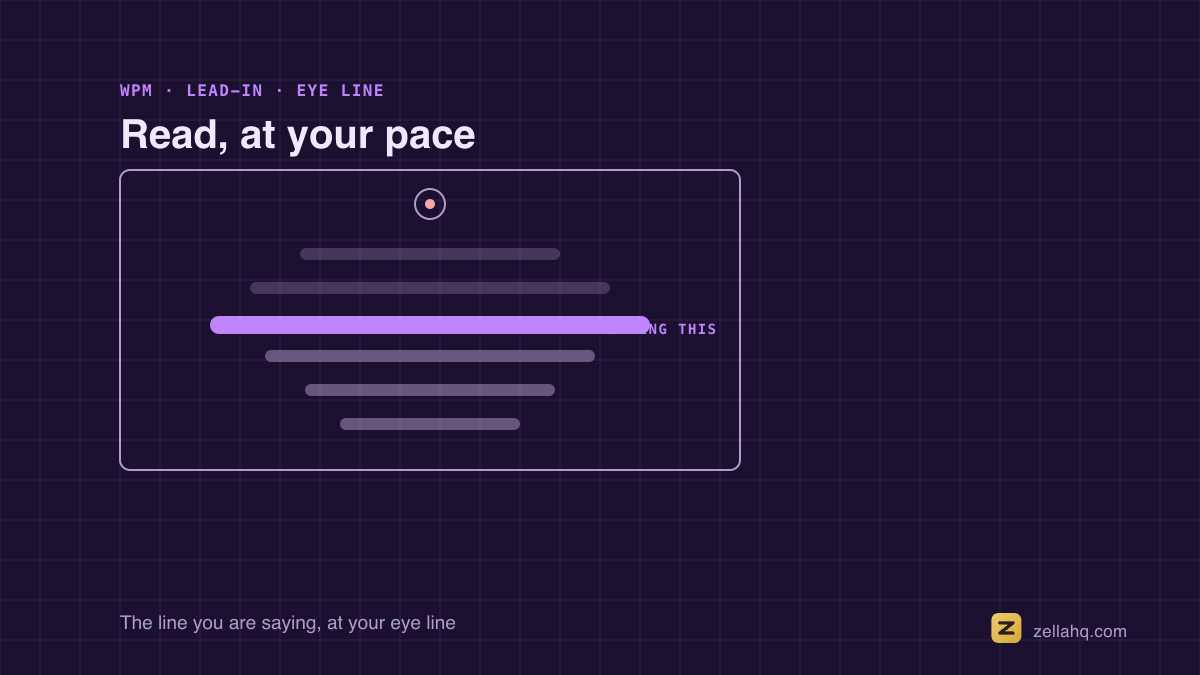
A teleprompter inside the recorder fixes all three. The script sits over or beside the preview, it scrolls on its own, and it is drawn only on your screen.
How to use the teleprompter on iPhone
- Open Zella and start a camera recording with Record a video.
- Pick the front camera for a talking head.
- Tap Teleprompter above the record button.
- Paste or type your script into the panel.
- Set Reading pace in words per minute.
- Tap record. After the countdown the script waits a beat, then starts to scroll over the preview.
- Read to the lens. Tap the pause button next to record if you need a break: the teleprompter pauses with you.
- Tap stop. The editor opens with your take.
The panel starts collapsed, because most takes are unscripted. It only shows when you open it.
How the pace works
The iPhone teleprompter is paced in words per minute, not on an abstract speed slider. Zella times the scroll to your script's real height, so the scroll finishes when you reach the last word at the pace you set.
- It waits a beat after the countdown before moving, so you are not chasing the first line.
- It holds a couple of lines back at the end, so the last line is still on screen when you get there.
- It pauses when you pause and rewinds between takes, so a second attempt starts at the top.
What pace to choose depends on the content and on you. For a practical way to find yours, read how fast should a teleprompter scroll. The short version: time yourself reading the script aloud once, and set the pace close to that.
How to use the teleprompter on Mac
On the Mac, the teleprompter lives on the floating recording toolbar that appears once a recording starts.
- Open the Setup panel with the Zella icon or Command-Shift-R.
- Set your sources: Camera and Mic for a talking head, or Screen with them for a tutorial.
- Click Start Recording.
- On the floating toolbar, click Teleprompter to open your script in its panel.
- Read, pause with ‖ if you need to, and stop with the red square or Command-Shift-S.
The teleprompter is a panel that does not show up in the recording, which is the point: your script stays on your screen, not in the video.
Why the iPhone teleprompter is camera-only
On iPhone, the teleprompter works with camera recordings, not with Record your screen. A whole-device screen recording captures everything shown on the display, so a script drawn on screen would be part of the recording. iOS also blocks the camera during a whole-screen recording, so there is no lens to read toward.
If you are recording an app demo on the phone, write short bullet notes and record in sections instead.
Writing a script for the teleprompter
A script written for reading on paper is hard to read aloud. A script written for a teleprompter is short, plain and broken into lines.
- One idea per line. A line break is a place to breathe.
- Use the words you would say. Contractions, short words, no sentences you would never speak.
- Mark the pauses. A blank line where you want a beat gives the editor a clean place to cut.
- Spell out numbers and names the way you say them. "Twenty twenty-six" reads more easily than a year in digits when you are on camera.
- Cut the warm-up. Start with the point. The first line is the one viewers decide on.
Read the finished script aloud once, with a timer. That number of minutes, divided into your word count, is a good first value for Reading pace.
Tips for reading naturally
| Habit | Why it helps |
|---|---|
| Write the script the way you talk | Short sentences read aloud without stumbling |
| Put the phone at eye level | Your eyes stay close to the lens |
| Keep the script short | Shorter lines mean less eye movement |
| Leave a pause before each section | Easier cuts later |
| Do one practice read | You find the hard sentences before the real take |
On iPhone, the front camera sits at the top of the phone, so read from the upper part of the screen to keep your eyes near the lens.
Common mistakes
Pace set too fast. If you are chasing the words, lower the words-per-minute number. Rushing reads as nerves on camera.
Reading every word word-for-word. A script is a guide. Small changes sound more natural, and the scroll timing gives you room.
Long paragraphs. Break the script into short lines. A wall of text makes your eyes jump.
Expecting the script on a screen recording. On iPhone the teleprompter is camera-only. On a Mac screen recording, the panel is not recorded, but it still covers part of your own view, so keep the part of the app you are showing clear of it.
After the take
Pauses between sections become clean cuts. In the editor, cut silences and filler words, add captions and a hook title. If you prefer to skip the script entirely, how to make a talking-head video without a script covers that approach, and camera-only recording on a Mac covers the Mac setup. More capture options are on the capture features page.
Resources and further reading
- Zella recording on iPhone: camera recording, pinch zoom and the teleprompter.
- Zella during a recording: the Mac floating toolbar, pause and stop.
- Teleprompter, Wikipedia: how teleprompters work and where they came from.
- Words per minute, Wikipedia: typical speaking and reading rates.
Frequently asked questions
Does Zella have a teleprompter? Yes, on both. On iPhone it is the Teleprompter button above record on the camera screen. On Mac it is a button on the floating recording toolbar.
Will the teleprompter text show in my video? No. On iPhone the script is drawn on your screen only, and on Mac the teleprompter panel is not recorded.
How do I set the teleprompter speed on iPhone? Set Reading pace in words per minute. Zella times the scroll to the script's height so it finishes when you do.
Can I use the teleprompter while screen recording on iPhone? No. It is camera-only, because a whole-device screen recording would capture the script, and iOS blocks the camera during that recording.
Does the teleprompter pause when I pause recording? Yes, on iPhone it pauses when you pause and rewinds to the top between takes.

Written by
Nasir Uddin Shamim
Founder of Zella
Nasir Uddin Shamim is the founder of Zella. He built his career in SEO, AI, and marketing - never short on ideas, but every one of them hit the same wall: turning a raw recording into a video worth posting. Like most beginners, he burned hours fighting complicated editors and shipped far less than he wanted to. So he built Zella, a screen recorder and AI editor for Mac and iPhone that does the hard parts for you - first to unblock himself, and now to help anyone go from raw clip to polished video without the learning curve.
More from Zella: fresh tutorials on the channels above, plus product updates and editing tips straight to your inbox.
Make your next video with Zella.
Record, edit and ship on Mac and iPhone - local, private, free to start.
PART OF A SERIES
Recording that survives interruptions
Pause, resume, record into a project, calls and crashes.
- How to Pause and Resume a Screen Recording on a Mac
- What Happens to a Recording When You Get a Call on iPhone
- How to Record a New Clip Into a Video You Are Editing
- How to Use a Teleprompter While Recording Videoyou are here
- How to Screen Record on iPhone With Your Face in It
All of it lives under Capture.
RELATED