Automatic B-roll uses your captions to place cutaway footage for you, instead of you searching a stock site by hand. Zella's Auto B-Roll is free on Mac and iPhone: it reads your captions, picks the most visual keyword per line on-device, and drops short silent cutaways across the video. On iPhone it needs no API key and no network at all; on a Mac a free Pexels key fetches real stock clips. Your video is never uploaded.
Automatic B-roll is when your editor finds and places cutaway footage for you, using your captions to decide what to show, instead of you pausing to search a stock site and drag each clip onto the timeline by hand. The short version: caption your video, click one button, and the editor reads the transcript, picks the most visual word in each line, pulls a matching clip, and lays it in as a short cutaway - spaced across the whole video.
Auto B-Roll is free in Zella on every platform; it is not a Pro feature. The walkthrough below is the Mac flow, which uses a free Pexels key. The iPhone version is keyless: it generates its cutaway cards on the device with no API key and no network at all, and a free Pexels or Pixabay key is optional, needed only if you want real stock footage instead of generated cards.
What is B-roll, and why does it matter?
B-roll is the supporting footage you cut to while your narration keeps playing - a shot of a city, a keyboard, a coffee cup - instead of holding on the same talking head the entire time. It is the difference between a video that feels edited and one that feels like a webcam left running.
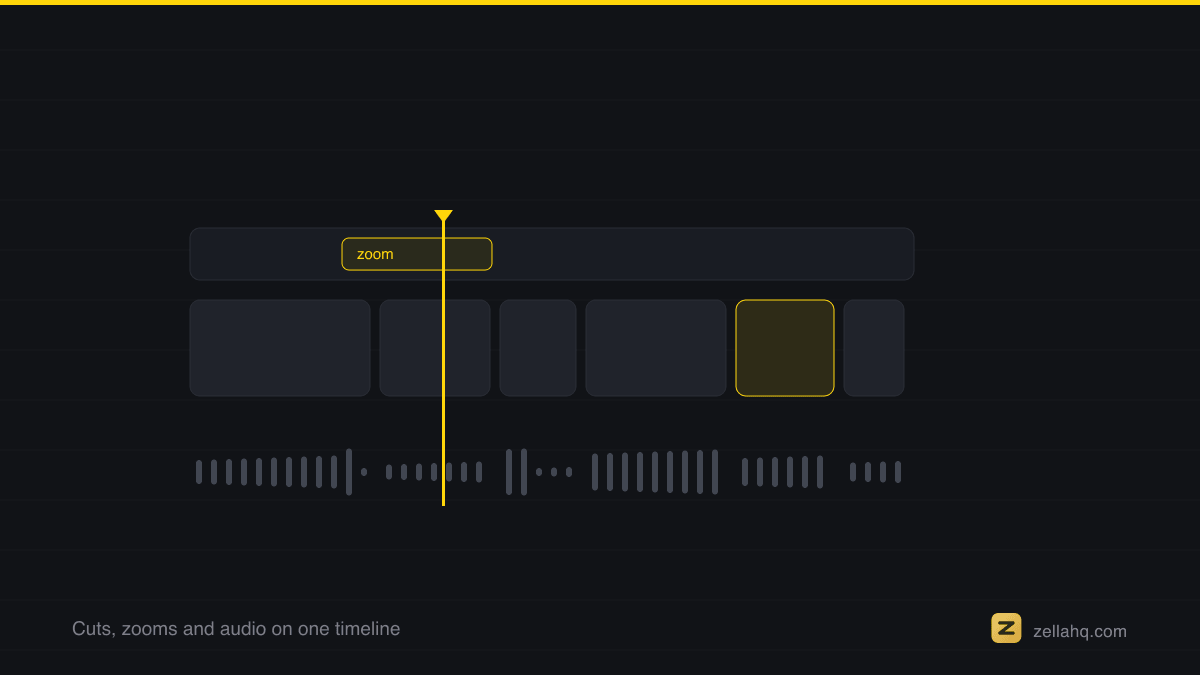
B-roll does real work: it keeps the eye moving so viewers stay longer, it hides jump cuts left behind when you trim your main footage, and it illustrates what you are talking about. The catch is that adding it the old way is tedious - you stop editing, open a stock site, type a search, scrub previews, download a clip, drag it in, trim it, and repeat for every single cutaway.
What does "automatic B-roll" actually do?
Automatic B-roll collapses that whole loop into one step. Instead of you deciding what to search for, the tool reads your captions (the written transcript of what you said) and works out the most visual keyword in each line on its own. Then it searches a stock library for that keyword, downloads a short clip, and places it on your timeline as a cutaway.
The important nuance is where the clips go. A good automatic B-roll feature does not drop a clip blindly every few seconds - it spaces the cutaways across the whole video and ties them to the lines that actually have something visual to show. That is what keeps the result feeling intentional rather than mechanical.
How to add automatic B-roll on a Mac (with Zella)
On a Mac, Zella has this built in as Auto B-Roll, free on the free plan. Zella runs almost entirely on-device on Mac and iPhone, and fetching real stock clips is the one step that genuinely needs the internet, which is why Auto B-Roll on the Mac reaches out to a stock library. Zella for iPhone, which is out now on the App Store, is the exception: it builds cutaway cards from your caption keywords entirely on-device, with no API key and no network at all. Here is the full Mac workflow.
Step 1: Add captions first
Auto B-roll reads your captions, so you need them before anything else. In Zella's editor, open the Captions tab and run Enable Captions / Transcribe audio, or ask the AI Assistant to add captions. Zella transcribes on-device - nothing uploads - into a word-level transcript. If you skip this, there is nothing for Auto B-Roll to read. For the full walkthrough, see how to automatically caption a video on Mac.
Step 2: Paste a free Pexels key (once)
Zella pulls its footage from Pexels, a free stock-video library. To search it, Zella needs a free Pexels API key: sign up at pexels.com/api, copy the key, and paste it into Zella when it prompts you the first time. Zella stores the key only in the macOS Keychain, so you never re-enter it, and Pexels clips are free to use - including commercially, usually with no attribution.
Step 3: Click Add B-Roll
Open the AI panel and click Add B-Roll, or just tell the AI Assistant "add b-roll based on my captions." Zella then:
- Reads each caption line.
- Picks the most visual keyword using on-device NaturalLanguage - Apple's built-in, on-your-Mac text analysis. Only that keyword ever leaves your computer.
- Searches Pexels for a matching short clip.
- Downloads it and places it on the timeline as a cutaway.
The clips arrive full-frame (covering your main footage for the length of the shot), silent (your narration keeps playing underneath), and about 4 seconds each, spaced across the whole video.
Step 4: Swap, trim, or remove
Every placed clip is a normal overlay, so nothing is locked in. Don't like a clip Zella chose? Remove it and drop in a different one, drag its edges to trim, slide it onto the exact word you want, or delete it entirely and let your main footage play through. Run Auto B-Roll for a fast first pass, then tidy up the handful of clips you'd change. The full mechanics live in the Auto B-Roll docs.
Is automatic B-roll private?
With Zella, yes - and it is careful about what it sends. Only the keyword derived from each caption line is sent to Pexels to search; your video is never uploaded. The keyword extraction runs on-device, your recording and your own footage stay 100% on your device, and your Pexels key lives only in the Keychain. Auto B-Roll is opt-in: if you'd rather not fetch anything from the internet, don't run it, and the rest of Zella keeps working entirely on-device. (For how the rest of the app stays local, see how Zella does on-device AI video editing.)
When should you use it - and when not?
Use automatic B-roll to get a strong first pass fast, especially on talking-head, tutorial, and explainer content where most lines have something visual to illustrate. It is a huge time-saver over manual searching.
Skip it, or trim it back, when the moment calls for your own footage - a product demo, a real screen recording, a specific place - that generic stock can't stand in for. The best result is usually a mix: let the tool place cutaways everywhere, then replace the few spots where your own shot tells the story better. And remember the less-is-more rule: B-roll on every single line is as exhausting as no B-roll at all.
Frequently asked questions
What is automatic B-roll? It is a feature that reads your video's captions, picks the most visual keyword in each line, and places matching stock footage as cutaways for you - instead of you searching a stock site and dragging clips in by hand.
Do I need captions before adding automatic B-roll? Yes. The feature works from your transcript, so caption your video first (in Zella, run Enable Captions or ask the AI Assistant to add captions), then run Auto B-Roll.
Is the stock footage free? Yes. On a Mac, Auto B-Roll pulls from Pexels, a free stock-video library: the clips are free to use, including commercially, and usually need no attribution. The Pexels API key is free too. On iPhone no key is needed at all, and a free Pexels or Pixabay key is optional if you want real stock footage rather than generated cutaway cards.
Does Auto B-Roll cost anything? No. Auto B-Roll is part of the free plan on Mac and iPhone, alongside Auto-Polish, on-device captions, AI background removal and the full editor. The one-time $89 Pro raises the export ceilings; it does not gate this feature.
Does my video get uploaded when I use automatic B-roll? No. Only the keyword derived from each caption line is sent to search Pexels. Your video never leaves your device, and the keyword extraction runs on-device.
How long are the automatic B-roll clips? In Zella they are about 4 seconds each, full-frame and silent, and spaced across the whole video rather than dropped every few seconds.
Can I change the clips the tool picked? Yes. Each clip is a normal overlay - swap it, trim it, move it onto a specific word, or delete it like any other.
The short version
Automatic B-roll turns the slowest part of editing - hunting for cutaways - into one click. It reads your captions, finds matching footage, and places short cutaways across your video for you. On a Mac, Zella does it from your on-device captions with a free Pexels key, keeping keyword extraction on-device and never uploading your video; on iPhone it works with no key and no network at all. Caption first, click Add B-Roll, then keep the clips you like and swap the rest.
Make your next video with Zella.
Record, edit and ship on Mac and iPhone - local, private, free to start.
PART OF A SERIES
B-roll, found and placed
Cutaway footage that hides an edit, and where it belongs.
- What Is B-Roll and How to Use It in a Video (Examples)
- How to Add B-Roll to a Talking Head Video
- How to Add Automatic B-Roll to Videos (No Manual Search)you are here
All of it lives under Pro Editor.
RELATED