B-roll is any secondary footage (screen recordings, product shots, stock clips, cutaways) layered over your primary A-roll footage. It shows what you are talking about, covers jump cuts, and adds visual variety that fights the attention drop-off videos suffer in the first 60 seconds. Get it by shooting your own, recording your screen, or pulling royalty-free stock, then cut a clip in every 10 to 20 seconds while your A-roll audio keeps playing.
B-roll is the supplementary footage you cut over your main shot: product close-ups, screen recordings, stock clips, cutaways, and establishing shots. It illustrates what the speaker is saying, hides edits, and breaks up a static frame so viewers keep watching. The footage you speak to camera or narrate is your A-roll; everything you layer on top of it is your B-roll.
That distinction matters because engagement drops fast. Third-party aggregates put the average YouTube video at roughly 24% retention, with over half of viewers gone inside the first minute. YouTube publishes no retention benchmark of its own - it documents what the report measures and recommends comparing against your own recent videos of similar length - so treat those figures as a rough picture of the field rather than a number to hit. Well-placed B-roll is one of the cheapest ways to fight that drop-off.
What is the difference between A-roll and B-roll?
- A-roll is your primary footage and the backbone of the story: the talking-head shot, the interview, the piece-to-camera, or the voiceover. It carries the words.
- B-roll is the secondary footage laid over the A-roll audio: a screen recording, a hands-on-keyboard shot, a wide establishing shot, a chart, a product detail. It carries the visuals.
The audio almost always comes from the A-roll while the B-roll plays silently on top. That is the core move: the viewer keeps hearing you talk but stops looking at the same static frame.
Why does B-roll boost retention?
A single unbroken shot creates "talking-head fatigue" - the point where attention drifts no matter how good the speaker is. Pattern interrupts - graphics, cutaways, B-roll every 10 to 20 seconds - are a widely-used way to hold attention. "Proven" would overstate it: there is no controlled study here, only a technique editors keep reaching for because the retention graph sags without it. B-roll earns its place three ways:
- It shows instead of tells. Saying "our dashboard loads instantly" is weak. Cutting to a screen recording of the dashboard loading instantly is proof.
- It hides your edits. Every time you cut a mistake or a filler word out of your A-roll, you create a jump cut. Lay B-roll over that moment and the cut disappears. (See what jump cuts are for why this works.)
- It resets attention. A fresh visual every 10 to 20 seconds gives the eye a reason to stay. For videos under five minutes, a healthy percentage-viewed is 50 to 70 percent, per TechSmith's 2026 video statistics - variety is how you get there.
Where do you get B-roll?
There are three sources, and most good videos mix all three.
| Source | Best for | Cost | Watch out for |
|---|---|---|---|
| Shoot your own | Authentic product shots, hands, workspace, faces | Your time | Needs a camera and light; shoot 3 to 4x more than you think you need |
| Screen recordings | Software demos, tutorials, walkthroughs | Free | Record clean, cursor-visible passes; trim dead air |
| Royalty-free stock | Establishing shots, moods, concepts you can't film | Free to paid | Always check the license per clip |
For stock, Pexels and Pixabay offer the largest free libraries in 4K with no attribution required, per Swarmify's 2026 roundup. Mixkit is a good curated alternative. One rule that trips people up: even on free platforms, licenses vary between no-attribution, attribution-required, and editorial-only, so verify each clip before you publish.
If your content is a tutorial, demo, or explainer, your single best B-roll source is your own screen. A native recorder like Zella captures crisp screen and camera footage with no length limit even on the free plan, so you always have real, on-brand clips to cut with instead of generic stock.
How do you cut B-roll in over A-roll?
The workflow is the same in any editor:
- Lay down your A-roll first. Get the talking-head or voiceover on the timeline and trim it so the words are tight. Remove long pauses and filler now - see how to remove filler words on a Mac.
- Mark where the visual should change. Every 10 to 20 seconds, or any time you name a concrete thing ("the settings menu," "our sales chart," "the coffee shop"), flag it for B-roll.
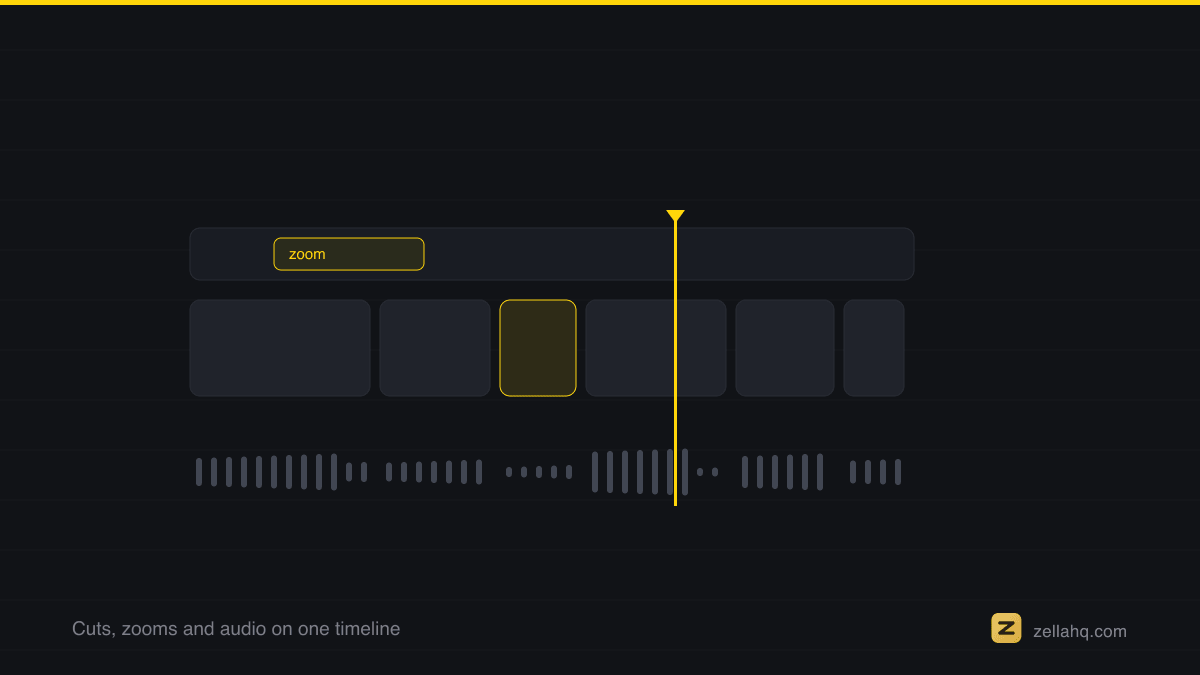
- Drop the B-roll clip on the track above so it covers the A-roll video but the A-roll audio keeps playing underneath. Most editors call this an overlay or picture-in-picture track.
- Trim the B-roll to the sentence. The clip should start when you start describing the thing and end when you move on. Two to four seconds is plenty for most cutaways.
- Cut on the audio, not the silence. Land your B-roll edits on the beat of a sentence so the cut feels intentional rather than random.
Two quick examples:
- Tutorial: A-roll is you on camera saying "Open the export panel and pick 4K." B-roll is a screen recording of that exact click, cut in the moment you say "export panel," then back to your face for the next point.
- Product review: A-roll is your voiceover describing the build quality. B-roll is a slow close-up of the product rotating in the light, playing while you talk.
How much B-roll do you actually need?
Enough that no single shot sits on screen too long. A practical target is a visual change every 10 to 20 seconds and roughly 30 to 50 percent of a short video covered by B-roll. For a 60-second explainer that is 3 to 6 cutaways. Do not cover everything - your face on camera builds trust, so return to A-roll between cutaways rather than hiding behind stock the whole time. Talking-head footage that mixes shots and B-roll is far more watchable than a single locked-off frame, which is the core idea in making talking-head videos engaging.
Doing it faster with Zella
If cutting B-roll by hand sounds slow, Zella removes most of the busywork:
- Auto-Polish strips silences and filler words and auto-zooms, so your A-roll is already tight before you add cutaways - and every cut it makes is a spot where B-roll hides the edit.
- Auto B-Roll goes a step further: it reads your captions, picks the most visual keyword in each line, and places short silent cutaways across the whole video, so you get a first pass without opening a stock site at all. It is free on every platform.
- Picture-in-picture overlays let you drop screen recordings or stock clips on a track above your A-roll and trim them to the sentence.
- On-device captions and callouts add another layer of visual variety, all rendered 100% on your device with no upload.
Zella is a free, native screen recorder and AI editor: unlimited recording, the full editor, captions, AI background removal, and 1080p export up to 2 minutes (watermark-free). The one-time $89 Pro upgrade adds unlimited export length, 4K export plus 8K on the Mac, and the depth toolset. The AI Assistant, which lets you edit by typing plain instructions, is free with your own key. Zella is on the Mac App Store today, and Zella for iPhone is available on the App Store.
Frequently asked questions
What is B-roll in simple terms? B-roll is any extra footage you show while your main audio keeps playing. If A-roll is you talking, B-roll is the pictures of what you are talking about.
Does B-roll need its own audio? Usually no. Most B-roll plays silently over your A-roll narration. Occasionally you will bring up a clip's natural sound for effect, but the default is to mute it and keep the A-roll audio.
How long should each B-roll clip be? Two to four seconds for cutaways, matched to the sentence you are speaking. Establishing shots can run a little longer. Cut back to A-roll before the shot goes stale.
Is free stock B-roll safe to use commercially? Often, but not always. Pexels and Pixabay allow commercial use with no attribution, but you must check each clip's license, because terms differ even on the same site.
Can I make my own B-roll without a camera? Yes. Screen recordings are B-roll, and for any software, tutorial, or demo they are the most authentic option you have. A screen recorder like Zella turns your own screen into unlimited free B-roll.
Where should I place B-roll to fix a bad edit? Directly over any jump cut created when you trimmed your A-roll. The B-roll hides the visual jump while the audio flows straight through.
Sources
- YouTube Audience Retention Benchmarks 2026 - Humble & Brag
- Why B-Roll in Corporate Videos Is More Important Than Ever in 2026 - Haikai Media
- 2026 Video Statistics - TechSmith
- Free B-Roll Footage: 12 No-Watermark 4K Sites (2026) - Swarmify
Make your next video with Zella.
Record, edit and ship on Mac and iPhone - local, private, free to start.
PART OF A SERIES
B-roll, found and placed
Cutaway footage that hides an edit, and where it belongs.
- What Is B-Roll and How to Use It in a Video (Examples)you are here
- How to Add B-Roll to a Talking Head Video
- How to Add Automatic B-Roll to Videos (No Manual Search)
All of it lives under Pro Editor.
RELATED