In Zella on iPhone, tap Auto to open the Auto tools sheet. Clean up removes silences and filler words in one pass, Make Vertical switches to a 9:16 canvas with a face-aware crop, and Polish voice removes noise and shapes your voice to broadcast loudness. Each is one tap, free and undoable, and none of them adds music or captions.
On this page
- When to use single tools instead of Auto-Polish
- The three tools at a glance
- Clean up: silences and fillers in one tap
- Make Vertical: 9:16 that follows your face
- Polish voice: clean sound in one tap
- A worked example
- A good order to run them
- Common mistakes
- Resources and further reading
- Frequently asked questions
Clean up, Make Vertical and Polish voice are the three single-job buttons in Zella's iPhone Auto tools sheet. Clean up cuts silences and filler words. Make Vertical turns the video into a 9:16 frame that follows your face. Polish voice removes room noise and gives your voice a studio tone. Each does one thing, so you control exactly what changes.
Use them when Auto-Polish would do too much: a take that is already well paced, a video you want to keep without music, or a quick fix before you post. All three run on the phone, need no account and work offline once the app is installed. Download Zella to follow along.
When to use single tools instead of Auto-Polish
Auto-Polish runs ten steps, including music, zooms and an opening title. That is right for a raw talking-head take. It is too much when:
- The video already has its own music.
- You want no title on the opening.
- You only need it vertical, or only need the sound fixed.
- You are building the edit by hand and want each change to be deliberate.
The full ten-step pass is explained in what Auto-Polish does on iPhone.
The three tools at a glance
| Button | What it does | What it does not do |
|---|---|---|
| Clean up | Removes silences and filler words in one pass | Add music, titles, zooms or captions |
| Make Vertical | 9:16 canvas plus a face-aware crop to fill | Add captions or change your sound |
| Polish voice | Removes noise, adds warmth and compression, -14 LUFS | Cut anything or touch the picture |
Clean up: silences and fillers in one tap
- Open your recording and tap Auto.
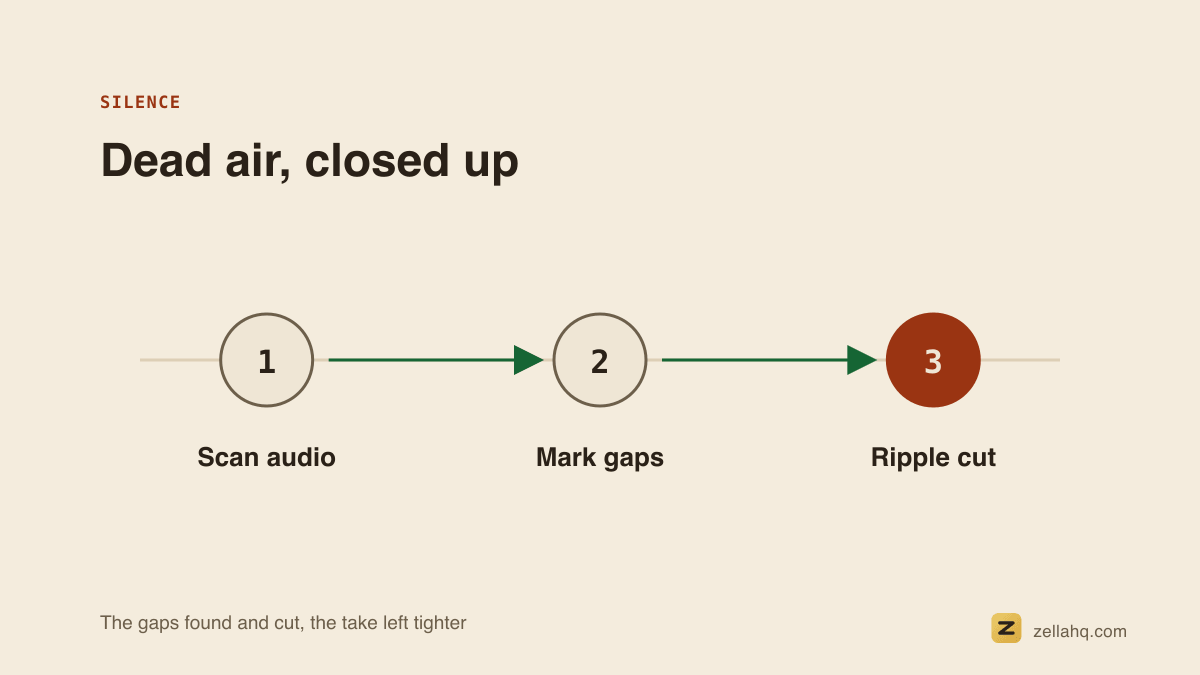
- Tap Clean up. It removes silences and filler words in one pass, using the on-device transcript.
- Play it back. The gaps close up with ripple deletes, so the timeline stays tight.
If you only want one half, the Every video section of the same sheet has Remove silences and Remove filler words as separate rows. With a clip selected, each works on that clip only, and the row says so before you tap.
Filler removal works well on iPhone because the phone transcribes with a verbatim on-device Whisper model that writes out "um" and "uh". For a fuller walkthrough, see removing filler words and silences on iPhone.
Make Vertical: 9:16 that follows your face
- Tap Auto, then Make Vertical.
- Zella switches to a 9:16 canvas and crops to fill, tracking your face so you stay centred as you move.
- Tap Export and pick TikTok, Reels, Shorts or FB Reels in the Platform row.
Reframe first, preset last: Make Vertical decides which slice of the width you keep, and the preset sets the output size. If a subject still drifts, keep your subject centered when cropping to vertical covers the edge cases.
Polish voice: clean sound in one tap
- Optional: tap Audio in the timeline toolbar and pick a Voice tone: Natural, Warm, Bright, Podcast (the default) or Cinematic.
- Tap Auto, then Polish voice under the Voice heading.
- Listen with headphones.
Polish voice starts by lifting your voice out of the room with Apple's Voice Isolation engine, then adds rumble control, compression and loudness normalisation to -14 LUFS. Change the tone any time and the polish re-renders with the new voicing. The sound docs describe each tone.
Remove noise sits just below it. It runs the same Voice Isolation engine without the studio voicing, for a take that needs the room gone but not the broadcast sound. Turn it on and a Reduction strength slider appears, from Gentle to Max. Both tools can work on one selected clip, so a single noisy clip can be fixed without touching the rest.
A worked example
A 100 second landscape clip from the back camera: you explaining a garden project outdoors, with wind noise, long pauses and a few "like"s, going to Reels.
- Clean up removes the pauses and fillers. The clip comes down in length and the gaps close.
- Polish voice with the Natural tone lifts the voice out of the wind and evens the level, without making an outdoor clip sound like a studio.
- Make Vertical crops to 9:16 and tracks your face as you point at the beds.
- Generate captions writes word-timed captions for the final cut.
- Export with the Reels preset.
No music, no title, no zooms: exactly what you asked for and nothing more. Because every step was its own tap, you can also undo just one of them. Did not like the Natural tone? Pick Warm under Audio, then Voice tone, and the polish re-renders without touching the cuts or the framing. If the result feels flat, add Smart Zooms or Add Music from the same sheet, one at a time.
A good order to run them
- Clean up first, so the cuts are in place.
- Polish voice next, on the final timeline.
- Make Vertical last, before you add titles, so the framing is settled.
- Then Generate captions if you want them, so the caption timing matches the cut video.
Every tap is one undo step. If a result is not what you wanted, tap Undo in the top bar and nothing else is affected.
Common mistakes
- Running Make Vertical before Clean up and then captioning. It works, but captions made before a cut need a re-run. Caption last.
- Using Max noise reduction on a clean room. Heavy reduction on a quiet take can thin the voice. Start Gentle.
- Expecting Clean up to add music. It only cuts. Use Add Music in the same sheet, or Auto-Polish.
- Forgetting the selection. With a clip selected, these tools work on that clip only. Deselect to treat the whole video.
- Picking the export preset first. The preset sizes the file; it does not reframe. Run Make Vertical first.
Resources and further reading
- On-device AI on iPhone: Clean up, Make Vertical and Auto-Polish.
- Sound on iPhone: voice tones and Remove Noise.
- Zella's editor and one-click features.
- ITU-R: BS.1770 loudness measurement, the standard that LUFS figures come from.
Frequently asked questions
What does Clean up do in Zella? It removes silences and filler words in one pass, using the on-device transcript, and closes the gaps with ripple deletes. It adds nothing else.
How do I make a video vertical on iPhone? Tap Auto, then Make Vertical. It switches to a 9:16 canvas with a face-aware crop, then you pick the TikTok, Reels or Shorts preset when you export.
What is the difference between Polish voice and Remove noise? Remove noise takes the room out with Apple's Voice Isolation. Polish voice does that and then adds warmth, compression and -14 LUFS loudness in the voice tone you chose.
Are these tools free? Yes. Clean up, Make Vertical and Polish voice are free on every plan, with watermark-free exports up to 2 minutes at 1080p.
Do these tools upload my video? No. They run on the iPhone, and your recording stays on the device.

Written by
Nasir Uddin Shamim
Founder of Zella
Nasir Uddin Shamim is the founder of Zella. He built his career in SEO, AI, and marketing - never short on ideas, but every one of them hit the same wall: turning a raw recording into a video worth posting. Like most beginners, he burned hours fighting complicated editors and shipped far less than he wanted to. So he built Zella, a screen recorder and AI editor for Mac and iPhone that does the hard parts for you - first to unblock himself, and now to help anyone go from raw clip to polished video without the learning curve.
More from Zella: fresh tutorials on the channels above, plus product updates and editing tips straight to your inbox.
Make your next video with Zella.
Record, edit and ship on Mac and iPhone - local, private, free to start.
PART OF A SERIES
Using Zella on iPhone and Mac together
Move projects, save to Files, and know what differs between the apps.
- How to Move a Video Project From iPhone to Mac
- Zella on Mac vs iPhone: What Is Different?
- How to Save a Video Project to the Files App on iPhone
- How to Export a GIF or Audio-Only M4A on iPhone
- Clean Up, Make Vertical and Polish Voice on iPhoneyou are here
All of it lives under Pro Editor.
RELATED