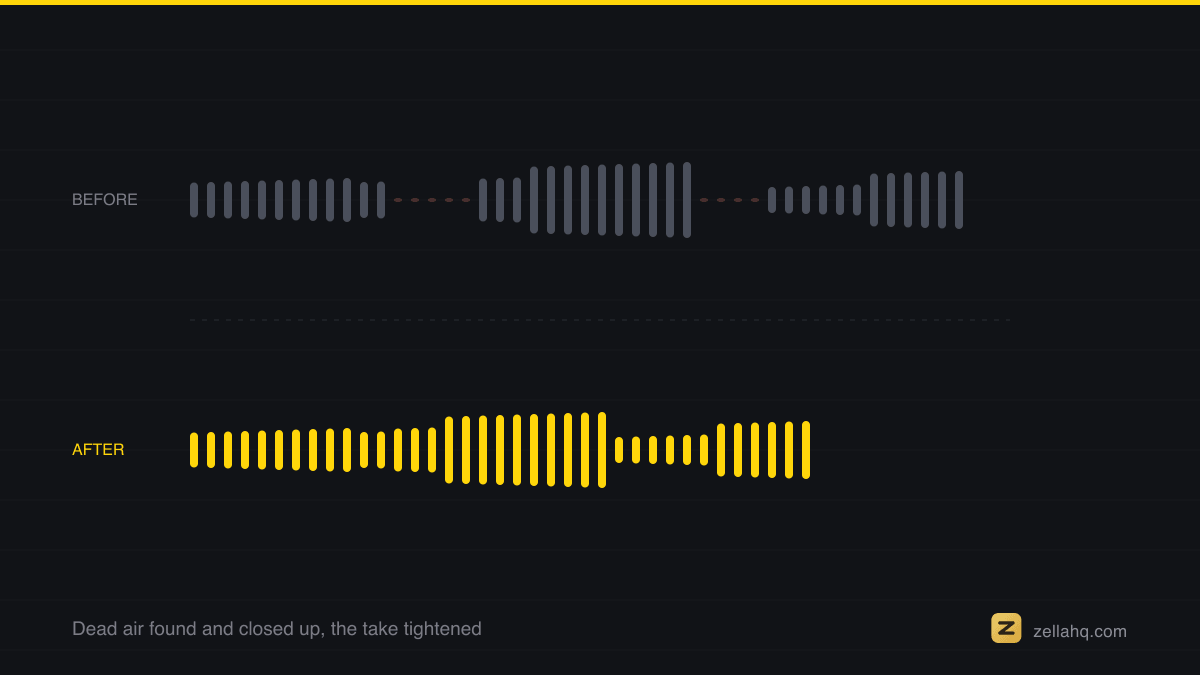
To remove filler words and silences on iPhone, use an app that transcribes on-device and ripple-deletes the pauses and fillers for you, closing each gap so the timeline stays in sync. Zella's Clean Up does the whole clip in one pass from the on-device transcript, and deleting a word in that transcript cuts the matching video with it.
Nothing tightens a talking-head video like cutting the dead air. Every removed pause and "um" makes you sound more confident and the clip more watchable. Doing it by hand is slow; doing it automatically takes seconds.
Why silence and filler removal matters
- Pace. Tight cuts hold attention; long pauses lose it.
- Confidence. Removing "um," "uh," and "like" makes anyone sound more articulate.
- Length. A rambling two-minute take becomes a crisp 40-second clip - perfect for social.
Captioning like this leans on Apple's Speech framework, which supports recognition performed locally - the reason the audio never needs to be sent anywhere to be read.
The slow way (manual)
In a basic editor you scrub the timeline, find each pause, split before and after it, delete the chunk, and drag the next clip over to close the gap. Repeat for every pause and every filler word. For a two-minute video that is dozens of cuts and a lot of squinting at the waveform.
The fast way: two different one-tap passes
Zella for iPhone gives you two tools here, and picking the right one saves you undoing work:
| Clean Up | Auto-Polish | |
|---|---|---|
| What it does | Removes silences and filler words, and nothing else | The full retention edit |
| Also adds | Nothing | Extra cuts where you pause, a cross-dissolve on the widest-spaced joins, noise removal and voice polish, a hook title, emphasis zooms, a mood-matched music bed |
| Touches your colour | No | No, never |
| Use it when | You want your own edit, just tighter | You want a post-ready cut in one tap |
For pure filler removal, Clean Up is the one you want:
- Import or record your video.
- Tap Clean Up. Zella transcribes on-device, then ripple-deletes the silences and filler words in one pass, closing every gap so audio and video stay locked together.
- Scan the transcript. Deleting a word there ripple-cuts the video with it, so you can keep trimming by reading rather than by scrubbing.
- Export, or run Auto-Polish afterwards if you decide you want the full treatment.
Because it runs on the phone's Neural Engine, nothing uploads - your audio stays private. See the iOS AI guide.
Filler detection on iPhone is verbatim: it works from a word-level transcript rather than from volume alone, which is why it can drop an "um" that sits in the middle of a sentence without leaving a hole where the word used to be.
Fine-tune the result
Automatic cleanup is a starting point, not a straitjacket. After the pass you can:
- Restore a pause you actually wanted (a beat before a punchline).
- Adjust sensitivity so it cuts more aggressively or leaves more breathing room.
- Keep a filler that is part of your natural delivery.
The point is that the tedious 90% is done for you, and you spend your time on the 10% of judgment calls.
Three things automatic cleanup gets wrong
Any silence detector is working from timing and a transcript, not from meaning, so it makes the same three mistakes. Knowing them turns a two-minute review into a ten-second one:
- It cuts the pause you left on purpose. A beat before a punchline or a number reads as dead air to the algorithm. Restore those by hand; there are usually one or two.
- It can clip the tail of a word that runs into a pause. Listen for words ending in a soft consonant right before a cut.
- It removes filler that was doing a job. "So" at the start of a sentence and "right?" at the end are connective tissue, not noise. Cutting every one of them makes a friendly take sound clipped.
The fourth mistake is yours: over-cutting. Strip every breath and the delivery stops sounding human. Leave a fraction of a second of air around the sentences that carry weight.
Tips for the cleanest cleanup
- Record clear audio - a close mic makes the transcription (and therefore the cuts) more accurate.
- Leave a short beat before your first word so the opening cut is clean.
- Do not over-cut. A little breathing room keeps you sounding human, not robotic.
- Pair cleanup with captions - the same transcript drives both.
Why a dedicated app
The Photos app cannot detect or remove silences and fillers. Zella does it in one tap, on-device, with a free tier to try it. Zella for iPhone is available on the App Store; the Mac app ships on the Mac App Store today. One Pro purchase lifts the export length cap, adds 4K, and covers both.
Frequently asked questions
Can I remove filler words from a video on iPhone automatically? Yes. Zella's Auto-Polish transcribes on-device and removes "um," "uh," and similar fillers along with silences in one tap.
Does removing silences leave gaps in the video? No - a ripple delete closes each gap automatically so the clip plays seamlessly.
Is my audio uploaded to detect the pauses? Not in Zella. It transcribes on-device, so nothing uploads - see how to add subtitles without internet on iPhone.
Can I still keep some pauses? Yes. You can restore any pause you want or adjust how aggressively the app cuts.
Make your next video with Zella.
Record, edit and ship on Mac and iPhone - local, private, free to start.
PART OF A SERIES
Cutting dead air and filler words
The silence scan, the filler-word pass, and when to leave a pause alone.
- How to Remove Silence From a Video on Mac (Dead Air, Gone)
- How to Remove Filler Words From a Video on Mac
- How to Remove Filler Words and Silences From iPhone Videoyou are here
- When to Cut a Pause and When to Leave It In
All of it lives under One-Click.
RELATED