To make videos faster when you have no time, remove decisions rather than corners: record every clip for the week in one session, reuse a fixed look so no video needs new choices, and run a one-tap AI cleanup pass instead of hand-cutting silences and typing captions. Done that way a finished 60-second video costs roughly 15 to 20 minutes, and most of that is review rather than editing.
To make videos faster when you have no time, cut decisions, not corners. Batch all your recording into one session, reuse a fixed look so every video inherits its format, and run a one-click AI cleanup pass instead of editing by hand. The bottleneck was never the software. It was starting from scratch every single time.
Most creators think they have a speed problem. They have a decisions problem. Every time you re-choose the format, the caption style, the music and the crop, you pay a tax before cutting a single frame.
The three levers
Every hour you save comes from one of three moves. Stack all three and the arithmetic changes.
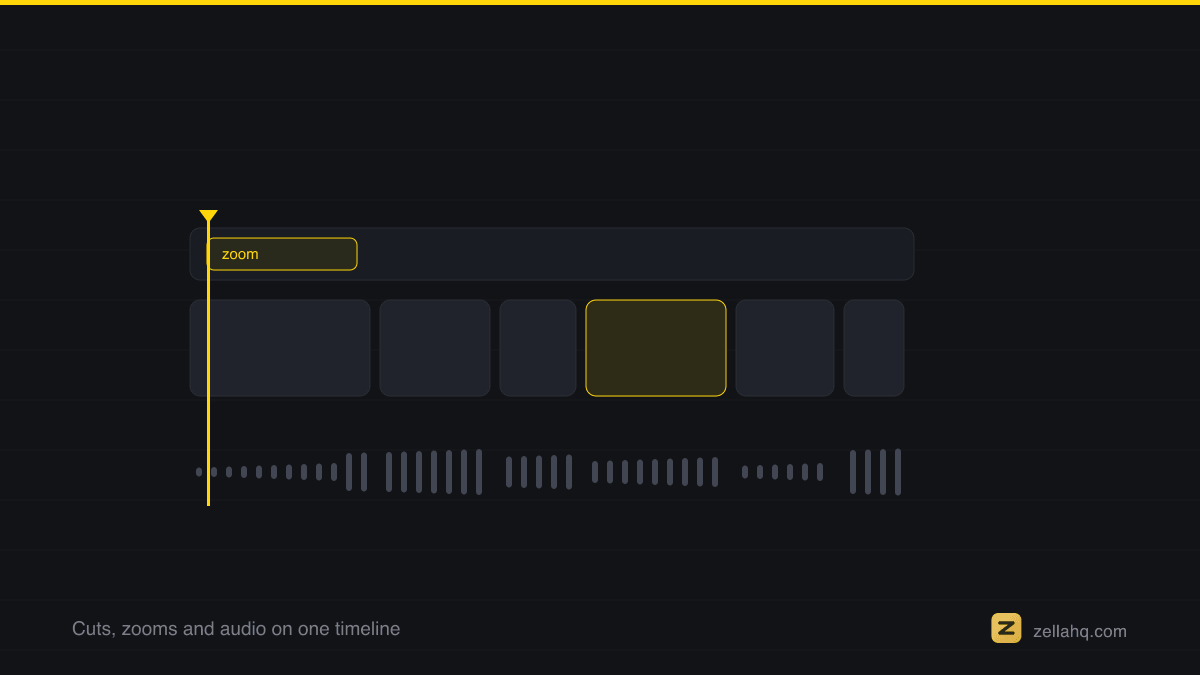
| Lever | What it removes | What it looks like |
|---|---|---|
| Batch | Setup, repeated | All recording in one sitting, all editing in the next |
| Template | Decisions, repeated | One aspect ratio, one caption style, one intro, reused |
| One-click | Manual labour | Silence cuts, captions and zooms in a single pass |
Context-switching between recording and editing is where the hours actually vanish, so the batching lever usually pays first.
For what a viewer will and will not sit through, Nielsen Norman Group's video usability work is more useful than any amount of instinct.
The batch session, step by step
This is the workflow that turns a week of content into two focused hours.
- Script in bulk. Write 5 to 10 hooks and one-line outlines in a single sitting. Ideas flow better in a batch than one at a time under deadline.
- Record in one session. Same outfit, same light, same setup, back to back, with no editing in between. This is the biggest single saving, because you set up once instead of ten times. See how to batch record video content for the full method.
- Record each one in a single take. Do not restart for small mistakes. Pause and continue. The cleanup pass deletes the dead air, so a messy take costs you nothing.
- Run one-click cleanup on each. Instead of hand-cutting, let the pass tighten pacing, remove filler words and add captions. This is where the 30-to-90-minute-per-video saving lands.
- Apply the same look to all of them. One caption style, one intro, one export size. No per-video design decisions.
- Review, do not rebuild. Watch each once, fix captions, confirm the hook, export. Reviewing takes minutes. Rebuilding takes hours.
- Schedule the batch. Spread them across the week so one recording session feeds several days.
Where the time actually goes
| Time sink | The slow way | The fast way |
|---|---|---|
| Setup | Re-light and re-frame every video | Batch. Set up once for all of them |
| Cutting silence | Scrub and trim by hand | One-click cleanup removes it from the transcript |
| Filler words | Hunt for every um and uh | Removed in the same pass |
| Captions | Type and time each line | Auto-generate, then proofread once |
| Look and feel | Re-decide every time | A fixed template |
| Reframing to 9:16 | Manual crop and keyframe | Face-aware auto-reframe |
| Export sizes | One export per platform, by hand | A batch export queue |
The pattern repeats: replace a repeated decision with a saved default, and replace manual labour with a single pass.
What a template actually covers
Template is a loose word, so be precise about what it should lock:
- Aspect ratio and canvas size. 9:16 at 1080x1920 for short-form, decided once.
- Caption preset. One style, one position, one colour. Recognisable in the feed.
- Intro and outro. A title card and a closing ask you reuse verbatim.
- Music and sound. One bed, one ducking level, one set of effects.
- Export target. One platform preset instead of a fresh export dialog each time.
Two honest caveats. Re-selecting the same preset by name every time is free in most editors, but saving it as a reusable template is often a paid feature. So is exporting a batch in one queue. If you are optimising for speed, those two are usually the upgrades worth paying for, and the rest of the system works without them.
The 20-minute-per-video ceiling
Done this way, a finished 60-second video should cost about 15 to 20 minutes of your time, and most of that is review. The AI pass runs in a couple of minutes. The look applies instantly. What is left is watching it once and fixing the two caption words the transcription got wrong.
If a single video is still eating an hour, you are editing by hand somewhere you could be clicking once. For more on that, see how to use AI to edit videos faster.
Frequently asked questions
How long should it really take to make a short video? With batching, a fixed look and one-click cleanup, a 60-second video runs about 15 to 20 minutes, mostly review. The mechanical work - cutting silence, captions, zooms - drops from an hour to a couple of minutes because one pass does all of it.
Does editing faster mean lower quality? No. Done right it is more consistent. A fixed look and an AI cleanup pass apply the same polish to every video, so your worst video looks as clean as your best. What you skip is busywork, not craft. The hook and the story still get your full attention.
What should I batch first if I only change one thing? Recording. Setting up light, camera and mic once for ten videos instead of ten separate times saves the most hours for the least effort. Record in a block, then edit in a separate block.
Can AI really cut my editing time that much? For the repetitive parts, yes. A single pass that removes silences and filler words, adds captions and applies zooms typically replaces 30 to 90 minutes of manual work. It will not write your hook, but it clears everything around it.
How do I keep every video looking the same? Lock the aspect ratio, caption preset, intro and export target, then reuse them. Consistency also helps your audience recognise your content instantly in the feed.
Where does batching break down? When one video in the batch needs something the others do not: a different aspect ratio, a screen recording in the middle, a guest. Pull those out and treat them as a separate one-off rather than slowing the whole batch to accommodate them.
Do it in Zella
Zella is built for the batch-template-one-click system, on Mac or iPhone, on-device, with no account.
- Batch record. Record every clip in one session. Recording length is unlimited and exports carry no watermark.
- Let Auto-Polish run. It starts automatically on each fresh recording: silence and filler cuts, emphasis zooms, voice polish and a ducked music bed, so the edit is mostly done before you open it. It leaves your colour alone by design.
- Or tap Make it Viral. One tap runs the full ready-to-post pass on a clip, keeping its original shape.
- Reuse your look. Keep the same caption preset and export size across the batch. Free lets you pick the same preset each time. Saving it as a reusable template, and running a batch export queue across clips and aspect ratios, are part of the one-time $89 Pro.
- Review and export. Watch once, fix captions, export at 1080p up to 2 minutes free. Pro lifts the length cap and adds 4K, plus 8K on Mac.
Every new install runs the full Pro feature set for its first 7 days, no card and nothing to cancel, which is enough to find out whether saved templates and batch export are worth it for you. See the one-click AI cleanup, or check pricing. The Mac app is on the Mac App Store today, and Zella for iPhone is available on the App Store.
Make your next video with Zella.
Record, edit and ship on Mac and iPhone - local, private, free to start.
PART OF A SERIES
Auto-Polish and Make it Viral
What the one-tap passes actually change, and what they deliberately leave alone.
- Turn a Raw Screen Recording Into a Post-Ready Video in One Tap
- What Make it Viral Actually Fixes in One Tap
- How to make videos faster when you have no time to edityou are here
- How to Use AI to Edit Videos Faster (and Stay Private)
All of it lives under One-Click.
RELATED