To repurpose a webinar into short clips, comb the recording for its most self-contained teaching moments and best Q&A answers, cut each to a 21 to 34 second window, reframe the slide-and-speaker view to vertical 9:16, burn in captions, and open every clip with a hook. A single 60-minute webinar reliably becomes 8 to 15 shorts - many weeks of content from one session you already ran.
To repurpose a webinar into short clips, comb the recording for its most self-contained teaching moments and best Q&A answers, cut each to a 21 to 34 second window, reframe the slide-and-speaker view to vertical 9:16, burn in captions, and open every clip with a hook. A single 60-minute webinar reliably becomes 8 to 15 shorts - many weeks of content from one session you already ran.
Webinars are the densest source material there is: a structured talk, slides, a live audience, and a Q&A full of real questions. Almost none of it gets seen after the live date. Repurposing fixes that - here's the workflow, including how to deal with slides in a vertical frame.
What makes a webinar worth clipping?
Structure. Unlike a rambling stream, a webinar is already broken into points - each slide or section is a candidate clip. Look for:
- Single-slide teaching moments. One concept explained cleanly, start to finish.
- Q&A answers. These are gold: real questions mean real search demand, and the answer is usually tight and self-contained.
- Framework or number reveals. "The 3 steps," "we saw a 40 percent lift" - moments with a payoff.
- Strong opinions or myth-busting. Anything that makes a viewer stop.
A one-hour webinar with a clear agenda produces far more clips than a meandering one. Comb for the 8 to 15 genuinely strong moments; don't force 30.
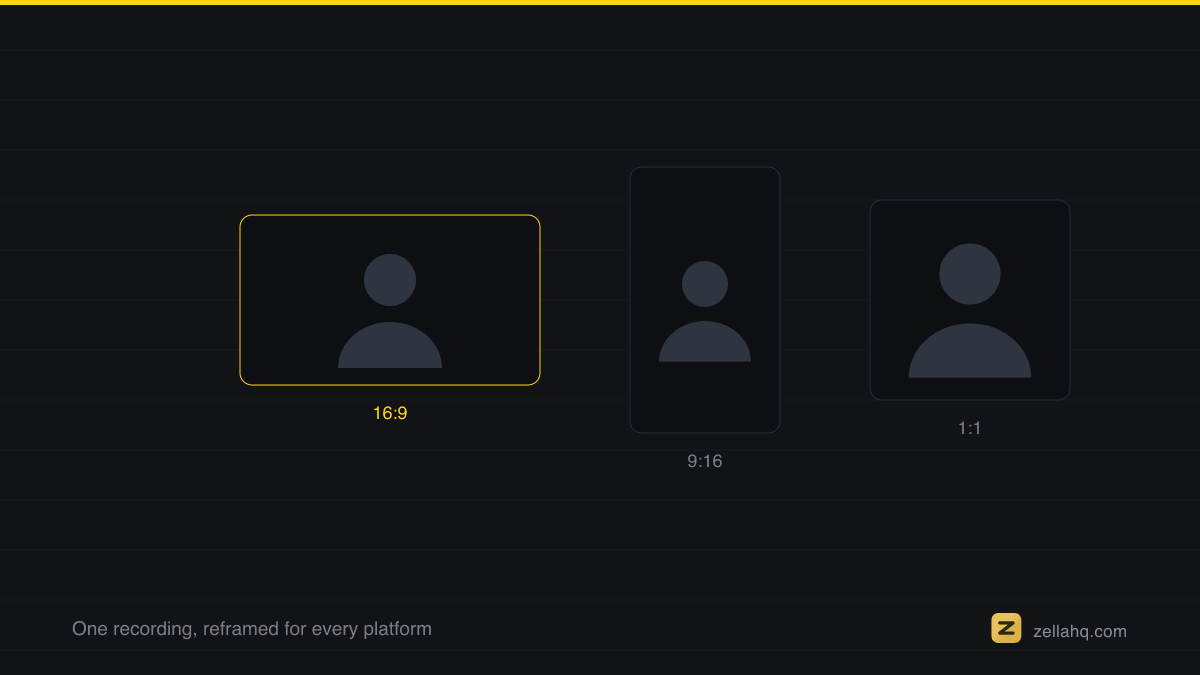
Face-aware reframing is built on Apple's Vision framework, which runs the detection locally so the crop can follow a speaker without a cloud round trip.
Repurpose a webinar into short clips, step by step
- Work from the transcript and the slide list. Read, don't re-watch. Cross-reference each slide title with the transcript to jump straight to each teaching moment.
- Flag 10 to 18 candidates. Mark every self-contained point and every good Q&A answer, then plan to cut the weakest so you land on 8 to 15.
- Cut each to a tight window. Trim to one idea in a 21 to 34 second window. Start on the strong sentence; end when the point lands.
- Remove silences and filler. Webinars run slow - cutting dead air, "next slide please," and "can everyone hear me" tightens pacing and shaves runtime.
- Reframe to vertical 9:16. Decide per clip whether the slide, the speaker, or a stacked split is the star (see the next section). Keep the active element centered.
- Burn in word-level captions. With about 85 percent of viewers on mute, captions carry the clip and lift completion rate.
- Add a hook in the first 3 seconds. Put the question or the payoff as on-screen text over the opening, and reorder so the strongest line comes first - Q&A clips work great by leading with the question.
- Batch-export and schedule. Ten-plus clips is a month of posts. Export all at once and space them out.
Handling slides and screen-share in a vertical clip
A webinar is usually 16:9 with a slide and a small speaker box. That does not drop into a 9:16 frame cleanly, and a straight centre-crop throws away both. Pick one of three layouts per clip:
| Layout | How it works | Use it when |
|---|---|---|
| Slide-forward | Crop to the slide, captions underneath | The visual is the point: a chart, a framework, a diagram |
| Speaker-forward | Track the face full-frame, captions carry the content | Hot takes, opinions, Q&A answers |
| Stacked split | Slide on top, speaker below | You need both, and neither survives alone |
The stacked split is the classic webinar-to-reel layout. See how to make a 9:16 reel from a screen recording for the exact split geometry.
For the general long-recording playbook, how to turn one long video into 10 short clips applies here too. And if you haven't recorded yet, how to record a webinar on Mac covers capturing slides and speaker cleanly.
Frequently asked questions
How many clips can I get from one webinar? A 60-minute webinar reliably yields 8 to 15 short clips. Denser, well-structured sessions land at the high end; loose ones lower. Aim for the genuinely strong moments rather than maxing the count.
What are the best moments to clip from a webinar? Single-slide teaching points and Q&A answers. The Q&A is especially valuable because each question maps to real search demand, and the answers tend to be tight and self-contained.
How do I fit slides into a vertical video? Choose per clip: crop to the slide, track the speaker full-frame, or stack slide-over-speaker. Add captions in the free space so the content reads on mute.
How long should each webinar clip be? Keep hooky clips in a 21 to 34 second window. A crisp single tip can be shorter; a full Q&A answer can stretch toward a minute if it earns it.
Do webinar clips need captions? Yes. Around 85 percent of short-form is watched muted, and webinar content is information-dense, so word-level captions are what make it land.
Do it in Zella
Zella runs the whole webinar-to-clips workflow on-device: no account, no subscription, nothing uploaded, which is the part that matters for an internal or client webinar. The Mac app is on the Mac App Store today; Zella for iPhone is out now on the App Store.
- Import the recording and trim to your first moment. Auto-Polish runs automatically, adding emphasis zooms, silence and filler cuts, and voice polish, and leaving your colour untouched. Word-level captions are one more click.
- Reframe to 9:16 using the one-click reframe: crop to the slide with a manual offset, let Vision face-detection track the speaker, or build a stacked split.
- Tap Make it Viral for the full ready-to-post pass on that clip - everything Auto-Polish does, plus brighter colour and matched sound effects under the strongest cuts - then move to the next moment.
The free plan is watermark-free with unlimited recording, the full editor, and every AI feature at 1080p, exporting up to 2 minutes, which is fine for shorts. A one-time $89 Pro unlock adds unlimited length, 4K, and the batch tool that makes a 15-clip session bearable: the multi-aspect queue renders 9:16, 1:1 and 16:9 in one action. Download Zella and turn one webinar into a month of clips.
Make your next video with Zella.
Record, edit and ship on Mac and iPhone - local, private, free to start.
PART OF A SERIES
Repurposing one video into many
Turning a long recording into the clips that actually get posted.
- How to Repurpose One Long Video Into 10 Short Clips (2026)
- How to repurpose a webinar into short clips, step by stepyou are here
- How to turn a podcast into short clips for TikTok and Reels
- How to Make a Highlight Reel or Sizzle Reel (2026 Guide)
All of it lives under Ship Everywhere.
RELATED