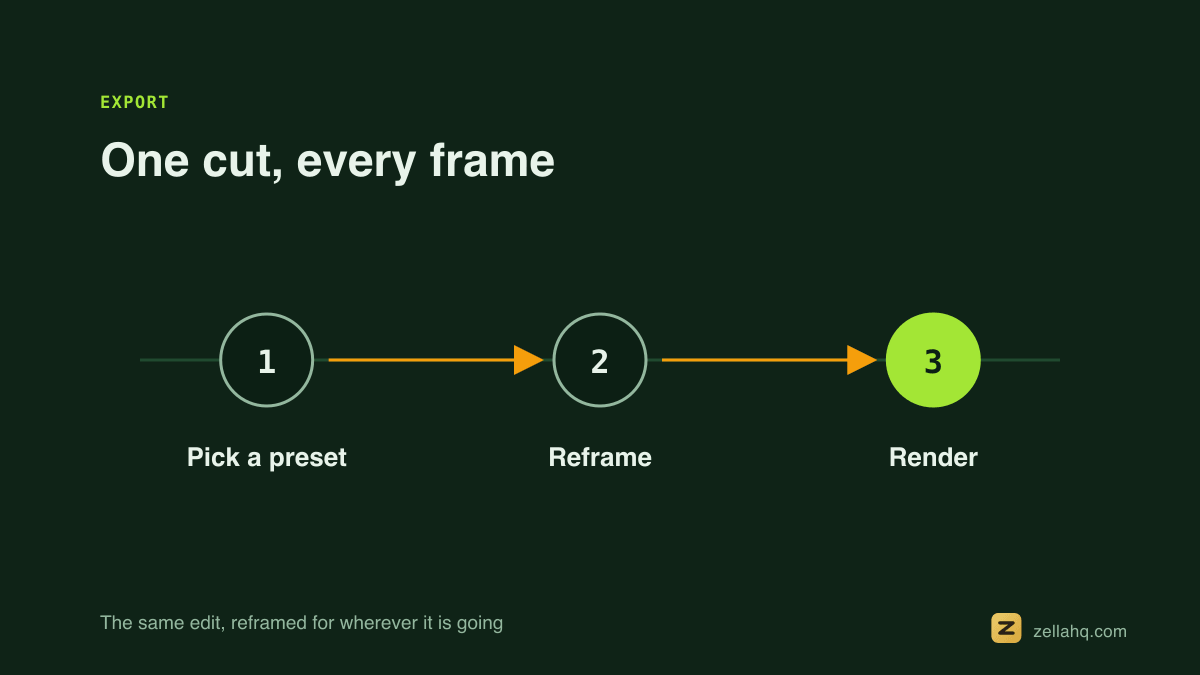
In Zella Pro, open Export and use the EXPORT QUEUE on the Mac (pick 9:16, 1:1 and 16:9, then Export all selected) or Batch, All aspects on iPhone. Zella renders one file per shape from the same edit, one after another, then puts the editor back as it was. Save your caption style, grade and transition as a template so the next video starts there.
On this page
- What the multi-aspect queue does
- Prepare the edit so every shape works
- How to export all aspects at once on a Mac
- How to export all aspects at once on iPhone
- Save the look as a template
- A weekly workflow that uses both
- When to use the queue and when not to
- Common mistakes
- What the queue does not do
- Resources and further reading
- Frequently asked questions
Posting one video to TikTok, Instagram and YouTube usually means three exports and three rounds of fixing the framing. Zella's multi-aspect export queue renders 9:16, 1:1 and 16:9 from one edit in a single action, as three separate files. On the Mac it is the EXPORT QUEUE in the Export dialog; on iPhone it is All aspects in the Batch section. It is part of Zella Pro, and saved templates, the other half of a repeatable workflow, are Pro too.
This guide covers the queue, how to prepare an edit so every shape looks right, and how to save a template so the next video starts finished. Download Zella and Pro Week gives you both for seven days.
What the multi-aspect queue does
You edit once. The queue then renders the same edit at each shape you pick, one after another, as one file each. When it finishes, Zella puts your editor back exactly as it was, so the project is not left in the last shape it rendered.
| Shape | Size Zella exports | Typical home |
|---|---|---|
| 9:16 vertical | 1080 by 1920 | TikTok, Reels, Shorts, FB Reels |
| 1:1 square | 1080 by 1080 | Square feed posts |
| 16:9 widescreen | 1920 by 1080 | YouTube, websites, X |
For other single sizes, such as the 4:5 IG Feed preset, change the Platform and export once more. The size guides for TikTok and YouTube list what each platform expects.
Prepare the edit so every shape works
The queue reframes for you, but it can only work with what is in the frame. Before you queue:
- Keep the important things near the centre. A 16:9 edit loses its sides at 9:16. Faces and the key part of the screen should sit in the middle third.
- Use the reframe with face tracking. One click reframes to 9:16, 1:1 or 16:9 around your face. See reframe.
- Place titles and callouts last. Their position is stored as a share of the frame, so they keep their relative spot across shapes, but check them in each one.
- Keep captions off the very bottom. Platform buttons cover the bottom of vertical video.
How to export all aspects at once on a Mac
- Finish the edit and click Export.
- Set Format (MP4 for posting) and Quality.
- Scroll to EXPORT QUEUE. It reads "Render this edit at several aspect ratios in one go - one file each."
- Click the shapes you want so they highlight: 9:16, 1:1 and 16:9.
- Click Export all selected. The progress line reads Rendering 1 of 3… and counts up. Cancel stops the queue.
- When it finishes you see Exported 3 of 3 and a Show in Finder button. If one shape failed, it is listed with its reason and the others still count.
How to export all aspects at once on iPhone
- Tap Export and set Format and Quality.
- Scroll to Batch.
- Tap All aspects (9:16 · 1:1 · 16:9). The button reads Rendering… while it works.
- Share or save each file from the finished cards.
Only one export runs at a time, so the single Export button waits while the queue renders.
Save the look as a template
The queue saves time per video. A saved template saves it per project. On the Mac:
- Open the Viral tab in the left sidebar and find MY TEMPLATES.
- Click Save current look….
- Type a name and click Save.
- In a new project, click the template under MY TEMPLATES to apply it.
A template saves your caption style, colour grade and intensity, transition default and sound-design settings. It does not save clips, cuts or zooms, so it fits any project. Deleting a template later does not change videos you already made with it. Applying Zella's built-in templates is free; saving your own is Pro. For what the built-in ones do, read video templates that actually change the edit.
A weekly workflow that uses both
- Record or import the week's footage.
- Run Auto-Polish, or Make it Viral for short-form.
- Apply your saved template.
- Reframe and check titles in each shape.
- Queue 9:16, 1:1 and 16:9 and export.
If you also want a fixed logo and end card, the Founder brand kit adds those on top: see how to use a brand kit.
When to use the queue and when not to
The queue is the fast path when one edit genuinely works in every shape: a talking head centred in frame, a product on a plain backdrop, a short with big centred captions.
It is the wrong tool when each platform needs a different edit. A 16:9 YouTube video with a screen recording full of small text does not become a good 9:16 Short by cropping. In that case cut a separate vertical edit: shorter, with the key part of the screen zoomed in, and captions placed for a phone. Zella's Auto-Polish and Make Vertical do most of that work in a few clicks, and make a 9:16 reel from a screen recording walks through it.
A simple rule: if you would change the framing by hand in more than a couple of places, make a second edit. If not, queue it.
Common mistakes
- Editing in 9:16 and expecting 16:9 to look full. Shapes crop or pad. Edit in the shape most viewers will see, and check the others.
- Forgetting the free cap. On Free the queue is locked and exports stop at 2 minutes. During Pro Week and on Pro there is no cap.
- Expecting templates to carry cuts. They carry the look, not the edit.
- Queueing before titles are placed. Place and check text first, then render.
- Expecting 4:5 in the queue. The queue renders 9:16, 1:1 and 16:9. Export 4:5 separately with the IG Feed preset.
What the queue does not do
The queue renders shapes of the same edit; it does not make separate edits. It does not shorten the 16:9 version into a short, move a title that sits wrong in one shape, or pick a different hook for TikTok. Fix those in the edit before you queue. It also renders one shape after another rather than all at once, so three shapes take about three times as long as one export. Leave it running and check the files when it says it is done.
Resources and further reading
- Exporting from Zella: multi-aspect queue
- Reframe for any platform
- Ship everywhere: export features
- YouTube Help: get started creating YouTube Shorts
Frequently asked questions
Can I export a video in multiple aspect ratios at once? Yes. Zella Pro's multi-aspect queue renders 9:16, 1:1 and 16:9 from one edit in a single action, one file each, on Mac and iPhone.
Does the multi-aspect queue change my project? No. Zella renders each shape and then puts the editor back exactly as it was.
What does a saved template include in Zella? Your caption style, colour grade and intensity, default transition and sound-design settings. Clips, cuts and zooms are not included.
Is the multi-aspect export queue free? No. It is part of Zella Pro, which is a one-time purchase covering Mac and iPhone, and it is free for seven days in Pro Week.
Can I cancel a multi-aspect export partway? Yes. Click Cancel while it renders. Files that already finished are kept and listed.

Written by
Nasir Uddin Shamim
Founder of Zella
Nasir Uddin Shamim is the founder of Zella. He built his career in SEO, AI, and marketing - never short on ideas, but every one of them hit the same wall: turning a raw recording into a video worth posting. Like most beginners, he burned hours fighting complicated editors and shipped far less than he wanted to. So he built Zella, a screen recorder and AI editor for Mac and iPhone that does the hard parts for you - first to unblock himself, and now to help anyone go from raw clip to polished video without the learning curve.
More from Zella: fresh tutorials on the channels above, plus product updates and editing tips straight to your inbox.
Make your next video with Zella.
Record, edit and ship on Mac and iPhone - local, private, free to start.
PART OF A SERIES
Free, Pro, Founder and Pro Week
What each plan includes and what happens when Pro Week ends.
- Zella Pro Week: What You Get in 7 Days and on Day 8
- Zella Free vs Pro vs Founder: Which Plan Do You Need?
- How to Use a Brand Kit to Keep Every Video Consistent
- How to Export a Video With a Transparent Background
- How to Export One Video in 9:16, 1:1 and 16:9 at Onceyou are here
All of it lives under Ship Everywhere.
RELATED