Educational content goes viral when it teaches one useful thing fast: a hook that names the payoff in the first 2 to 3 seconds, a promise, one lesson delivered in order, proof that it works, and a loop or CTA in the last 2 to 3 seconds. Cut roughly every 2.5 to 4 seconds and keep captions on screen, because around 85% of short-form is watched muted. Teach less, not more.
Educational content goes viral when it teaches one genuinely useful thing fast and is built for retention: a 2-3 second hook that names the payoff, a tight body with a cut roughly every 2.5-4 seconds, and captions on screen, since around 85% of people watch short-form muted. The counterintuitive part is that you should teach less. One clear lesson, made impossible to scroll past, beats a thorough lecture nobody finishes.
Most educational videos flop not because the information is bad, but because the packaging loses the viewer before the value lands. Below is the structure that fixes that, a line-by-line example, and the editing choices that keep people watching to the end.
Why most educational videos flop
Three quiet killers:
- The slow start. A 10-second intro ("hey guys, so today I wanted to talk about...") spends the exact window where viewers decide to stay. If the payoff isn't obvious in the first 2-3 seconds, they're gone.
- Too many lessons. Cramming five tips into 40 seconds means none of them land or get remembered. One lesson, fully delivered, outperforms five half-delivered ones.
- Dead air and no captions. Pauses, "ums," and silent stretches leak viewers. With most people watching muted, a video with no on-screen text is a video they can't follow.
Fix those three and ordinary educational content becomes shareable.
The window is smaller than it feels. Nielsen Norman Group's research on dwell time found users often leave a page in 10 to 20 seconds unless the value is obvious immediately, and the same impatience governs a feed. YouTube documents what the drop looks like on your own uploads in its audience retention report, where dips and spikes map to the exact moments people leave or rewatch.
The 5-step structure that makes teaching go viral
Use this five-part skeleton for almost any teaching clip:
- Hook (0-3s). Name the payoff or the stakes. "This one setting doubled my export speed." "You're losing viewers at this exact moment." State what they get, not what you're about to do.
- Promise (3-6s). Tell them precisely what they'll be able to do by the end. "In 20 seconds you'll know how to fix it." This sets the open loop that keeps them watching.
- Payoff (the teaching). Deliver one lesson in ordered steps. No tangents, no backstory, no "but first." If a sentence doesn't move the lesson forward, cut it.
- Proof. Show it working: a screen recording, a before/after, a real result. Proof is what converts "interesting" into "saved and shared."
- Loop or CTA (last 2-3s). One next step. "Follow for the rest," "try it on your next video," or a line that loops back to the hook so the video replays.
A line-by-line example
Teaching "how to remove filler words from a video":
- Hook (0-3s): "Your 'ums' are costing you viewers - here's the 15-second fix."
- Promise (3-6s): "By the end of this you'll cut every filler word without touching the timeline."
- Payoff: "Open your clip. Run the cleanup. It finds the 'ums,' the 'likes,' and the dead air, and removes them in one pass. Watch - " (cut to screen)
- Proof: show the before (rambly) and after (tight) side by side.
- CTA: "Try it on your next recording - follow for more editing shortcuts."
That's a complete, tight teaching video in well under 30 seconds. Notice it teaches exactly one thing.
Editing choices that hold attention
The structure gets you watched; the edit keeps you watched.
- Captions, always. With roughly 85% of short-form viewed muted, on-screen text isn't optional for educational content. It is how the lesson gets through at all. Word-by-word or phrase captions also add a subtle pace that holds the eye.
- Cut the dead air. Remove silences and filler so the clip moves. A good teaching rhythm is a cut or a visual change roughly every 2.5-4 seconds: alive, but not frantic. More on this in retention editing to keep viewers watching.
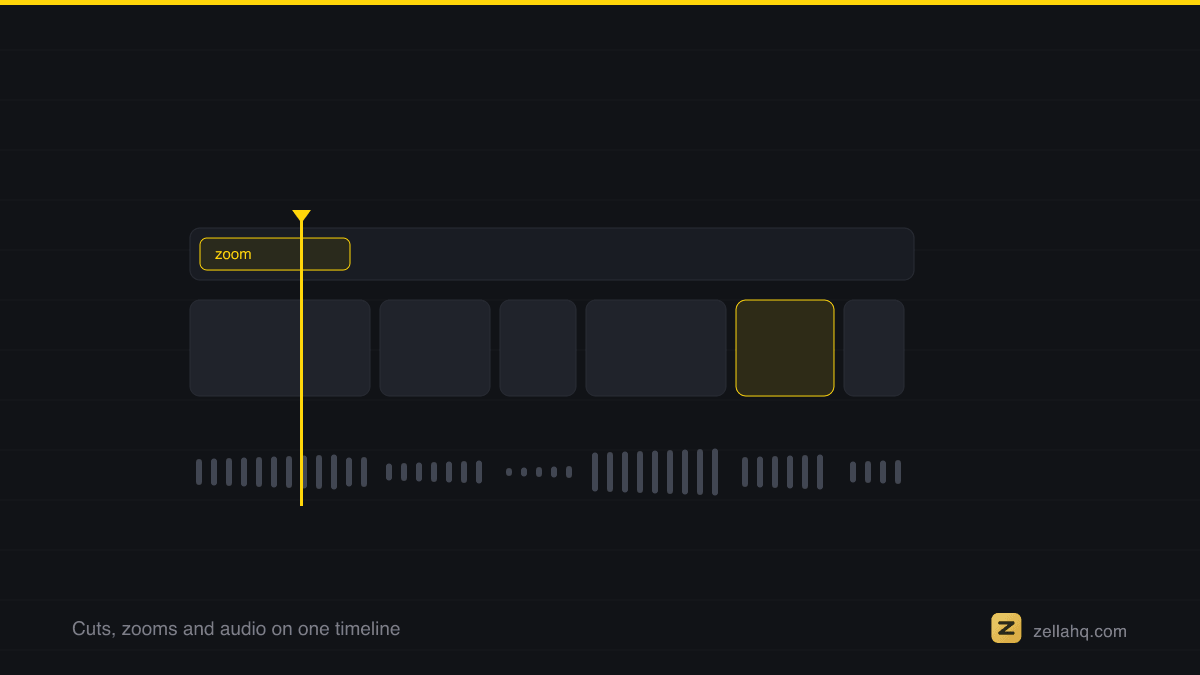
- Zoom for emphasis. Punch in on the key step or the exact button. A small zoom tells the eye "this is the part that matters."
- B-roll to illustrate. When you name a thing, show the thing. Relevant B-roll under your voice keeps the visual fresh while the audio carries the lesson.
- Nail the hook edit. The first frame and first line do the heaviest lifting; see hook editing and the first 3 seconds.
If your educational content is software or product teaching specifically, the format deep-dive in how to make a software tutorial video pairs well with this structure.
Frequently asked questions
How long should an educational short be? Long enough to fully deliver one lesson, short enough to finish, which is usually 15-45 seconds for a single tip. If the lesson genuinely needs more, split it into a series rather than one long, sagging video.
Should I teach one thing or several per video? One. A single, complete, memorable lesson outperforms a rushed list nearly every time. Save the other tips. They're your next three videos.
Do I really need captions on educational content? Yes. With around 85% of viewers watching muted, captions are how most people receive your lesson at all. They also lift retention by adding on-screen pace. See best caption styles for short-form video.
How do I make teaching feel less boring? Cut faster, show proof, and add emphasis zooms. Boredom in educational content is almost always a pacing problem, not an information problem. Tighten the edit before you change the topic.
What's the single highest-leverage change? The hook. Move your payoff to the first 2-3 seconds and delete the intro entirely. Nothing else you edit matters if viewers leave before the lesson starts.
Do it faster in Zella
The structure above is a lot to hit by hand on every clip. Zella does most of it automatically.
- Record your lesson: screen, camera, or both. Recording is free and unlimited, on-device, with no account.
- Auto-Polish runs on the fresh recording. It removes filler words and silence (tightening you toward that 2.5-4s cadence), zooms in for emphasis, and cleans the voice; then tap Captions for the 85% watching muted. It never grades your color, so the footage stays as you shot it until you pick one of the 92 looks yourself.
- Add Auto B-Roll to illustrate the lesson while you talk. It is free: a Pexels key on the Mac, no key at all on iPhone.
- Tap Make it Viral for a one-tap, post-ready pass, then export up to 2 minutes at 1080p watermark-free. The one-time $89 Pro unlocks unlimited length and 4K, plus 8K on Mac. See AI cleanup for how the auto-edit works.
Write one hook, teach one thing, and let the retention edit run itself. Get Zella free, with the iPhone app available on the App Store.
Make your next video with Zella.
Record, edit and ship on Mac and iPhone - local, private, free to start.
RELATED