To add captions to a video on iPhone, open it in an editor that transcribes on-device, generate the captions, fix any misheard words in the transcript editor, pick a caption preset, and export with the subtitles burned in. Zella ships 9 presets with an active-word highlight and transcribes on the Neural Engine, so your audio never uploads.
Captions are the single highest-return edit you can make. The majority of social video is watched on mute, so subtitles directly raise how long people watch - and they make your content accessible. Here is how to add them on your iPhone.
Why captions matter so much
- Watch time. Muted viewers stay if they can read along; they scroll if they cannot.
- Accessibility. Captions open your video to deaf and hard-of-hearing viewers.
- Comprehension. Names, jargon, and numbers land better when they are on screen.
The listening here is Apple's Speech framework. It can run recognition on the device itself, which is why a transcript can be produced without uploading the audio.
Captions are an accessibility requirement before they are a retention tactic: the W3C's guidance on captions for prerecorded media is the bar most teams are actually measured against.
Option 1: The built-in apps
iMovie lets you add text overlays manually - tap the T, type, and position each line. It works, but you are typing and timing every caption by hand, which is painfully slow for a two-minute talking-head video. There is no automatic transcription.
Option 2: Automatic captions with a dedicated app (recommended)
A modern editor listens to your audio and writes the captions for you. On Zella for iPhone the flow is:
- Import or record your video.
- Generate captions - Zella transcribes on-device, so your audio never leaves the phone.
- Fix any words in the transcript word editor. Tap a word, correct it, and the timing stays intact. You can also import an existing SRT file.
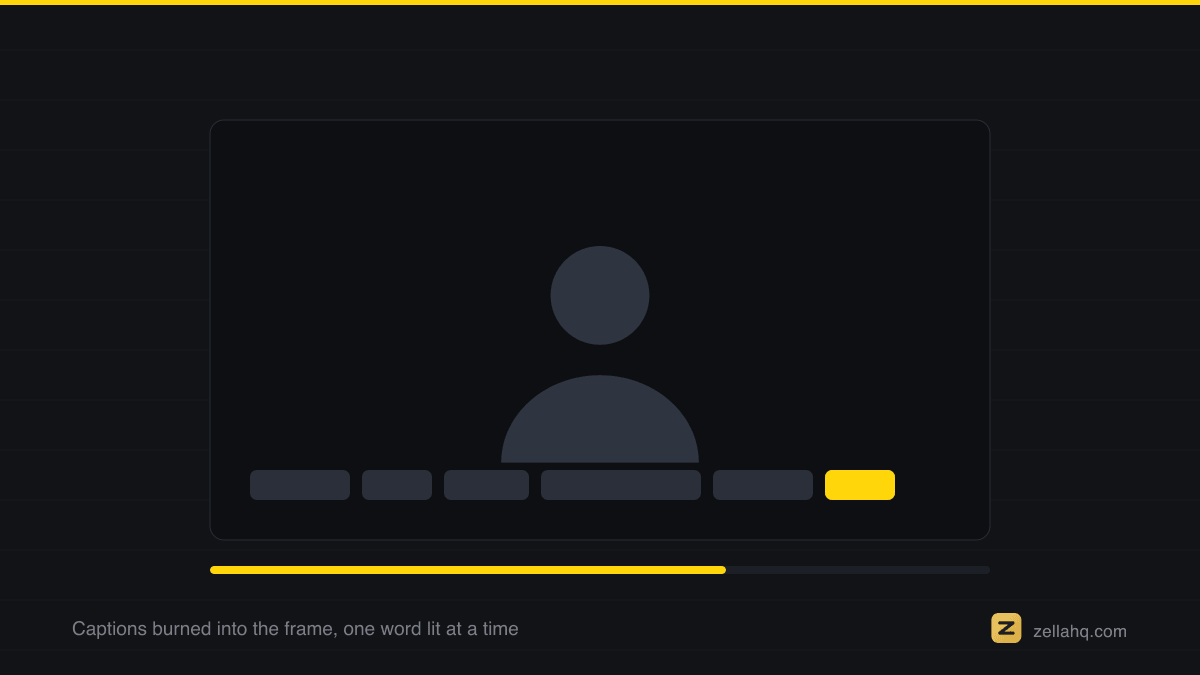
- Pick a preset. Zella ships 9 caption presets with an active-word highlight - the current word pops as you speak, which is what makes captions feel alive instead of static.
- Restyle to taste - font, size, color, and position.
- Export with the captions burned in, or hand off to the Mac to finish.
See the full iOS captions and titles guide for every option.
Why on-device transcription is better
Most caption apps upload your audio to a server to transcribe it. That is slower (you wait on an upload and a queue) and it means your voice - which might be client work, an unreleased product pitch, or something private - sits on someone else's machine. Zella runs the transcription on the phone's Neural Engine, so it works offline and nothing is uploaded. That is the honest privacy edge.
Why captions get cut off, and where to put them instead
On a 1080 x 1920 vertical post, the platform draws its own interface over your video: the account name, the description and the sound credit sit along the bottom, and the like, comment and share buttons run up the right edge. Anything you place there is covered on the platform even though it looked perfect in the editor.
Two rules that fix it permanently:
- Keep captions in the middle-lower third, not at the very bottom edge.
- Keep them clear of the right-hand strip where the action buttons live.
The reliable test is to export once, upload it as a private or draft post, and look at it inside the app before you publish. Editors preview a clean rectangle; the feed does not.
Style tips that make captions convert
- Keep them big and centered-lower. Small captions at the very bottom get cut off by platform UI.
- One or two lines at a time. Walls of text lose people.
- Use an active-word highlight so the eye tracks the current word.
- High contrast. A subtle stroke or background plate keeps text readable over any footage.
- Match the vibe. A punchy PopBox style suits fast social clips; a clean style suits tutorials.
Translate the captions without uploading anything
On iPhone, Zella translates a finished caption track into 19 languages entirely on-device, through Apple Translation. It needs iOS 18 or later, and the language has to be downloaded to the phone first - do that on wifi, and the translation itself then works with no connection at all.
That matters more than it sounds for reach: the same take, captioned in a second language, is a second post rather than a second shoot.
Frequently asked questions
Can I add automatic captions to a video on iPhone for free? Yes. Zella's free tier generates on-device captions (free exports are watermark-free, up to 2 minutes). Zella for iPhone is available on the App Store; the Mac app ships on the Mac App Store today. One Pro purchase lifts the length cap, adds 4K, and covers both.
How accurate are auto-generated captions? Very good on clear audio, but always skim the transcript. A word editor lets you fix names and jargon in seconds without re-timing anything.
Can I add captions without uploading my video? Yes, with an on-device app. See how to add subtitles to a video on iPhone without internet.
How do I add captions to a TikTok made on iPhone? Burn them in before you post so they look the same everywhere and match your style - see how to make a TikTok on iPhone.
Can I export the captions as an SRT file? Zella imports SRT, and you can also burn captions directly into the video for platforms that do not read subtitle files.
Make your next video with Zella.
Record, edit and ship on Mac and iPhone - local, private, free to start.
PART OF A SERIES
Automatic captions
On-device transcription, on both apps, with nothing uploaded.
- How to Automatically Caption a Video on Mac
- How to Add Captions to a Video on iPhone (Automatic)you are here
- How to Add Captions to a Screen Recording, No Upload
- How to Add Subtitles to a Video on iPhone Without Internet
All of it lives under Captions & Callouts.
RELATED